Enable External Address Information Data Retrieval
Agencies can now enable direct integration with external GIS sources. The external address information feature allows Permitting and Licensing to connect directly to authoritative GIS platforms such as ESRI S3 for real-time property data retrieval. Users and system processes can now search for property information specifically by address rather than running broad, resource-intensive searches across multiple datasets. By narrowing searches to a single data layer at a time, the feature significantly reduces retrieval times and system load, improving both the end-user experience and back-end efficiency. Supplemental property information (such as parcel district details) is retrieved in the background after the initial selection, further enhancing speed and responsiveness.
This feature enables real-time consumption of address data directly from GIS, eliminating the need for periodic data loads.
Steps to enable and configure
To enable this feature you must enable agency options, configure attribute mappings, and configure GIS to reference address attributes. Complete the steps below and use the key resource links for details.
Enable Agency Options
- Navigate to the Agency page, and select your agency.
- On the Agency options page, scroll to the Property section.
- Enable the Identify and import the property information using GIS option.
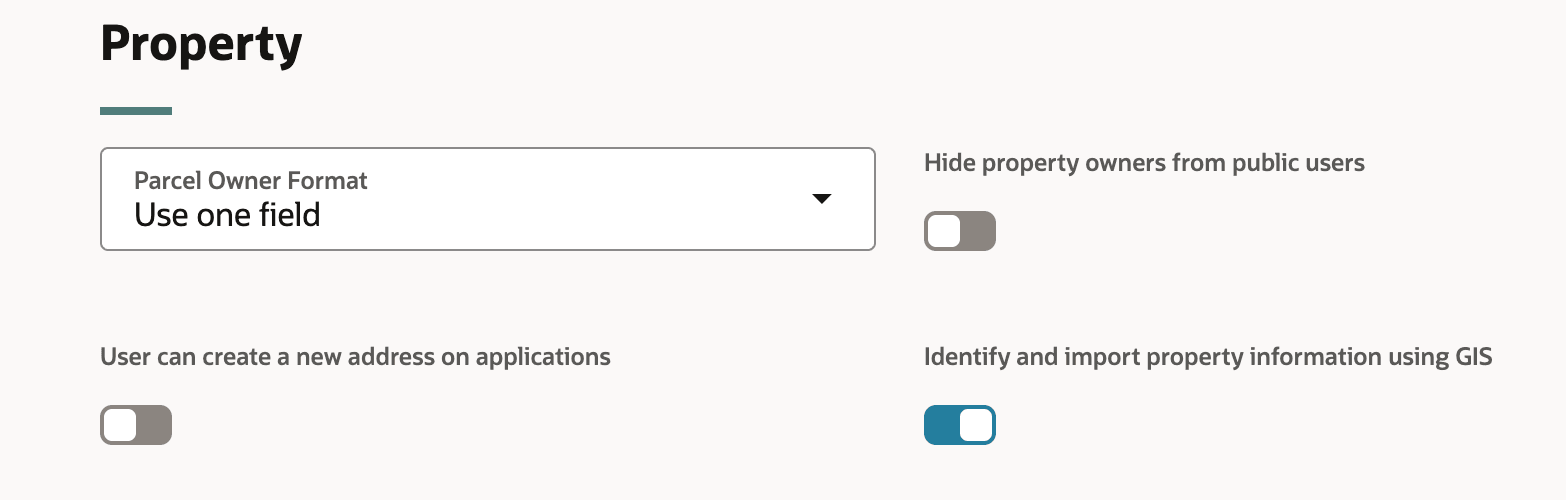
Property section, Agency Options tab
See Implementing Your Agency, "Setting Up Your Agency," Setting Up Agencies on the Oracle Help Center for details.
Configure Attribute Mappings
- Navigate to the GIS Attribute Mapping page.
- Click on the Property Location tab.
- Enter the appropriate information, click Save.
- Click the Map Layer Content tab.
- Click the Add button.
- Define the map service.
- Click Add to define the map service layer and the attribute information.
- Click Save.
See Implementing Your Cloud Integrations, "Setting Up GIS," Setting Up GIS Attribute Mapping on the Oracle Help center for details.
Configure GIS to Reference Address Attributes
- Navigate to the Manage Transaction to GIS Attributes Mappings page.
- On the Transaction to GIS Attributes Mappings page, click the Add button.
- On the New transaction to GIS attributes mapping drawer, complete the information.
- Click Save.
See Implementing Your Cloud Integrations, "Setting Up GIS," Setting Up Transaction to GIS Attributes Mapping on the Oracle Help Center for details.
Tips and considerations
In this release, this feature is only available for Permits and Planning and Zoning offerings. It is not available for Business License or Code Enforcement in 26A.
The external property information search is available only for the address field. Mapping the property information for the Address1 attribute with the correct GIS attribute that has concatenated all required address values is how the search will work property.
Key resources
- See Implementing Your Agency, "Setting Up Your Agency," Setting Up Agencies on the Oracle Help Center
- See Implementing Your Cloud Integrations, "Setting Up GIS," Setting Up GIS Attribute Mapping on the Oracle Help center.
- See Implementing Your Cloud Integrations, "Setting Up GIS," Setting Up Transaction to GIS Attributes Mapping on the Oracle Help Center