Embed AI Agents in Transaction Pages for Agency Staff
Agencies can integrate configurable AI-powered Assist buttons directly into a variety of pages including transaction list and details, address list and details, and other pages. Agency staff can access context-aware AI assistance within their workflow, allowing them to ask questions or receive guidance without leaving the application. This feature also introduces dynamic container sections on various pages, enabling agencies to easily rearrange, extend, or add their own components—including additional AI buttons—using Oracle Visual Builder Studio.
You can enable AI Assist by offering, and further by page to show or hide the AI Assist button. If you enable AI Assist for your offering, you can then drill into the pages and tabs and associate the AI Assist buttons with various AI-powered agents. The following pages have AI Assist buttons already embedded, that are available once you have enabled the feature and associated the button with an agent on the page:
- Address List and Details
- Parcel List and Details
- Business List and Details
- Contractor List and Details
This gives you a more extensible, efficient, and intelligent agency user experience.
Steps to enable and configure
The ability to utilize AI functionality within Oracle Permitting and Licensing is delivered enabled with 26A. To enable the AI Assist button and associate AI Agents on extensible pages, you must complete the following steps:
Note: You must have a published AI agent fro Oracle AI Agent Studio to associate with the AI Agent button.
- Create an agent from the preconfigure agent team templates in AI Agent studio. See How do I use AI Agent Studio? on the Oracle Help Center.
- To enable the AI Assist button, navigate to the page you wish to enable the button on.
- Click on the Pencil icon next to the Ask Oracle icon on the bottom right corner.
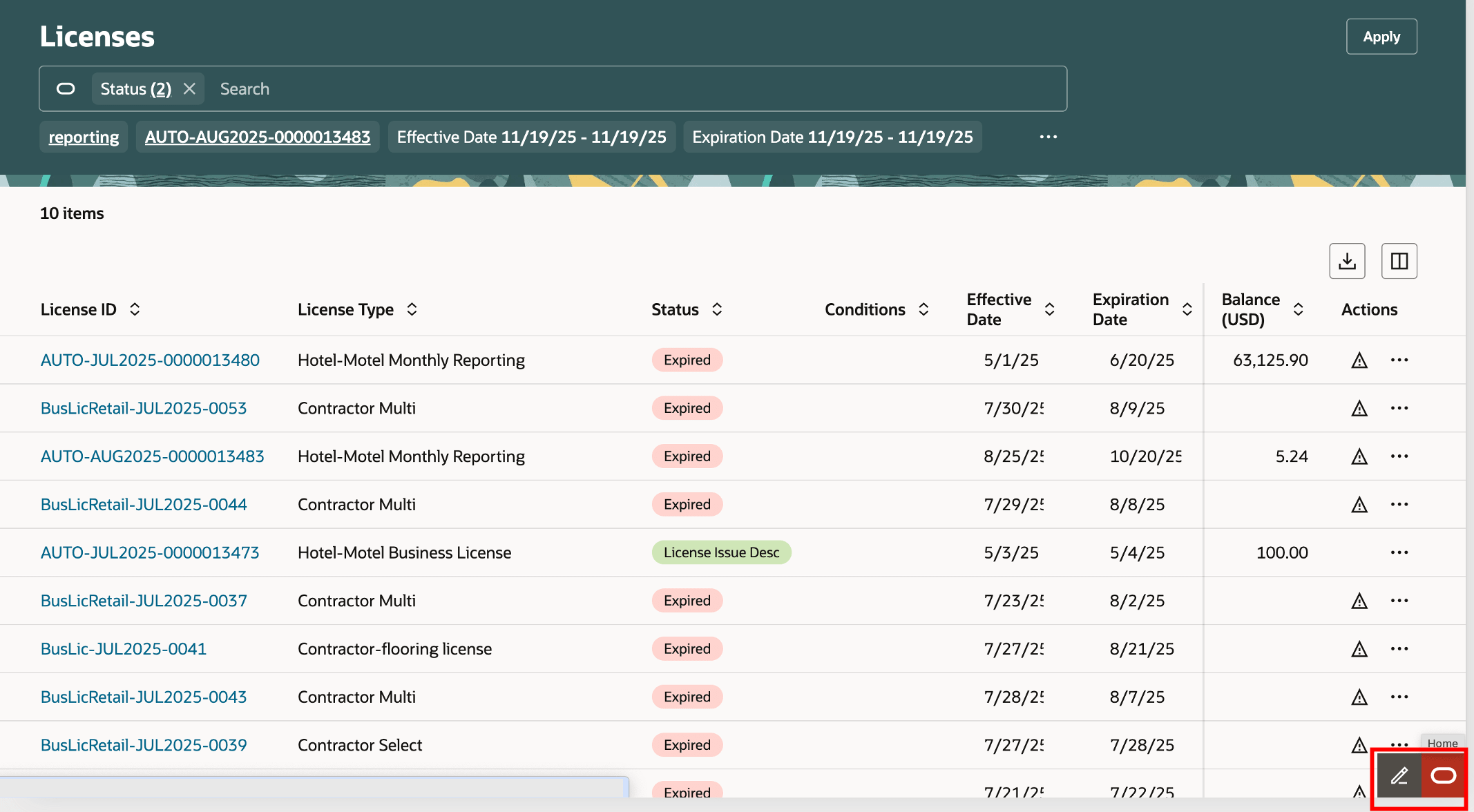
Extensibility icon
- This opens Visual Builder Studio. Use the agent team code, from step 1, to associate the agent with the AI Assist button.
- Click Publish.
Contractor List and Details Page
To enable AI Assist for Contractor List and Details, you must also enable Redwood Experience for Contractor List and Details as outlined in this documentation.
You can disable AI functionality for each offering by turning it off by offering in Function Setup Manager.
- Navigate to Setup and Maintenance > Offering: Any > Change Feature Opt In.
- In the <Offering> row, select the pencil icon in the Features column.
- Clear the row for "Enable AI Functionality for <Offering>".
- Click Done.
Key resources
- See Using Business Licenses, "Managing License Application Details", Managing License Applications on the Oracle Help Center.
- See Implementing Your Cloud Integrations, "Implementing AI Agents," Integrating with AI Agents on the Oracle Help Center.