AI Summarization of Inspection Comments
New functionality for permit and business license inspections adds an on-demand, AI-generated checklist result summary to the Inspection Result page in the Inspector Application. It consolidates inspection data, checklist and checklist item outcomes, and all related comments into a concise narrative.
The summary highlights major violations, failed items, and—when reference entities are used for permits—the impacted entities (for example, specific building floors) as indicated in comments. Inspectors can optionally save the generated summary as an editable inspection comment.
This example illustrates the AI option to generate a checklist result summary and after generating the result summary, copying to an inspection comment.
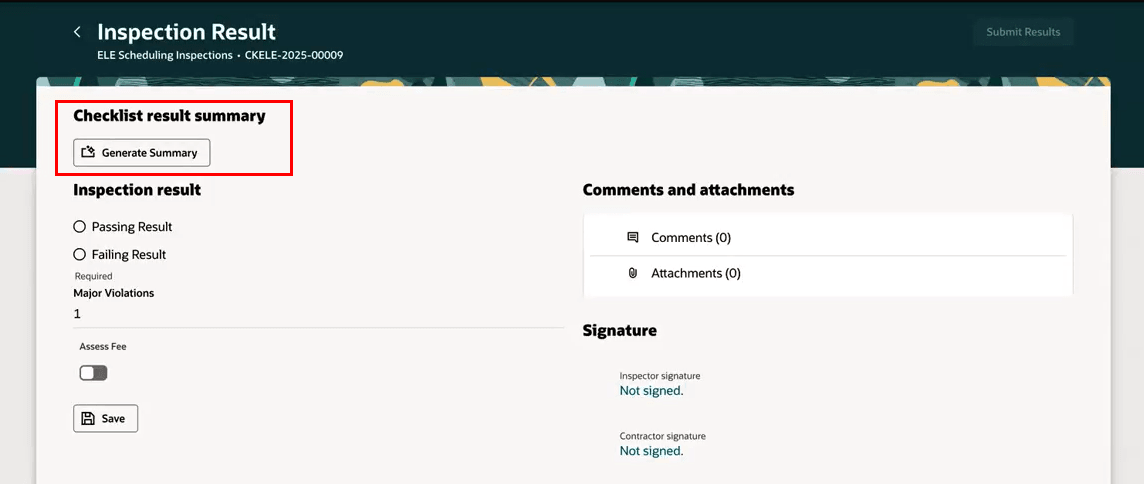
Inspection Result Page - Generate Summary Button
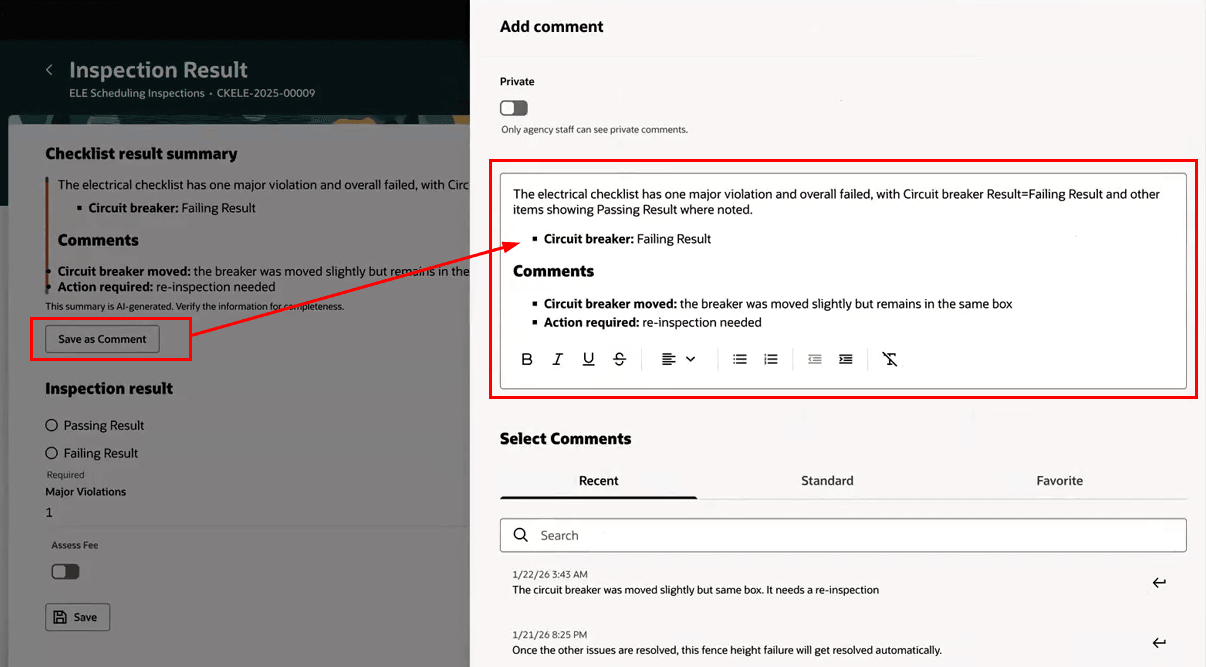
Adding Generated Result Summary to the Inspection Comments
Reduces time spent manually reviewing and reconciling checklist results and comments, and improves consistency and clarity of inspection documentation (especially for multi-reference entity inspections).
Steps to enable and configure
This AI Agent is a runnable agent and will be enabled by default if you have the FSM option enabled for AI functionality for Permits or Business Licenses and you have the proper security set up as outlined below.
To enable the FSM option:
- Navigate to Setup and Maintenance of Offerings > Offering: Permits or Business Licenses > Change Feature Opt In.
- Click the pencil icon in the Features column in the Public Sector Permits or Public Sector Business License row.
- In the "Enable AI Functionality for Permits" or "Enable AI Functionality for Business Licenses" row select the checkbox in the Enable column.
- Click Done.
This enables AI functionality within the entire offering. If you want this inspections feature functionality in both Permits and Business Licenses you must enable this in both offerings.
To set up security:
- Set up the correct security for the AI Agents as outlined in How do I use AI Agent Studio?, "Access Requirements for AI Agent Studio", Provide Access to Configure AI Agents in Oracle Permitting and Licensing on the Oracle Help Center.
- Manually add the duty role ORA_DR_PSC_INSPECTIONS_AI_ASSISTANT_DUTY to the Roles and Permission groups of both CUSTOM_PSC_MANAGE_PERMITS_AGENCY and CUSTOM_PSC_MANAGE_BL_AGENCY.
Tips and considerations
The Checklist result summary on the Inspection Result page is only available if the inspection type has checklists and AI functionality for Permits and Business Licenses is enabled at the agency level.
Access is intended for users with inspection roles, including Inspector, Inspector Supervisor, BL Inspector, and BL Inspector Supervisor.
The AI-generated summary of checklist results should be verified for correctness by inspectors.
Note. All AI agents are only available in the Redwood Experience and cannot be run on classic pages.
Key resources
- See Using Community Development Permits and Using Business Licenses, "Using the Inspector Application," Submitting Inspection Results on the Oracle Help Center.
- See How do I use AI Agent Studio? "Access Requirements for AI Agent Studio", Provide Access to Configure AI Agents in Oracle Permitting and Licensing on the Oracle Help Center.
Access requirements
Access is intended for users with inspection roles, including Inspector, Inspector Supervisor, BL Inspector, and BL Inspector Supervisor.