Map Enhancements in the Redwood Experience
On the Explore Your City or main map, the map widgets toolbars are now displayed on the bottom right:
- The vertical toolbar displays the widgets based on the Map Profile setup.
- The horizontal toolbar is secondary and displays widgets based on the Select on Map or Sketch options.
When a user selects a map widget (such as Switch Map Profile, Base Map, or Select Layers), the respective pop-up is displayed to the left of the toolbar. The widget on the toolbar is a toggle: When it is selected again, the pop-up closes. If you select another widget while the pop-up for a widget is displayed, the previous options are closed and the pop-up for the selected widget appears.
This example illustrates a permit application's property map with the sketch widget selected:
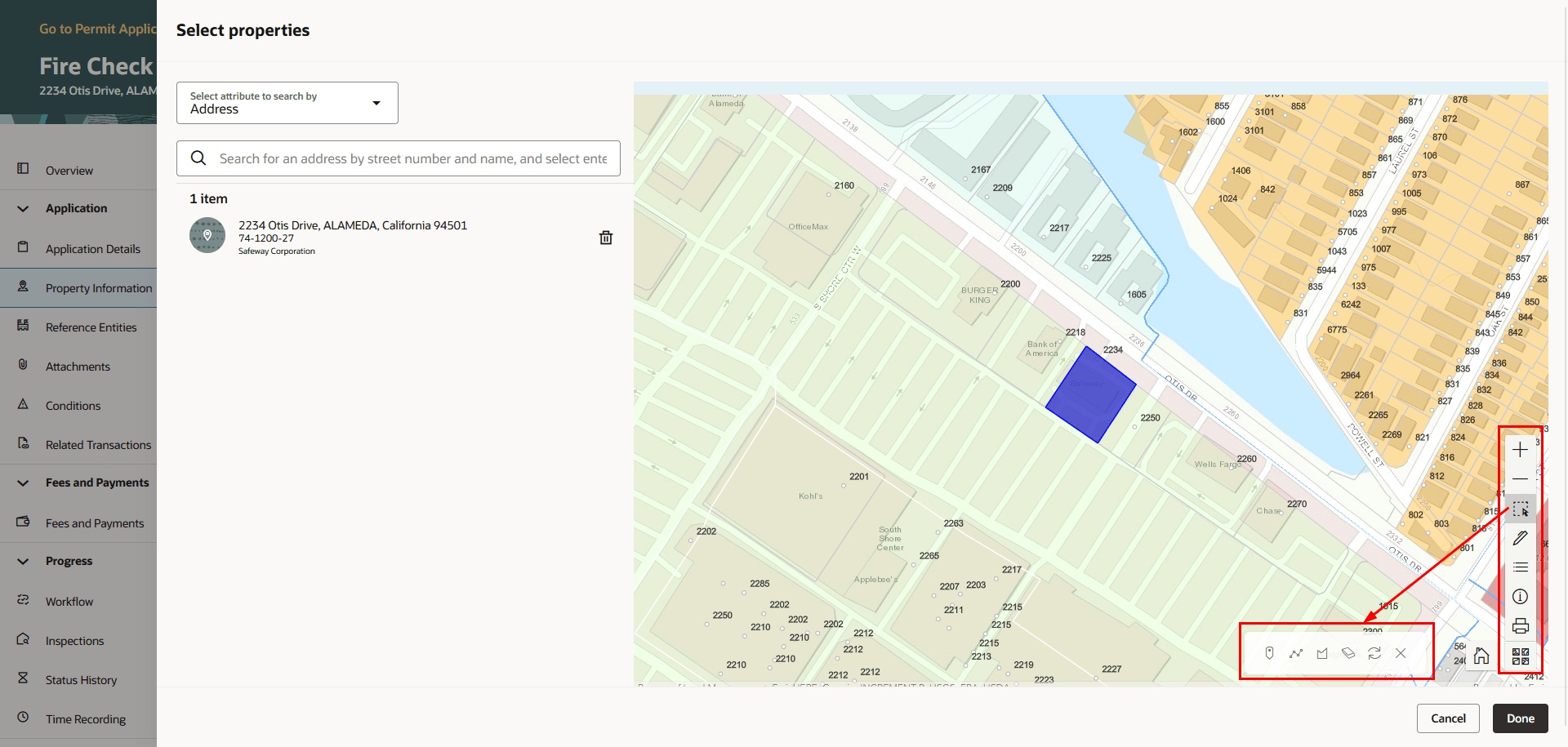
Property Map Displayed with Toolbar and Map Widgets
This allows for easier navigation while using the map.
Steps to enable and configure
You don't need to do anything to enable this feature.
Tips and considerations
When setting up map profiles, configure map-specific options: Turn on Enable Selection Tools and Enable Sketch.
Transactions that are missing shape or geometry information can’t be displayed on the map. Oracle recommends that your agency run the Update Shape on Transactions process after migrating transactions from the legacy system and after restarting the GIS servers due to maintenance.
For more information about viewing transactions on maps, see Using Community Development Permits, "Working with Maps," Using the Main Map and Explore Your City Map.
For more information about running processes, see Using Community Development Permits, "Working with Processes," Using the Process Monitor.
Key resources
See Implementing Your Cloud Integrations, "Setting Up GIS," Setting Up Map Profiles on the Oracle Help Center.