Revenue Code Fields for Fee Percentage Allocation
Agency users can now make revenue allocation by defining up to four unique revenue codes with customizable percentage splits for each fee item. When a new fee Item is added, the drawer displays the Revenue code details section. The fields in this section allow users to specify the revenue codes and assign a percentage allocation to each.
This example illustrates a Fee Item page with the New fee item drawer displaying the Revenue code details section.
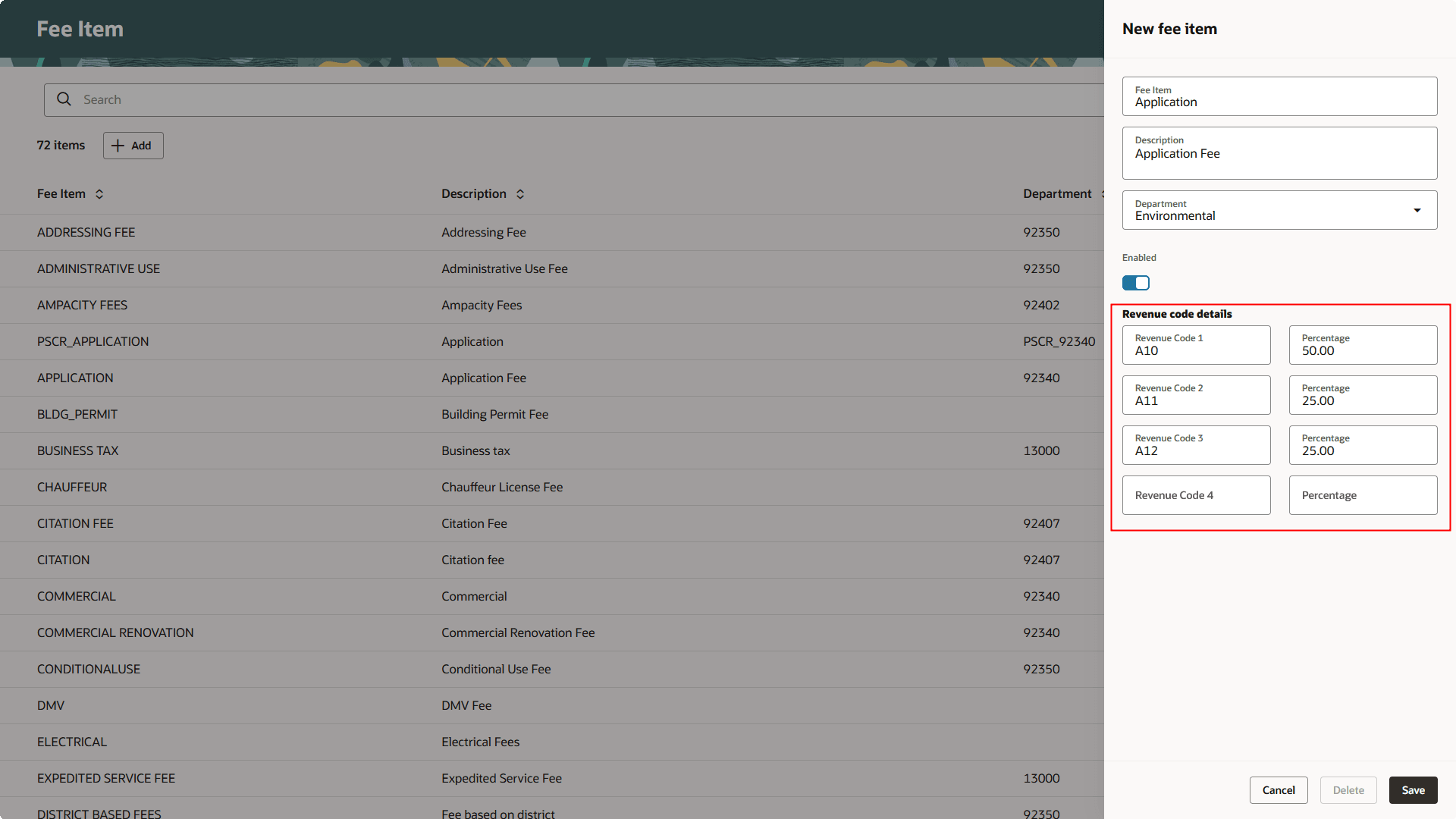
Fee Item Page
Allows customers to use multiple account code fields for per fee item that can then split a payment of the fee to allocate to different accounts.
Steps to enable and configure
To enable this feature:
- First you must disable both accounting framework options in FSM:
- Navigate to Setup and Maintenance of Offerings > Offering: Any > Change Feature Opt In.
- In the Accounting row, click the pencil icon in the Features column.
- Click the pencil icon in the Accounting Framework Option.
- Clear the checkboxes for both Financials Cloud Subledger Accounting and Financials Cloud Accounting.
- Click Done.
- Navigate to Setup and Maintenance of Offerings > Any Offering > Functional Area: Fees and Payments > Task: Manage Fee Items > Fee Item page.
- Select the Add button to create a new fee item. The New fee item drawer opens.
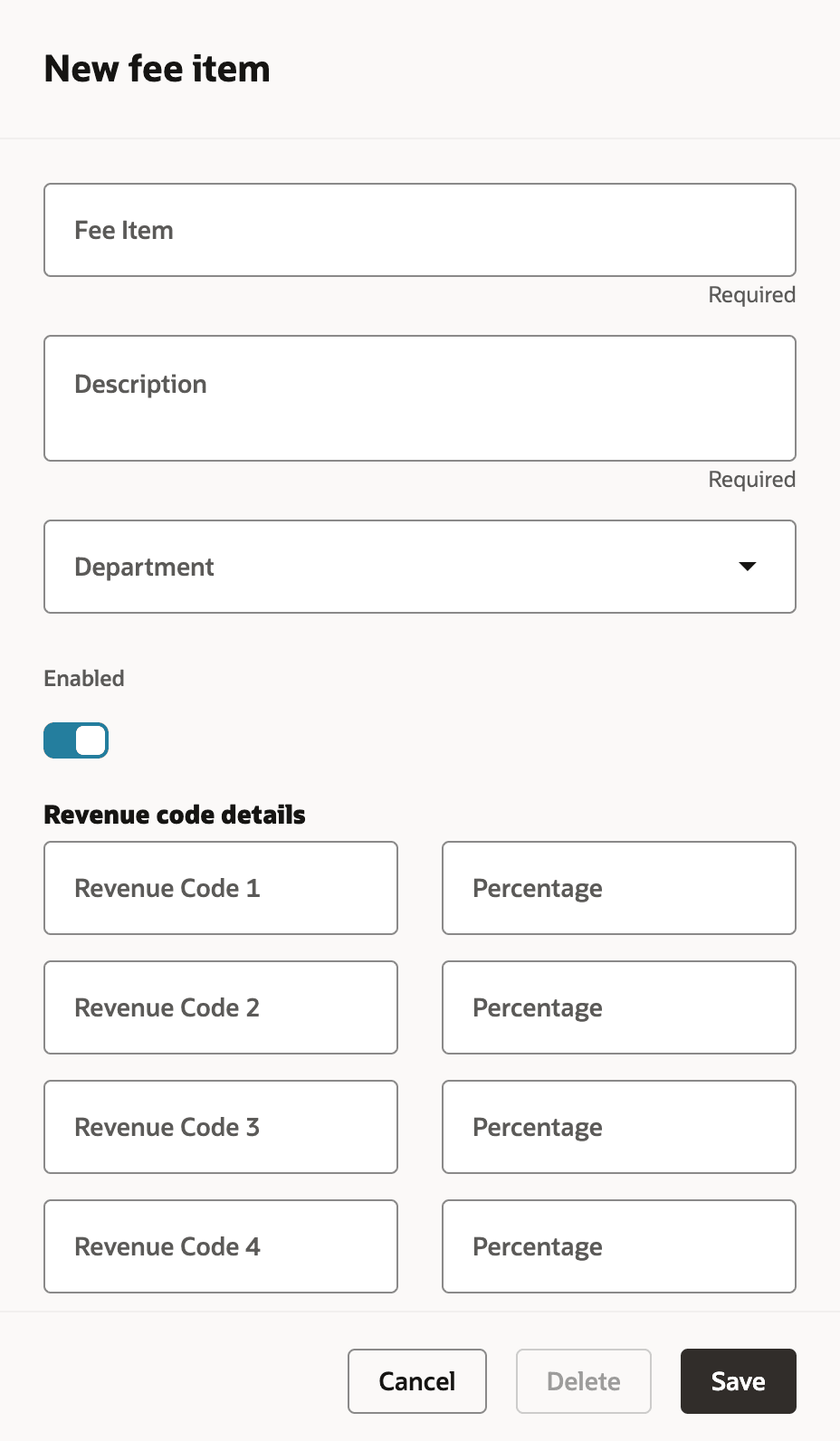
Fee Item Drawer
- Enter the information for the Fee Item and the new Revenue code details and percentage pairs. You can configure up to four.
- Select Save.
- You can also select an existing fee item from the Fee Item page.
- Click on an existing fee item row. The Fee item details drawer opens.
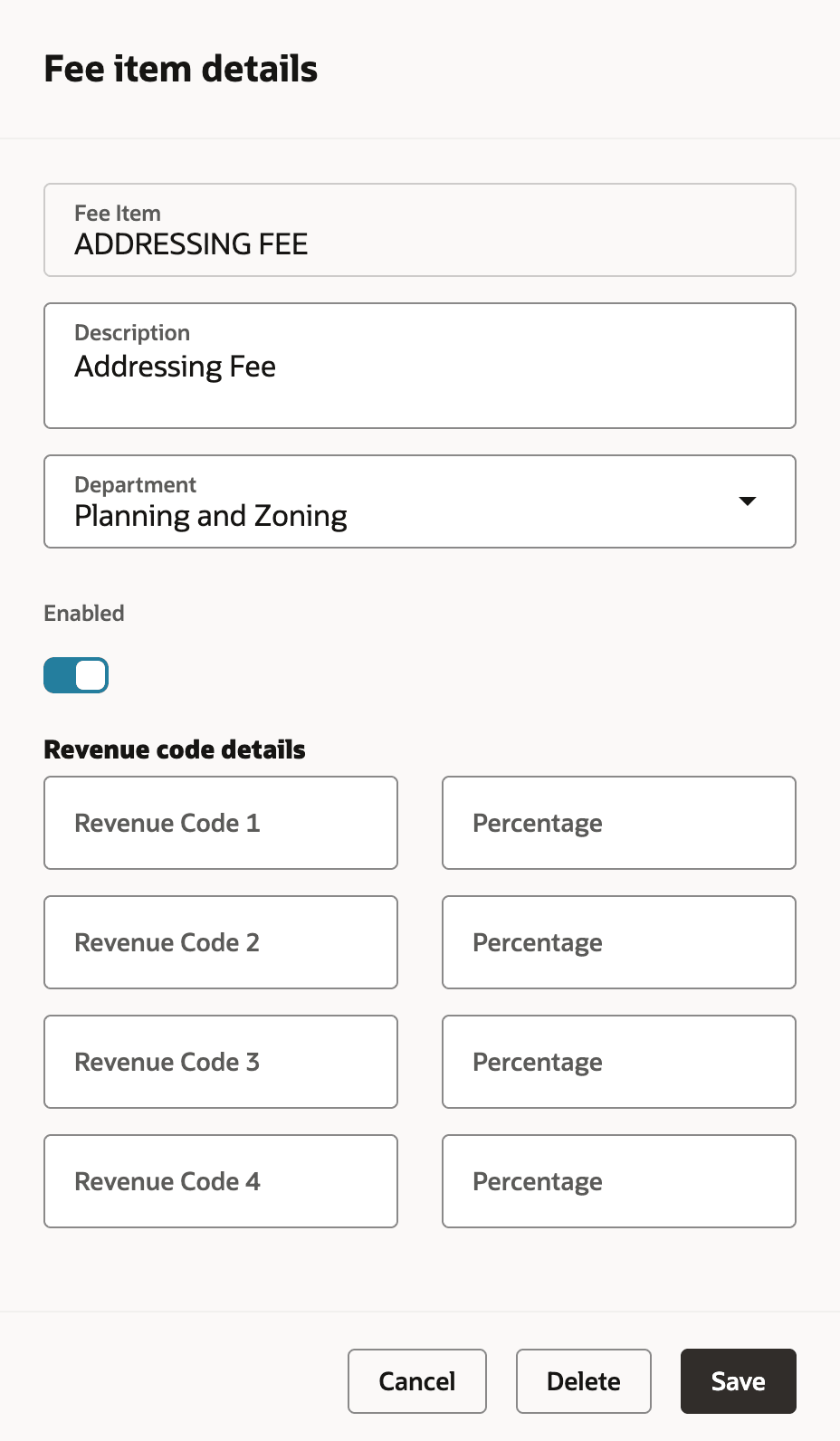
Existing Fee Item Drawer
- You can update the Revenue code details and percentage pairs.
Tips and considerations
This feature is for third party payment systems (such as Teller) to create accounting entries as revenue codes will be passed along with the fee records for centralized revenue tracking.
Configure fee items with allocation accounts and percentages, if you create accounting entries for Permitting and Licensing fees outside of Oracle.
Key resources
See Implementing Your Financial Framework, "Setting Up Fees", Setting Up Fee Items on the Oracle Help Center.