Required Attachments for License Type or Activity
Agencies can now configure separate required attachment groups for Business License origination, renewal, and amendment activities. When a Business License transaction reaches a configured application step, the system applies the document group associated with the current activity and enforces the required document categories or category and subcategory pairs before the user can proceed. This enhancement extends the existing Required Documents capability to support more granular Business License document requirements across the full license lifecycle.
When a Business License transaction reaches a configured required-document step, the system determines the transaction activity and applies the matching document group.
- If the activity is Origination, the system validates against the Origination Document Group.
- If the activity is Renewal, the system validates against the Renewal Document Group.
- If the activity is Amendment, the system validates against the Amendment Document Group.
If required attachments are missing, the system prevents the user from proceeding at the configured step. For example, if documents are required before final inspection, the system applies the document group for the current Business License activity before allowing the final inspection process to proceed.
The Required Documents section appears on the application intake form and on the Attachments page after submittal when required documents are configured. Agency staff with the appropriate permissions can manage document requirements on the application, including adding or deleting requirements and viewing override history.
This example illustrates new Document Group setup with groups for origination, renewal, and amendment activities identified on the business license application type:
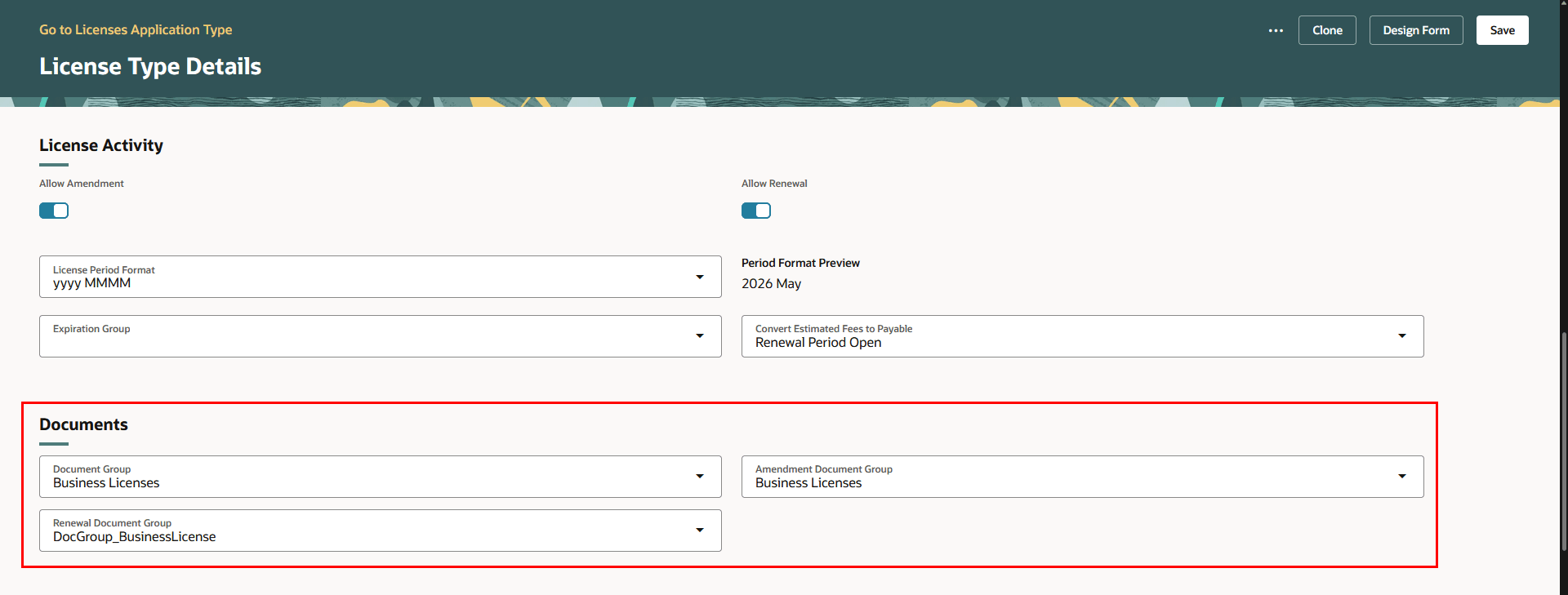
License Type Details Page with Document Groups for Business License Activity
This example illustrates a required attachment for a business license application, which hasn't been uploaded yet but is due before the activity is complete:
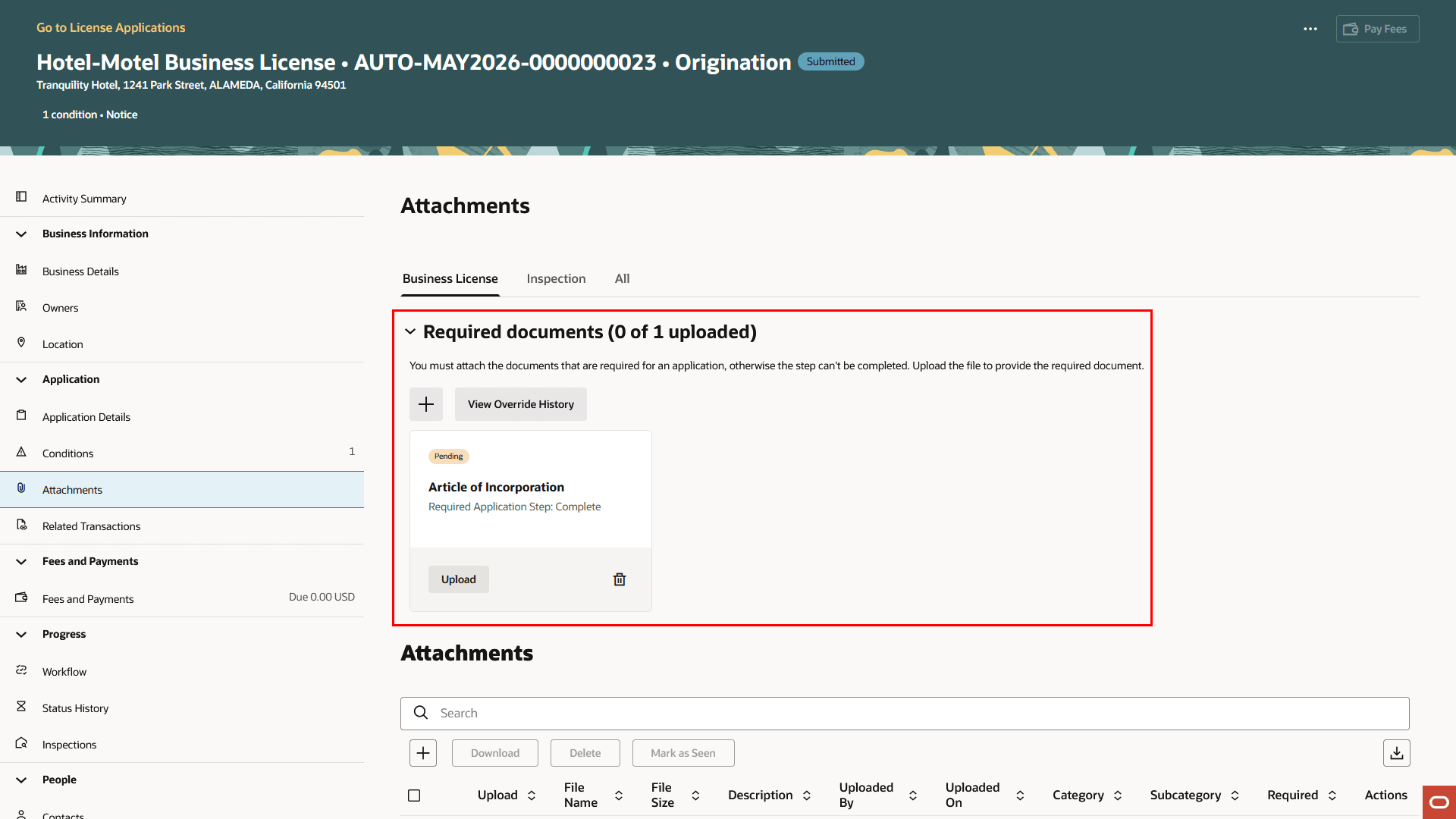
Example of Required Document for Business License Origination Activity
Business Benefit: This can allow agencies to enforce document requirements at a granular level of the business license process.
Steps to enable and configure
In Permitting and Licensing 22D, required documents was released. You can configure required documents through Document Category and Subcategory setup. Once they are setup they are placed in a document group used on the Business License set up pages. Once this is set up, users will get an error message if they try to submit an application or transaction that requires a document that is not present.
To set up required documents (as delivered in 22D):
- Navigate to Setup and Maintenance of Offerings > Offering: Business Licenses > Agency Profile > Manage Document Category and Subcategories.
- For each transaction type of Business License create the document category and subsequent subcategories that you need. Here you can set the "Required Document Application Step". See Implementing Your Agency, "Setting Up Documents", Setting Up Document Categories and Subcategories.
- Once your categories and subcategories are created, add them to the document group. See Implementing Your Agency, "Setting Up Documents", Setting Up Document Groups.
- Once added to the document group, link that document group to the permit, planning or business license types you need. See Implementing Permitting and Licensing, "Setting up Business Licenses", Setting Up Business License Types.
- Once documents are required by transaction type, For example, if a document is required when the user clicks Submit, an error is shown.
- You need to update your workflow tasks that prompt for Required Documents.
- During application acceptance, set the workflow task custom property PSC_ACTIVITY_TYPE to "Accept Application" and PSC_FINAL_ACTIVITY to "No". See Implementing Permitting and Licensing,"Implementing Business Rules Framework", Setting Up Update Workflow Actions" on the Oracle Help Center.
- During application issue, set the workflow task custom property PSC_ACTIVITY_TYPE to "Issue" and PSC_FINAL_ACTIVITY to "No". See Implementing Permitting and Licensing, "Implementing Business Rules Framework", Setting Up Updated Workflow Action" on the Oracle Help Center.
If you are using workflow communications, you need to set up communication templates for the following Business Rules Framework events:
- Business License Missing Document
To set up workflow communications:
- Navigate to Business Rules Framework.
- Select Offering > Business Licenses.
- Select Business License Missing Document event.
- Set up the business rule event details with a Communication action. See Implementing Permitting and Licensing, "Implementing the Business Rules Framework".
Tips and considerations
Agency needs to configure the license activity to reflect the types of document requirements and the step in the workflow they are required.
Key resources
- See Implementing Your Agency, "Setting Up Documents," Setting Up Required Documents on the Oracle Help Center.
- See Implementing Permitting and Licensing, "Setting Up Business Licenses," Setting Up Business License Types on the Oracle Help Center.
- See Using Business Licenses, "Managing License Application Details," Working with Required Documents on the Oracle Help Center.