AI Agent: Inspection History Summary
Inspectors can now use an AI-generated inspection history summary when performing reinspections in the Inspector Application. For reinspections of failed inspections, click the Previous inspection link to open the Inspection history drawer.
When AI is enabled and a reinspection is scheduled after a failed inspection, the inspection history agent generates and saves a summary of the prior failed inspection history. Inspectors can open the Inspection history drawer to review failed checklist items, relevant comments, and previous failed inspection information. If there is more than one prior completed failed inspection, the drawer can also include an overall summary that identifies recurring issues across the previous failed inspections. The summary is saved when the reinspection is scheduled, so it appears immediately when the inspector opens the Inspection history drawer and isn’t regenerated each time the drawer is opened.
This helps inspectors quickly understand what previously failed and focus their review on unresolved or repeated issues during the reinspection.
The agent uses inspection data from prior completed failed inspections, including:
- Inspection result and completed inspection date
- Inspection-level comments
- Checklist results and checklist-level comments
- Failed checklist item results and comments
- Major violation information, when available
The agent is designed to show failing results only and doesn’t include passing information.
If AI isn’t enabled, the standard inspection history drawer remains available. In the non-AI drawer, each inspection listed in the history displays summary information, including the inspection number, inspection type, inspector, location contact, and inspection-level comments. Checklist-level comments and checklist item comments aren’t included in the non-AI drawer, but they can be used by the AI-generated inspection history summary when AI is enabled.
Business Benefit: This agent allows inspectors to view the past history of failed inspections upon a re-inspection.
Steps to enable and configure
This AI Agent is a runnable agent and by default it is enabled if you have the FSM option enabled for AI functionality for Permits or Business Licenses.
To use the agent:
- You must use the Redwood version of Inspector Application.
- AI functionality must be enabled for your offering and security must be setup.
- The inspection must be created through the reinspection workflow.
- There must be at least 1 prior completed failed inspection for the inspection-specific history summary to appear.
- There must be more than 1 prior completed failed inspection for the overall history summary to appear.
Enable AI Agents in FSM
To enable the FSM option:
- Navigate to Setup and Maintenance > Offering: Permits or Business Licenses > Change Feature Opt In.
- Click the pencil icon in the Features column in the Public Sector Permits or Public Sector Business License row.
- In the "Enable AI Functionality for Permits (Business Licenses)" row select the checkbox in the Enable column.
- Click Done.
Set up Security
For runnable agents, you need to set up security to ensure that your users can explore and interact with the agents.
- Ensure you have set up the correct security for AI Agents as outlined in How do I use AI Agent Studio? , "Access Requirements for AI Agent Studio", Provide Access to Configure AI Agents in Oracle Permitting and Licensing on the Oracle Help Center. This includes the Profile Option ORA_HCM_VBCS_PWA_ENABLED is set to Y.
- In the Security Console, create a new custom role. [CUSTOM_PSC_AI_AGENT_END_USER_CUSTOM_ROLE].
- Give this role a meaningful name such as PSC AI Agent End User Custom Role.
- Choose Role Category Financials - Job Role.
- In the "Basic Information" section, check Enable Permission Groups.
- In the "Function Security Policies" section, click on Add Function Security Policy and add the following privilege:
- Access Intelligent Agent Chat (HRC_ACCESS_AI_AGENT_CHAT_PRIV)
- In the "Data security policy" section, create a new "Data Security Policy" with the following information:
- Enter the Policy Name as "Grant on AI Agent Workflow" and Data Resource as AI Agent Workflow.
- Select Data Set to ”Select by Instance set".
- Condition Name – Access…
- Parameter as “PSC”
- Select the Actions as "View AI Agent Workflow".
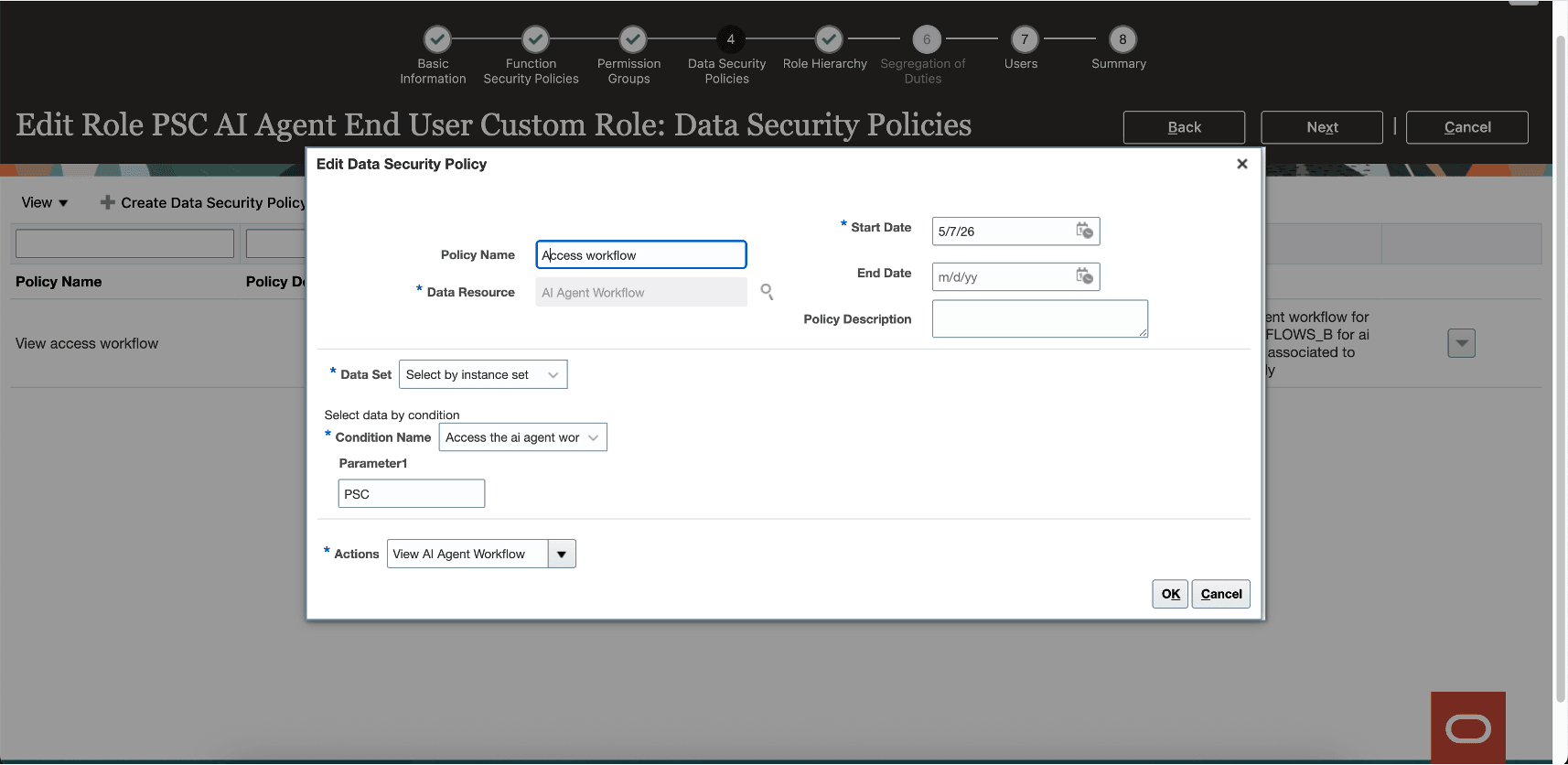
Data Security Policy
- Create new Data Security Policy for Data Resource: AI Agent, AI Agent Tool , AI Business Object , Deep Link using the steps above.
- In the "Role Hierarchy" section, click on the Roles and Permission Groups tab. Add the following duty role:
- Fai Genai Agent Runtime Duty (ORA_DR_FAI_GENERATIVE_AI_AGENT_RUNTIME_DUTY).
- Save the custom role.
- Make sure following roles have the newly created custom role assigned
- CUSTOM_PSC_MANAGE_PERMITS_AGENCY (Permit Agency)
- CUSTOM_PSC_MANAGE_PNZ_AGENCY (Planning Agency)
- CUSTOM_PSC_MANAGE_BL_AGENCY (Bl Agency)
- CUSTOM_PSC_MANAGE_CE_AGENCY (CE Agency)
- CUSTOM_PSC_REGISTERED_PUBLIC_USER (RPU)
- Run Security Sync process.
Tips and considerations
For inspections that use scoring, the score itself isn’t summarized; the agent relies on the underlying checklist or checklist item result, such as failed.
Keep these points in mind when reviewing AI-generated inspection history summaries:
- The summary applies to prior completed failed inspections; the current inspection isn’t included in the prior inspection history summary.
- Attachments aren’t summarized.
- Passed checklist items aren’t included in the failed inspection history summary.
- Reference entity details are summarized only when those details are included in the underlying inspection, checklist, or checklist item comments.
- The generated summary is not available offline.
The generated summary should be reviewed for accuracy before relying on it for inspection decisions.
Note: The inspection summary won't be generated for the reinspections that were created prior to 26C.
Key resources
-
See Using Community Development Permits and Using Business Licenses, "Using the Inspector Application", Submitting Inspection Results and Reviewing Inspection History (New) on the Oracle Help Center.
-
See How do I use AI Agent Studio? , "Access Requirements for AI Agent Studio", Provide Access to Configure AI Agents in Oracle Permitting and Licensing on the Oracle Help Center
-
See Implementing Your Cloud Integrations, "Implementing AI Agents", on the Oracle Help Center.
Access requirements
Assign duty role ORA_DR_PSC_INSPECTIONS_AI_ASSISTANT_DUTY — PSC Access Inspection AI Agents — to the Roles and Permission Groups of:
- CUSTOM_PSC_MANAGE_PERMITS_AGENCY
- CUSTOM_PSC_MANAGE_BL_AGENCY
This enables access to the Inspection AI runnable agents in the Inspector Application. This applies to runnable workflow ORA_PSC_INSPECTION_PRIOR_HISTORY.