AI Agent: Ad hoc Message Communication Generator
The Ad Hoc Message Communication Generator agent enables agency staff to automate ad hoc emails and notifications, improving efficiency and creating professional, informative communications.
The AI Assist button is now available on the New ad hoc message page for all offerings:
- Permits
- Planning and Zoning
- Business License
- Business Location
- Cases
- Incidents
Agency staff can enter some event-specific prompt information in the message body, click the AI Assist button, and get AI-generated text.
Here’s an example of a prompt: “Write an email to the applicant that their permit is being processed. Include the permit type, permit number, and application number. Let the applicant know who the permit has been assigned to, and that this person will follow up if additional information is required.”
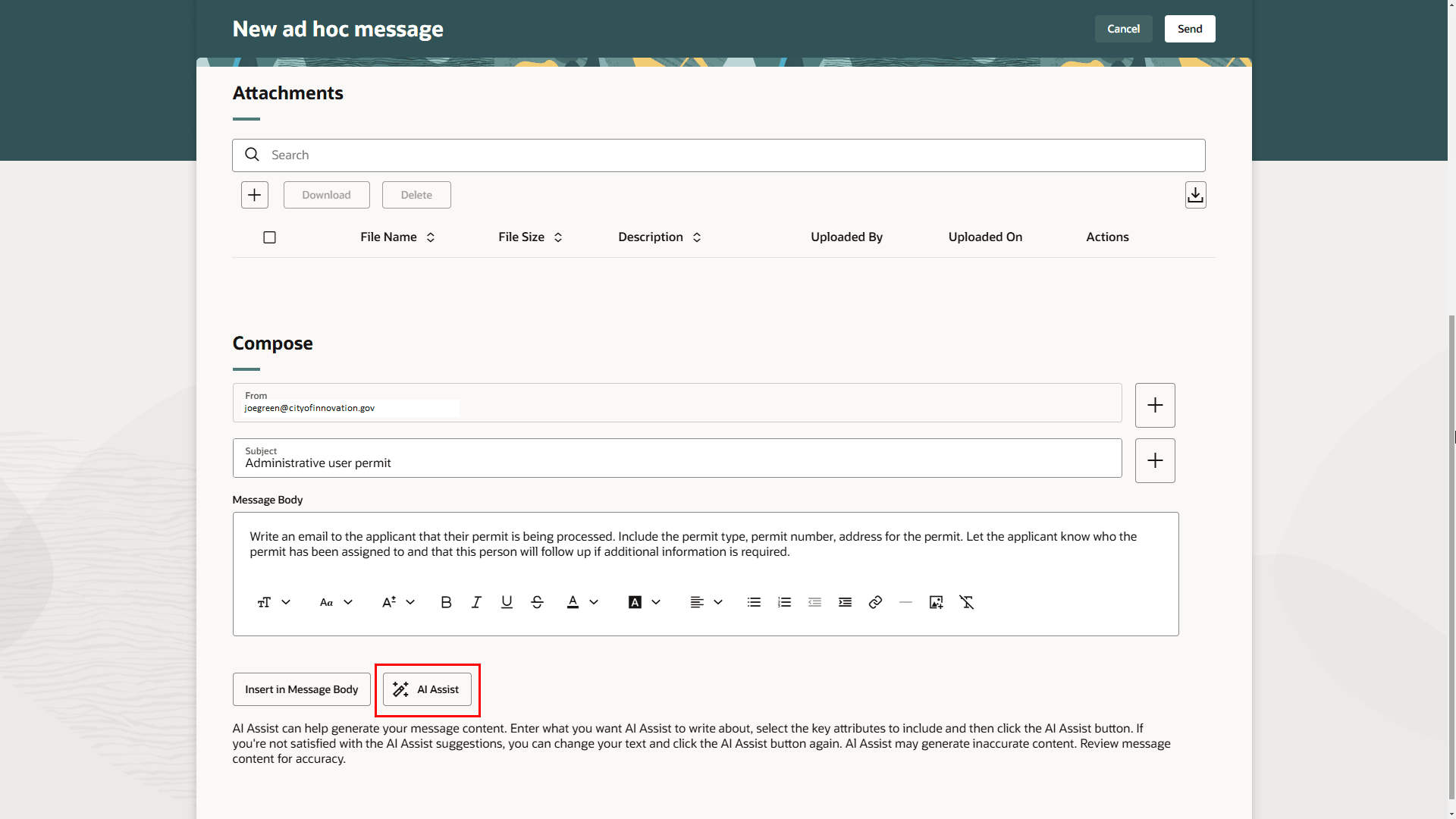
New Ad Hoc Message Page
Here’s an example of the AI-generated text:
Dear Ms. Jose,
We are writing to acknowledge receipt of your application for a CKPERMITTYPE01 permit, application number CK-2024-00237, submitted on Thursday, November 07, 2024. Your permit application is currently being processed.
The City of Innovation would like to inform you that your application is being reviewed by our team and is assigned to Joe Green. Mr. Green will be in touch if any additional information is required. Please allow us up to 7 business days to complete the review process.
Should you have any further questions about your application, you may contact Joe Green directly at joegreen@cityofinnovation.gov.
Thank you for your patience.
Sincerely,
Joe Green
City of Innovation
8888 Santa Clara St, San Jose, US-CA, US, 78787
Agency staff can review and revise the AI-generated text and use the Insert in Message Body button to insert any other attributes you want to include in the email.
Business Benefit: This allows users to quickly and easily insert generated text into ad hoc messages.
Steps to enable and configure
Enabling and adding AI Agents in Permitting and Licensing requires you to enable AI per offering. Additionally, you must set up security for AI Agents prior to copying the agents and using them in Permitting and Licensing. If you have already done those two steps you can skip them in the steps to enable.
These are standard steps to add AI Agents for Permitting and Licensing:
- Enable AI for your offerings in Permitting and Licensing.
- Set up the appropriate security for AI Agents.
- Copy the AI agent templates in Oracle AI Agent Studio.
- Add the AI Agent to the appropriate page by using the extensibility tools in Visual Builder Studio.
Enable AI Functionality the Offerings
You will need to first enable the AI functionality in Permitting and Licensing for your offering. Repeat for each offering you want to enable for this feature.
- Navigate to Setup and Maintenance > Offering: Permits (or your offering) > Change Feature Opt In.
- Select the pencil icon in the Features column of the Public Sector Permits (or your offering).
- Select the Enable checkbox for "Enable AI Functionality for Permits" (or your offering).
- Select Done.
Copy the Template
Once you've enabled the AI functionality, you will need to copy the template of the delivered AI Agent "Ad hoc Communication Message Generator" in the AI Agent Studio.
Complete the instructions found in Oracle AI for Fusion Applications: How do I use AI Agent Studio?, "Create AI Agent", Create AI Agents using Preconfigured Templates on the Oracle Help Center.
Add Agent to Communications Tab Page
Once you've copied your template, you will need to add the agent to the Permits > Communications tab page.
- From Home with Ask Oracle, navigate to Permits for Permitting and Licensing.
- Select a permit and select the Communication tab.
- Click on the extensibility icon on the bottom of the page.
- Open the psc-communication-list fragment.
- Edit COMMUNICATION_MESSAGE_PMT_AGENT, the Permits Communication AI agent constant.
- Set the showAgent=true.
- Replace the AI Agent code with the new copied template from the AI Agent Studio.
See Implementing Your Cloud Integrations, "Implementing AI Agents", Integrating with AI Agents on the Oracle Help Center.
Repeat the Steps for Each Offering
Repeat the steps for other offering Ad hoc communication pages to enable this feature for them.
Use the following AI Agent constants for the psc-communication-list fragement for the listed offerings/areas for step 5 above.
- Code Enforcement/Case - COMMUNICATION_MESSAGE_CE_CASE_AGENT
- Code Enforcement/Incident - COMMUNICATION_MESSAGE_CE_INCIDENT_AGENT
- Business License - COMMUNICATION_MESSAGE_LIC_AGENT
- Permits - COMMUNICATION_MESSAGE_PMT_AGENT
- Planning and Zoning - COMMUNICATION_MESSAGE_PZ_AGENT
For Business Entity Location - extensibility constant COMMUNICATION_MESSAGE_AI_AGENT value needs to be set under psc-business-entity-location fragment.
Tips and considerations
Agency staff can add any permit to add this to. Once this is done for one permit it will be included for all permits.
Note. The FSM option "Enable AI Assistant in Ad Hoc Communications" which was available in previous releases has been deprecated. If you enabled this previously, you must configure the AI ad hoc configuration as outlined in here in the Steps to Enable section.
Key resources
- See Using Community Development Permits, "Managing the Permit Application," Working with Communications, Using AI Assist for Permits on the Oracle Help Center.
- See Implementing Your Cloud Integrations, "Implementing AI Agents", Integrating with AI Agents on the Oracle Help Center.
- See How do I use AI Agent Studio?, "Create AI Agent", Create AI Agents using Preconfigured Templates on the Oracle Help Center.