Redwood Experience for Explore Your City
The enhanced user experience is now available for the Explore Your City page.
The new enhanced user experience streamlines the look and feel of the Explore Your City page, and provides an option to search for an address or a parcel.
This example illustrates the Explore Your City page with the option to search for an address or a parcel.
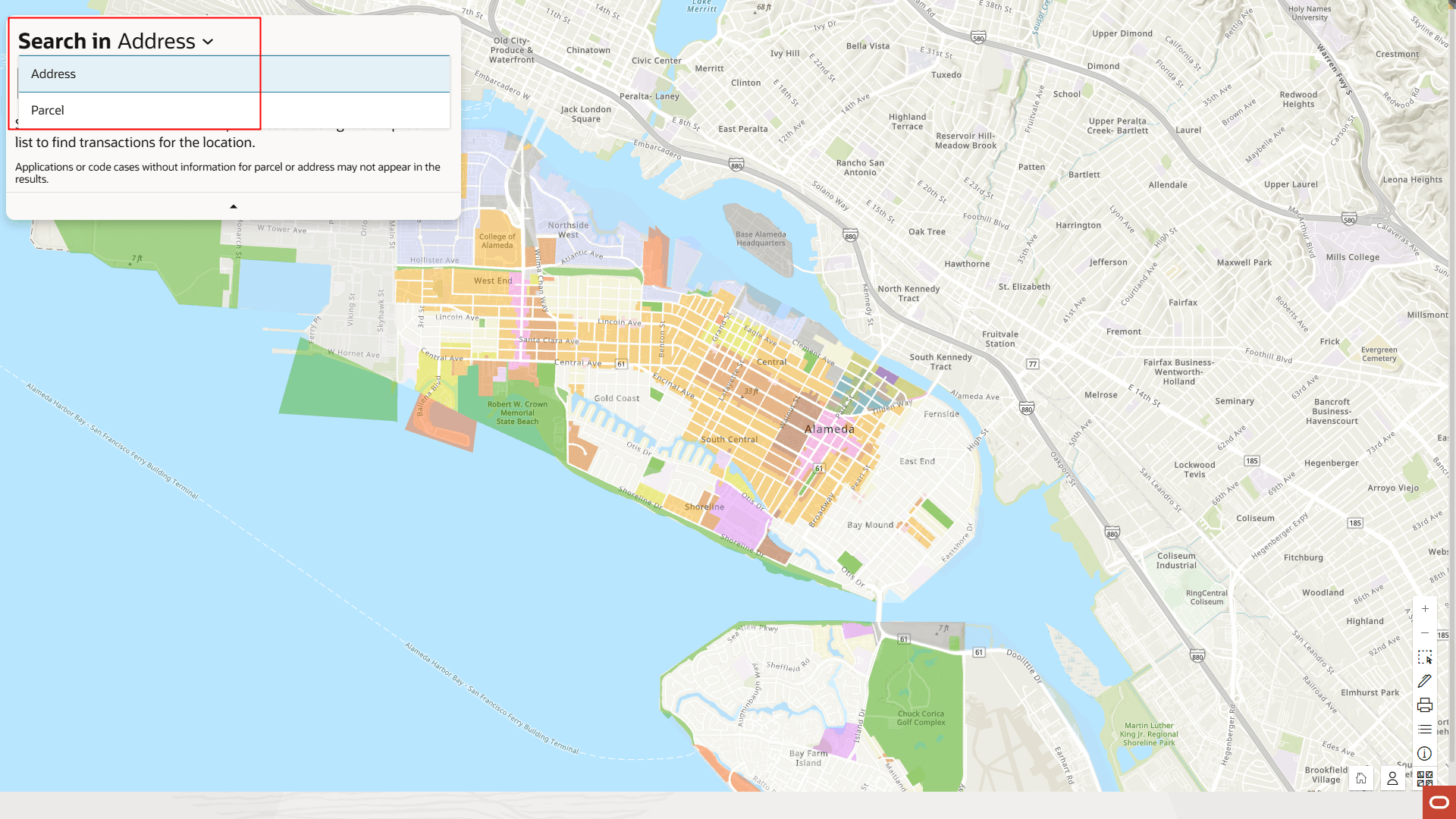
Explore Your City Page
This example illustrates the Explore Your City page, in which a parcel was searched. The parcel found was highlighted with a red map pointer and a count was displayed to indicate that there are transactions associated with it. Clicking the count opens a drawer with details of the transactions
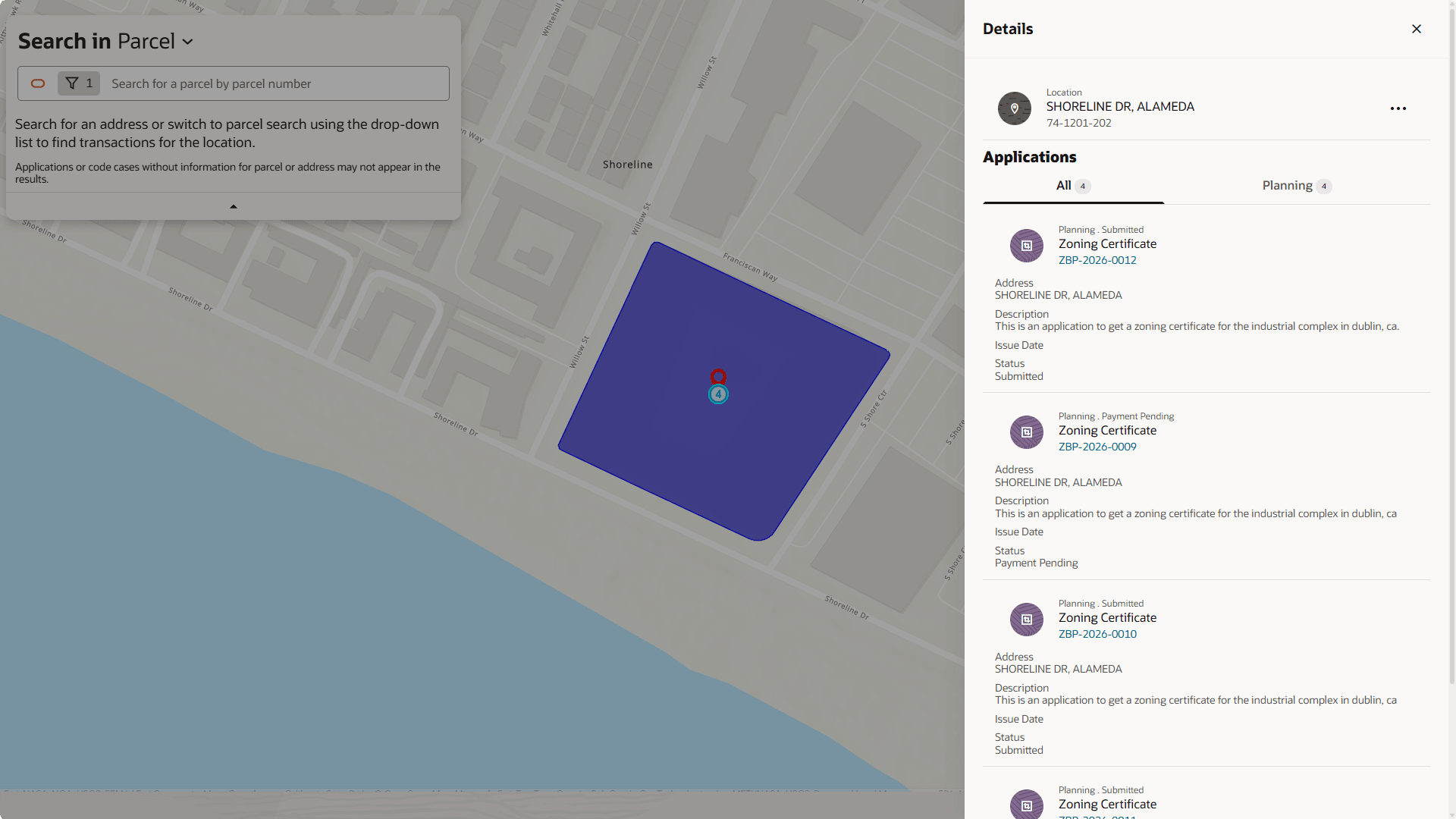
Explore Your City Page Showing a Parcel and its Details Drawer
Business Benefit: The new enhanced user experience streamlines the look and feel for the Redwood Experience.
Steps to enable and configure
Use the Opt In UI to enable this feature. For instructions, refer to the Optional Uptake of New Features section of this document.
Offering: Multiple Offerings No Longer Optional From: Update 26D
The Redwood Experience for Explore Your City is delivered as "enabled" in 26C. To revert to the classic experience, complete the following steps:
- Navigate to Setup and Maintenance of Offerings > Offering: Any > Change Feature Opt In.
- In the Public Sector <Offering> row, click the pencil icon in the Features column.
- Under the "Redwood Experience for Explore Your City" clear the "Enable" checkbox.
- Click Done.
Key resources
- See Using Community Development Permits, Managing Public Users, "Overview of the Public User Landing Page" on the Oracle Help Center.