Bulk inspection assignments by date and inspector
Inspection supervisors can now select multiple inspections and assign them to a single eligible inspector for a selected date. Use the Assign Multiple action from the agency's Inspections list page, or from the Inspections tab on permit and business license details.
This example illustrates the button used to initiate bulk assignment:
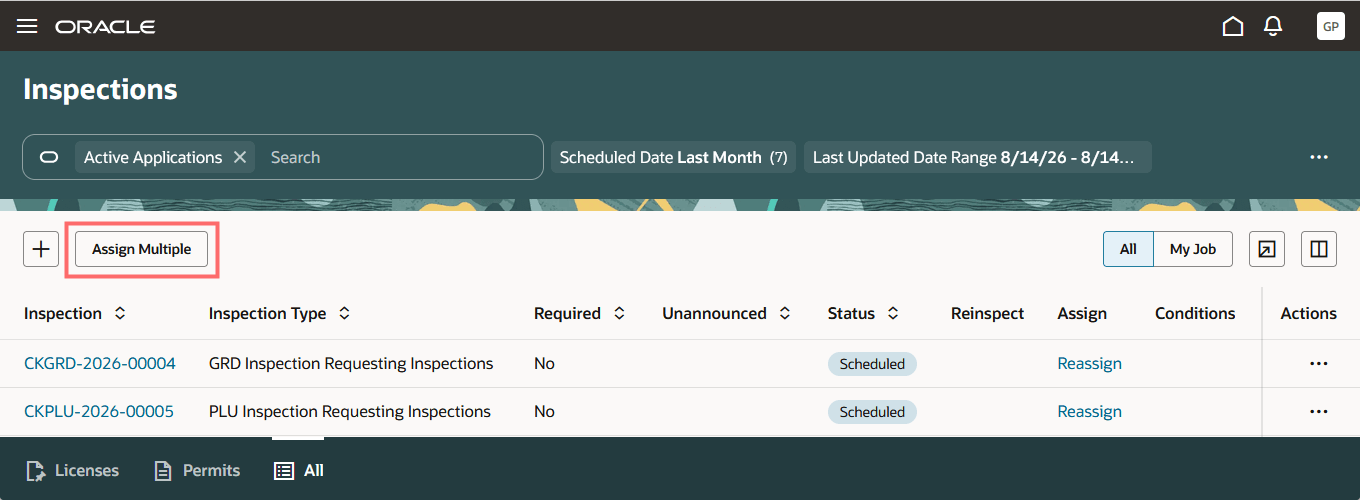
Agency's Inspections List Page - assign multiple action
The bulk assignment drawer includes two options:
-
By Date: Select a date and one inspector. The application assigns the selected inspections and schedules them for the inspector.
-
By Availability: Use the existing availability-based bulk-assignment process, including options to exclude inspectors by district or workload limit.
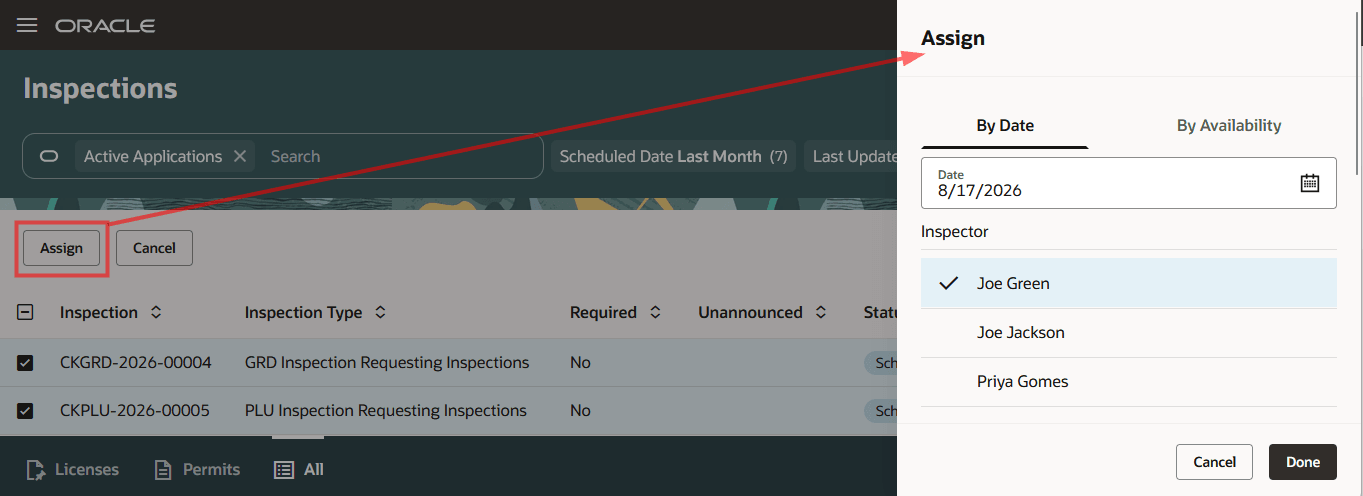
Assign drawer to assign selected inspections
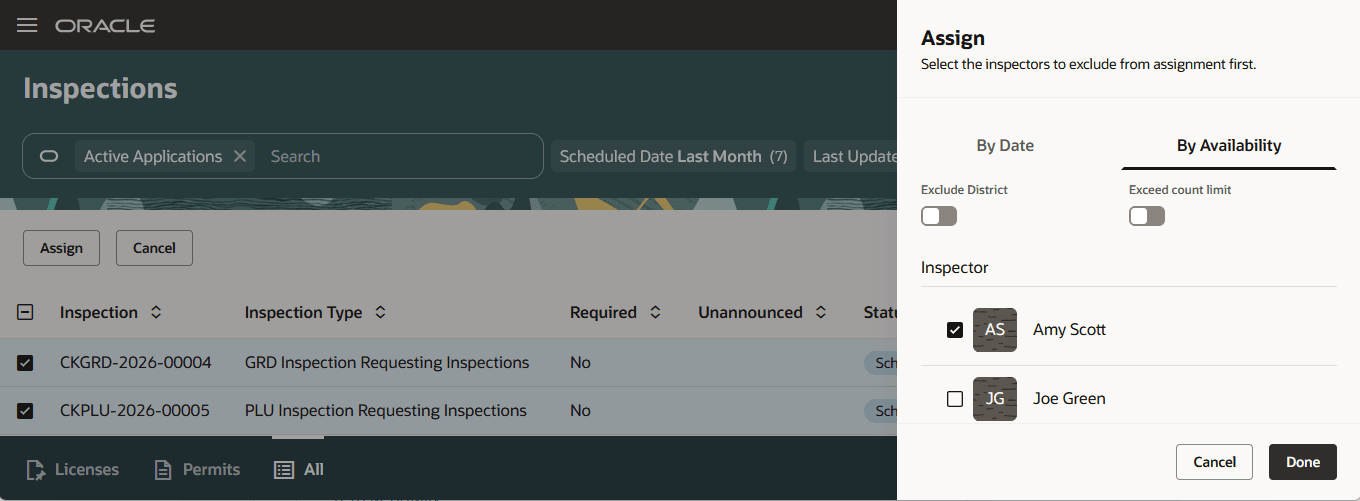
Assign drawer tabs - by date and by availability
When assigning by date, the list includes only inspectors whose job function and job attributes match the selected inspections. The application uses the inspector’s work schedule to determine the scheduled date and time. If the selected date is not a valid inspection workday for the inspector, the application uses the next valid date; the scheduled time is the work schedule's start time.
On permit and business license details, bulk assignment applies only to inspections associated with the selected application context. For a primary application with subapplications, users can choose whether to work with inspections for the current application or all associated inspections.
Business Benefit: Bulk assignment reduces the time supervisors spend scheduling and assigning similar inspections individually. It helps agencies quickly distribute inspection work to an eligible inspector while applying the inspector’s configured work schedule.
Steps to enable and configure
You don't need to do anything to enable this feature.
Tips and considerations
Access is limited to users with the inspection supervisor role.
No new setup is described for this feature; agencies should confirm inspector job functions, job attributes, and work schedules are configured accurately.
Key resources
- See Using Community Development Permits, "Working with Permit Inspections" Managing Inspections for an Agency and Assigning Inspections on the Oracle Help Center.