Multiple failed inspection result options
You can now configure more than one inspection assessment option with the Fail system result. Previously, an assessment type could include only one assessment mapped to Fail, which prevented agencies from distinguishing between a complete failure and outcomes such as a partial pass or incomplete inspection.
This example illustrates how multiple assessment options can be mapped to the Fail system result, as set up by the agency:
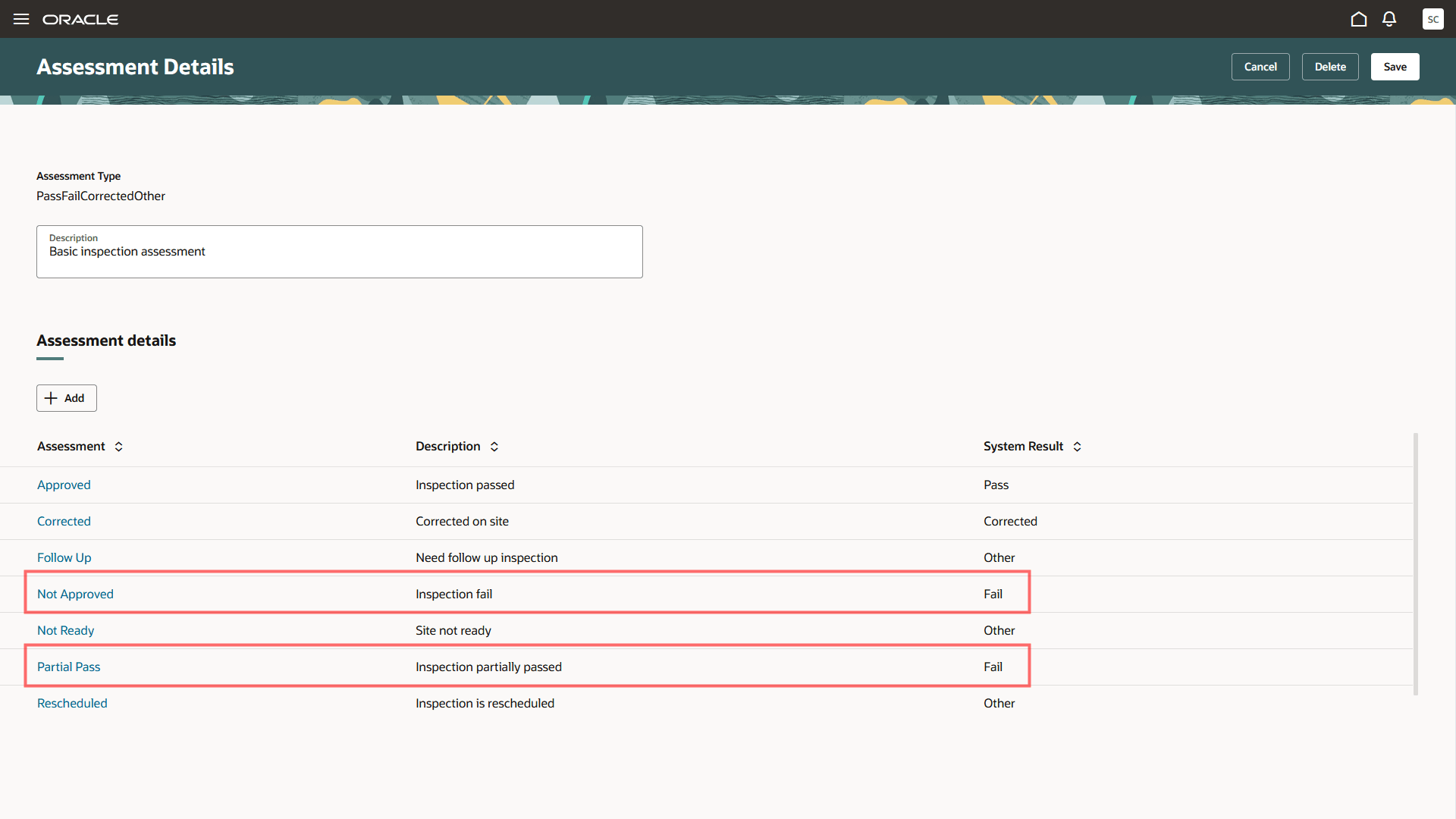
Assessment Details page
Each agency-defined assessment continues to display its own result label to the inspector, but any assessment mapped to the Fail system result follows the existing failed-inspection processing. This includes support for reinspection and any agency-configured requirement to enter comments for failed results. For example, an agency can configure both Inspection Failed and Partial Pass as Fail results so that inspectors can identify the appropriate outcome while still enabling follow-up inspection activity.
These examples illustrate checklist and inspection-level result options that are mapped to the Fail system result:
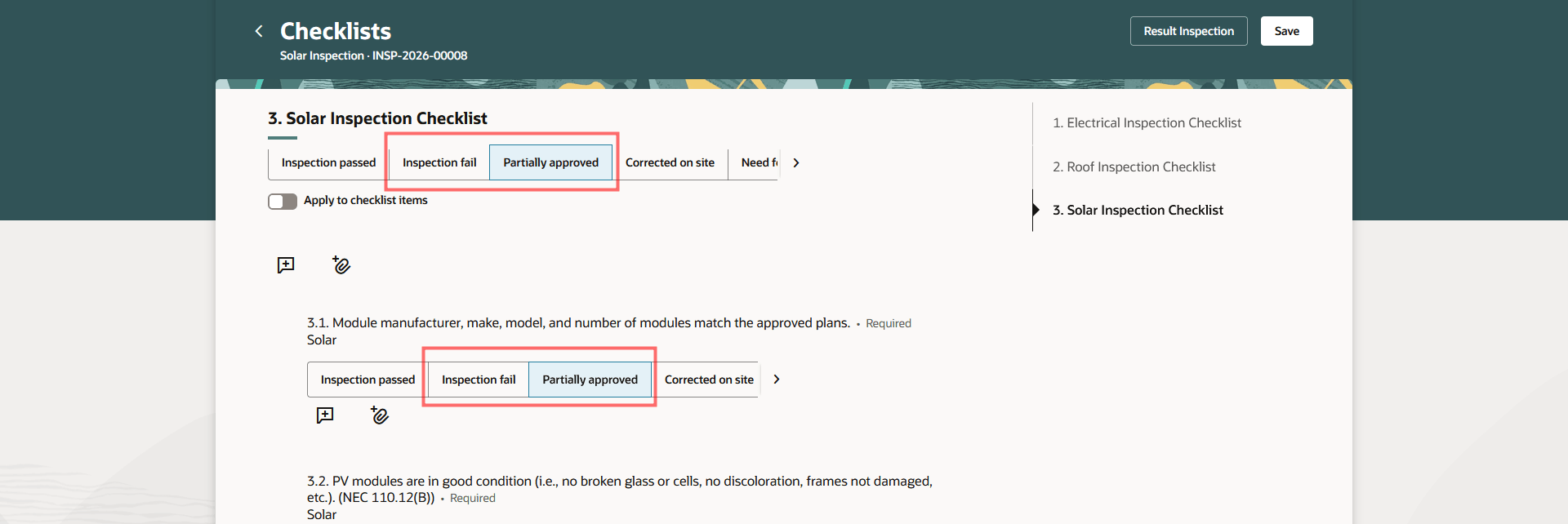
Inspector Application - Checklists page
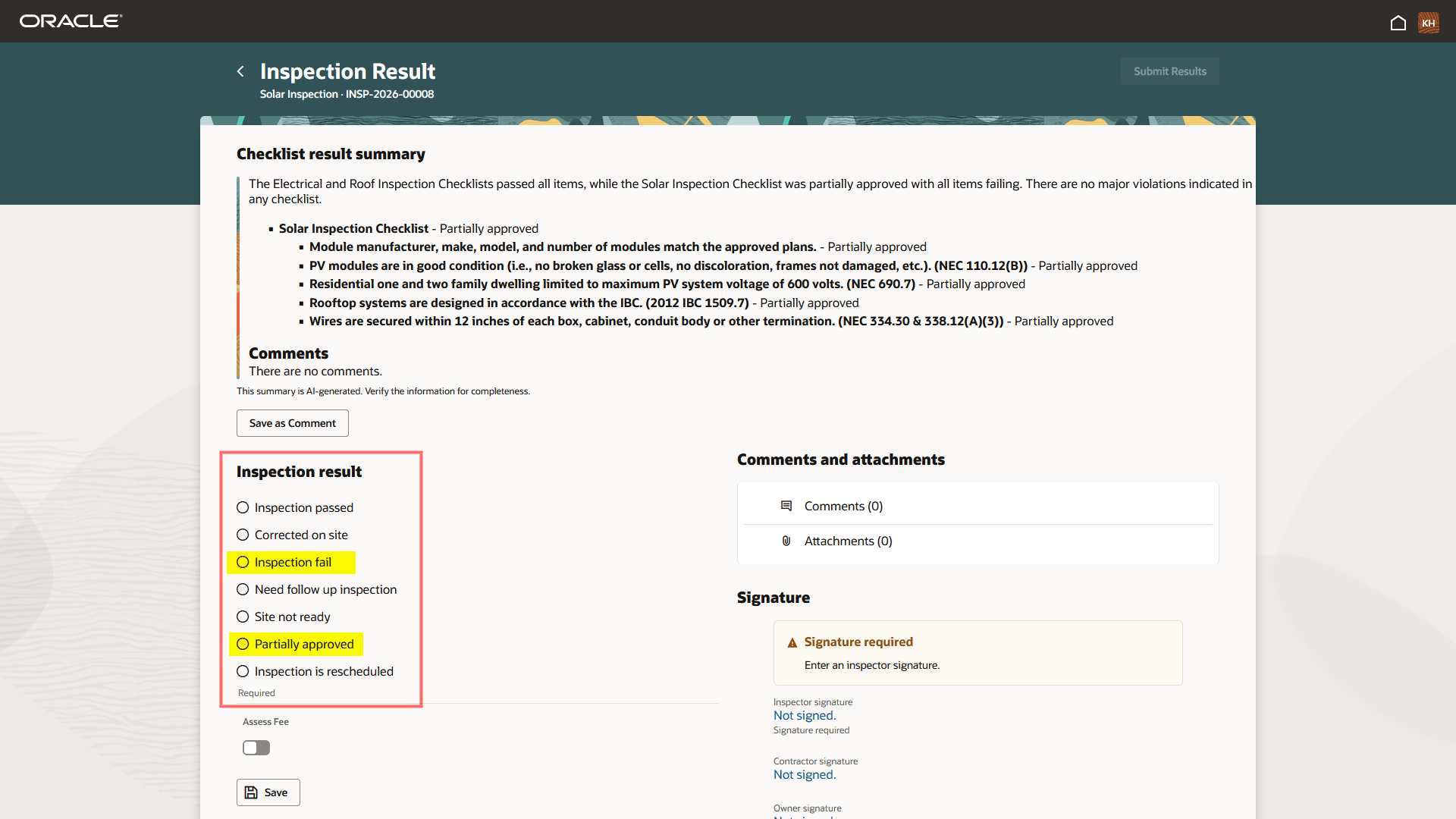
Inspector Application - Inspection Result page
The enhancement also changes how results are applied to multiple inspections. When all selected inspections use the same assessment type, inspectors can select from all configured result options. When the selected inspections use different assessment types, the application continues to present the common Pass and Fail system results and identifies inspections for which a specific Fail assessment must be selected individually.
Business Benefit: Agencies can record partial or incomplete inspection outcomes more accurately while preserving the follow-up behavior associated with a failed inspection.
Steps to enable and configure
To enable this feature, you need to update your inspection assessment type configuration:
- Navigate to Setup and Maintenance > Offering: Permits or Business Licenses > Functional Area: Permit Inspections (Permits) or Business License Inspections (Business Licenses) > Manage Inspection Assessment Types.
- Click on an existing assessment type or click Add to create a new one.
- Click Add to add the required agency-defined assessment options.
- For each result that should use the failed-inspection processing, select Fail for the System Result.
- Retain the required Pass assessments.
- Save the assessment type.
- Click Save on the Assessment Details page.
Tips and considerations
Only Pass remains limited to one code, while multiple codes can be assigned the Fail system result.
Key resources
-
See Implementing Permitting and Licensing, "Setting Up Inspections," Inspection Evaluation Overview and Setting Up Inspection Assessment Types on the Oracle Help Center.
-
See Using Community Development Permits and Using Business Licenses, "Using the Inspector Application," Submitting Inspection Results on the Oracle Help Center.
-
Based on Idea 634827 from the Permitting and Licensing Idea Lab on Oracle Cloud Customer Connect.