Create expressions in Redwood UI using Generative AI
Use Generative AI in to help build formula expressions while building components in Redwood UI.
When you are building a new component using the Redwood Compensation Administration, click on the Gen AI icon next to the 'Select an incentive formula' field.
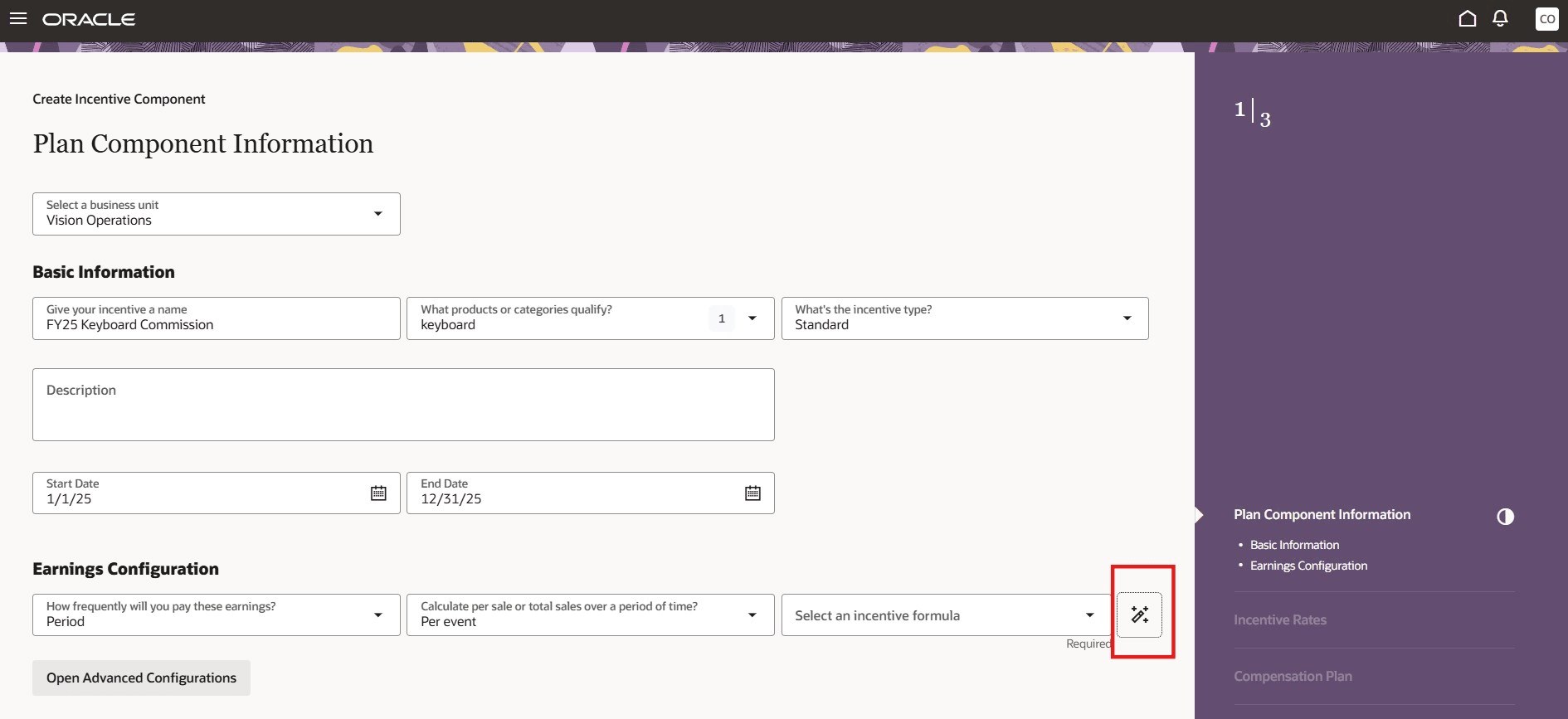
Gen AI for expressions
This will let you enter expressions in natural language and have Incentive Compensation expressions generated using Generative AI. Enter your requirements in the Expression Requirement field and click Generate. The AI assistant will convert this into an Incentive Compensation expression and display it in the field below.
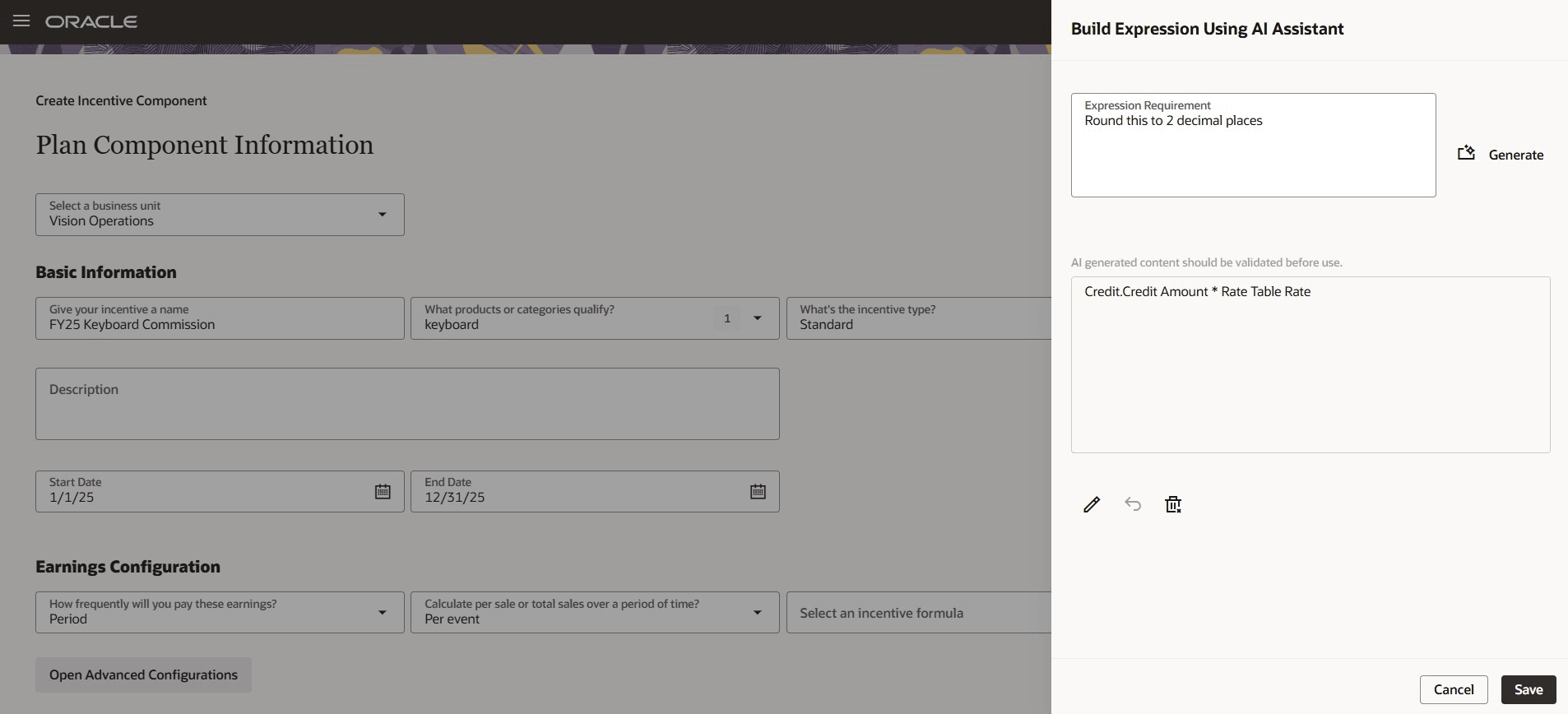
Generate Expression
You can add instructions in the Expression Requirement field to refine the expression that is generated. If you are not satisfied with the result generated after adding a requirement, you can undo the last change by clicking the undo icon. You can even edit the generated expression by clicking the edit icon and make changes by manually typing in the field. In case you want to start all over again you can use the delete icon. Once you are satisfied with the expression generated, click on the Save button to assign it to the formula.
Note that you can also use an existing expression as a reference and then modify it to create a new expression. Choose the expression first in the Select an Incentive formula field and then click the AI icon. The Gen AI functionality will use this expression as a starting point for any new expression that you plan to create.
Using this feature, you can easily create formulas while building a component in Redwood UI.
Steps to enable and configure
You don't need to do anything to enable this feature.
Tips and considerations
To leverage this embedded AI functionality, ensure that you have enabled AI features for Incentive Compensation. If you haven't done so, it can be easily done by following the instructions below.
- Navigate to Setup and Maintenance
- Click on the Tasks icon on the right and click Search.
- Search for "Enable Generative AI Features in Sales".and click on that task in the results.
- Under Incentive Compensation, Enable the feature "Generate Incentive Compensation Expression".
- Click Save.
Note:
To manage Generative AI features, grant the Manage Generative AI Features in Sales privilege ( privilege code ZCA_MANAGE_GENAI_IN_SALES) to the sales administrators in your enterprise.
For the incentive compensation plan administrator to be able to use this feature, grant them the Use Generative AI Features in Sales privilege (privilege code ZCA_USE_GENAI_IN_SALES_PRIV).
This feature uses Generative AI and so may not be accurate all the time. Any responses from Generative AI should be vetted before you use it.
Access requirements
Users should have Incentive Compensation Plan Administrator role as well as the Use Generative AI Features in Sales privilege (privilege code ZCA_USE_GENAI_IN_SALES_PRIV) granted.