Browse Product Hierarchy in Add Products
The Add Products action allows sales users to search and then add parts, models, BOMs, and Favorites to a quote from a single consolidated page. Beginning in Oracle CPQ 26A, sales users can browse and select configuration models to add to the quote.
When sales users click Add Products, the Add Products drawer opens. The catalog, which is displayed on the left side of the drawer, allows users to navigate through available product hierarchies. Products can be displayed in a card view or a list view. When a user finds desired products, they can select the products and click Add to add the items to the quote.
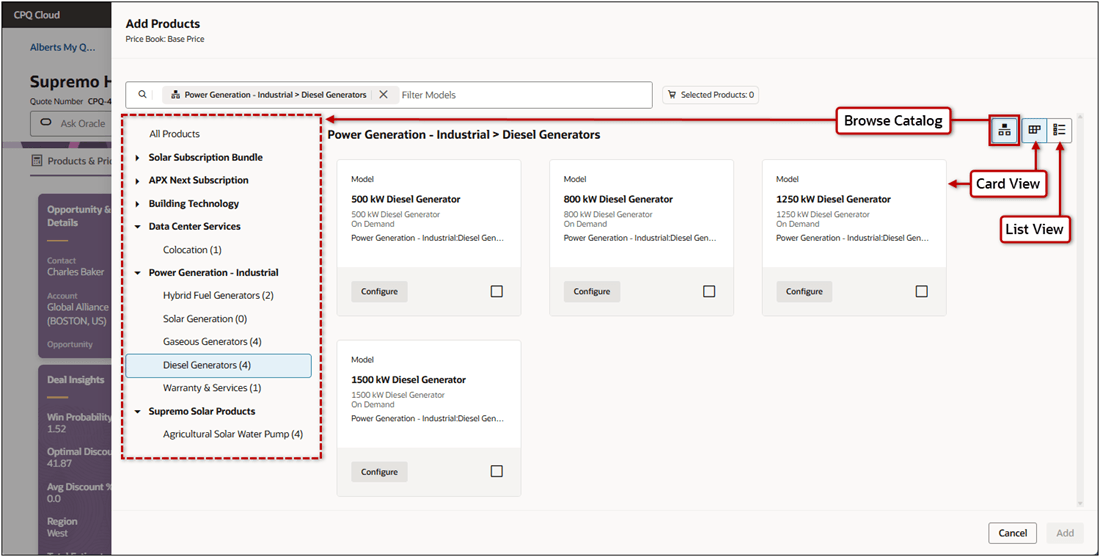
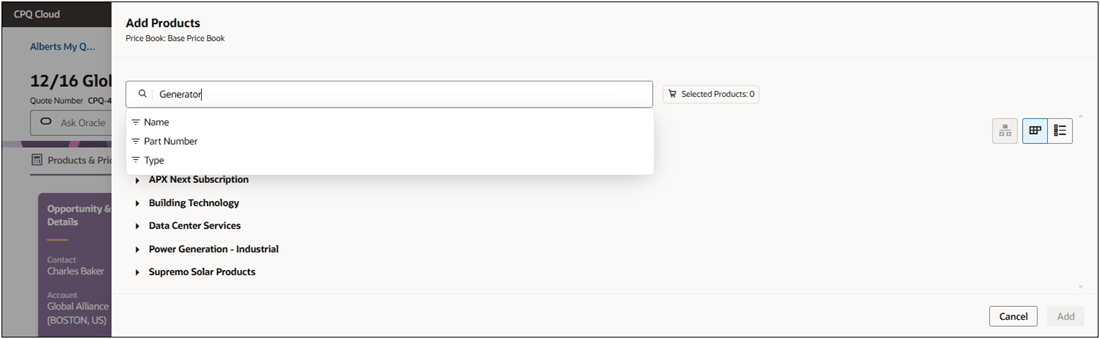
The Add Products drawer allows users to define search criteria and filter results by Name, Part Number, or Type.
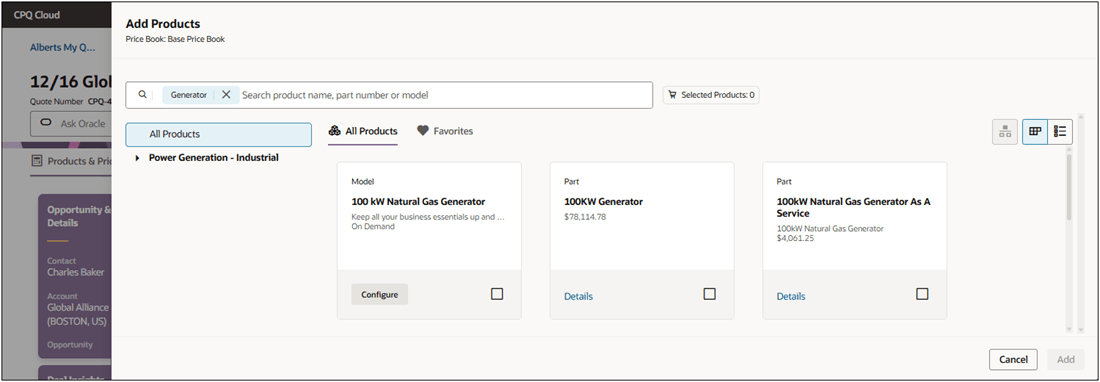
In the card view, users can click Configure to launch the configurator for a model and they can view Details for parts and BOMs.
Users can click the Favorites tab to search and add products from their favorite items.
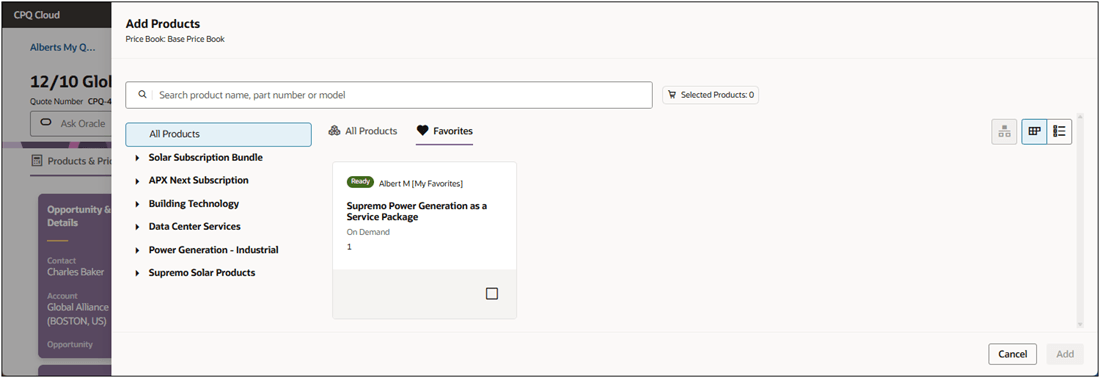
Redwood Quote Designer – Add Products
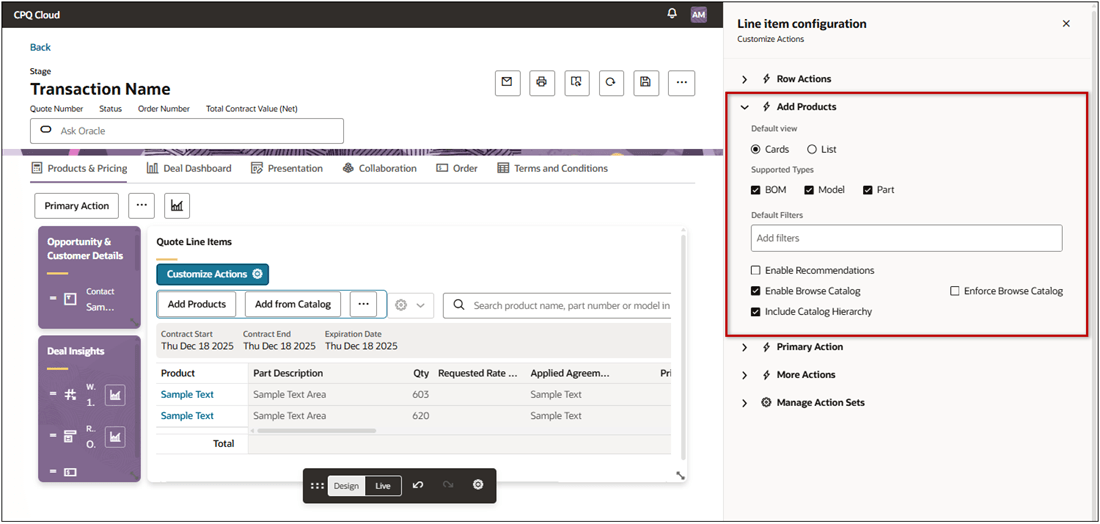
Administrators can manage the Add Products behavior in Quote Designer.
- Default View: Set the default product display to Cards or List.
- Supported Types: Control the product types that are returned in Add Products. Administrators can specify Parts, Models, and/or BOMs (non-configurable kits).
- Default Filters: Apply a default filter to Add Products. This can be used to show specified product results in the Add Products drawer before a sales user navigates to or searches for products.
- Enable Recommendations: Administrators can disable product recommendations if they are not applicable or intelligence models are not ready customer use.
- Enable Browse Catalog: Administrators can disable the Browse Catalog if they don't want to allow their sales users to navigate through available product hierarchies.
- Enforce Browse Catalog: Administrators can enable this option to not allow sales user to close the Browse Catalog.
- Include Catalog Hierarchy: Administrators can control which product families are displayed in the Browse Catalog when a sales user defines search criteria in Add Products.
- When disabled (default), only relevant product families are displayed in the Browse Catalog during a search.
- When enabled, all available product families are displayed in the Browse Catalog during a search.
This feature unifies the sales user experience for finding, selecting, and adding products to a quote.
Steps to enable and configure
Refer to the Oracle CPQ Administration Online Help once this feature is generally available in Oracle CPQ Update 26A.