Oracle CPQ Redwood Admin Home Page
Oracle CPQ 26A introduces the official release of the Redwood-style Administration User Experience (UX) for CPQ administrators and implementors. The Oracle CPQ Redwood Administration supports existing functionality and provides additional usability, such as:
- Improved navigation for quick access to frequently used admin tasks.
- Comprehensive and consolidated view of all relevant information.
- Simplified and modernized design to enhance user satisfaction and reduce training time.
The redesigned interface enhances the Oracle CPQ administration modules. The following list includes the Journey paths and links to some of the new admin pathways:
- Admin Home page and Ask Oracle search and navigation
- Products provides direct access to the Product Workbench.
Use the Products ellipsis menu to access Manage Parts, Manage Pricing, Manage BOMs and access the Intelligence Portal.
- Configurations provides direct access to the Configuration Dashboard.
The dashboard provides access to manage Configurable Attributes, Configuration Actions, Configuration Rules, Configuration Flows, and Configuration Layouts.
Use the Configurations ellipsis menu to access Favorites List, Home Page, Home Page Flow, and Page Templates.
- Prices provides direct access to the Pricing Portal.
Use the Prices ellipsis menu to access Price Models, Price Agreements, Rate Cards, Pricing Preview, and Pricing Setup and Maintenance features.
- Quotes (Commerce) provides direct access to Process Administration.
Process administration provides access to manage Data Columns, Transactions and Transaction Lines, Commerce Actions, Commerce Attributes, Commerce Rules, Library Functions, Quote Process Steps, Templates & Views, and Commerce Integrations.
Use the Quotes ellipsis menu to access Assets and Process Invocation.
- Users provides direct access to the Users page.
Use the Users ellipsis menu to access Groups, Host Companies, Partner Organizations, and Single Sign-on.
- Integrations provides direct access to the Integration Center.
Use the Integrations ellipsis menu to access Accounts, Interface Catalog, Integration Settings, and Web Services.
- Developer Tools & Utilities provides direct access to Data Table Administration.
Use the Developer Tools and Utilities ellipsis menu to access Data Tables, Bulk Data Services, Data Management Tools, Development Tools, Logs, and the Migration Center.
- Setting & Preferences provides direct access to the Setting page.
Use the Settings & Preferences ellipsis menu to access Countries and States, Email Signature, Style and Templates, Text Administration, Lookups, and the UI Designer.
The Redwood Admin Home page is the gateway to the Redwood-style administration modules, either directly, or through a navigation path that originates on the Admin Home Page.
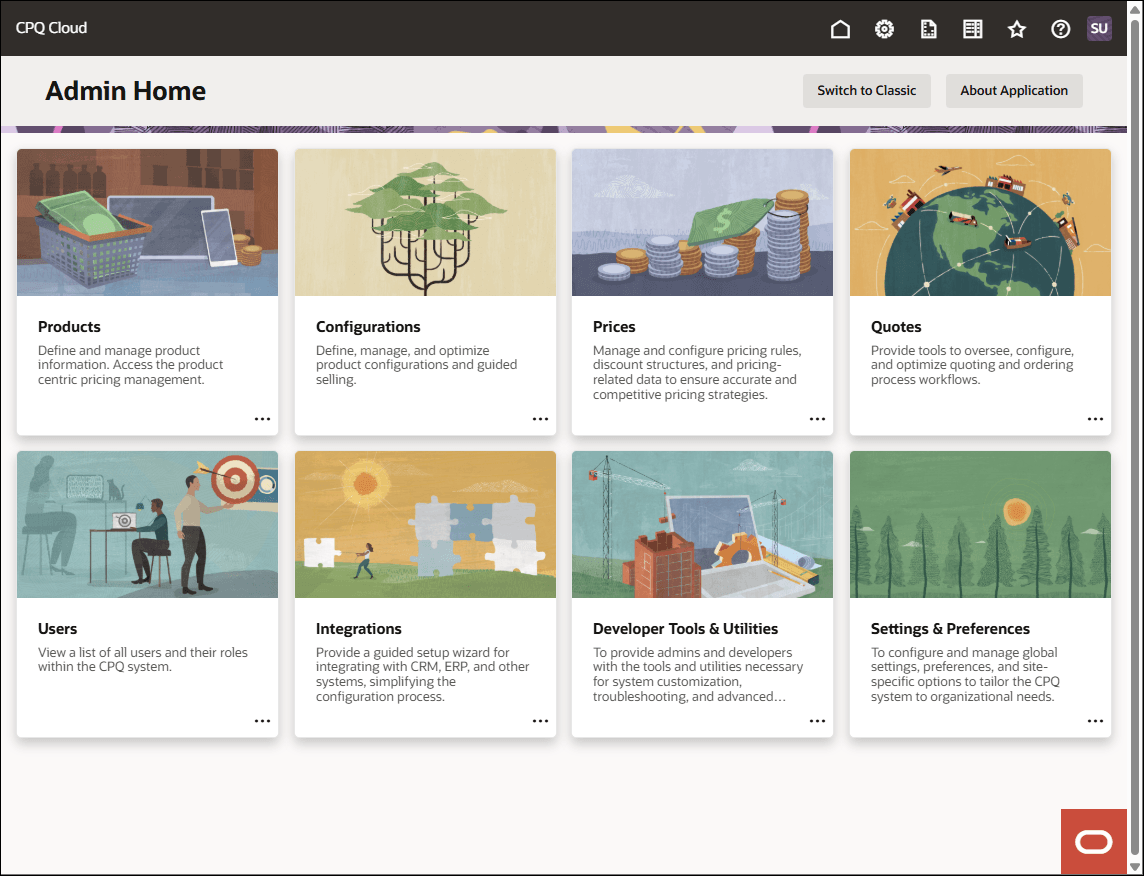
Oracle CPQ Redwood Admin Home Page
Steps to enable and configure
You don't need to do anything to enable this feature.
Tips and considerations
- Following upgrade to Oracle CPQ 26A, the Admin Home page defaults to the Redwood UI. You can explore the UIs, and begin working through your tasks in the new redesigned interface.
- Existing customers will be able to revert to the Classic UI experience by navigating back to the Admin Home Page and clicking Switch to Classic. Oracle CPQ running in Oracle Fusion supports only the Redwood UI and does not have the Switch to Classic button.