Guided Configuration AI-Assist Agent for CPQ Running in Fusion
Oracle CPQ 26C introduces a guided Configuration AI-Assist Agent within Ask Oracle to capture natural-language configuration requirements and propose best-fit selections and provide interactive explanations.
Feature Highlights:
- Users enter configuration requirements in natural language through Ask Oracle.
- The Guided Configuration AI-Assist Agent interprets each request and suggests the best selections for the described requirements.
This feature provides the following benefits:
- Provides intelligent assistance that interprets user needs and automates selection in complex configurations.
- Enables faster, more efficient, and more complete product configurations.
- Makes conversational configuration more intuitive and reduces seller and buyer training needs.
- Improves deal speed and supports faster quote cycle time.
- Prevents the need to clutter the layout with additional permanent guidance and Help icons.
Steps to enable and configure
Access Requirements:
- User must be assigned the ORA_DR_FAI_GENERATIVE_AI_AGENT_CX_ADMINISTRATOR_DUTY role.
- Administrators need access to Agents Admin UI to configure agent teams, tools, topics, and document grounding.
- Configuration admin users need permissions to access AI Agent Studio, set workflow input variables, and upload specification documents.
- Runtime users need required security privileges to access the chat component and related REST APIs used by the Guided Configuration AI-Assist Agent.
- Access to underlying configuration data and rule metadata must be permitted in the deployment environment.
To upload the relevant document supporting the AI-Assist Agent, complete the following steps:
- Navigate to the Oracle AI Agent Studio >Agent Team >Published.
- Navigate to Configuration Design Document Upload agent.
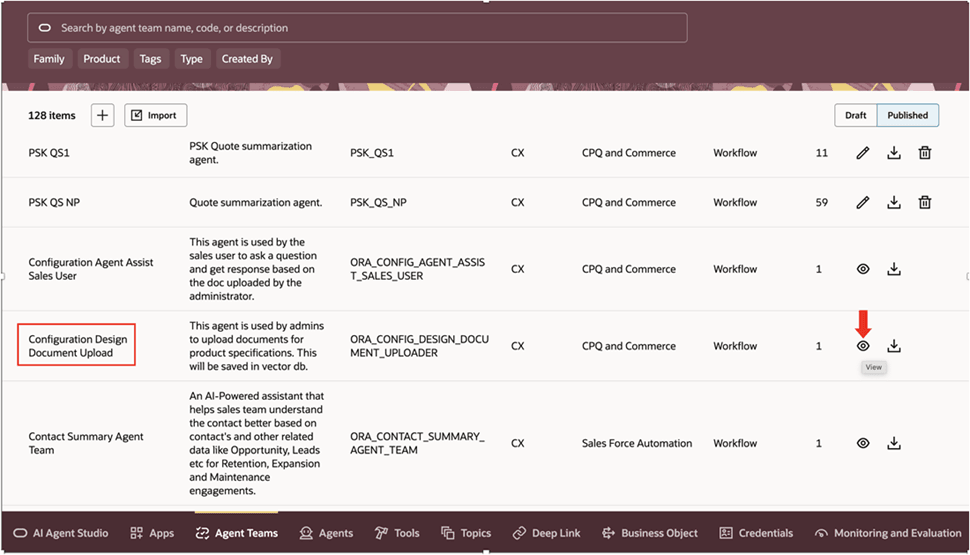
- Click View.
- Click the Debug icon.
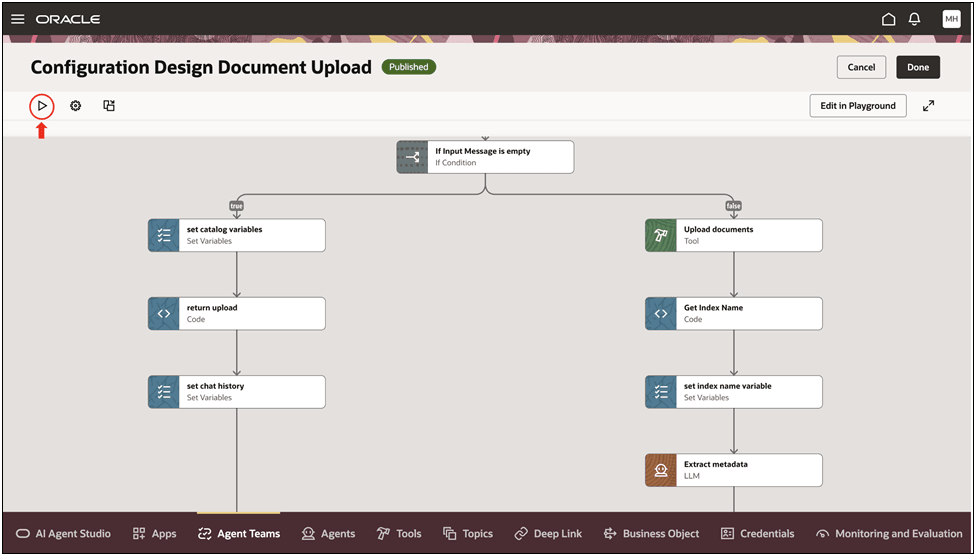
- Set the Input Variables as follows:
-
Enter Rest for the Trigger Type.
-
Do not enter a value in the Input Question field. It is mandatory this field is empty.
-
Enter the Sample Payload, as folllows:
-

- Click Start Test. The variables are stored and a "Done" message displays.
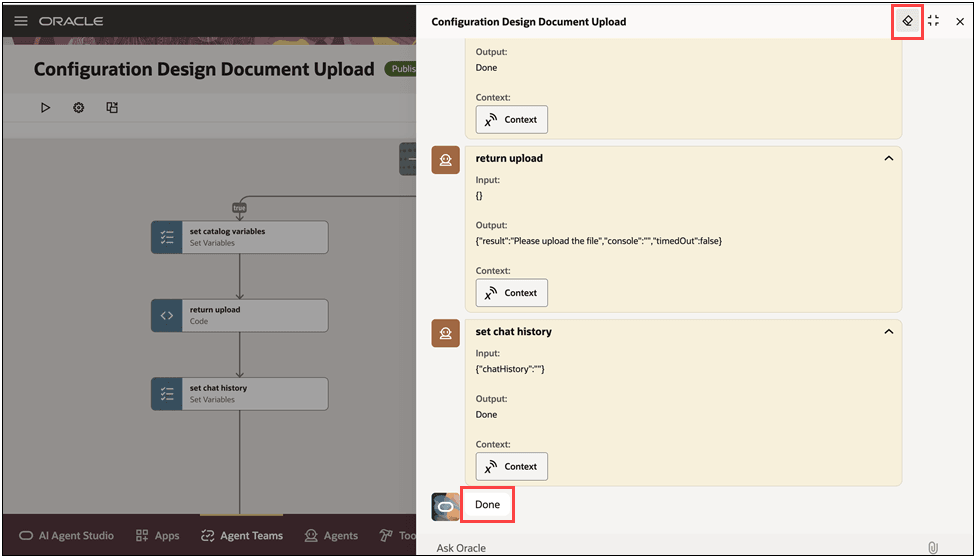
- Clear the chat using the Eraser icon. This is necessary because the AI Agent Studio will not allow you to continue chat with input triggers.
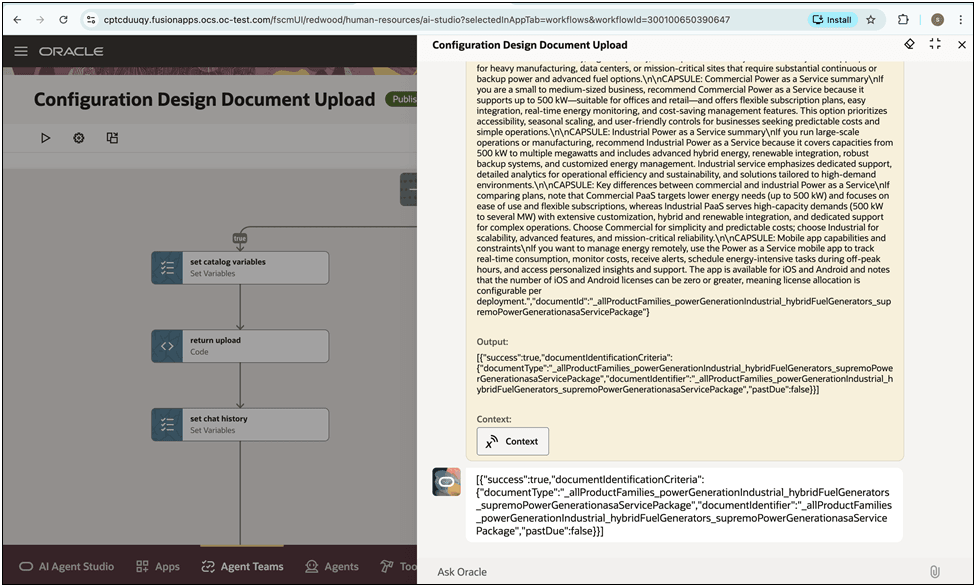
- Click the Chat Attachment icon and upload the design specification document from your device.
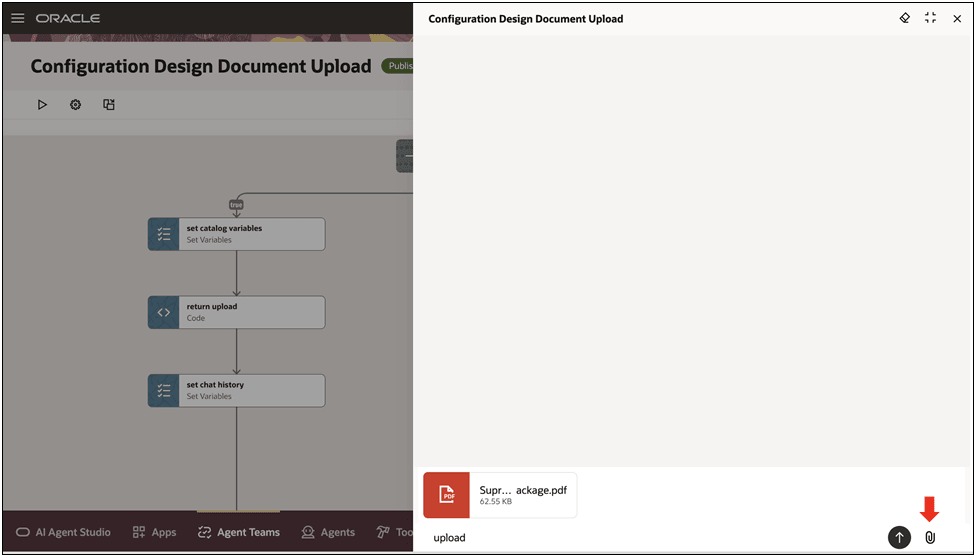
- Enter the input message "upload".
- Once you see the "Success" status message, the document has been successfully uploaded.
Tips and considerations
-
Response quality depends on source-document curation and metadata quality for configurable attributes and rules.
-
Keep recommendation and constraint rules current to prevent invalid suggestions.