Process Steps List Navigation
Administrators can use Process Steps list navigation to review and manage commerce process steps. The list page keeps the selected step details, profile permissions, transition rules, and document views in a focused working context.
Use Process Steps list navigation to:
- Create, edit, reorder, and delete steps where the process state and permissions allow those actions.
- Configure step details such as step name, description, stage, forwarding rules, and timers.
- Add and edit transition rules, including allowed profiles, source and target steps, always-true conditions, and advanced conditions.
- Review transition rule groups by profile, expand or collapse rule groups, and move rules within the valid profile and action context.
- Manage profile field permissions and open Document Views from a profile row to update permissions for attributes, actions, tabs, templates, and process actions.
This enhancement improves administration usability by giving administrators a list-based way to manage complex step processes. The list page reduces dependence on a diagram view for large processes and helps administrators maintain steps, profiles, and transition rules more efficiently.
Steps to enable and configure
Access Requirements:
- Users need the appropriate CPQ Redwood Admin access to open the Process Steps page and perform administration actions.
- FullAccess/Admin users can perform create, update, delete, reorder, transition, and profile-permission actions where the process state allows them.
- Restricted administrators or non-authorized users see only permitted actions, and restricted actions are hidden or disabled.
Prerequisites:
- Redwood Admin is enabled for CPQ.
- A commerce process, such as Standard Quote to Order, is available.
- Desired profiles, such as Administrator, Sales Representative, and View Only are already setup.
To access the process steps list page, complete the following:
- Go to Admin Home > Quotes.
- Open a commerce process, such as Standard Quote to Order.
- Select the Steps tab.
- Click the Steps List Page icon to open the list-page experience.
- Select a step from the list to review and update its details.
- Use profile and step filters to focus the list and related transition or profile information.
- Open transition, profile, or document views actions from the selected step when those actions are available to your role and process state.
Tree Navigation
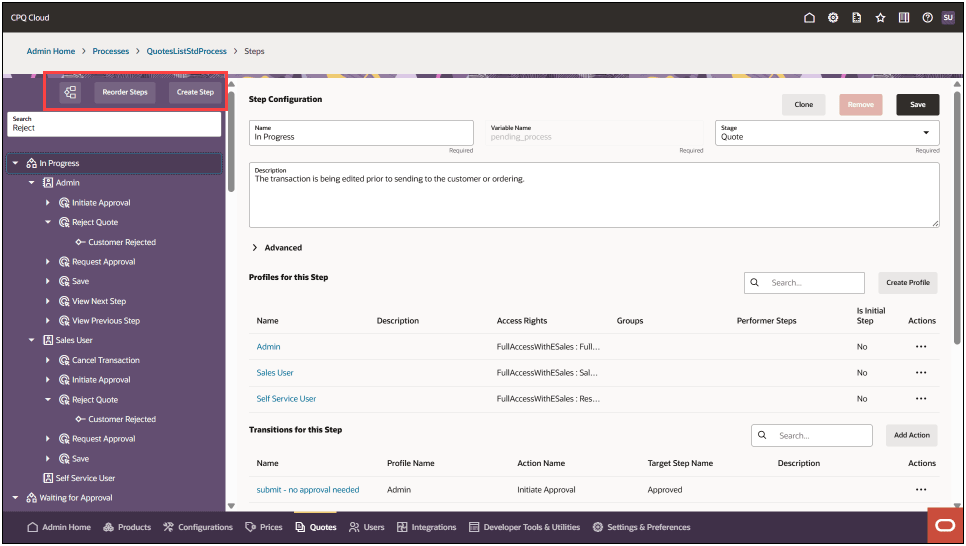
The tree navigation is used to drill into a step, profile, transition and action. Enter a search term and the tree will expand to show the search term; the other profiles and steps remain in view for context.
Use the buttons above the search box and tree navigation to:
- Switch to diagram view.
- Reorder steps.
- Create a new step. The step will be created at the end and can be moved with either the Reorder Steps button or by dragging and dropping.
Step Configuration View
Try it out:
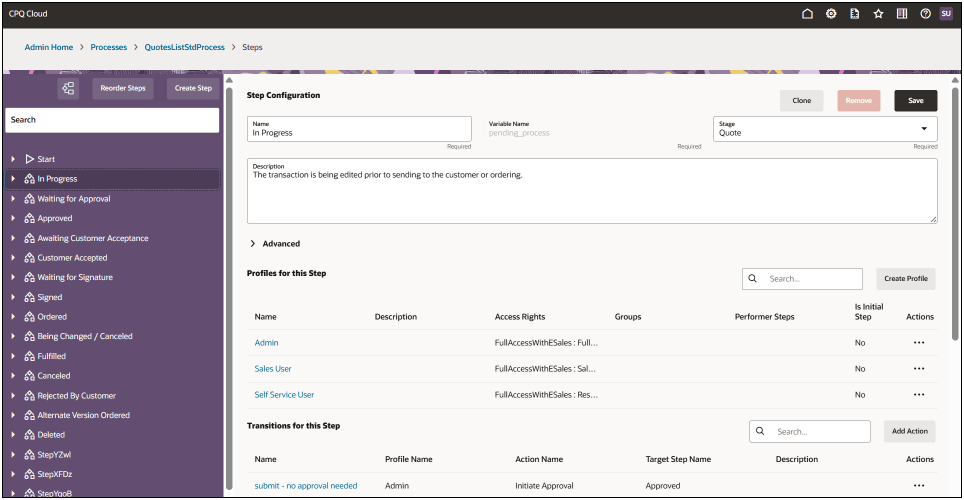
- Click on a step to see the Step Configuration, and all profiles and transitions assigned to the step.
- The Step Configuration shows the step details. You can update the name, description, or stage. Expand the Advanced sub-heading to access forwarding rules and timers.
- The list of profiles assigned to the selected step are provided. Use Create Profile to add another profile to the step or click on a profile link to view details about a profile and the profile's transitions.
- The list of transitions assigned to this step are provided. The table shows the profile the transition is assigned to and the associated action. Click Add Action to add an action to an existing profile or click the transition link to view details about a step transition.
Profile Configuration View
Try it out:
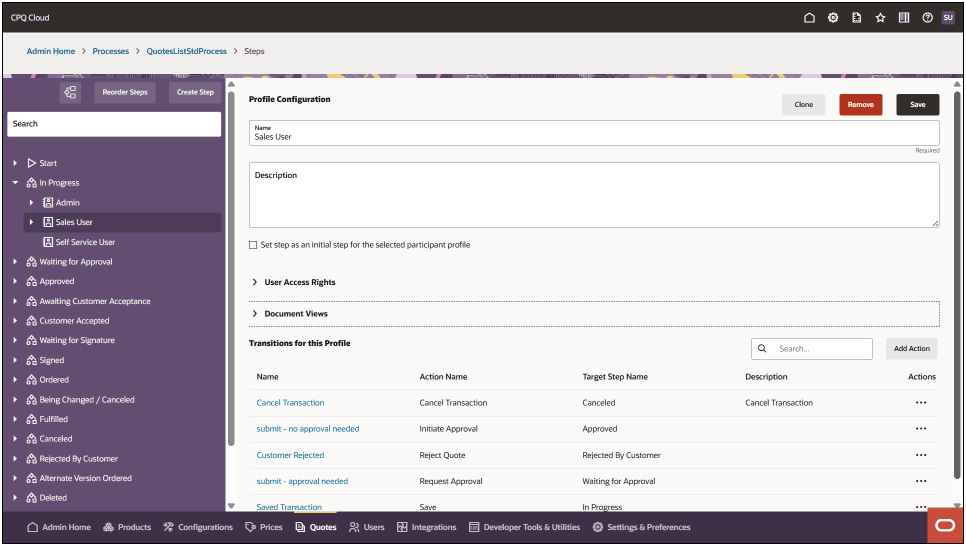
- Use the Tree Navigation to select a profile for a step or click on the profile link from the Step Configuration View.
- The Profile Configuration View shows the profile details and supports cloning or removing the selected profile configuration for the step.
- Expand the sub-headings to access user access rights and document views.
- The list of transitions assigned to this profile are provided. The table shows the transition assigned to the profile and the associated action. Click Add Action to add an action to an existing transaction for the profile or click the transition link to view details about existing transaction for the profile.
Tips and considerations
- Step variable names support only alphanumeric characters and underscores, and may become read-only or protected after save.
- Steps in deployed or protected standard processes may not support delete or reorder actions.
- Restricted users see only permitted actions. Restricted actions are hidden or disabled.