Redwood: Manage Product Launches Using Additional Capabilities
In most enterprises, products are phased in and out to keep the product lines competitive with changing market conditions. The prior update had the ability to copy measure data or combinations from a source product to a target product through a Redwood page. This update incorporates additional functionality, such as the ability to specify the scope for creating combinations of the target product or copying data. For example, you can specify that the new product will have the same demand patterns as an existing product but only for a particular region. With this update, the Redwood UI to manage product launches is functionally equivalent to the classic UI.
In addition to the use cases supported during 25D, the 26A update supports the following:
- Select specific customer sites and organizations when creating product combinations, and optionally copy measure data from the source product to the new product in the target measures for those customer sites and organizations.
- Update the process end date (launch date) by organization, customer, and customer site.
- Create a measure copy set to define source and target measures for copying data from source product combinations to new product combinations.
Product Criteria Step
These new options are available in the Product criteria step of the guided process:
- Customers and Organizations
- All customers and organizations: Select this option to create combinations for the new product using all customer sites from the source product and all organizations common to both the source and new products. This option is selected by default.
- Specific customers and organizations: Select this option to create product combinations for specific customer sites from the source product and for specific organizations common to both the source and new products. Selecting this option makes available two additional steps in the guided process, one for selecting customers and another for selecting organizations. This option is selected by default when you edit product launch requests that were created with the Manage Product Launch page in the classic UI.
- Use same process end date for all customers and organizations: This option is selected by default, unless you’re editing product launch requests that were created with the Manage Product Launch page in the classic UI. Deselecting this option makes available the Process end dates step in the guided process, allowing you to provide different process end dates by organization, customer, and customer site.
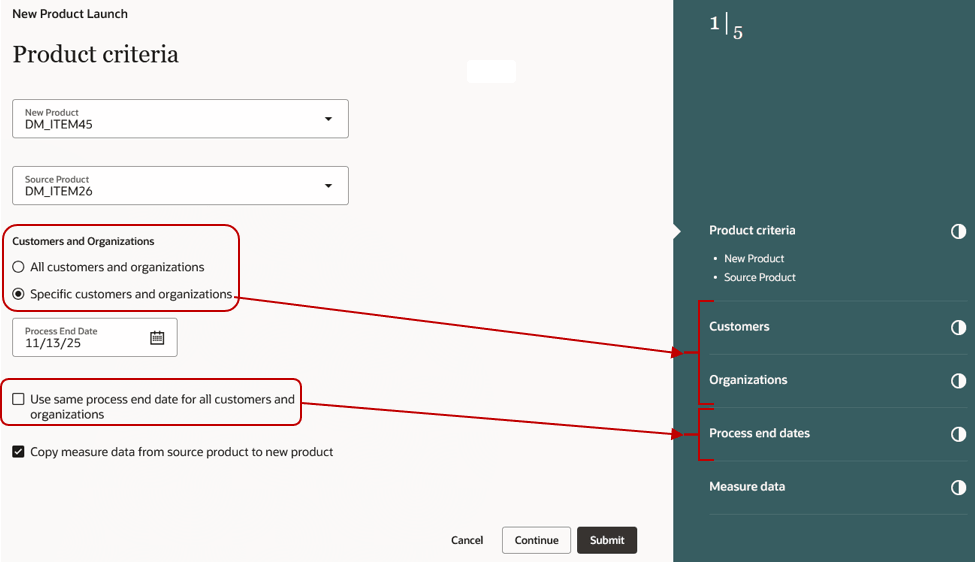
Product Criteria Step
Customers Step
Note the following about the Customer step:
- The step is enabled when you select the Specific customers and organizations option in the Product criteria step.
- Customers and customer sites associated with the source product are displayed in a tree.
- You can search by customer or customer site.
- The step has a menu button to show all or selected customers and customer sites.
- You must select at least one customer site to proceed to the next step. Otherwise, a banner error message is displayed.
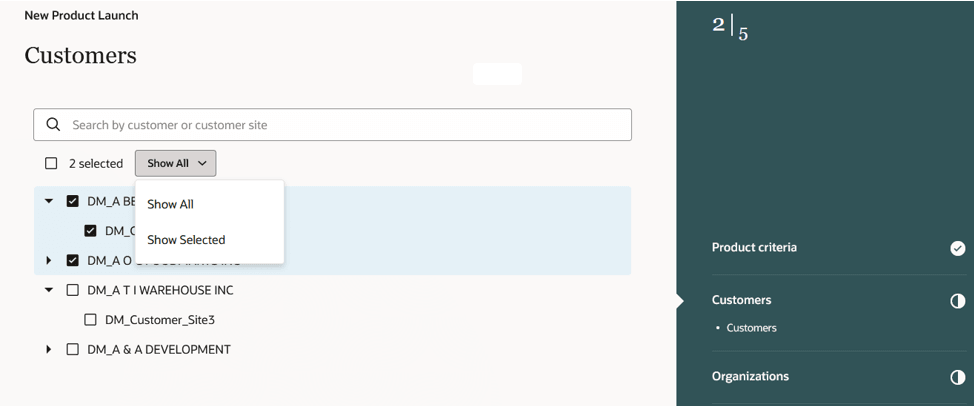
Customers Step
Organizations Step
Note the following about the Organizations step.
- The step is enabled when you select the Specific customers and organizations option in the Product criteria step.
- Organizations common to both the source and new products are displayed.
- You can search by organization.
- The step has a menu button to show all or selected organizations.
- You must select at least one organization to proceed to the next step. Otherwise, a banner error message is displayed.
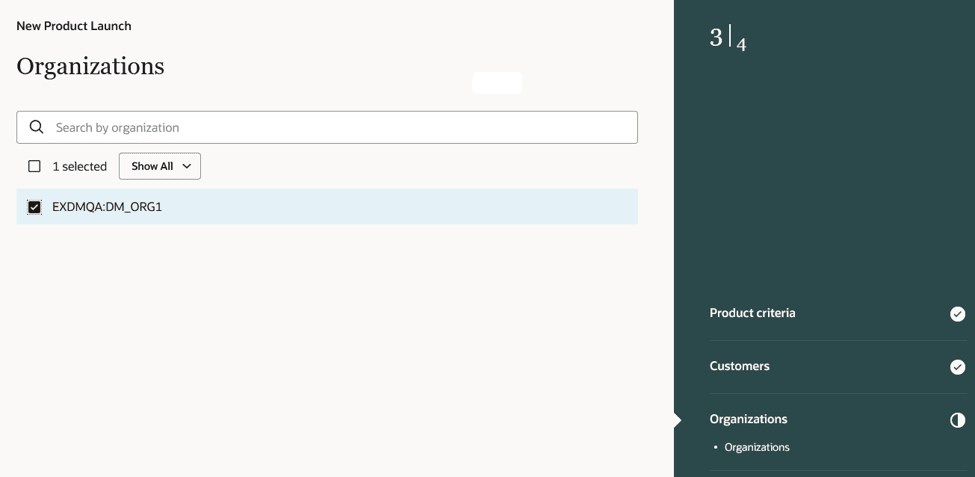
Organizations Step
Process End Dates Step
Note the following about the step named Process end dates:
- This step is enabled when you deselect the checkbox named Use same process end date for all customers and organizations in the Product criteria step.
- The selected customers, customer sites, and organizations along with the process end date specified in the Product criteria step are displayed.
- You can search by organizations, customers, or customer sites.
- You must select one or more rows in the table and click Change Process End Date to open a drawer in which you can select the new process end date. You can’t select a date earlier than the date in the Process End Date field in the Product criteria step.
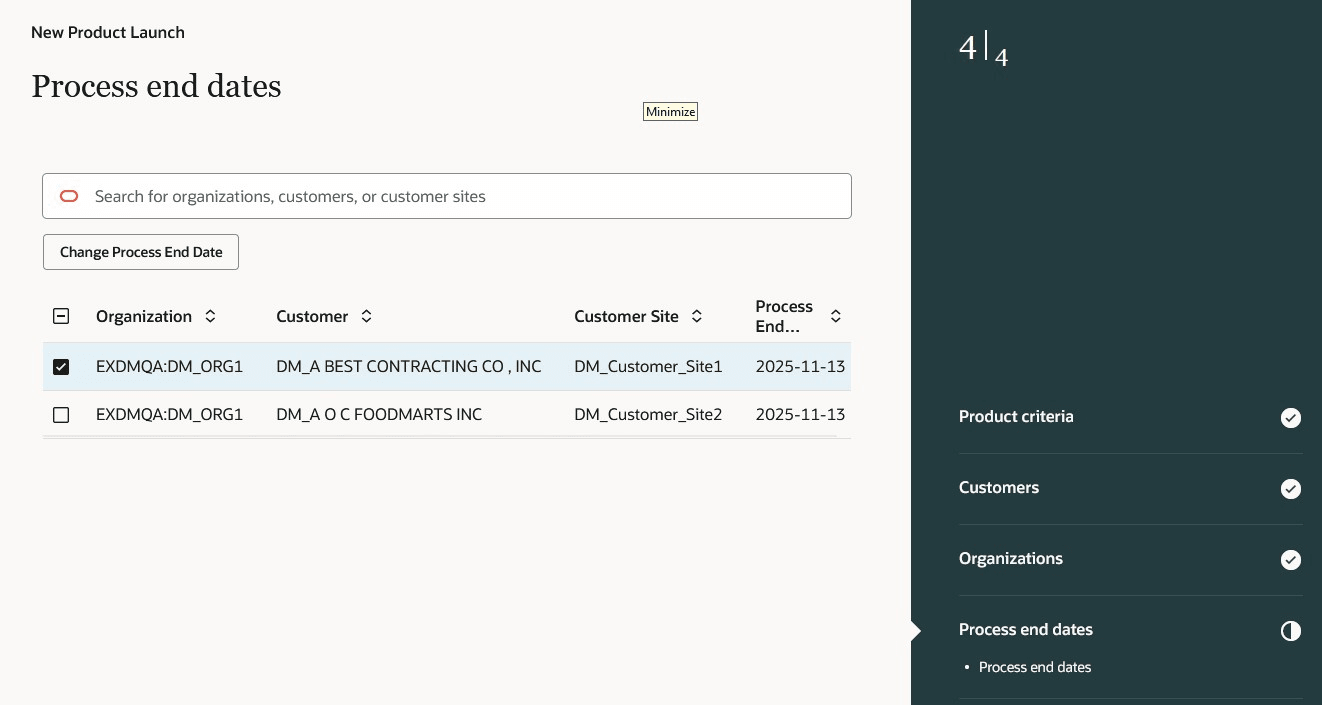
Process End Dates Step
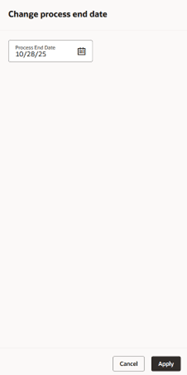
Drawer Named Change Process End Date
Measure Copy Sets
Note the following about creating measure copy sets in the Measure data step:
- You can click Save as Measure Copy Set to save the mappings between the source and target measures and copy factors for reuse in other product launch definitions. This button is enabled only when at least one mapping exists in the Measure data step.
- The name of the measure copy set must be unique and 30 characters or fewer in length.
- A measure copy set is available only in the plan where it’s created and not shared across plans.
- You can’t set a measure copy set as the default, unlike on the Manage Product Launch page in the classic UI.
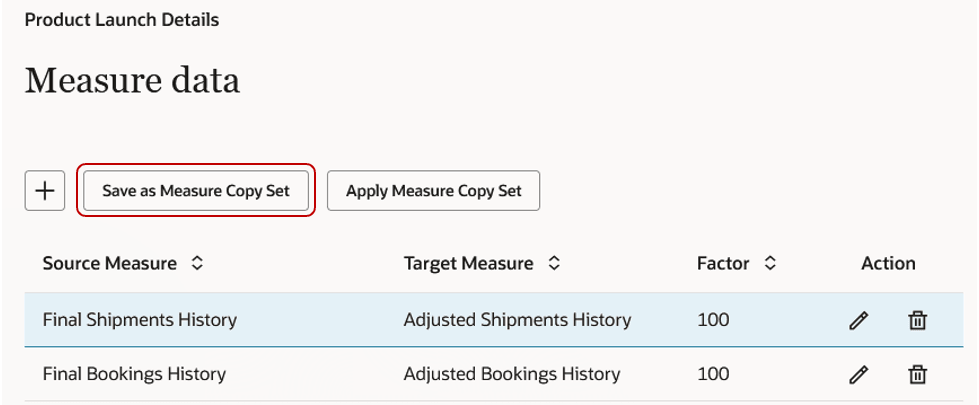
Measure Data Step
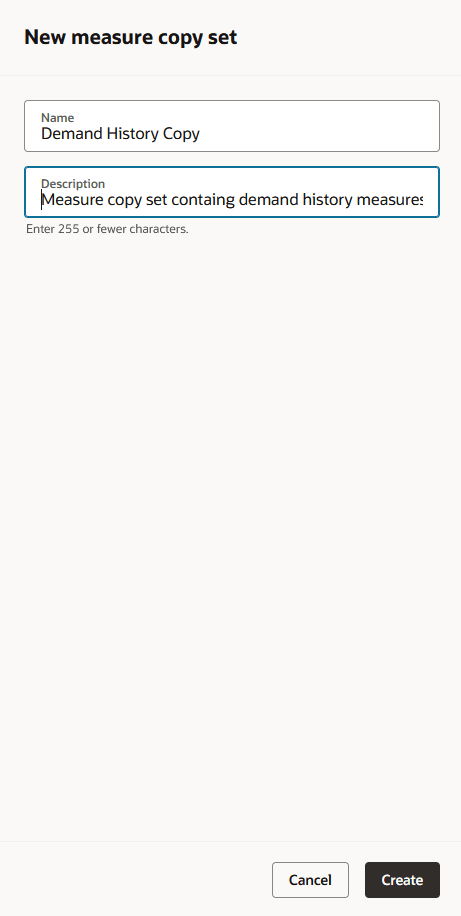
Drawer Named New Measure Copy Set
Note the following about applying measure copy sets:
- You can click Apply Measure Copy Set to apply the source measure, target measure, and copy factor mappings instead of adding them manually. When you click the button, the drawer named Apply measure copy set is opened and lists all measure copy sets for the plan. Select a measure copy set, and click Apply.
- If there are existing mappings in the Measure data step, you’ll see a warning when you apply a measure copy set.
- In the drawer, you can delete unwanted measure copy sets using the Delete icon.
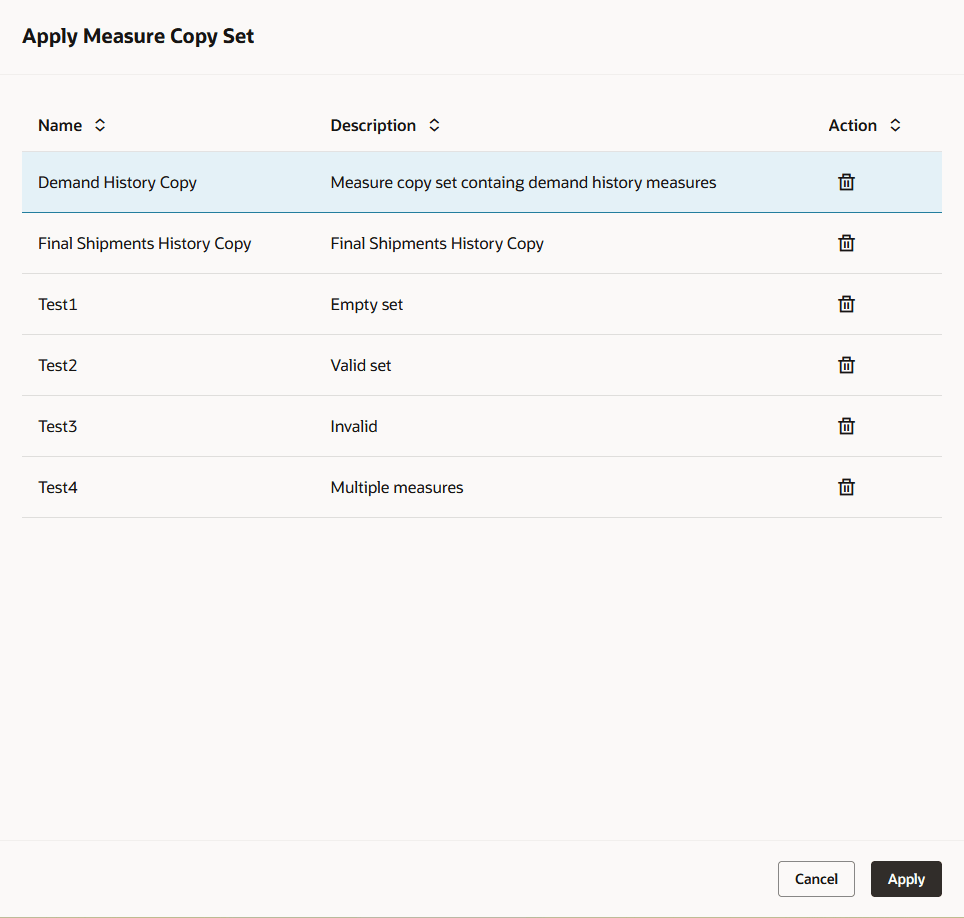
Drawer Named Apply Measure Copy Set
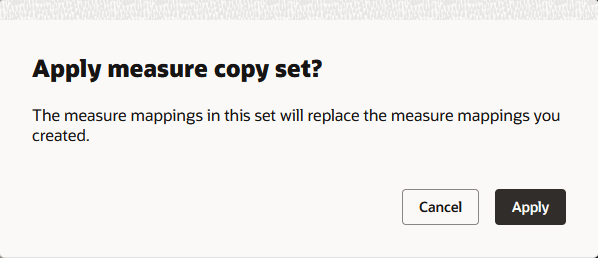
Warning Message
Steps to Enable and Configure
You don't need to do anything to enable this feature.
Tips And Considerations
- Enable the Process end dates step only if you want to provide different process end dates by organizations, customers, and customer sites. Otherwise, to apply the same process end date to all customer sites, update the Process End Date field in the Product criteria step.
- When you create a product launch request for specific customers and organizations, the Customers and Organizations steps won’t display members if the source product has no data in the plan. In that case, select a different source product in the Product criteria step.
- The profile option code named MSC_REDWOOD_ENABLE_PRODUCT_LAUNCH for enabling the feature in 25D is no longer required. If you’ve already configured the profile option code, it’ll be ignored.
Key Resources
- Refer to the Cloud Applications Readiness content for the following 25D feature for Oracle Fusion Cloud Supply Chain Planning: Redwood: Manage Product Launches Using a New User Experience
- Visit https://redwood.oracle.com/ for more information about the Redwood experience.
Access Requirements
Users who are assigned a configured job role that contains this privilege can access this feature:
- Manage Product Launch (MSC_MANAGE_PRODUCT_LAUNCH_PRIV)
This privilege was available prior to this update.