View Measure Values in the Principal UOM for an Item
In some implementations, the unit of measure (UOM) for an item may vary across organizations. It’s now possible to review planning data in the appropriate UOM by toggling between the primary UOM and principal UOM for an organization.
Using the feature titled “Process Global Forecast for Items with Different UOM's Across Organizations” that was introduced in Oracle Supply Planning 25D, you could configure the principal UOM to be used for an item when the primary UOM varies by organization.
The principal UOM for an item is the primary UOM defined for that item in the organization selected as the global forecast validation organization on the Organizations tab on the Maintain Supply Network Model page in the classic UI or Supply Network Model page in the Redwood UI.
Previously, the principal UOM was used for only global forecasting. In this case, the forecast retrieved from Oracle Demand Management through a demand schedule in Supply Planning is converted to the principal UOM.
In this update, you can convert measure values displayed in visualizations to the principal UOM.
To convert the measure values in the Redwood UI for an open table or graph, follow these steps:
- On the toolbar, click the Measures icon.
The Measures and expressions drawer will open.
- Go to the Formatting tab.
- Click the Edit icon in the Display column for the measure for which you want to display values in the principal UOM.
The fields for the measure are displayed.
- In the Unit of Measure field, select Principal UOM.
- Click Apply and Close.
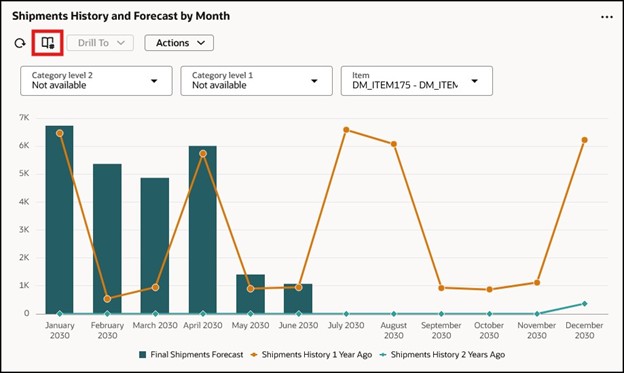
Measures Icon for Redwood Graph
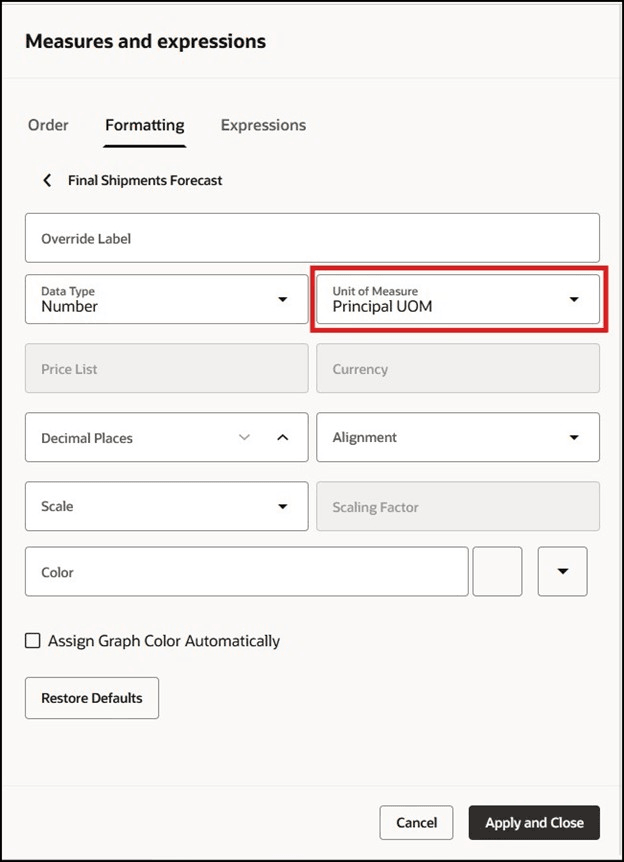
Formatting Tab in Measures and Expressions Drawer
To convert the measure values in the classic UI for an open table or graph, follow these steps:
- On the toolbar, click View > Format Measures.
The Format Measures dialog box opens.
- Select the row for the measure for which you want to display values in the principal UOM.
- In the field in the Unit of Measure column, select Principal UOM.
- Click Save and Close.
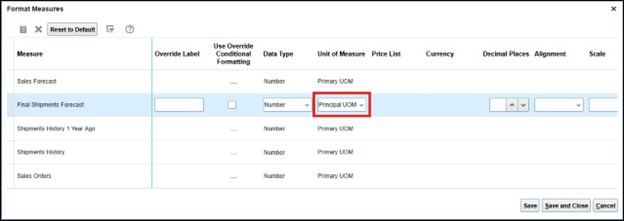
Format Measures Dialog Box
Steps to Enable and Configure
You don't need to do anything to enable this feature.
Tips And Considerations
The principal UOM is available for selection only if an organization has been selected as the global forecast validation organization on the Organizations tab on the Maintain Supply Network Model/Supply Network Model page for any source system, and this source system doesn’t have to be the one assigned to your plan.
You should select the principal UOM for a measure for a table or graph only if the organization selected as the global forecast validation organization belongs to your plan’s source system. Otherwise, selecting the principal UOM will result in blank values being displayed for the measure.
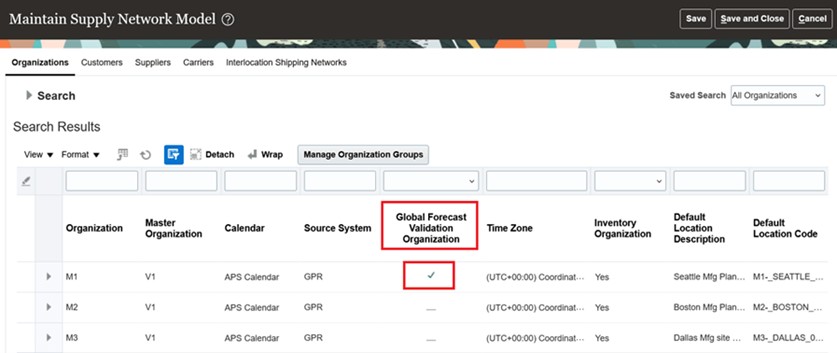
Column Titled Global Forecast Validation Organization on Organizations Tab on Page Titled Maintain Supply Network Model
This feature is enabled by default. If you want to disable the feature so that the principal UOM isn’t available for selection when an organization has been selected as the global forecast validation organization on the Organizations tab on the Maintain Supply Network Model/Supply Network Model page, then follow these steps:
- In the Setup and Maintenance work area, go to the Manage Profile Options task in the Supply Chain Planning offering.
- On the Manage Profile Options page, in the Profile Options section, click the New icon.
- On the Create Profile Option page, create the profile option as follows:
- Profile Option Code: MSC_VALIDATION_ORG_UOM_SNAPSHOT
- Profile Display Name: MSC_VALIDATION_ORG_UOM_SNAPSHOT
- Application: Planning Common
- Module: Planning Common
- Start Date: current date
Leave the remaining fields blank.
- Click Save and Close.
- On the Manage Profile Options page, for the MSC_VALIDATION_ORG_UOM_SNAPSHOT profile option, in the Profile Option Levels section, select the checkboxes in the Enabled and Updatable columns for the Site level.
- Click Save and Close.
- In the Setup and Maintenance work area, go to the Manage Planning Profile Options task in the Supply Chain Planning offering.
- On the Manage Planning Profile Options page, search for and select the MSC_VALIDATION_ORG_UOM_SNAPSHOT profile option.
- In the Profile Values section, click the New icon.
- Add a profile value as follows:
- Profile Level: Select Site to set the value globally for all users.
- Profile Value: Enter
FALSE.
- Click Save and Close.
- In the Setup and Maintenance work area, go to the Manage Profile Categories task in the Supply Chain Planning offering.
- On the Manage Profile Categories page, search for and select the category code named ORA_FND_ANON_REST_ACCESS.
- In the Profile Options section, click the New icon.
- In the Profile Name field, select the profile option named MSC_VALIDATION_ORG_UOM_SNAPSHOT.
- In the Display Sequence field, enter
0(zero ). - Click Save and Close.
Note: You may need to work with someone who has administration privileges to make these profile-related changes.
Key Resources
- Refer to the Cloud Applications Readiness content for the following 25D feature for Supply Planning: Process Global Forecast for Items with Different UOM’s Across Organizations
Access Requirements
Users who are assigned a configured job role that contains this privilege can open visualizations in Redwood:
- View Planning Objects Using REST Service (MSC_VIEW_PLANNING_OBJECTS_REST_SERVICE_PRIV)
Users who are assigned a configured job role that contains one or both of these privileges can use this feature to view measure values in the principal UOM:
- Maintain Planning Tables (MSC_MAINTAIN_PLANNING_TABLES_PRIV)
- View Planning Tables (MSC_VIEW_PLANNING_TABLES_PRIV)
Users who are assigned a configured job role that contains these privileges can configure the global forecast validation organization on the Organizations tab on the Maintain Supply Network Model/Supply Network Model page and make the UOM conversion factors available for plans:
- Edit Plans (MSC_EDIT_PLANS_PRIV)
- Monitor Supply Planning Work Area (MSC_MONITOR_SUPPLY_PLANNING_WORK_AREA_PRIV)
- Run Plan with Snapshot (MSC_RUN_PLAN_WITH_SNAPSHOT_PRIV)
These privileges were available prior to this update.