Redwood: Configure Exceptions Sets Using a New User Experience
Use the Redwood user experience to view, create, edit, duplicate, and delete an exception set. An exception set is a configurable collection of rules and parameters that enables you to focus on critical areas requiring attention by controlling the sensitivity and reporting of various predefined and user-defined exceptions. These capabilities simplify administration, ensure consistency across plans, and help you highlight only the exceptions that matter most to your operations.
You can now use the Redwood user experience to view and make changes to Exception Sets. You can access this page from the Supply Chain Planning work area when viewing a plan or plan inputs. Open the action menu, click the View More action, and click the Planning Exception Sets link in the Configuration section.
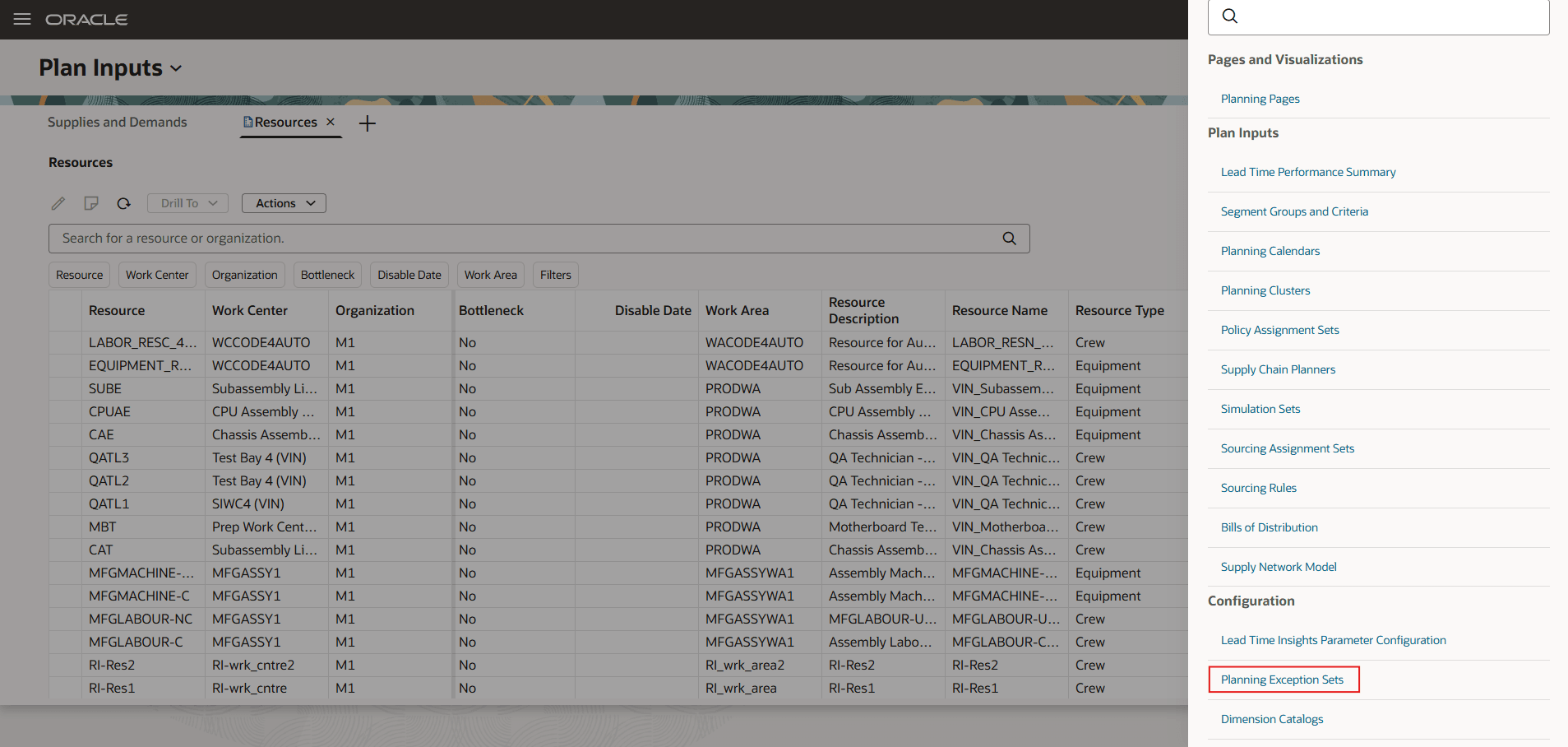
Planning Exception Sets in the Action Menu
On the Exception Sets page, you can search for, view, create, copy, edit, and delete exception sets. For each exception set, you can select the exceptions to include, and optionally filter to apply on those set of exceptions.
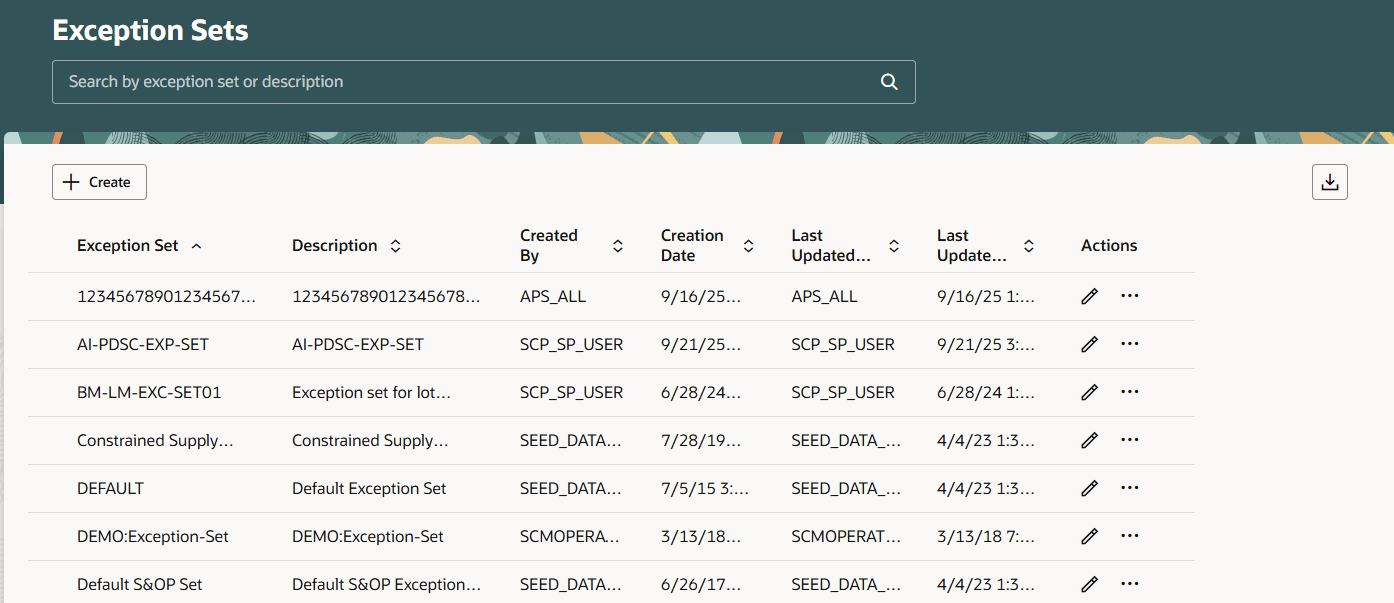
Exception Sets
Searching for Exception Sets
Keyword search: Use keywords to search for exception sets based on the exception set name or the description. The search runs over the Exception Set and Description columns using the contains operator and is case insensitive.
Search Results
The search result lists the exception sets by name and description. It displays the user and date that the exception set was last updated or created. Each column can be sorted in ascending and descending order.
Note that certain exception sets are provided by default and can’t be modified. These are identified with a Created By value of SEED_DATA_FROM_APPLICATION. You can create a copy of these default exception sets and then modify the copy as needed.
Action Toolbar
On the Action toolbar, you can:
- Create exception set.
- Export or download the exception sets. The columns are exported based on the current view, meaning that the exported spreadsheet contains the columns in the order in which they appear in the table.
Creating an exception set
- Click Create.
This opens the New exception set drawer.
- Enter a unique name and an optional description.
If the name of the simulation set already exists, an error message will be displayed. - Set the Exception Cutoff Days.
- Use the search field or select the exceptions from the list to include in the exception set.
The displayed list of available exceptions is grouped by the plan type. - Click Create.
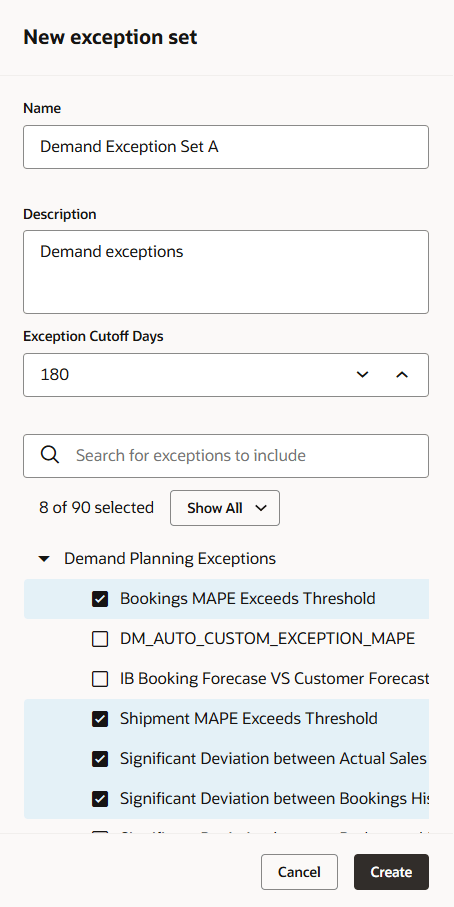
Creating a New Exception Set
After you click Create, the new exception set is available for use in plan options.
The following actions are available for each exception set:
Edit an exception set
Update the details of an existing exception set.
- On the Exception Sets page, click the Edit icon.
This opens the exception set drawer. - Update the name, description, exception cutoff days.
Note: If the name of the exception set is already in use, an error message will be displayed. - Click Update.
Note: The fields of a default exception set aren’t editable. The Update button is also disabled.
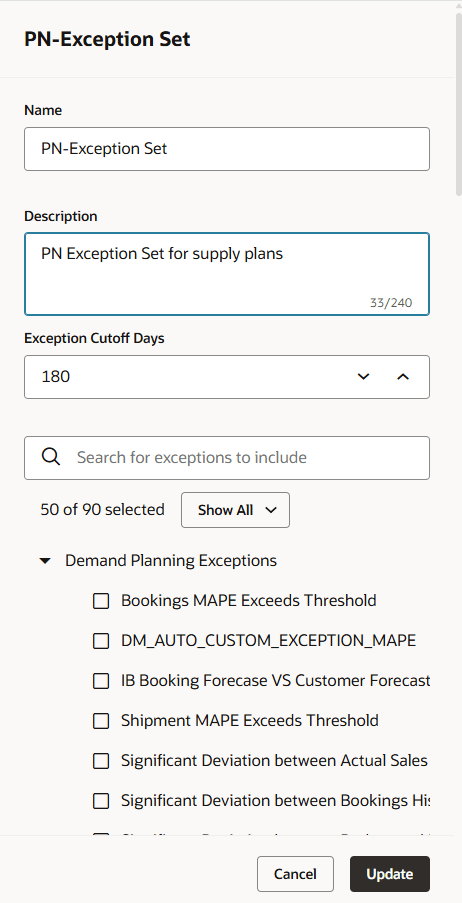
Editing an Exception Set
Copy an exception set
- Click the Actions icon.
- Select Duplicate.
The Copy exception set drawer opens populated with the values from the original exception set you are copying from. - Enter a new name and optional description.
- Select or deselect exceptions from the list.
- Click Copy.
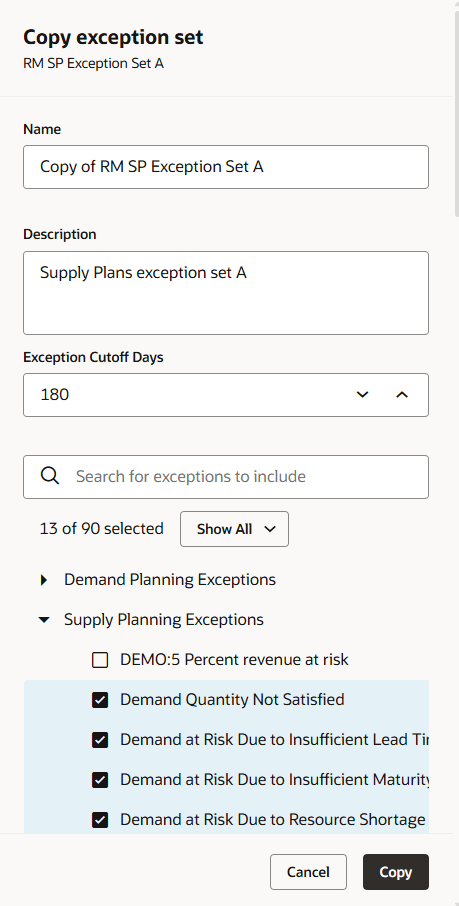
Copying an Exception Set
Delete an exception set
- Click the Actions icon.
- Select Delete from the given options.
The exception set is deleted.
If the exception set is associated to any plans, the association is removed from the plan’s exception set plan option field and is replaced by the default exception set for that plan type.
Steps to Enable and Configure
You don't need to do anything to enable this feature.
Tips And Considerations
If you want to use the Redwood: Configure Exceptions Sets Using a New User Experience feature, then you must opt in to its parent feature: Replenishment Planning. If you’ve already opted in to this parent feature, then you don’t have to opt in again.
Access Requirements
Users who are assigned a configured job role that contains these privileges can access this feature:
- View Planning Exception Sets (MSC_VIEW_PLANNING_EXCEPTION_SETS_PRIV)
- Edit Planning Exception Sets (MSC_EDIT_PLANNING_EXCEPTION_SETS_PRIV)
These privileges were available prior to this update.