Redwood: Manage Work Order Release Approvals Using Oracle Electronic Records and Electronic Signatures
Use Electronic Records and Electronic Signatures (ERES) for maintenance work order approvals using Redwood. When a work order is changed to the Released status, the application captures the electronic record and initiates a deferred approval process. The work order is placed in Pending Approval status and is locked from further edits until the approval is completed or rejected. The new Pending Approval badge appears when you search for work orders.
This Work Orders page screenshot shows a work order that's released and awaiting approval, indicated by the Pending Approval badge. The work order is also locked and no edits can be made to any of the tabs in this work order.
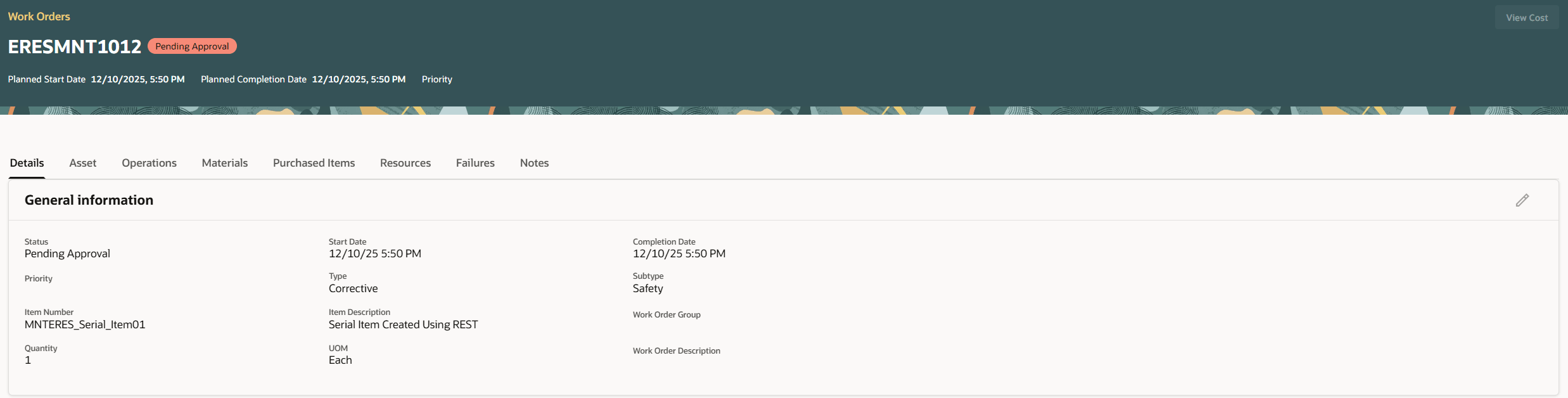
Work Order with a Pending Approval Badge
Here's a screenshot of Maintenance Supervision landing page that shows a work order with the Pending Approval badge.
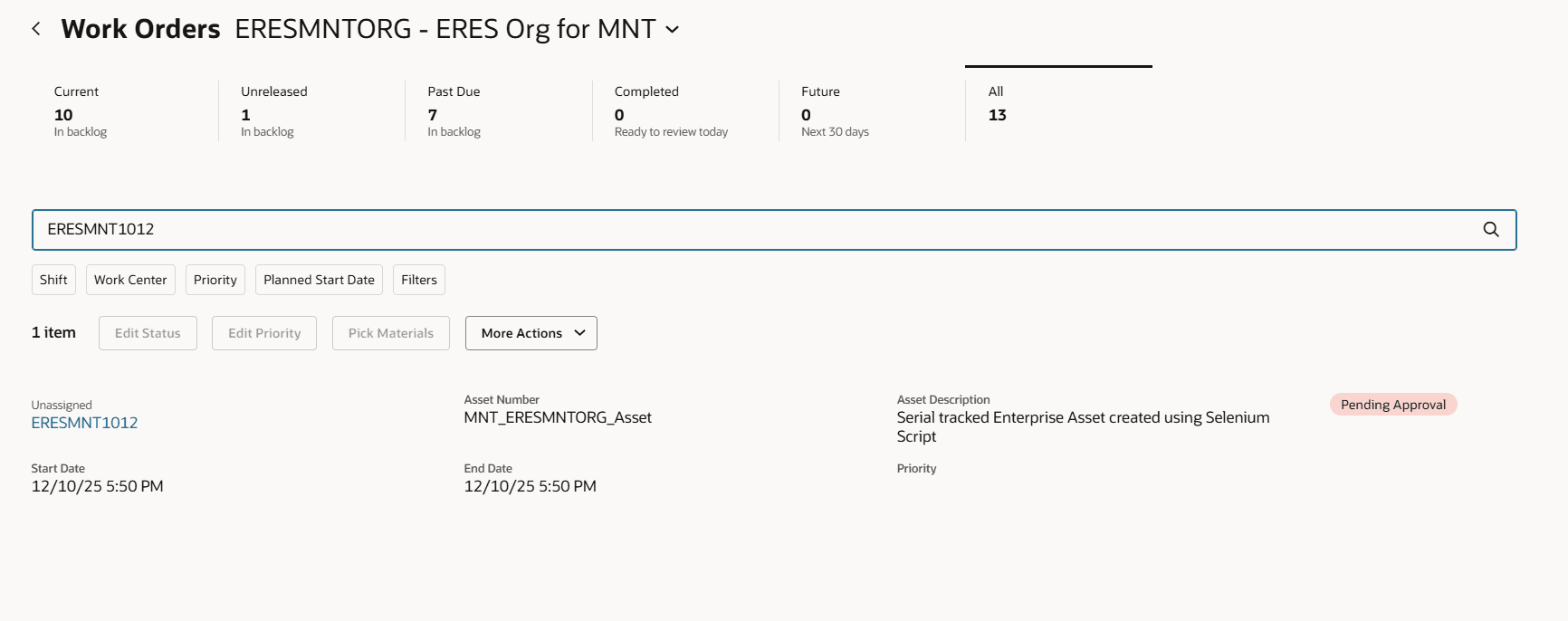
Work Order with Pending Approval Badge on Maintenance Supervision Page
Approvers are notified through the notification bell when a work order status change requires review. From the notification, approvers can open the electronic record, confirm that they have read the record, and submit their approval.
This screenshot shows the new Redwood screen where an approver can either Reject or Approve the work order.
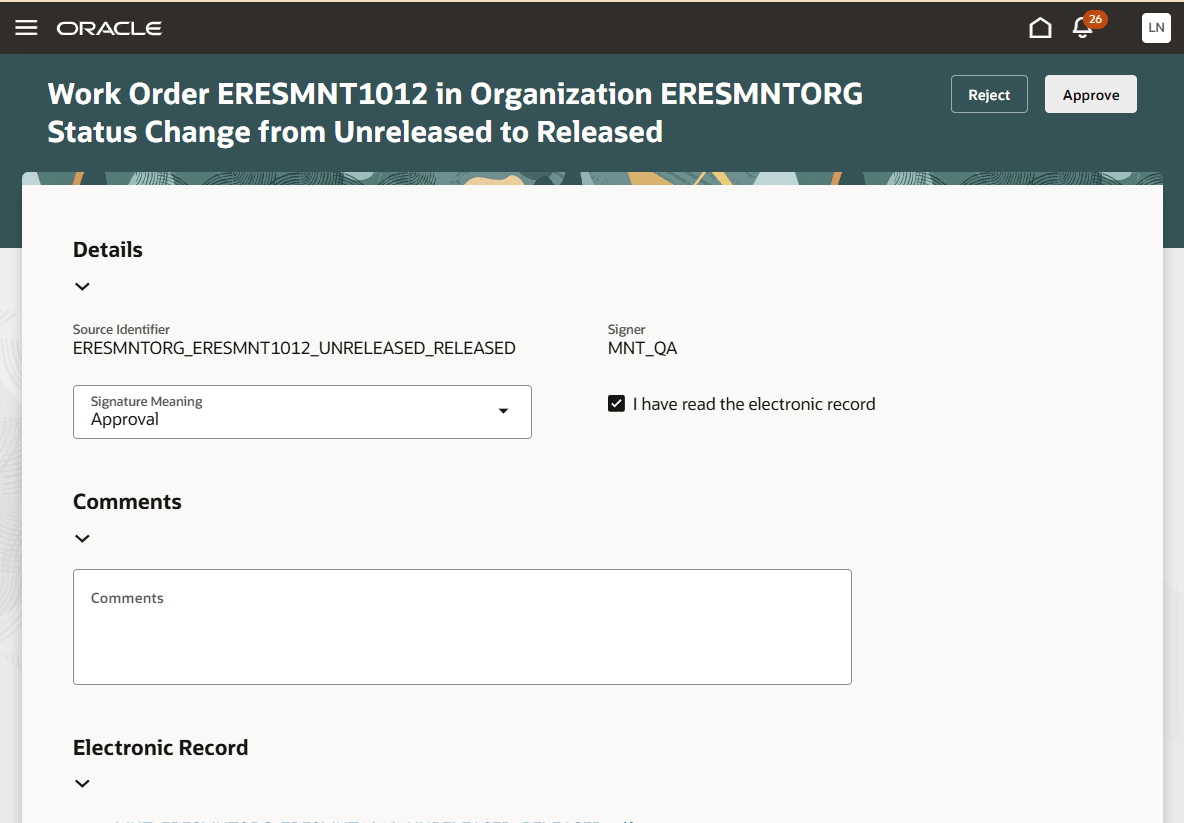
New Redwood Screen that Allows an Approver to Reject or Approve a Work Order
If the approver selects the Approve button, the application requests for a user re-authentication to capture the electronic signature. After all required approvals are completed, the work order automatically advances to the Released status.
Control the release of work orders through the e-record and e-signature process to ensure adherence to specifications and procedures before starting a maintenance work order.
Steps to enable and configure
- In the Setup and Maintenance work area, search for and select the Manage Administrator Profile Values task.
- On the Manage Administrator Profile Values page, search for and select the profile option codes for (ORA_EDR_ENABLE_REDWOOD_NOTIFICATION)
- In the Profile Values section, set the Site level to Y or N. The default value of the profile option is N.
- Y = enables the feature
- N = disables the feature
- Ensure Profile Values for (ORA_MNT_SUPERVISION_REDWOOD_ENABLED) and (ORA_MNT_MANAGEMENT_LANDING_PAGE_REDWOOD_ENABLED) are set to Y.
- Click Save and Close. Changes in the profile value will affect users the next time they sign in.
Also, do this:
- To enable electronic records and capture electronic signature for maintenance, you must determine and configure electronic signatures for each inventory organization using the Configure Electronic Signature Preferences task in the Setup and Maintenance work area. The transaction to be configured is Maintenance Work Order Approval.
- After you enable electronic signatures for a transaction, you must also define configurable business process rules in Oracle Business Process Management using the Manage Task Configurations for Supply Chain Management task, and the Manage Approval Groups task in the Setup and Maintenance work area to determine the approver for each transaction. The task to be configured is WorkOrderDeferredApproval.