Redwood: Review Maintenance Transaction History
Review all transactions reported against maintenance work orders in the new Redwood Work Order Transactions page. To launch the page, select the Work Order Transactions task from the Actions menu on the Maintenance Management and Maintenance Execution landing pages, as shown in the screenshot below. You can also view the transaction history for an individual work order by selecting Work Order Transactions from within a specific work order. 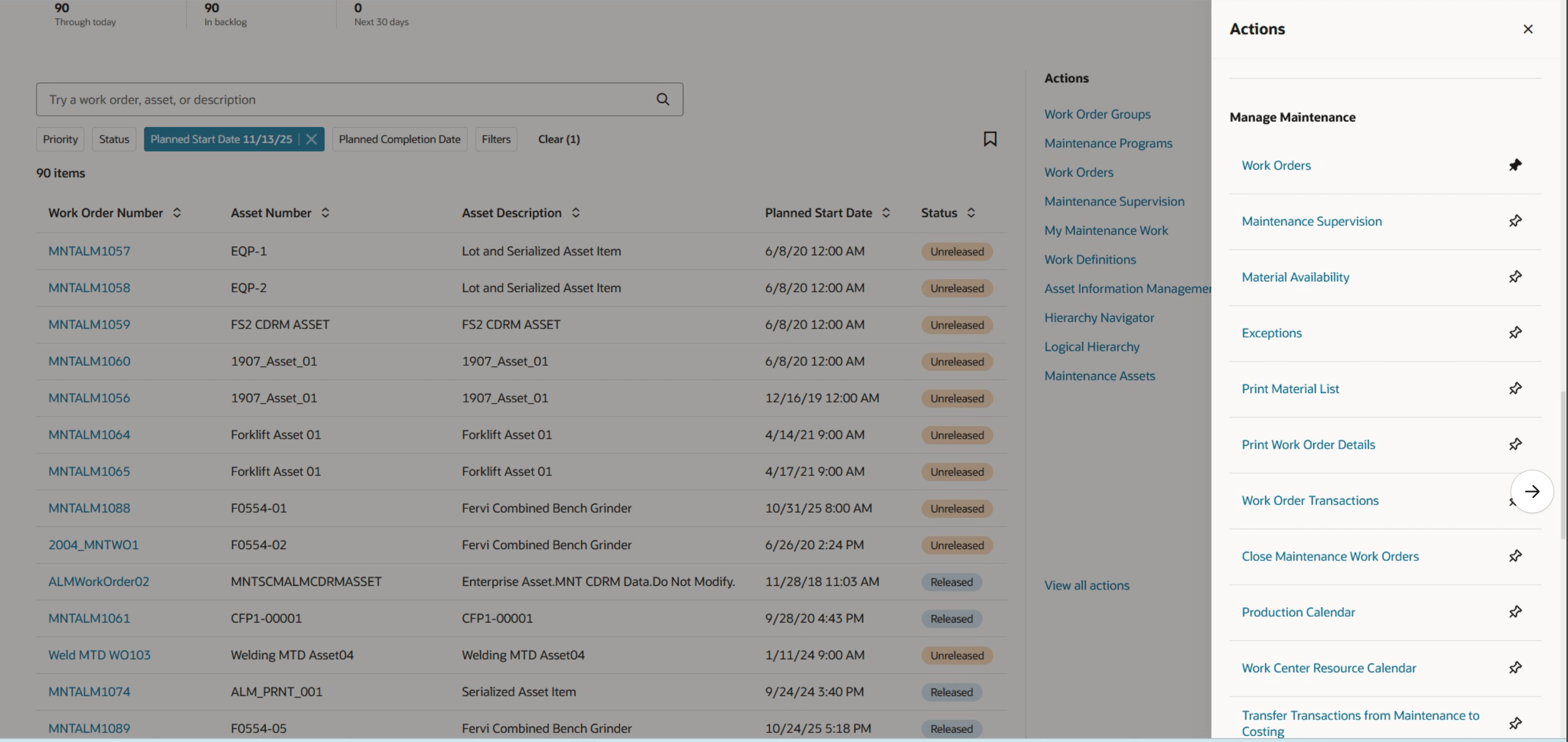
Quick Action Link to Navigate to Work Order Transactions
As shown in this screenshot, maintenance transactions appear in chronological order, with the most recent transactions listed first.
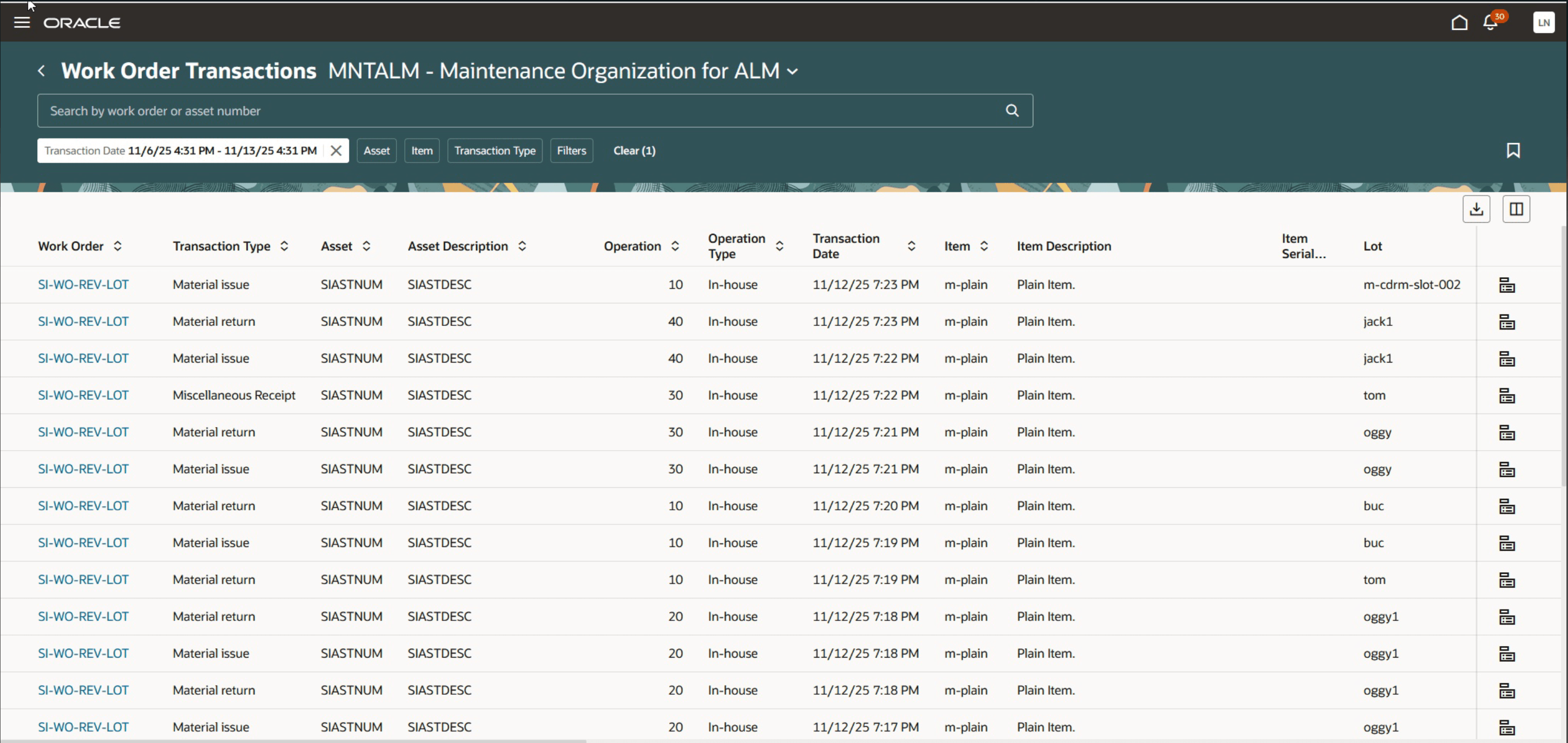
New Redwood Work Order Transactions Page Showing Transactions on Maintenance Work Orders
You can perform a basic keyword search or use advanced search filters such as Transaction Date, Asset, Item, Transaction Type, Item Serial Number, and Operation Type, to help you find specific transactions. For organizations with project tracking, filters for project number and task number are also available. You can also set a week's period for default transaction date and broaden this days range while adding more attributes on your keyword search as well as filters. The screenshot here shows a list of filters you can apply.
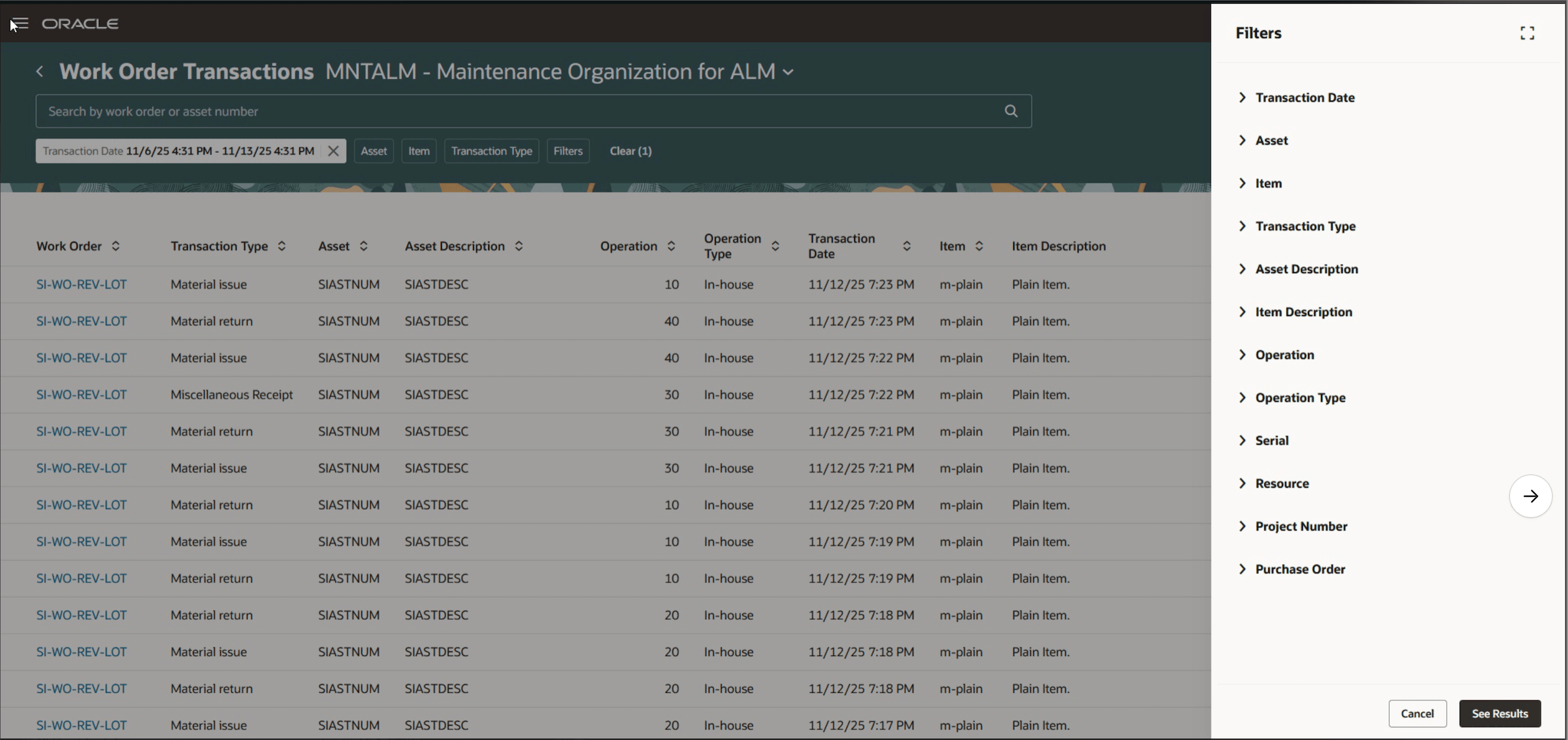
Search and Filters on the New Work Order Transactions page
The Work Order Transactions page provides a single place to find, track, and review all maintenance activities. This makes it easy to review and analyze transactions that helps you verify the accuracy of completed maintenance tasks and inventory records.
The new Redwood Work Order Transactions page streamlines maintenance activities and allows you to quickly review, track, and verify all work order transactions. This improves accuracy, efficiency, and visibility across maintenance activities.
Steps to enable and configure
- In the Setup and Maintenance work area, search for and select the Manage Administrator Profile Values task.
- On the Manage Administrator Profile Values page, search for and select the profile option code for Redwood Page ORA_MNT_WO_TRANSACTION_HISTORY_REDWOOD_ENABLED
- In the Profile Values section, set the Site level to Y or N. The default value of the profile option is N.
- Y = enables the feature
- N = disables the feature
- Click Save and Close. Changes in the profile value will affect users the next time they sign in.
Access requirements
Users who are assigned a configured job role that contains these privileges can access this feature:
- Manage Customer Assets (CSI_MANAGE_CUSTOMER_ASSETS_PRIV)
- View Customer Assets (CSI_VIEW_CUSTOMER_ASSETS_PRIV)
- Manage Enterprise Assets (CSE_MANAGE_ENTERPRISE_ASSETS_PRIV)
- View Enterprise Assets (CSE_VIEW_ENTERPRISE_ASSETS_PRIV)
These privileges are available prior to this update.