Redwood: Manage Bills of Resources Using a New User Experience
Use the Redwood user experience to manage bills of resources that define the critical components and resources needed to manufacture end items or subassemblies. The new interface supports advanced features for viewing, filtering, editing, and drill-to capabilities of bills of resources across sales and operations plans, plan inputs and simulation sets for alternate resources, substitute components, and option-dependent resources used for global order promising.
You can manage bills of resources in the Redwood user experience using the Aggregate Bill of Resource visualization. You can access this table from the Oracle Fusion Cloud Supply Chain Planning work area through a sales and operations plan, a simulation set, or plan inputs. Simulation sets include columns for substitute components and alternate resources used by Global Order Promising. You can also open the Aggregate Bill of Resource table by drilling down from other visualizations such as Items or Resources. From the Aggregate Bill of Resource table within a simulation set or plan inputs, you can drill down to the Option Dependent Resources table for any record marked as Option Dependent.
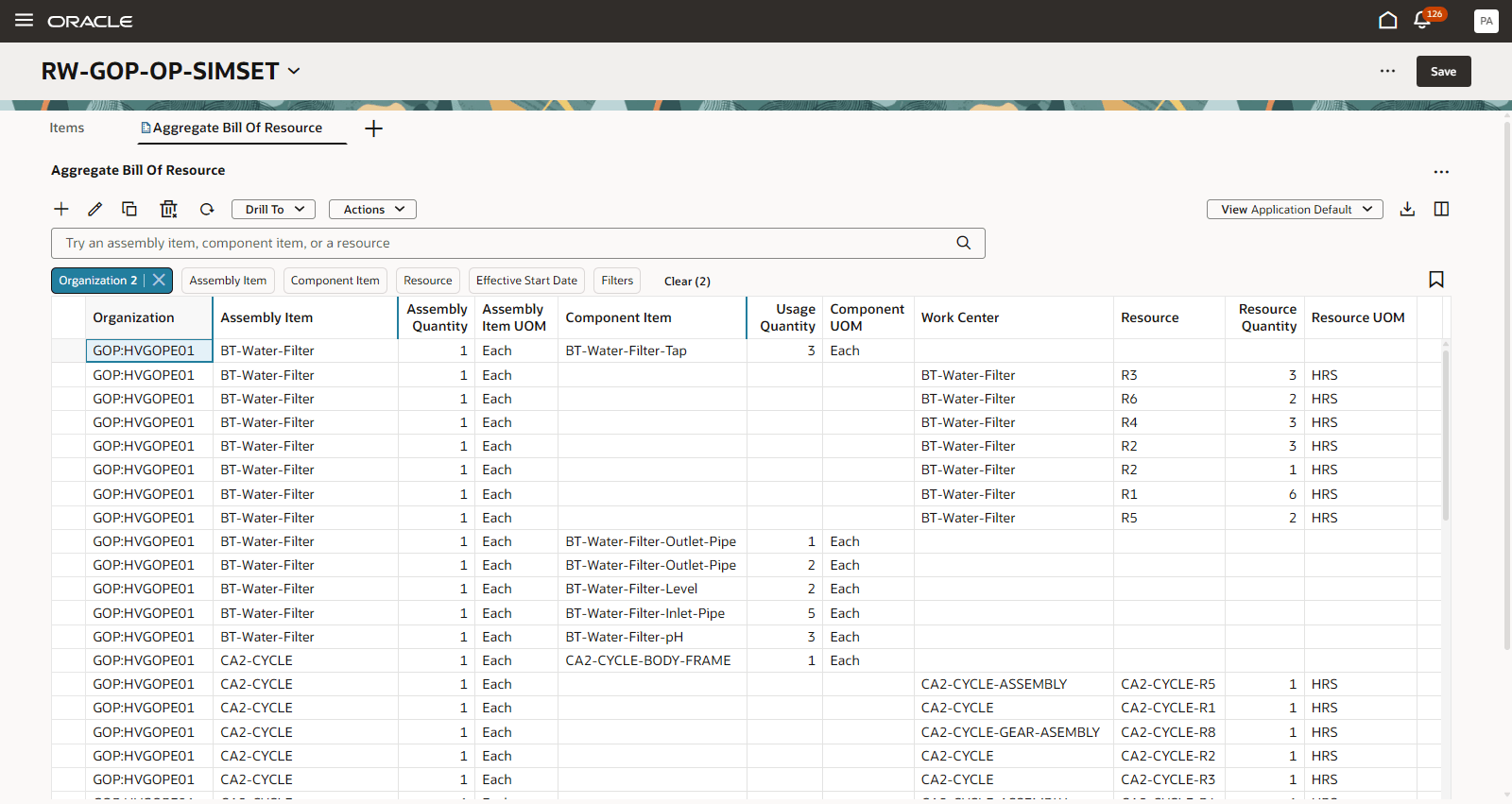
Aggregate Bill of Resource Table in a Simulation Set
The following sections describe the capabilities of the Aggregate Bill of Resource table.
Aggregate Bill of Resource Toolbar
The actions on the Aggregate Bill of Resource toolbar are as follows:

Aggregate Bill of Resource Toolbar in a Simulation Set
- Add: Add a new bill of resource to a simulation set. Click the icon to open a drawer where you provide the Organization, Assembly Item, and specify whether the Type is a component item or a resource.
For a component, specify the Component Item, Usage Quantity, Effective Start Date, and Effective End Date attributes. For a resource, specify the Resource, Resource Quantity, Effective Start Date, and Effective End Date attributes. - Edit: Modify the bill of resource attributes for one or more rows in a sales and operations plan or simulation set. Click the icon to open a drawer, where you can update the following attributes:
- For a component: Usage Quantity, Effective Start Date, and Effective End Date
- For a resource: Resource Quantity, Effective Start Date, and Effective End Date
Apply the changes to all the selected rows.
- Copy: Copy a bill of resource in a simulation set. Click the icon to copy the selected assembly item, organization, and either component item data into a new component item or resource data into a new resource.
- Delete: Delete bills of resources in a simulation set. Click the icon to delete one or more rows.
- Refresh: Select this option to:
- Receive a notification if there are unsaved changes. Any unsaved changes made to the Aggregate Bill of Resource table are discarded if you confirm the refresh action.
- Remove any column filters or sorting that you applied.
- Query the data again using existing filters, such as the drill-to context or selected filter chips.
- Drill To: Pass the context to another table or graph after selecting one or more rows. This action will open the selected visualization on a separate page. To add more Drill To actions, select Manage Links from the Actions menu.
- Actions: Copy to Simulation Set, Save View, Restore View, or Delete View.
- To copy bill of resource rows from plan inputs to a simulation set, select one or more rows then select Copy to Simulation Set from the Actions menu.
- To copy bill of resource rows from a sales and operations plan to a simulation set, select one or more rows then select Copy to Simulation Set from the Actions menu. You can copy only the rows that you modified within the plan to a simulation set. You also have the option to select Copy All Changes to Simulation Set.
- View: Configure the table by selecting the columns to display and arranging them in your preferred order. You can quickly switch between views to show the information most relevant to your task. Use the Actions menu to save views for reuse.
- Export: Export the current records. Only the columns visible in the current view are included in the exported spreadsheet, and they appear in the same order as in the table.
- Columns: Select the columns you want to display and arrange them in your preferred order. You can drag and drop the column names in the Columns drawer to rearrange their order.
- Actions (...): The Actions menu provides options to Manage Links, Maximize, and Clear Context. These actions are also available from the same menu in other visualizations.
After making edits in the Aggregate Bill of Resource table in a sales and operations plan or simulation set, click Save at the page level to preserve your changes.
Search and Filter in the Aggregate Bill of Resource
You can search and filter for bills of resources using the search bar and the filter chips.

Search and Filter in the Aggregate Bill of Resource Table
Use the search bar and filters to locate specific bills of resources as follows:
- Keyword search bar: Search across multiple columns using the keyword search. The keyword search for bills of resources scans the Assembly Item, Organization, Component Item, and Resource columns using the contains operator. For example, if you type the text “frame” in the keyword search and press Enter or click the search icon, you can see all bills of resources for assembly items, organizations, component items, or resources that contain the search text, such as CA2-CYCLE-BODY-FRAME. Keyword search is case insensitive.
- Suggested filters: Search for bills of resources using the column-specific filter criteria. For example, you can filter by selecting multiple items from the Assembly Item filter, and one or more organizations from the Organization filter. Component Item, Resource, and Effective Start Date are also suggested column filters. After selecting the filter criteria, press Enter or click outside the filter. The table updates to display only the rows that match the selected criteria.
- Filters: Select the Filters chip to open a drawer with more column filtering options that aren’t available through the suggested filters. For example, the Filters drawer has column groups such as Substitute Component and Alternate Resource, which are available in a simulation set. The available filter criteria options are based on the data type of the selected column.
- Numeric columns: When filtering a numeric column, you can specify both the operator and the value. For example, if you choose the Between operator, enter the From and To values to define a numeric range.
- Date columns: When filtering a date column, you can specify either a From date, To date, or both.
- Single-value search: You can select a single value from columns that provide a predefined list of values.
- Free-text search: You can filter by entering alphanumeric text in columns that don’t have predefined values.
- Saved searches: You can save and name your current keyword search and filters. You can reuse the saved searches to apply frequently used search criteria without manually setting the filters each time.
Arrange Columns and Save Views
Select the columns you want to display and arrange them in your preferred order. You can drag and drop the column names in the Columns drawer to rearrange their order. You can quickly switch between views to show the information most relevant to your task.
Click the Columns icon to open the Columns drawer. The drawer displays all the available columns in the Aggregate Bill of Resource table. Select columns that you want to display, and reorder them by dragging the column names up or down.
For example, if you want to focus on component items and hide resource columns such as Work Center, Resource, Resource Quantity, and Resource UOM, select the column names and click Hide. To display columns again, select the column names and click Show.
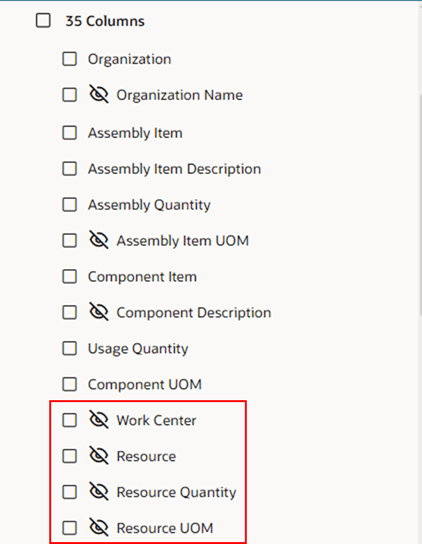
Hide Resources in Columns Drawer
After arranging the columns, you can save the display as a view for future reuse. Click Actions and select Save View to save your view. In the Save view drawer, you have two options:
- Save as existing: Updates the current view.
- Save as new: Creates a new view.
Note: If you're not the owner of the current view, Save as new is selected automatically. You can't overwrite a public view created by another user.
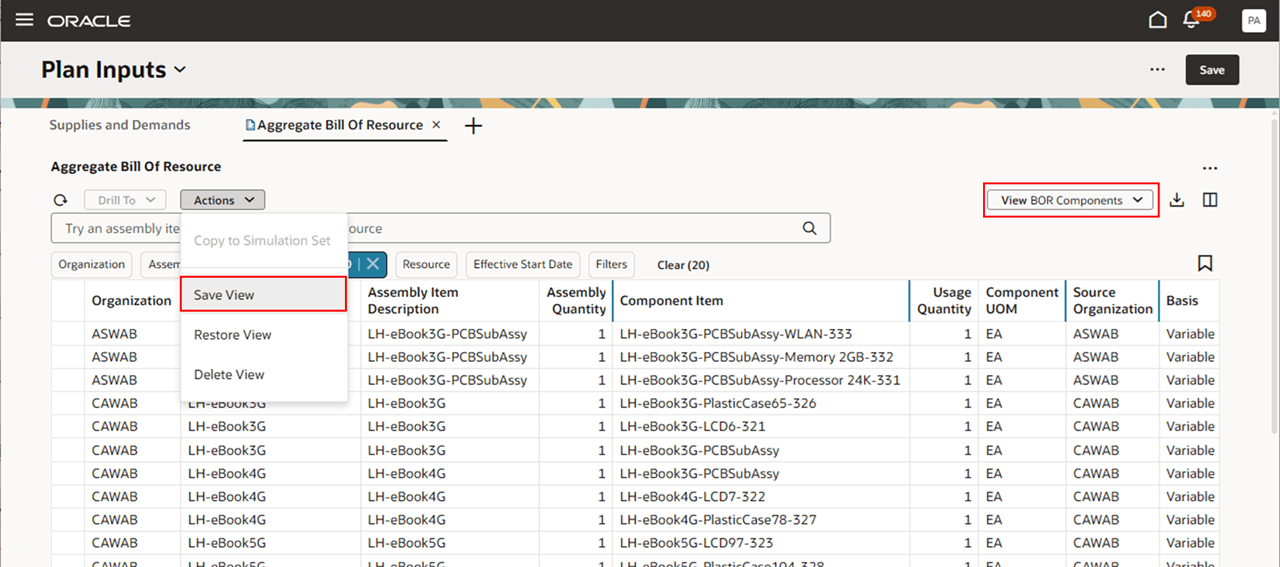
Save View in the Aggregate Bill of Resource Table
More view actions:
- Restore View: Reverts the table to the last saved version of the current view. Any unsaved changes, such as column rearrangements or visibility toggles, are discarded.
- Delete View: Permanently deletes the current view. A confirmation is required before deletion, and only the view owner can delete this view.
Edit Data
You can make both inline and mass edits in the Aggregate Bill of Resource table. Editable fields include Assembly Quantity, Usage Quantity, Resource Quantity, Effective Start Date, Effective End Date, and Lead Time Offset in Days. To perform an inline edit, double-click an editable cell.
To perform mass edits, select the rows you want to update, then click the Edit icon. This opens a drawer where you can edit commonly used attributes for the selected rows.
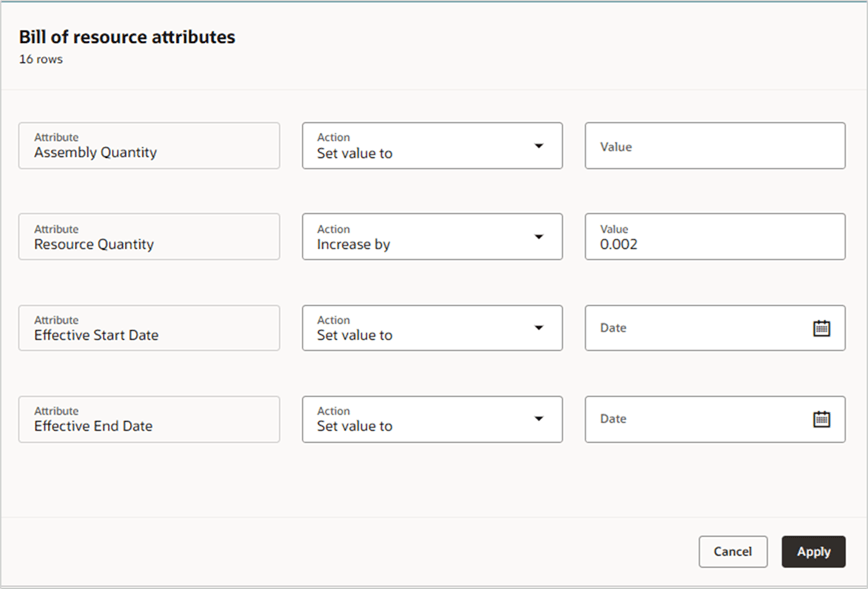
Mass Edit of Resource Quantity Values in the Aggregate Bill of Resource Table
Click Apply to update the table with the changes made to the attributes.
After making edits, click Save at the page level to commit your changes. If you close the page or click the Refresh icon in the table without saving, you’ll be prompted that unsaved changes will be discarded.
Option Dependent Resources
To display option dependent resource details for rows marked as Option Dependent in the Aggregate Bill of Resource table, select one of these rows, click Drill To and select Option Dependent Resources. This opens the Option Dependent Resources table.

Drill To Option Dependent Resources Table
The Option Dependent Resources table lists Option, Option Lineage, Usage Quantity, and Resource Quantity details for the row marked as Option Dependent in the Aggregate Bill of Resource table.
Steps to enable and configure
You don't need to do anything to enable this feature.
Tips and considerations
Columns for substitute components, alternate resources, and option dependent resources are available in Plan Inputs and simulation sets. These columns are used in Global Order Promising, but not in Sales and Operations Planning.
Views define which columns are displayed, their order, and their width. You can create views that focus on components, resources, substitute components, or alternate resources. Views don’t include any sort settings. Vertical blue bars between column headers indicate hidden columns. To reduce clutter in your saved views, you can group hidden columns using drag and drop in the Columns panel. You can use Ctrl and Shift to select multiple columns instead of selecting the checkbox next to each column name.
Click Refresh to cancel any edits you don’t want to save. Refresh will discard changes in the table but keep changes in other tables.
Copy to Simulation Set is applicable for rows that have been changed.
Key resources
- Refer to the Cloud Applications Readiness content for the following Sales and Operations Planning What's New 25B feature for more information on Redwood plan analysis:
- Redwood: Analyze Sales and Operations Planning Plans Using a Configurable Redwood Page
Access requirements
Users who are assigned a configured job role that contains these privileges can access this feature:
- Monitor Plan Inputs Work Area (MSC_MONITOR_PLAN_INPUTS_WORK_AREA)
- Enables access to Plan Inputs and simulation sets.
- Monitor Sales and Operations Planning Work Area (MSC_MONITOR_SALES_AND_OPERATIONS_PLANNING_WORK_AREA_PRIV)
- View Planning Bills of Resources (MSC_VIEW_BILLS_OF_RESOURCES_PRIV)
- Edit Planning Bills of Resources (MSC_EDIT_BILLS_OF_RESOURCES_PRIV)
- View Planning Objects Using REST Service (MSC_VIEW_PLANNING_OBJECTS_REST_SERVICE_PRIV)
These privileges were available prior to this update.