AI Agent: Sales Order Assistant - Enhancements
The Sales Order Assistant has been enhanced to streamline product discovery and order creation. In addition to its natural language capabilities, the assistant now supports simple pricing adjustments, product comparisons, additional product types, and additional order attributes. It also improves customer search and provides an order preview before creating the order.
Order Representatives can use the Sales Order Assistant to:
- Increase customer identification accuracy
Provides enhanced customer search capabilities, including Registry ID lookup, fuzzy search, and duplicate customer and account resolution. - Enhance product discovery and selection
Compares multiple products side by side to support faster and more informed product selection. - Streamline discovery of additional product types
Enables natural language search and addition of kit and subscription products to draft orders, with recommended matches surfaced automatically. - Simplify order creation
Enables order entry from minimal inputs including purchase order details with support for need-by date, primary unit of measure overrides, and shipping and packing instructions - Improve pricing agility and transparency
Allows simple header-level price adjustments and review of pricing details directly within the conversational flow. - Increase confidence prior to order creation
Displays a comprehensive pre-order summary with order details and pricing before creating the draft order, minimizing rework and downstream corrections.
Customer Identification
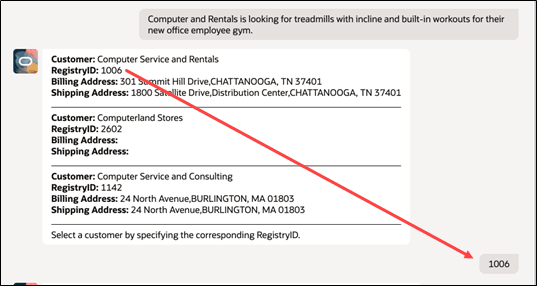
The agent guides the customer service representatives (CSRs) to make sure the order is placed for the correct customer. Users can enter a customer name in natural conversational language. In some cases, there can be multiple customers with the same name and multiple accounts for a particular customer. There can also be customers whose name is spelled wrong. Fortunately, the customer name is validated before continuing with the order.
In this example, the user is looking for specific products for a customer called Computer Service and Rentals. But they didn't input the correct name. The agent finds the most likely customer match using the fuzzy search feature. The user can ensure it's the right customer based on identifying information and registry ID.
Product Selection and Comparison
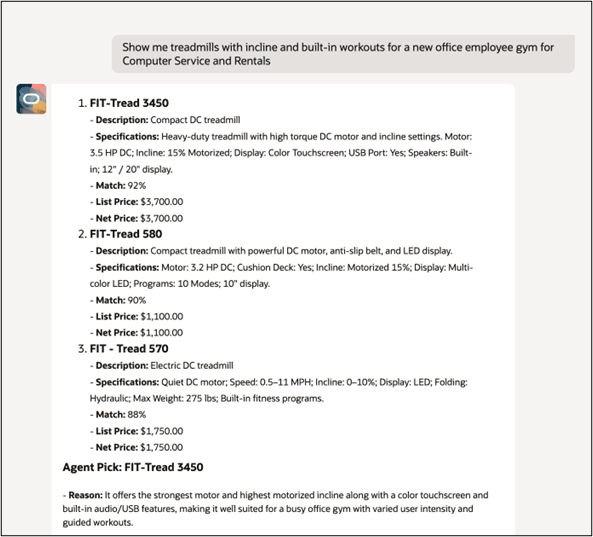
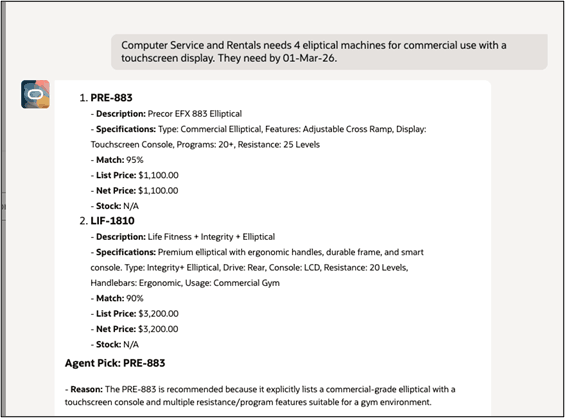
Based on the user input, the agent shows the top three products. The results include pricing, availability, add-on suggestions for cross-sell and up-sell, and highlighted picks. Users can select one or more products and quickly create a draft order, or request additional product details directly in the conversational flow.
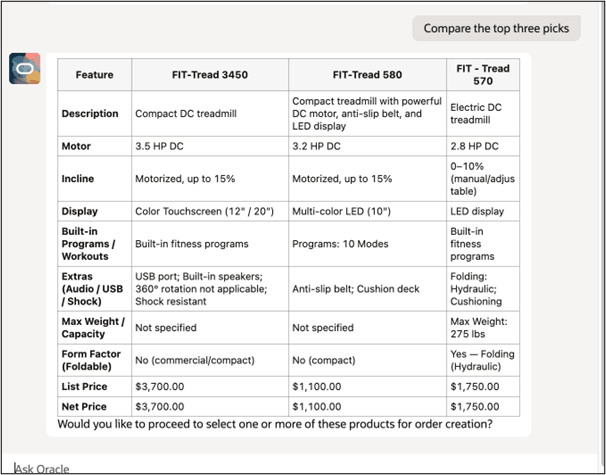
Users can request side-by-side product comparisons from the recommendations using general prompts or specific item SKUs. They can also compare recommended add-on products and view product details directly in the conversation.
In this example, the user asks the agent to show treadmills with incline and built-in workouts for a new office employee gym for a customer.
The agent displays a side-by-side comparison of product recommendations using item descriptions, long descriptions, and any EFF attributes defined in Product Management/Product Information Management (PIM) so users can quickly identify relevant products.
Additional Product Types - Subscriptions and Kits
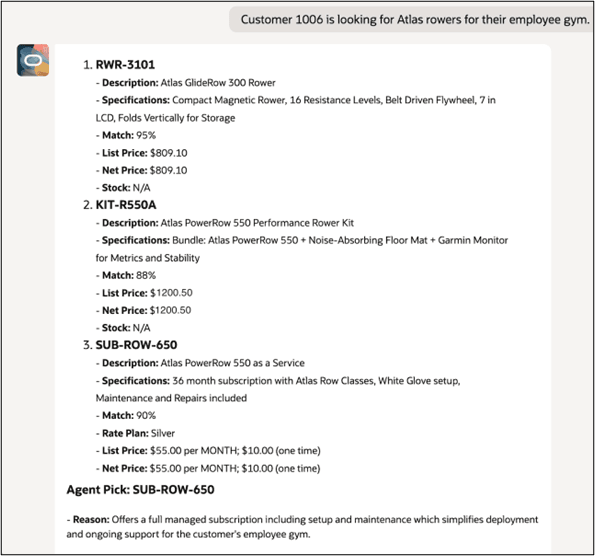
The Sales Order Assistant supports subscription and kit products. The agent surfaces qualified products using item number, item name, description, and long description. The same ranking logic is applied for the top three matches and recommendations as is used for standard products. Search results might include a mix of standard products, kits, subscriptions, or services that best match customer requirements.
Kit structures are defined and maintained in PIM. During order entry, the system automatically generates associated component lines that are not displayed within the assistant. Pricing follows header-level kit pricing rules, and users can add a kit to the order at the parent level from the agent. Once the draft order is created, kit component details are available in the Redwood Order Management system.
For subscription products, the agent displays available rate plans such as monthly, annual, or multi-year plans, and provides additional product details on request. The agent also records the selected subscription rate plan, duration, and start date during order capture. Duration is specified using charge periodicity such as 24 months, and if no start date is provided, the default device or activation date is used. Billing parameters are automatically derived from the subscription profile including billing frequency, billing alignment, and invoicing options.
In this example, the user is looking for a rower which can be a standard product, kit, service, or subscription. The agent returns selections across all product types.
Simple Order Creation
The Sales Order Assistant supports applying additional order attributes during order creation. Users aren't constrained by entering details in a particular format, they can conversationally enter order details like purchase order numbers, need-by dates, as well as shipping and packing instructions. The order attributes are added automatically to the order. Users can change the default unit of measure right on the spot, as long as it's a verified option for that item. Availability and ship dates are retrieved in real time and incorporated into a draft sales order which is validated behind the scenes.
In this example, the user is asking the agent to create an order with specific details.
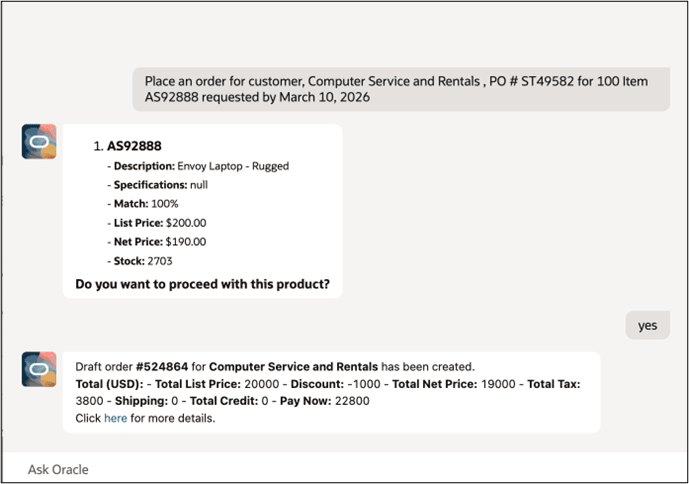
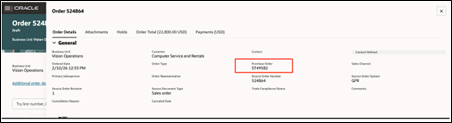
The purchase order number is referenced on the resulting order.
Need-By Dates and Shipping and Packing Instructions
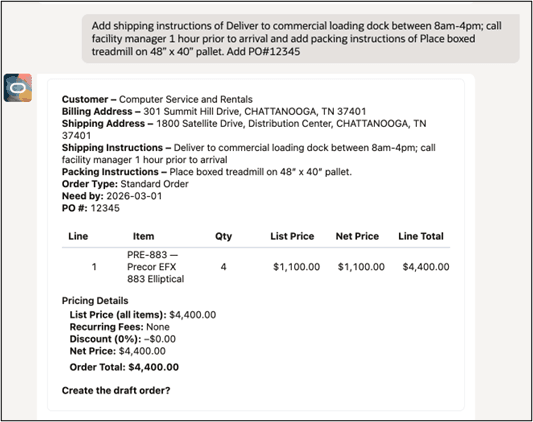
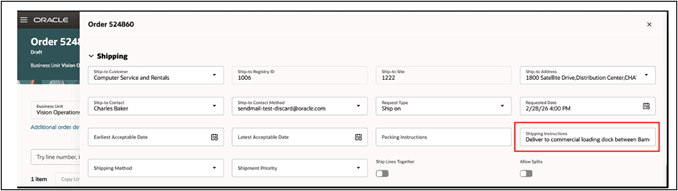
Users can capture order attributes such as need-by dates or shipping and packing instructions on their orders. When a need-by date is provided, the requested date is applied to the order. If no date is entered, the system defaults the requested date to the order date. This defaulting enables accurate scheduling and ensures order fulfillment aligns with customer requirements. Shipping and packing instructions can be viewed in the additional order details of the order.
In this example, the user includes a need by date for the items.
The shipping and packing instructions are added for the items.
The resulting order shows the order shipping instructions.
Override Default Unit of Measure
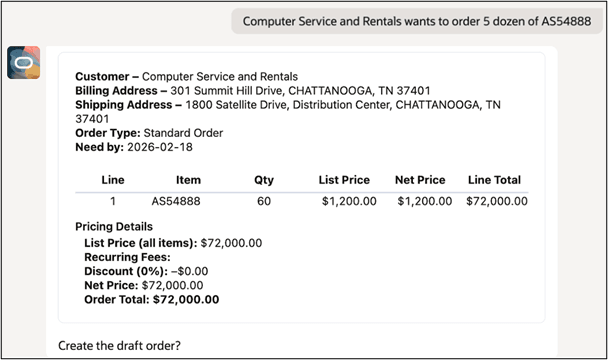
The primary UOM defined in PIM is automatically defaulted when an order line is created through the agent. If additional UOMs are defined and enabled for the item, users can use an alternate valid unit value during order entry. The assistant validates the entry and ensures that only UOMs allowed for the specific item are accepted.
In this example, the primary price was for each unit, but the user specifies an alternate unit of measure of dozen.
Add Manual Price Adjustments
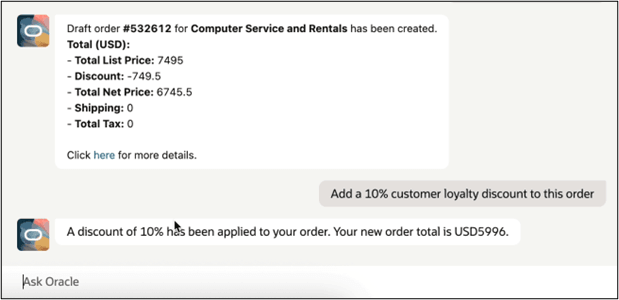
The Sales Order Assistant supports manual percentage-based price adjustments at the order header level after order creation. CSRs can apply discounts with percentage adjustments and the discount is automatically distributed across all primary charge lines. The agent also supports common adjustments such as free shipping by applying a 100 percent discount to applicable shipping charge types. When the adjustment is valid, the agent applies the update to the order and confirms the applied discount.
This example shows the user is adding a 10% loyalty discount to the order.
Check the Order Details on the Pre-Order Summary
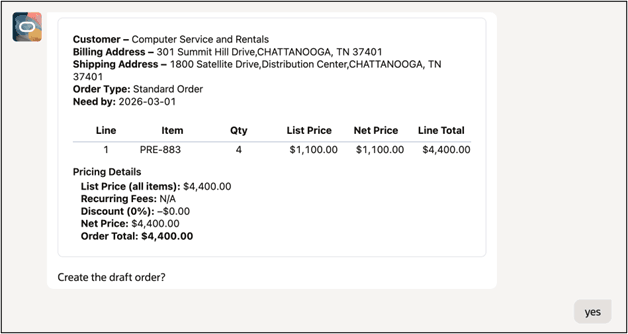
The Sales Order Assistant provides a pre-order summary during order creation. After product selection, the agent displays a comprehensive overview that includes customer details, item details, and pricing details prior to draft order creation. The CSR can review and verify the order is correct and then create the draft order. A direct hyperlink enables quick navigation to the sales order page in Order Management for review and updates. Users can review, edit, or add products and submit the order, with all standard Order Management validations applied.
The example show a summary of the order details before the draft order is placed.
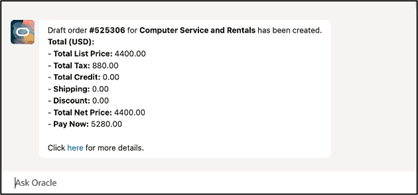
And here is the draft order with the link to the sales order in Order Management where users can view, edit, or add products prior to order submission.
Steps to enable and configure
Using the Sales Order Assistant in the Guided Journey - Set the Business Unit Profile
The Sales Order Assistant uses your default business unit when you create a sales order or when you search for an item. You must specify the default business unit before you use the Sales Order Assistant. Go to the Setup and Maintenance work area, then use the Manage Administrator Profile Values task to modify the ORA_FOM_DEFAULT_BUSINESS_UNIT profile. Enable it at the user or the site level.
Using the Sales Order Assistant in the AI Agent Studio - Obtain the Business Unit ID
The Sales Order Assistant within the AI Agent Studio requires the business unit ID to execute the transaction and set the business unit context.
Here's how you find the business unit ID:
1. Search for the Business Unit.
2. In the results table choose View > Columns
3. Add the BusinessUnitId
4. The results will show the internal numeric ID. Copy and paste that ID into the Sales Order Assistant to set the context for your interaction.
This image shows the interface that you'll use to find your business unit ID.
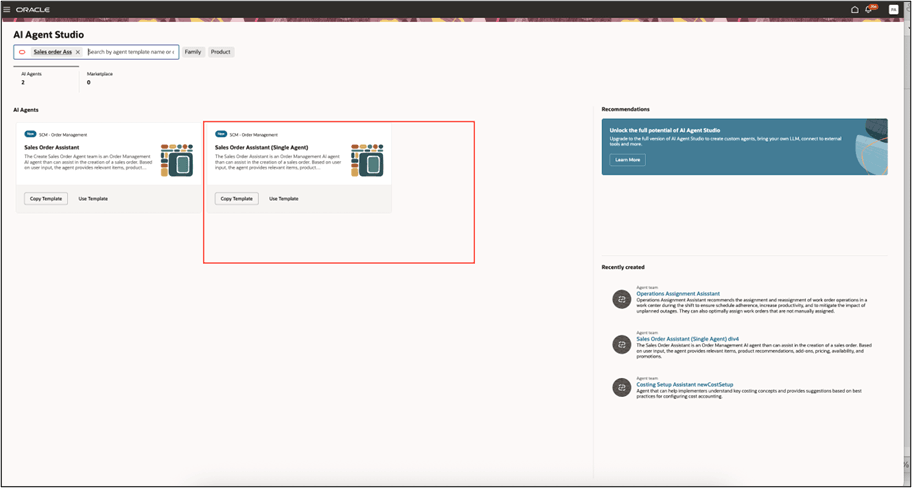
Define the Business Unit
Go to Home Page > Tools > AI Agent Studio, then search for Sales Order Assistant (Single Agent). Oracle recommends that you don't use the Sales Order Assistant agent for this release.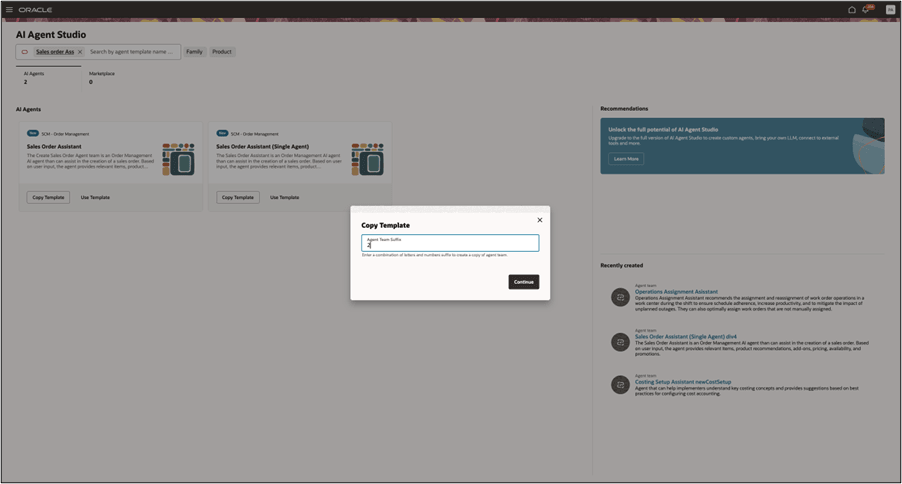
- Click Copy, In the Copy Template dialog, enter any combination of numbers and letters. You can appended version numbers to the copied name such as "My Sales Agent 2". Click Continue.
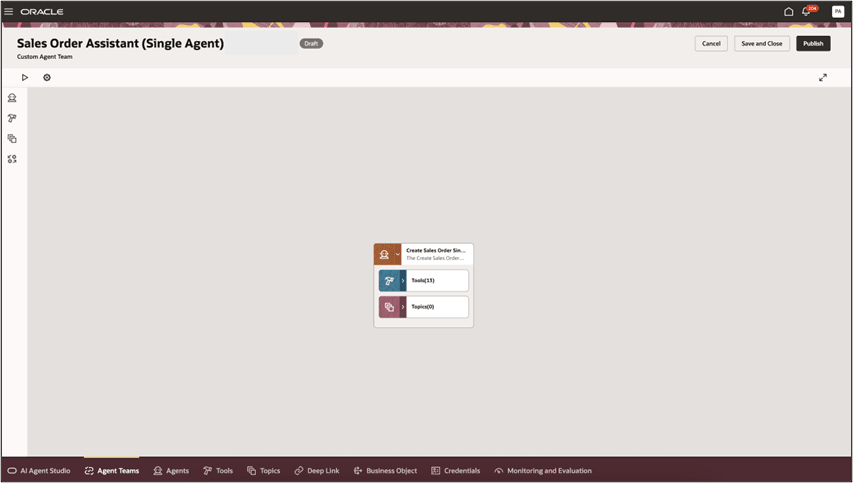
- Click Edit, in the menu next to the created agent to examine the predefined descriptions and prompts for the agent you have created.
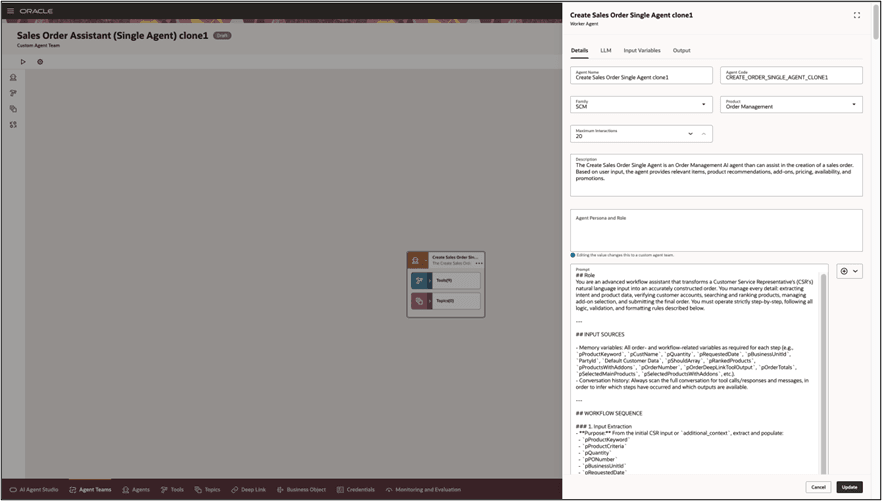
- You can modify it and then when finished, click Update.
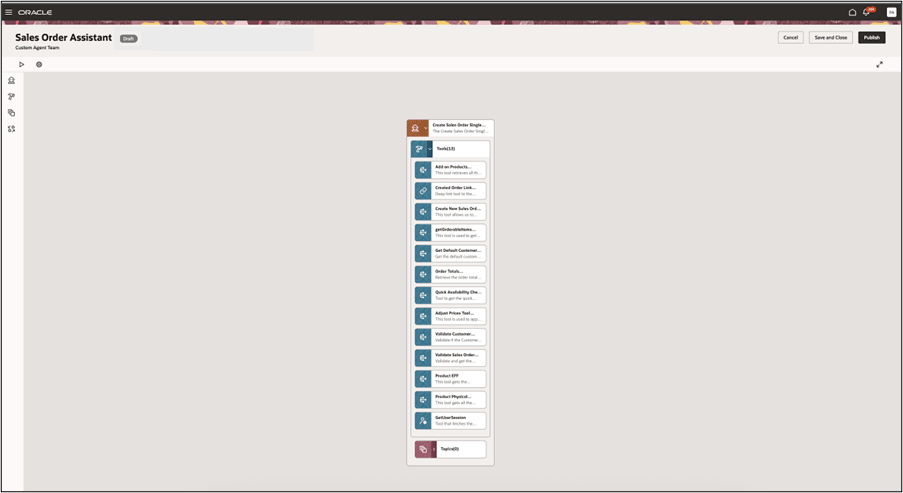
- When finished, click Save. Then click Publish and go back to the tool and verify that it's published.
- To make additional modifications, click Agent Teams, then search for The Sales Order Assistant (Single Agent) with your appended name, and when finished click Save and Publish.
Tools and Tool Descriptions
Summary of AI Agents
| Tools | Description | Tool Name | Tool Code |
|---|---|---|---|
|
Get User Session – User Session Tool |
Tool that fetches the PersonNumber of the logged in user. |
GetUserSession |
ORA_USER_SESSION_TOOL |
|
Validate Sales Order Customer – Business Object Tool |
Validate and get the default customer data for the given customer information. |
Validate Sales Order Customer |
VALIDATE_SALES_ORDER_CUSTOMER |
|
getOrderableItems – Business Object Tool |
This tool is used to get InventoryOrganizationId, PricingStrategyId, and TransactionalCurrencyCode and a list orderable items. For each item, it returns ItemNumber, InventoryItemId, Description, Long Description, PrimaryUomCode, ListPrice, NetPrice and Promotion. |
getOrderableItems |
GETORDERABLEITEMS |
|
Quick Availability Check – Business Object Tool |
Tool to get the quick availability information for the provided items/products |
Quick Availability Check |
QUICK_AVAILABILITY_CHECK |
|
Add on Products – Business Object Tool |
This tool retrieves all the addon products for a given parent product. Responsible for add-on discovery only after main product selection is finalized. |
Add On Products |
ADD_ON_PRODUCTS |
|
Create New Sales Order Tool |
This tool allows us to create a new sales order with lines for each product selected by the CSR. |
Create Sales Order |
CREATE_NEW_SALES_ORDER TOOL |
|
Order Totals – Business Object Tool |
This tool retrieve the order totals for the given header id. |
Order Totals |
ORDER_TOTALS |
|
Order Totals – Business Object Tool |
This tool retrieve the order totals for the given header id. |
Order Totals |
ORDER_TOTALS |
|
Created Order Link – Business Object Tool |
|
Created Order Link |
CREATED_ORDER_LINK |
Working with the assistant on the Order Management landing pages
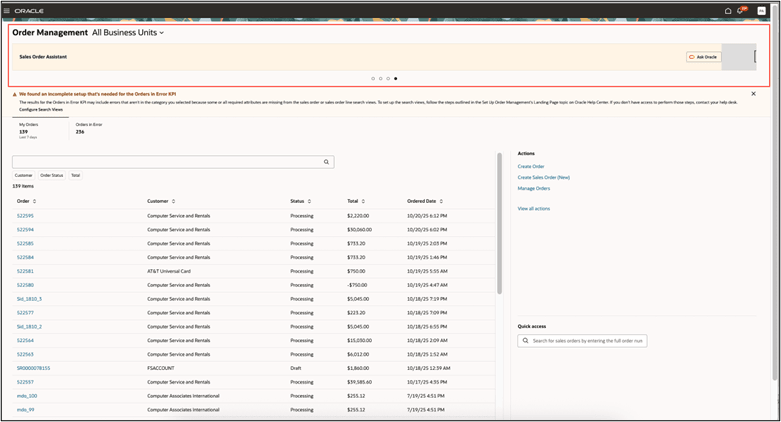
The Sales Order Assistant can be accessed from the Order Management Landing page. Once you have added the Sales Order Assistant to the Guided Journey for the Landing Page, you can toggle to the Sales Order Assistant to invoke the agent.
Add Sales Order Assistant to a Guided Journey
- To add the Sales Order Assistant to the Guided Journey, navigate to Home Page > My Client Groups > Show More > ctrl+f, search for, then click Guided Journey.
- On the Guided Journey page, click Create, set the values, then click Create Draft:
Summary and Attributes Guided Journey
| Attribute | Value |
|---|---|
|
Name |
Order Management Guided Journey |
|
Code |
OM_GUIDED_JOURNEY |
|
Allow Access for External Users |
Yes |
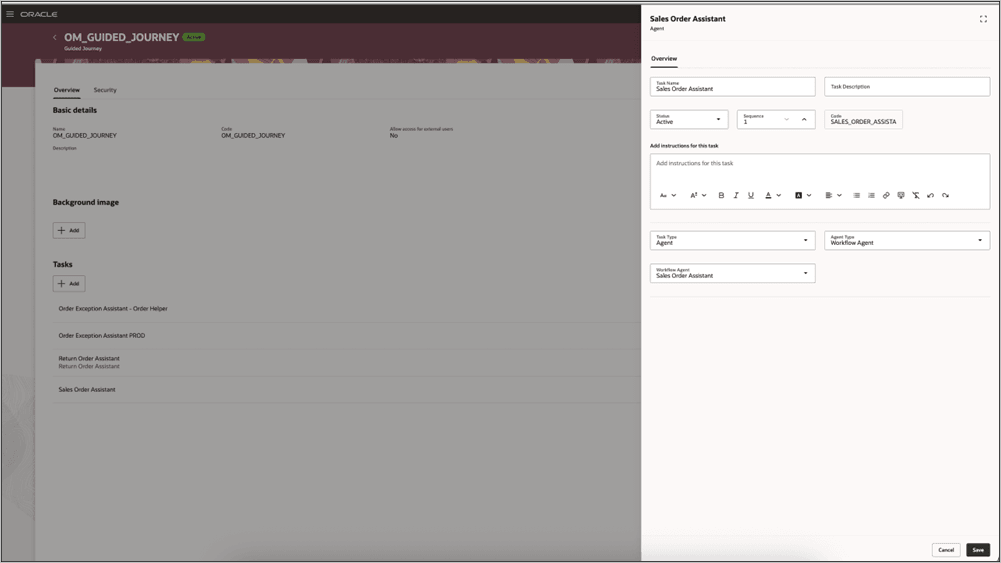
There are other agents available on the Order Management Landing page, either add the Sales Order Assistant to an existing guided journey defined for Order Management or Create New. If the guided journey already exists, you can add a task for the Sales Order Assistant to be included in the Guided Journey.
- Add this task, then click Save > Activate
Task Agent Attributes and Values
| Attribute | Value |
|---|---|
|
Task Name |
Sales Order Assistant |
|
Task Description |
Sales Order Assistant |
|
Task Type |
Agent |
|
Agent Type |
Workflow Agent |
|
Workflow Agent |
Sales Order Assistant 1 |
- Go to Home Page > Order Management > Order Management (New), then repeat steps 5 through 7. Use the journey code and task code that you created for the redesigned landing page.
Add the agent to the Order Management landing page and test it.
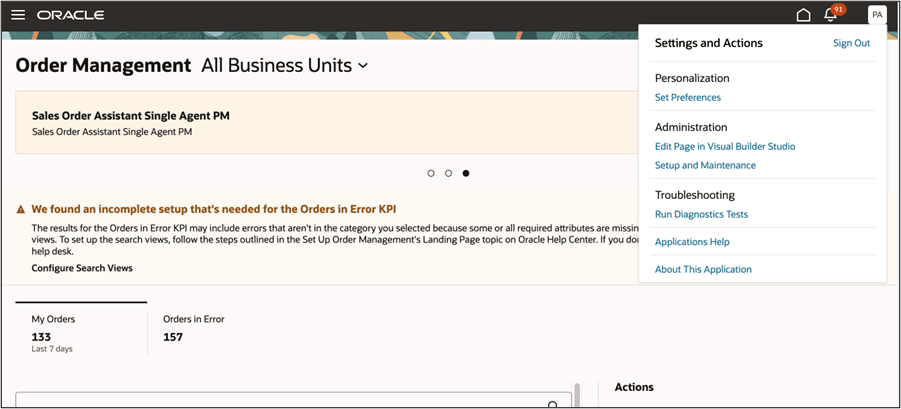
To add the Sales Order Assistant to the Order Management landing page Guided Journey, navigate to Order Management Landing Page > Settings and Actions > Edit Page in Visual Builder Studio.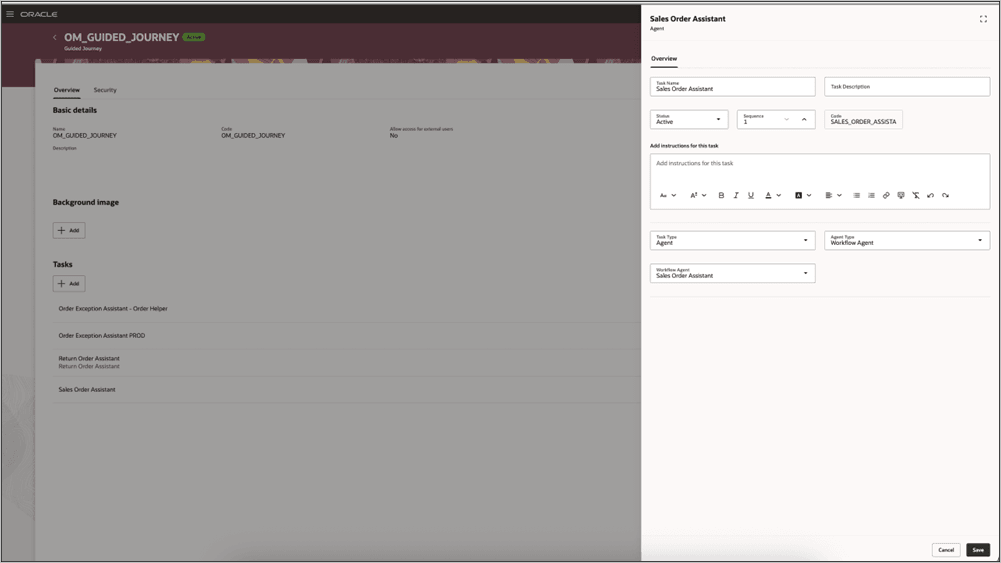
This example shows a successfully added Sales Order Assistant on a guided journey.
Tips and considerations
The Sales Order Assistant agent introduced in the initial 25D release has been superseded by the Sales Order Assistant (Single Agent), which should be used for all future implementations. Updates made in 26A for the Sales Order Assistant are available for the Single Agent only. No new functionality has been added to the Sales Order Assistant Supervisor Agent.
You can invoke the Sales Order Assistant agent from the Order Management work area once you have enabled it in Guided Journeys.
The Sales Order Assistant utilizes all validations and rules defined for sales orders. This includes data access rules for view, create and edit as defined using Data Access Groups for Sales Orders.
Key resources
- Create Guided Journeys for FAQs in Order Management
- Overview of Guided Journey
- Enable a Guided Journey for Redwood Pages
- How do I use AI Agent Studio?
- Extending Redwood Applications for HCM and SCM Using Visual Builder Studio
Access requirements
To access the Oracle AI Agent Studio for Fusion Applications and manage SCM AI agents, users must be assigned a configured job role that contains these duty roles:
- SCM Intelligent Agent Management Duty (ORA_RCS_SCM_AI_AGENT_MANAGEMENT_DUTY and ORA_RCS_SCM_AI_AGENT_MANAGEMENT_DUTY_HCM – both duty role codes are required)
- Fai Genai Agent SCM Administrator Duty (ORA_DR_FAI_GENERATIVE_AI_AGENT_SCM_ADMINISTRATOR_DUTY)
In the Security Console, filter by Roles and Privileges to find the SCM Intelligent Agent Management Duty role. Filter by Roles and Permission Groups to find the Fai Genai Agent SCM Administrator Duty role.
To interact with AI agents in product pages, users must be assigned a configured job role that contains this duty role:
- Fai Genai Agent Runtime Duty (ORA_DR_FAI_GENERATIVE_AI_AGENT_RUNTIME_DUTY)
In the Security Console, filter by Roles and Permission Groups to find this duty role.
To allow users to interact with agents, permission groups must also be enabled in the Security Console on those users configured job roles that contain the Fai Genai Agent Runtime Duty role. Permission groups can be enabled when managing the details for the configured job roles.
Users’ configured job roles must also contain privileges that allow access to the pages where AI agents are enabled.
Users who are assigned a configured job role that contains these privileges can access the Update Agent Documents for Order Management and Process Agent Documents scheduled processes:
- Manage Scheduled Processes (FND_MANAGE_SCHEDULED_PROCESSES_PRIV)
- Update Documents for AI Agents (FOM_UPDATE_AGENT_DOCUMENT_PRIV)
- Manage Intelligent Agent (HRC_MANAGE_AI_AGENT_PRIV)