AI Agent: Purchase Orders to Sales Orders Converter
Use an AI agent in Oracle Order Management to automatically convert a purchase order from a PDF file into a sales order. The agent will take the PDF files you upload that contain your purchase orders and convert them into sales orders.
Realize these benefits:
- Let AI do the tedious work. You no longer have to manually convert a sales order into a purchase order.
- Increase efficiency. Reduce data entry errors and automatically fix errors.
- Improve timeliness. Automatically fix errors and get the order into draft status instead failing.
Try It
- Go to the Order Management work area, then click Sales Orders > Create Sales Orders from Purchase Orders:
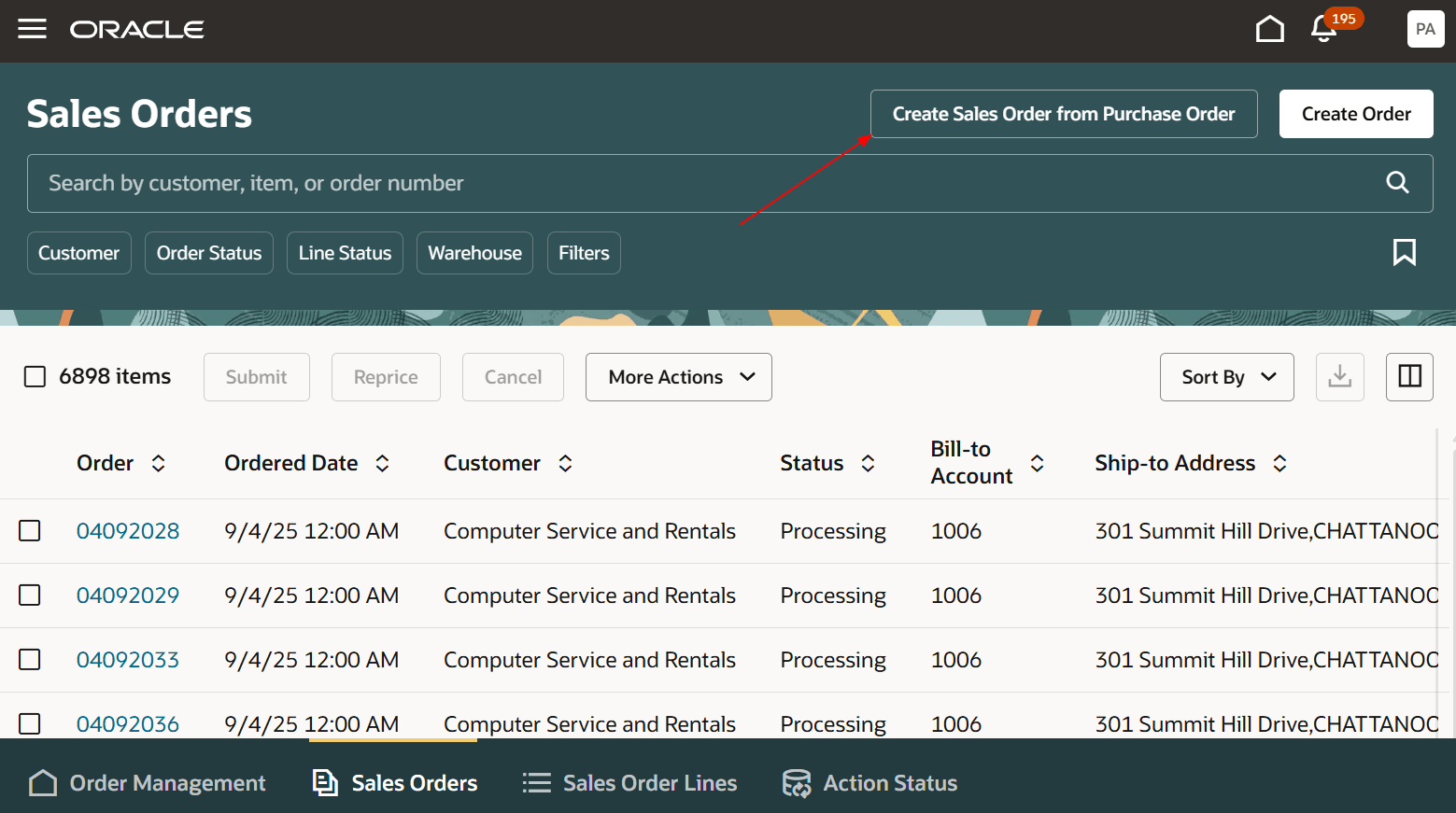
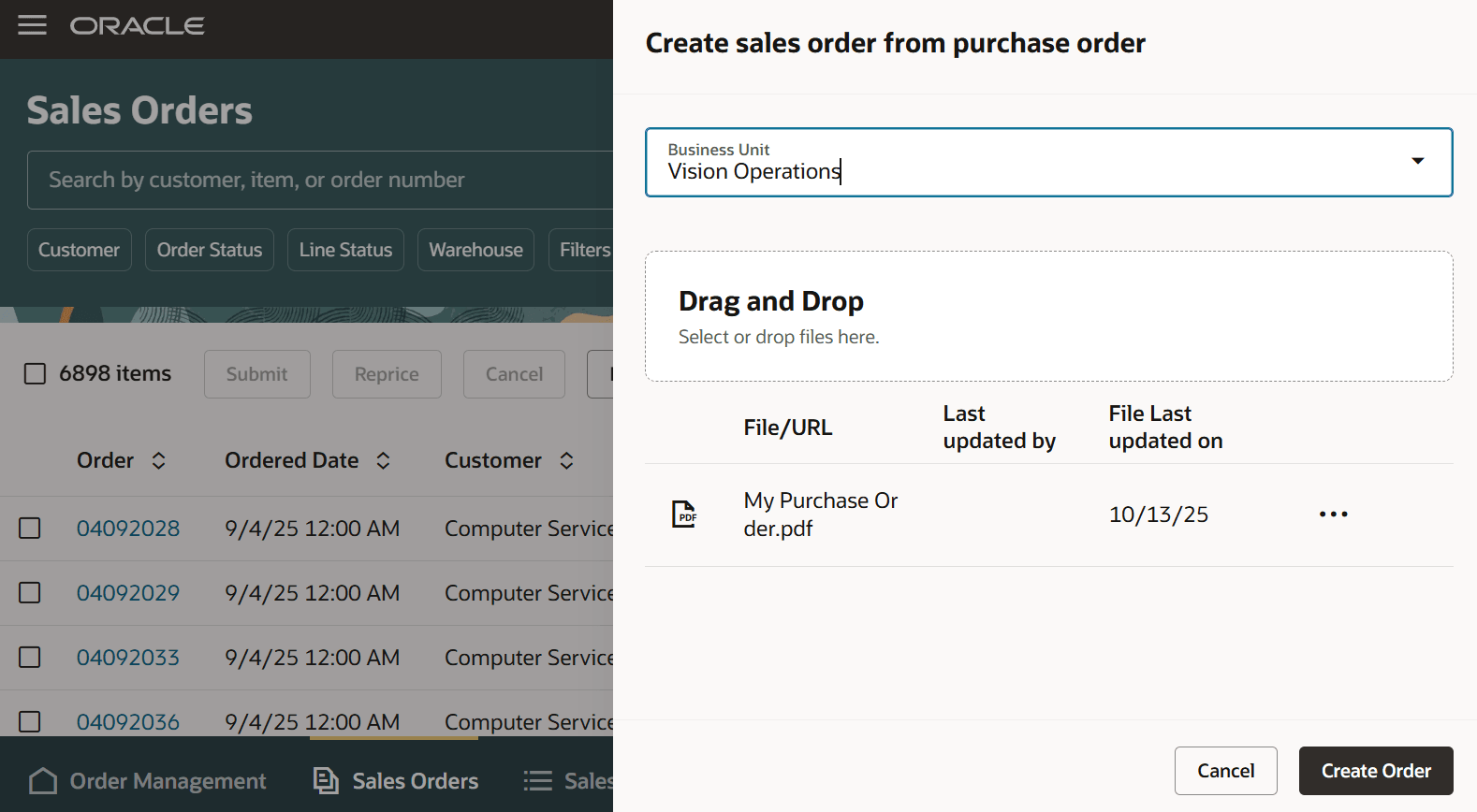
- Select your Business Unit, upload one or more PDF files that contain your purchase orders, then click Create Order:
- Notice the process ID in the message, such as 263153:
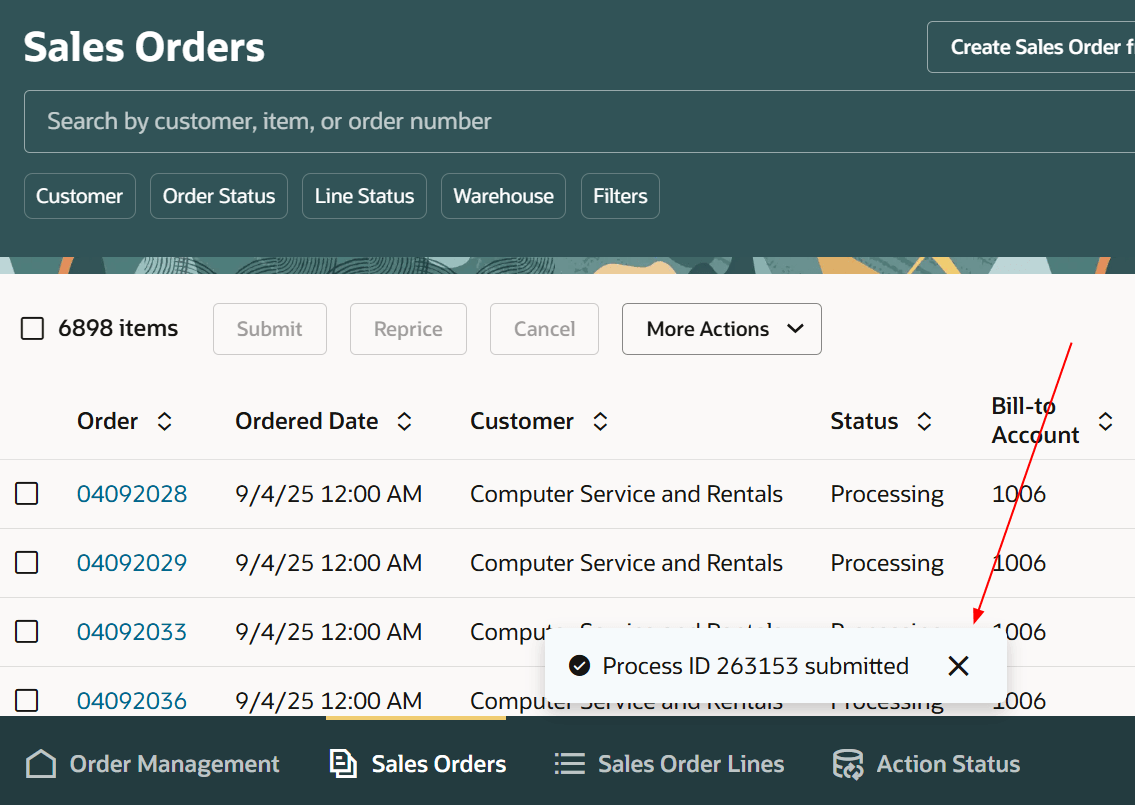
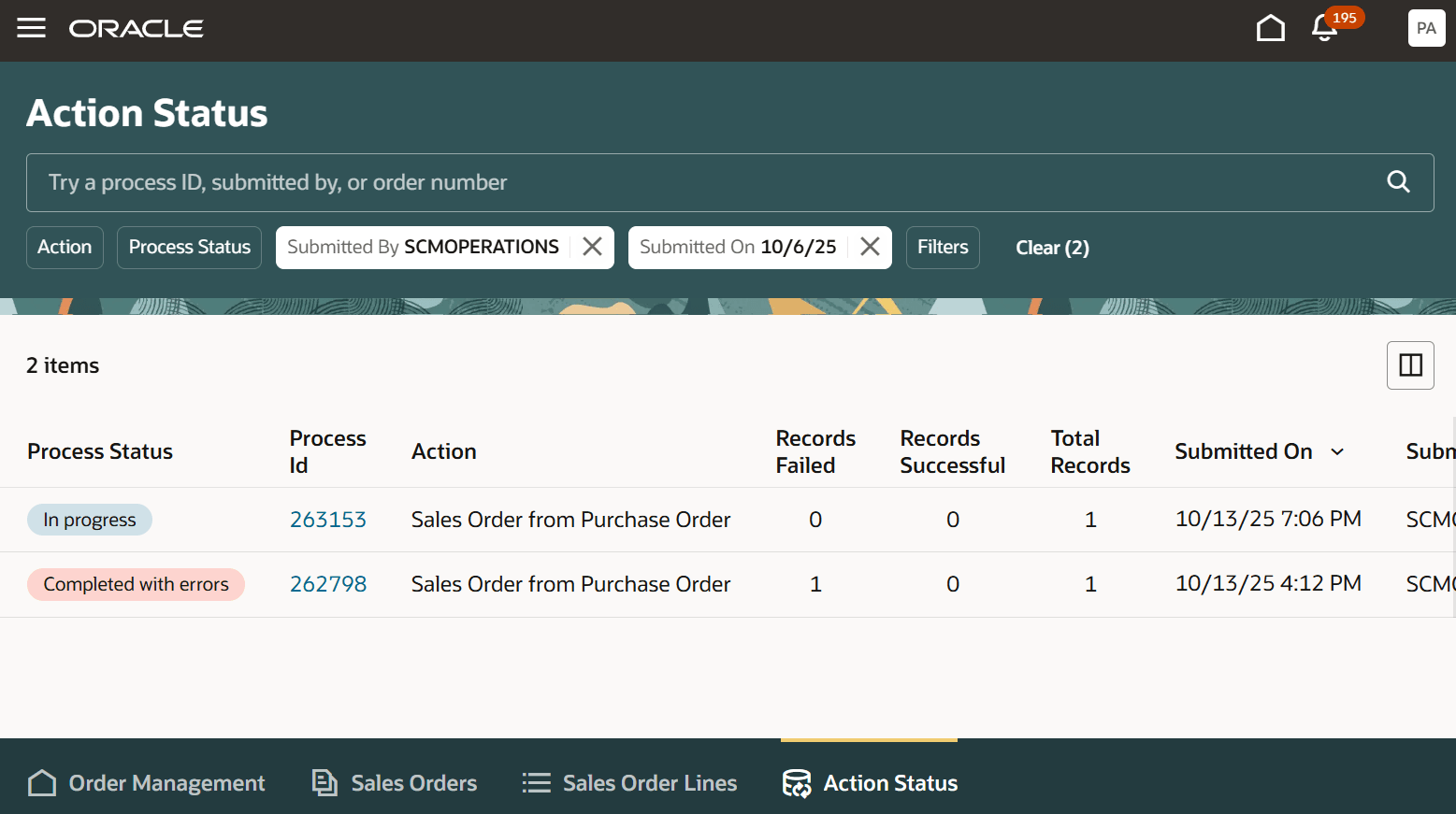
- Click Action Status, then click 263153 in the Process Id column:
Error Example
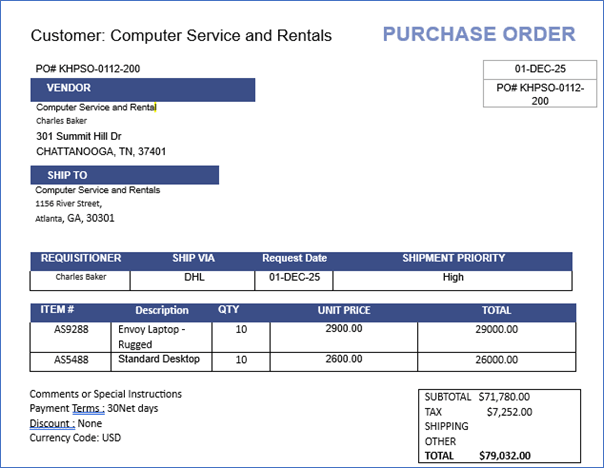
Assume you have this purchase order but its customer, item, and payment term aren't correct:
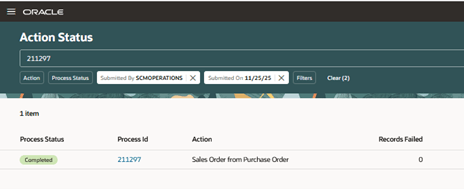
Assume you use Create Sales Orders from Purchase Orders, click Action Status, then click 211297 in the Process Id column:
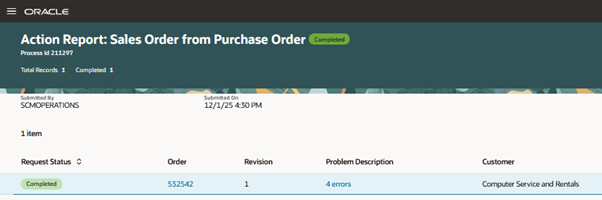
Click 4 Errors on the Action Report:
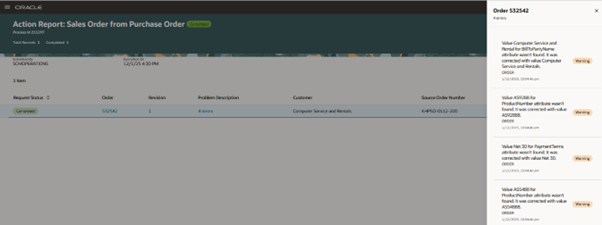
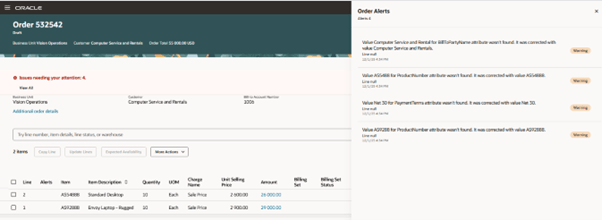
Examine the warnings, then click the order number to examine the order:
You can also click Issues Needing Your Attention:
Steps to enable and configure
- Go to the Setup and Maintenance work area, then use the Manage Administrator Profile Values task to set the Enable VBCS Progressive Web Application User Interface (ORA_HCM_VBCS_PWA_ENABLED) profile to Y at the site level.
- Go to Home > Tools > AI Agent Studio, then search for the Purchase Order to Sales Order Converter template.
- Click Actions > Copy Template, enter a suffix, then click Continue. We recommend that you use the suffix to indicate versions, such as 1, 2, 3. For this example, assume you enter 1 for the suffix.
- Click Publish, then confirm that the agent's status is Published.
- Click Agent Teams, then query for Purchase Order to Sales Order Converter 1.
- Copy the value that's in the Agent Team Code attribute. For this example, assume it's PURCHASEORDERTOSALESORDERCONVERTOR_1.
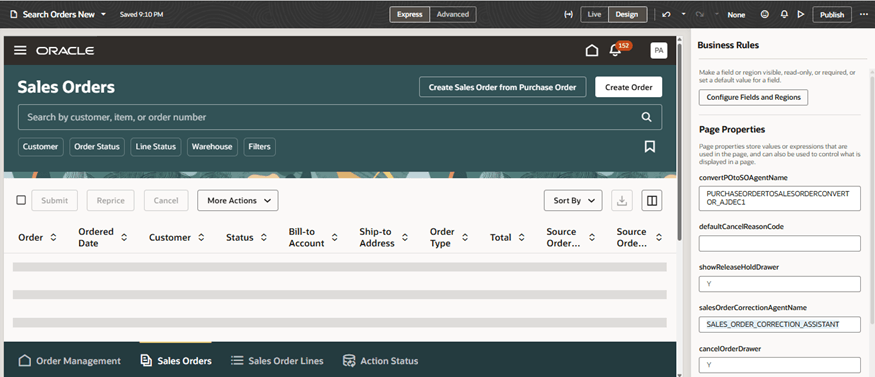
- Go to the Order Management work area, click Sales Orders, then click Settings and Actions > Edit Page in Visual Builder Studio.
- Set the convertPOtoSOAgentName attribute to PURCHASEORDERTOSALESORDERCONVERTOR_1.
- Verify that the Sales Order page displays the Create Sales Order from Purchase Order button.
To view a similar procedure that has screen prints, see AI Agent: Data Access Advisor for Sales Orders.
As option, if you want to automatically fix errors, do steps 1 through 9 except use the Sales Order Correction Assistant template in step 3. In step 9, set salesOrderCorrectionAgentName to SALES_ORDER_CORRECTION_ASSISTANT:
Tips and considerations
You must use Order Management's redesigned pages.
Your PDF must include values for these attributes:
- Customer
- Ordered Date
- Purchase Order Number
- Ship-to Address
- Item
- Quantity
- Unit Price
As an option, you can include a value for any other order attribute.
Note
- The purchase order can use a wide variety of formats, but it must clearly indicate the relationship between the attribute and its value. For example, the Customer cell on the purchase order's header must identify the customer.
- We recommend that you use the same attribute text that Order Management's sales order uses. For example, use Payment Method. Don't use Method.
- The values that you use for each attribute must meet Order Management's requirements. To get an idea of what's possible, look at the values in an existing sales order. For example, select Shipping Method, then scan the values that are available in the pick list.
Error Correction
If you set salesOrderCorrectionAgentName:
- The Purchase Orders to Sales Orders Converter agent will automatically use the Sales Order Correction Assistant agent to fix any errors that it finds. Sales Order Correction Assistant uses smart matching to match the values in your purchase order to Oracle's master and set up data, such as Customer, Account, Address, Payment Term, Item, Item Description, Salesperson, Currency, FOB, Freight Terms, and Shipping Method. If its more than 80% confident that the match is correct, then it converts the purchase order.
- If smart match doesn't work, then Sales Order Correction Assistant will examine the customer's most recent 20 sales orders to find the attribute values. If that fails, then the agent displays an error.
- You must thoroughly test the Purchase Orders to Sales Orders Converter with correct and incorrect purchase orders in a test environment before you deploy it to your production environment.
- If you import the sales order, then you must import through REST API.
Key resources
Access requirements
To access the Oracle AI Agent Studio for Fusion Applications and manage SCM AI agents, users must be assigned a configured job role that contains these duty roles:
SCM Intelligent Agent Management Duty (ORA_RCS_SCM_AI_AGENT_MANAGEMENT_DUTY and ORA_RCS_SCM_AI_AGENT_MANAGEMENT_DUTY_HCM ? both duty role codes are required)
Fai Genai Agent SCM Administrator Duty (ORA_DR_FAI_GENERATIVE_AI_AGENT_SCM_ADMINISTRATOR_DUTY)
In the Security Console, filter by Roles and Privileges to find the SCM Intelligent Agent Management Duty role. Filter by Roles and Permission Groups to find the Fai Genai Agent SCM Administrator Duty role.
To interact with AI agents in product pages, users must be assigned a configured job role that contains this duty role:
Fai Genai Agent Runtime Duty (ORA_DR_FAI_GENERATIVE_AI_AGENT_RUNTIME_DUTY)
In the Security Console, filter by Roles and Permission Groups to find this duty role.
To allow users to interact with agents, you must also enable permission groups in the Security Console on those users configured job roles that contain the Fai Genai Agent Runtime Duty role. You can enable permission groups when you manage details for your configured job roles.
Users' configured job roles must also contain privileges that allow access to the pages where AI agents are enabled.
-
View Orders (FOM_VIEW_ORDERS_PRIV)