Redwood: Use Improved Access Control Lists for Items and Manufacturers
You can now benefit from the following improvements in access control list setup:
-
Variable Support: You can now add a condition for the Created By attribute in both manufacturers and items to configure View or Manage access if the creator is the logged in user.
-
Team Indicators: Teams now display a Process Status indicator to indicate the status of the access control list job process that is associated with the team.
-
Delete Permission Set: Access Control Lists now support the ability to delete permission sets.
Access control lists is now applicable to the following improvements on the Redwood page:
-
Download Attachments for Items: Item Access Control List (ACL) restrictions are applied when downloading attachments for items from both Item and Workflow pages.
-
Clipboard, Spotlight, and Recently Visited for Items: Secure clipboard, spotlight, and recently visited content using Item Access Control Lists.
-
Clipboard and Recently Visited for Manufacturers: Secure clipboard and recently visited content using Manufacturer Access Control Lists.
Variable Support
The enhanced Access Control List (ACL) allows evaluation of conditions based on the logged in user. The attribute Created By will now accept the variable $User. To enable this, select $User as the value for the Created By attribute when defining conditions for items or manufacturers. By setting a condition such as Created By = $User and assigning it to a permission set and team, you grant team members access to all items or manufacturers they've created.
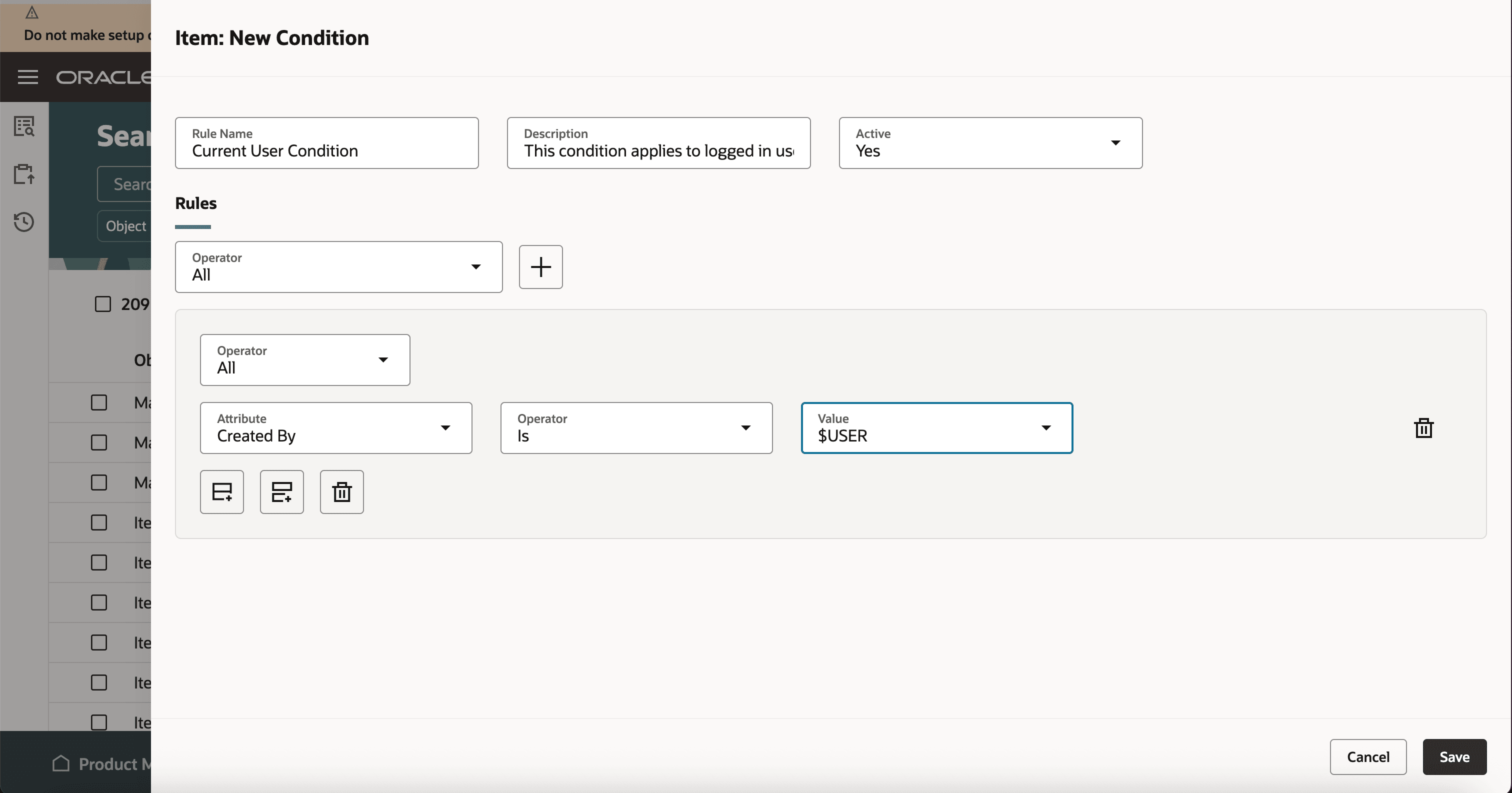
Current User Condition for Items
Team Indicators
Whenever you save changes to a permission set that is associated with a team or add or remove a permission set from a team, a scheduled job Refresh the Access Control List for the Teams runs to apply and update your security modifications. The Process Status indicator provides real-time information on the process. You can now easily track the status of this process using an indicator displayed on the Team page and the Teams search page. You can also filter your search results by the Process Status filter.
Indicators and their Significance:
-
Draft (Grey): Indicates that the team is inactive or doesn't have permission sets added yet.
-
In Progress (Blue): Shows that a scheduled process is currently running to apply updates made to team security.
-
Completed (Green): Confirms that the scheduled process is completed, security changes have been successfully applied and the team is ready for use.
-
Error (Red): Signals that the scheduled process has encountered an error. Administrators must then, manually run the Refresh the Access Control List for the Teams job for the affected team to apply the changes.
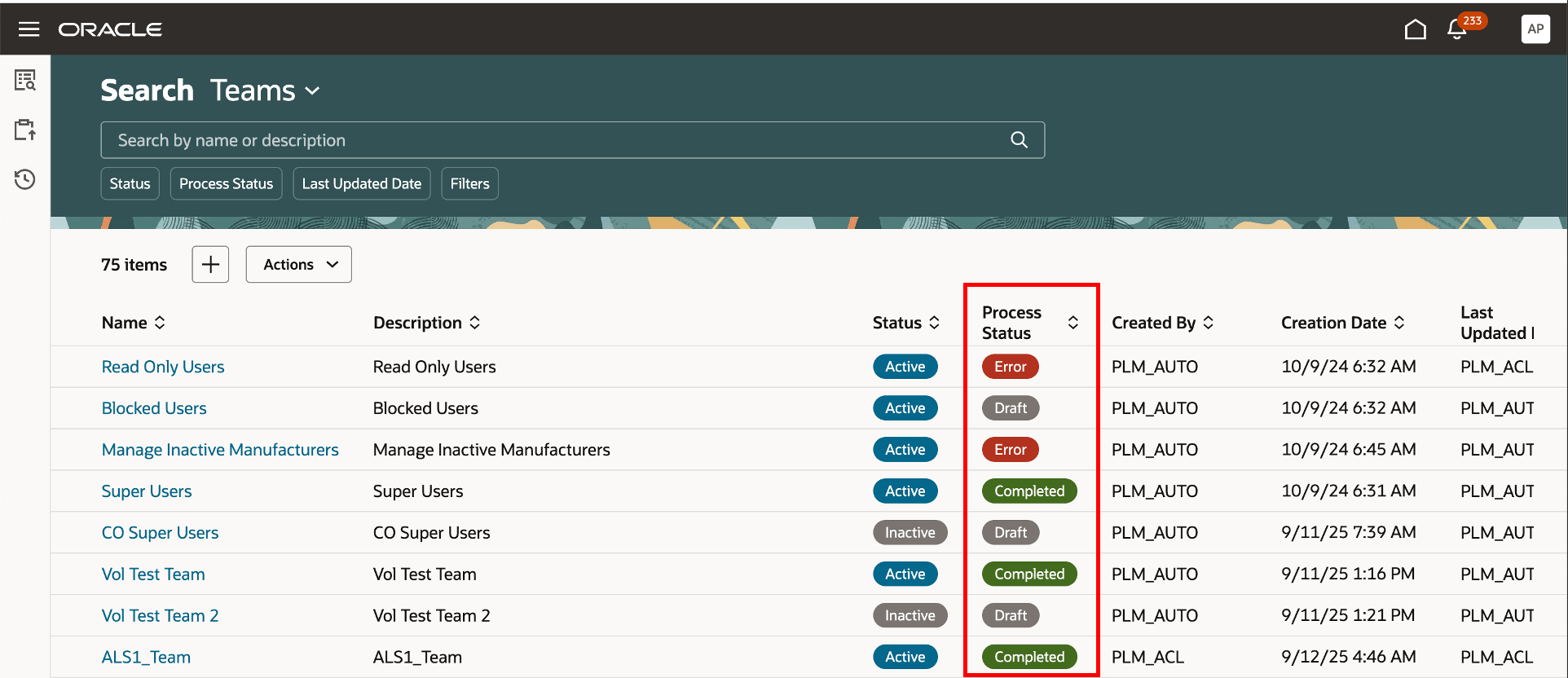
Team Process Status
After saving the changes, such as adding a new permission set to a team or modifying an existing one, an information message will appear, showing the job ID of the submitted process. You can track the progress of this job on the Scheduled Processes page.
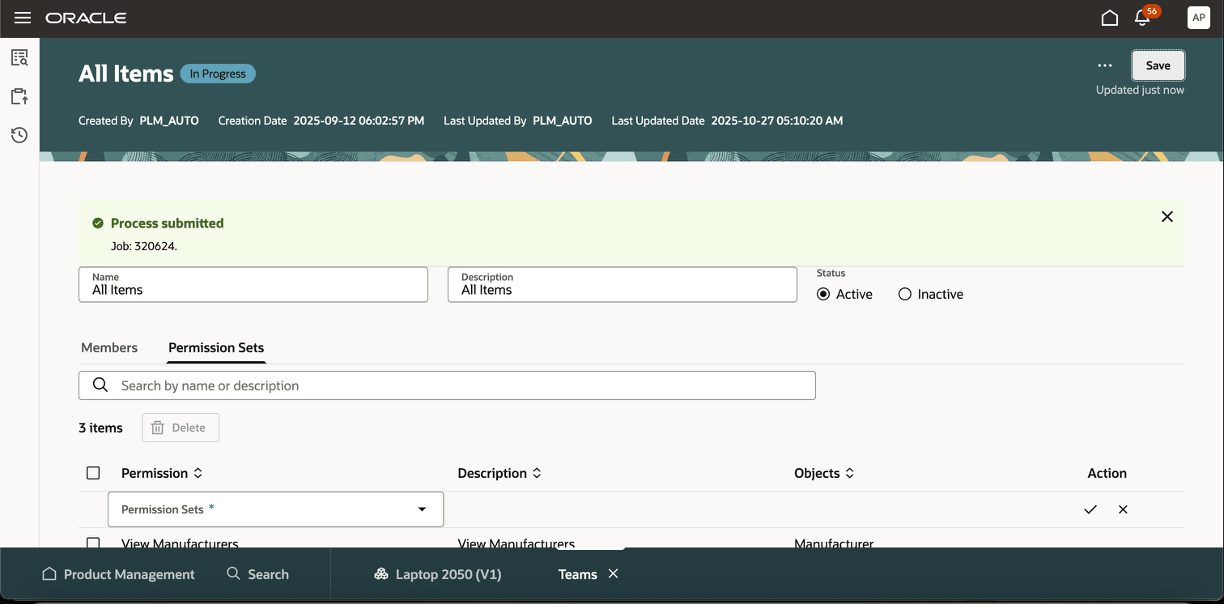
Message with Job ID of the Submitted Process
Users can also navigate to the scheduled process page for more information on security changes.
Delete Permission Sets
You can delete permission sets that aren't assigned to any teams. Here’s how:
-
Permission Search Page: Select up to 25 permission sets directly from the search page and click the Delete button to remove them in bulk.
-
Permission Details Page: Open the details page for a specific permission set and click the Delete button to remove it individually.
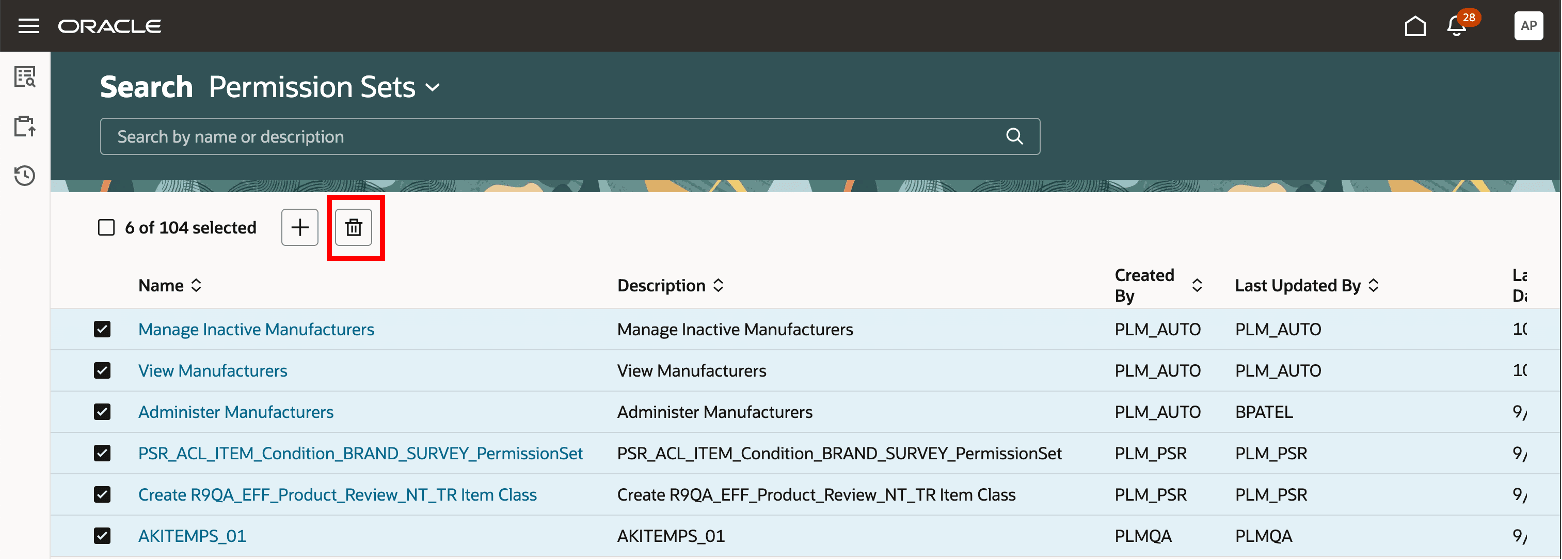
Delete Permission Set in Permission Set Search Page
You can also delete the conditions as it is already supported.
Download Attachments for Items:
Attachments added to an item are now secured by Item Access Control Lists.
Click More Actions > Download Attachments on the item page to download the attachments according to the security defined on the item. You can view the related data in the following table.
|
Download Attachment Option |
Required Permission for Item ACL |
Access To |
Result |
|---|---|---|---|
|
Single |
View or Manage |
Structure, Attachments |
User can download and view attachments for the parent item and first level components |
|
All |
View or Manage |
Structure, Attachments |
User can download and view attachments for the parent item and all structure components |
|
Include Manufacturer Part Items |
View or Manage |
Structure, Relationships - Trading Partner Items |
User can download and view manufacturer part attachments for the parent item and its structure components based on your selection - Single or All levels |
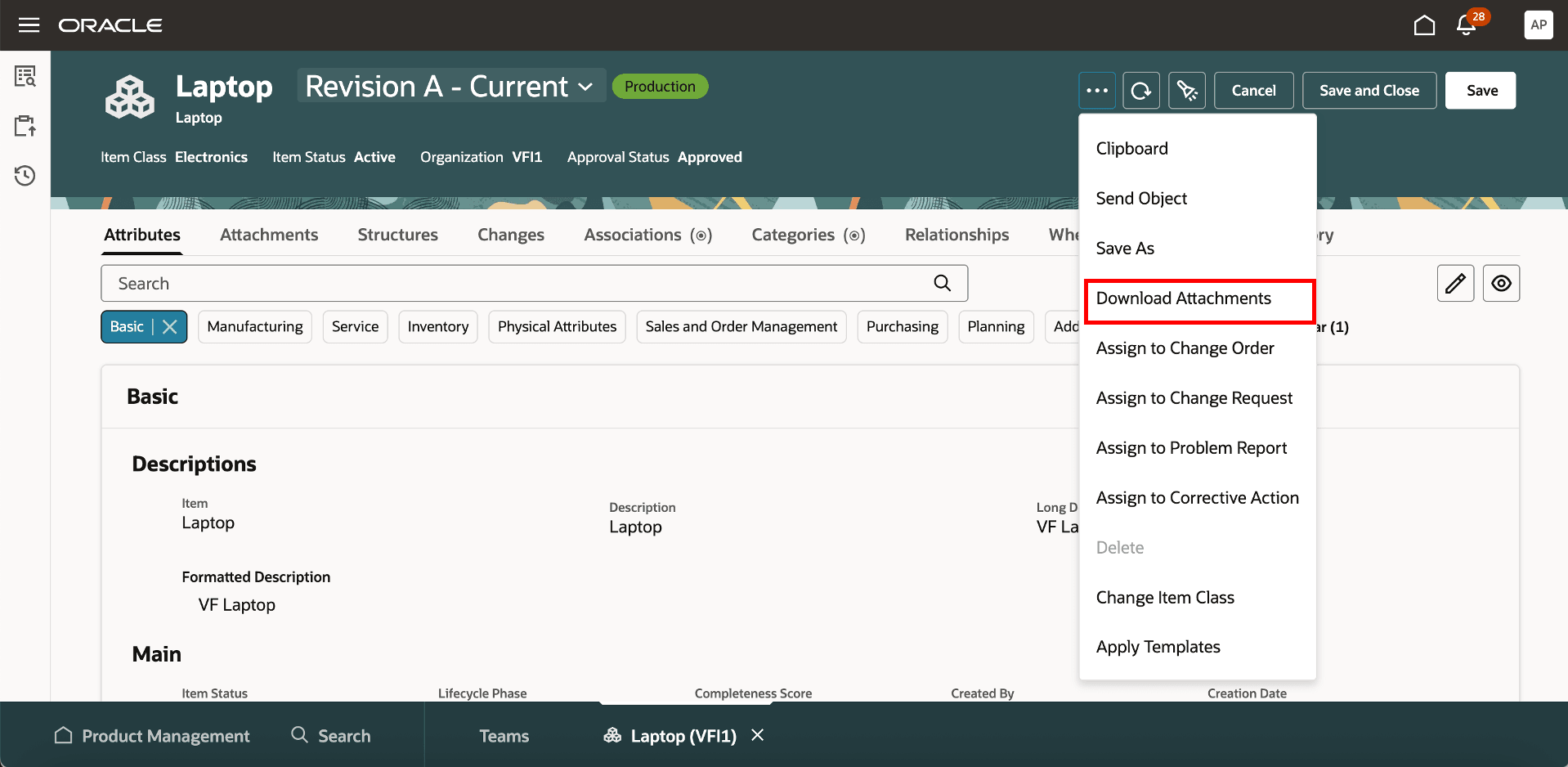
Download Attachments in Item
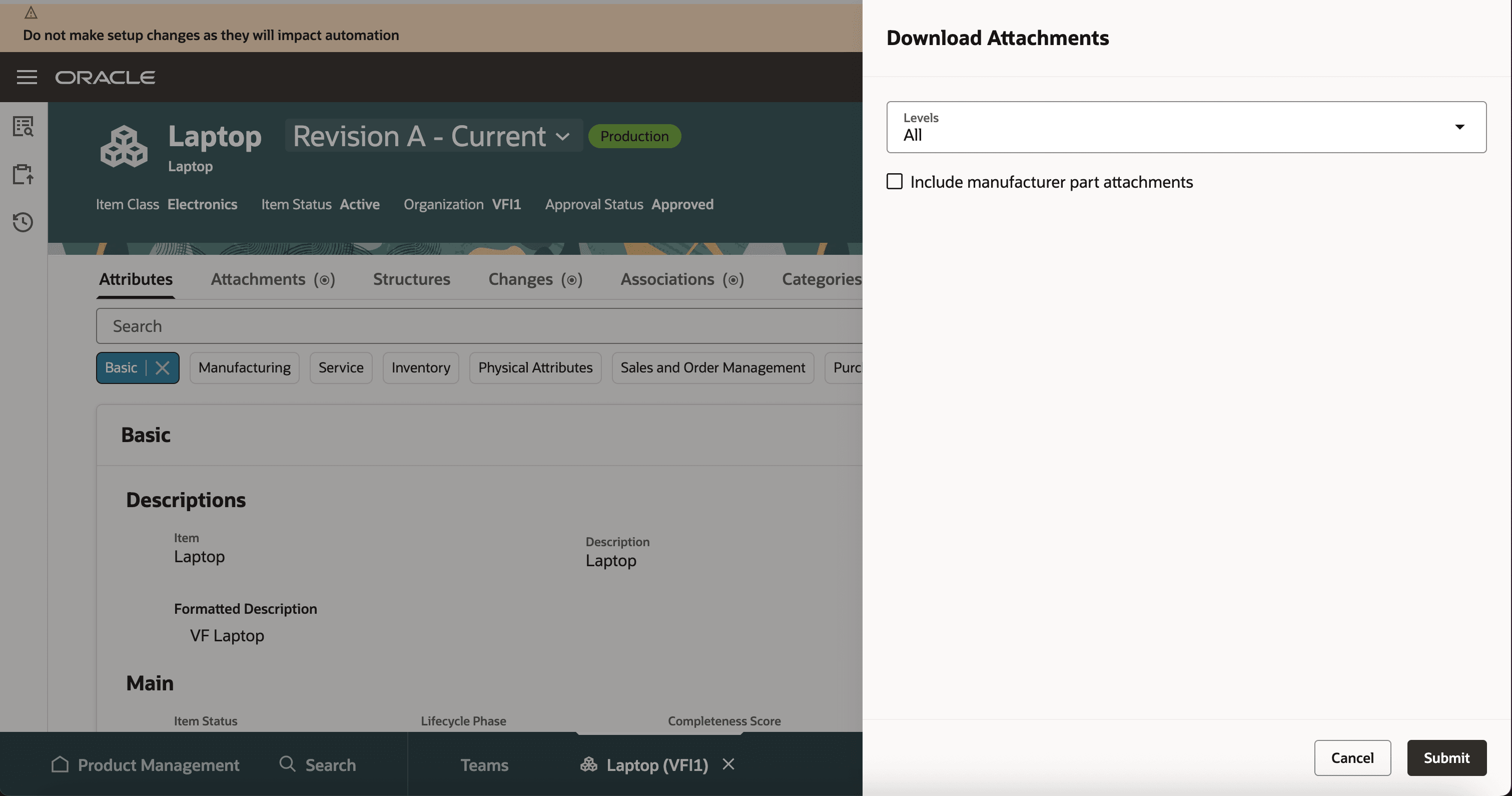
Download Attachments in Item for All Levels
User must have the respective workflow privileges and permissions to download and view item attachments from the workflow.
Click More Actions > Download Attachments on the workflow page to download the attachments according to the security defined on the item. You can view the related data in the following table:
|
Download Attachment Option |
Required Permission for Item ACL |
Access To |
Result |
|---|---|---|---|
|
Affected Objects - Redlined |
View or Manage |
Attachments |
User can download and view attachments for the affected objects |
|
Affected Objects - All |
View or Manage |
Structure, Attachments |
User can download and view attachments for the parent item and all its structure components |
|
Affected Objects - None |
NA |
NA |
No attachments can be downloaded on the affected objects |
|
From AML - Redlined |
View or Manage |
Attachments |
User can download and view attachments for the manufacturer part numbers of the parent item |
|
From AML - All |
View or Manage |
Structure, Attachments |
User can download and view attachments for the manufacturer part number for the parent item and all its structure components |
|
From AML - None |
NA |
NA |
No attachments can be downloaded on the manufacturer part numbers |
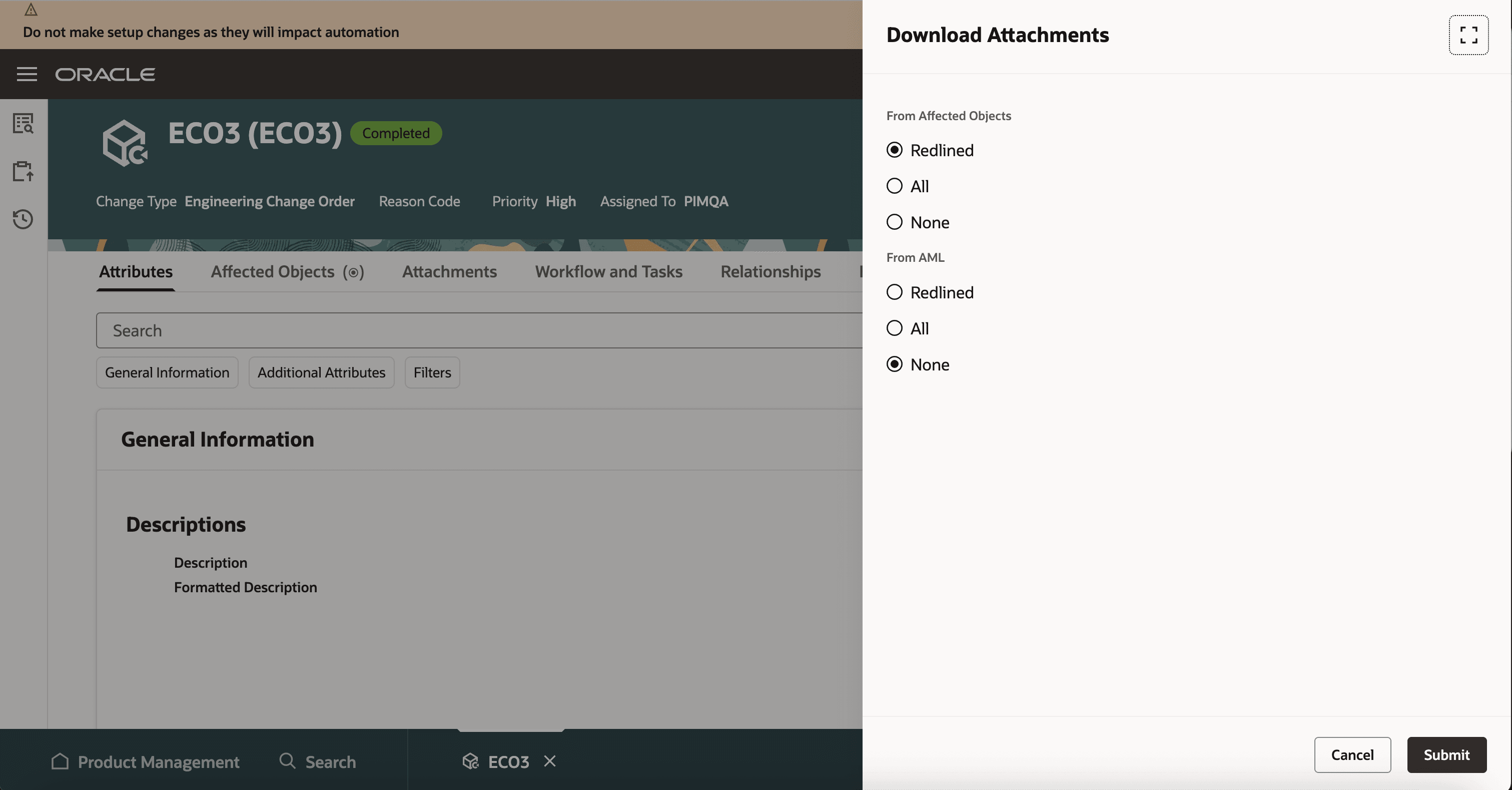
Download Attachments from an Engineering Change Order
Clipboard, Spotlight, and Recently Visited for Items
Users can only add items to the clipboard and spotlight if they've View or Manage access to those items. From the clipboard, users can navigate to the various tabs of an item according to the permissions defined in the Item Access Control List. Users can view the items in the recently visited fragment if they've View or Manage permission on the item.
If users have access to all tabs, they can view the navigation options for each tab. If they’ve access to only certain tabs, they can view the navigation options only for those tabs.
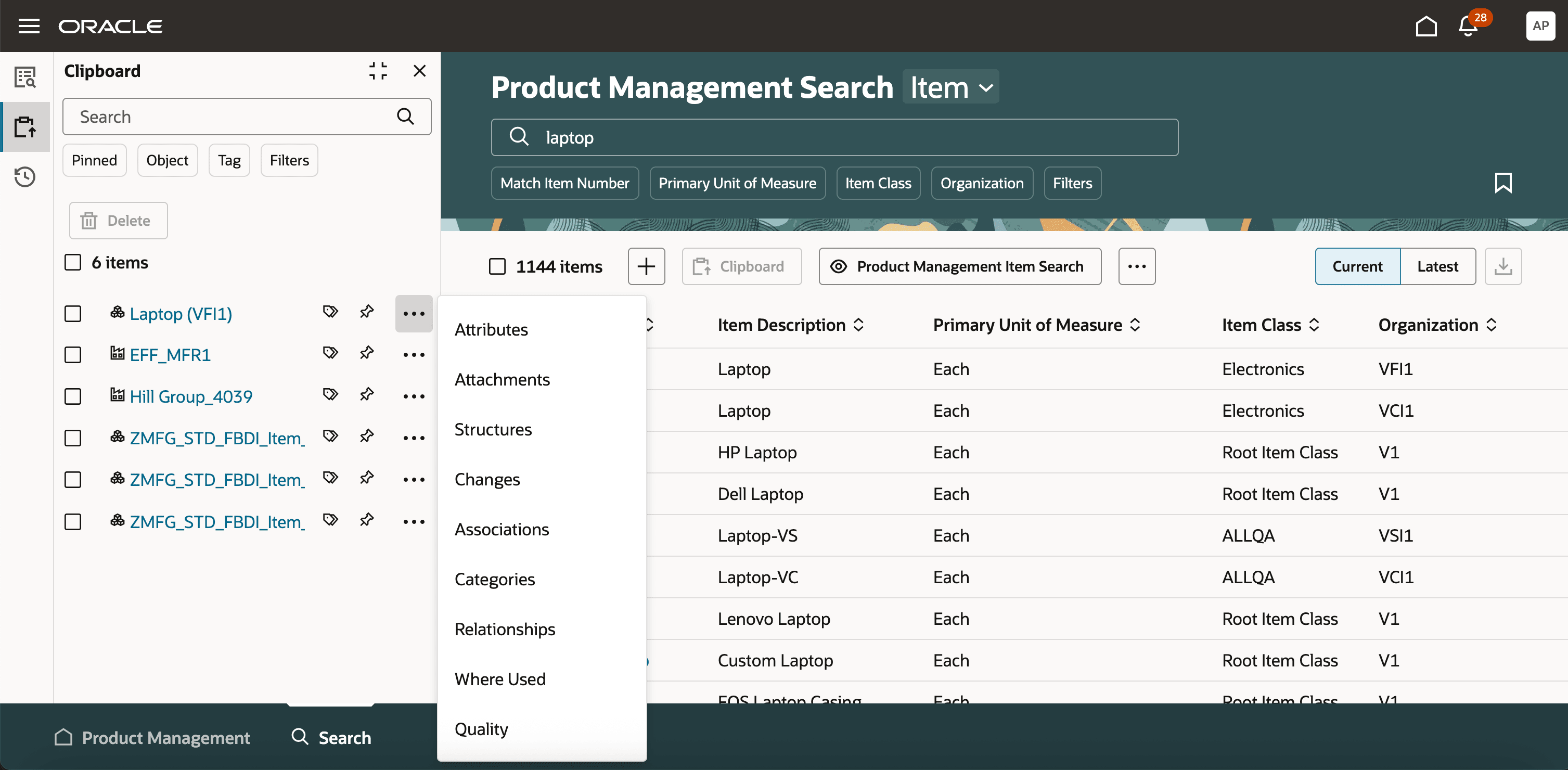
View of Item Added to Clipboard with User Access to All Tabs
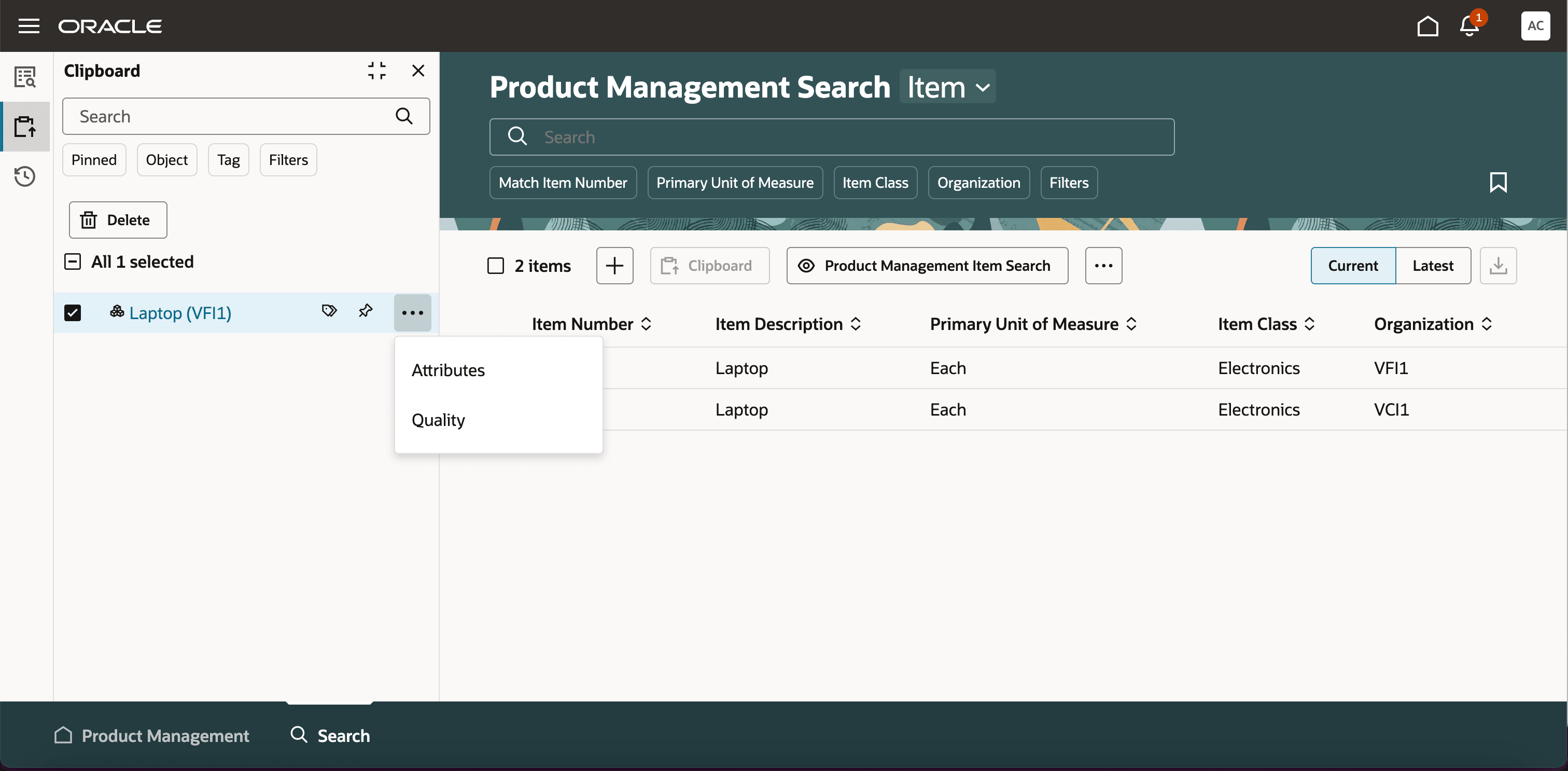
View of Item Added to Clipboard with User Access to Few Selected Tabs
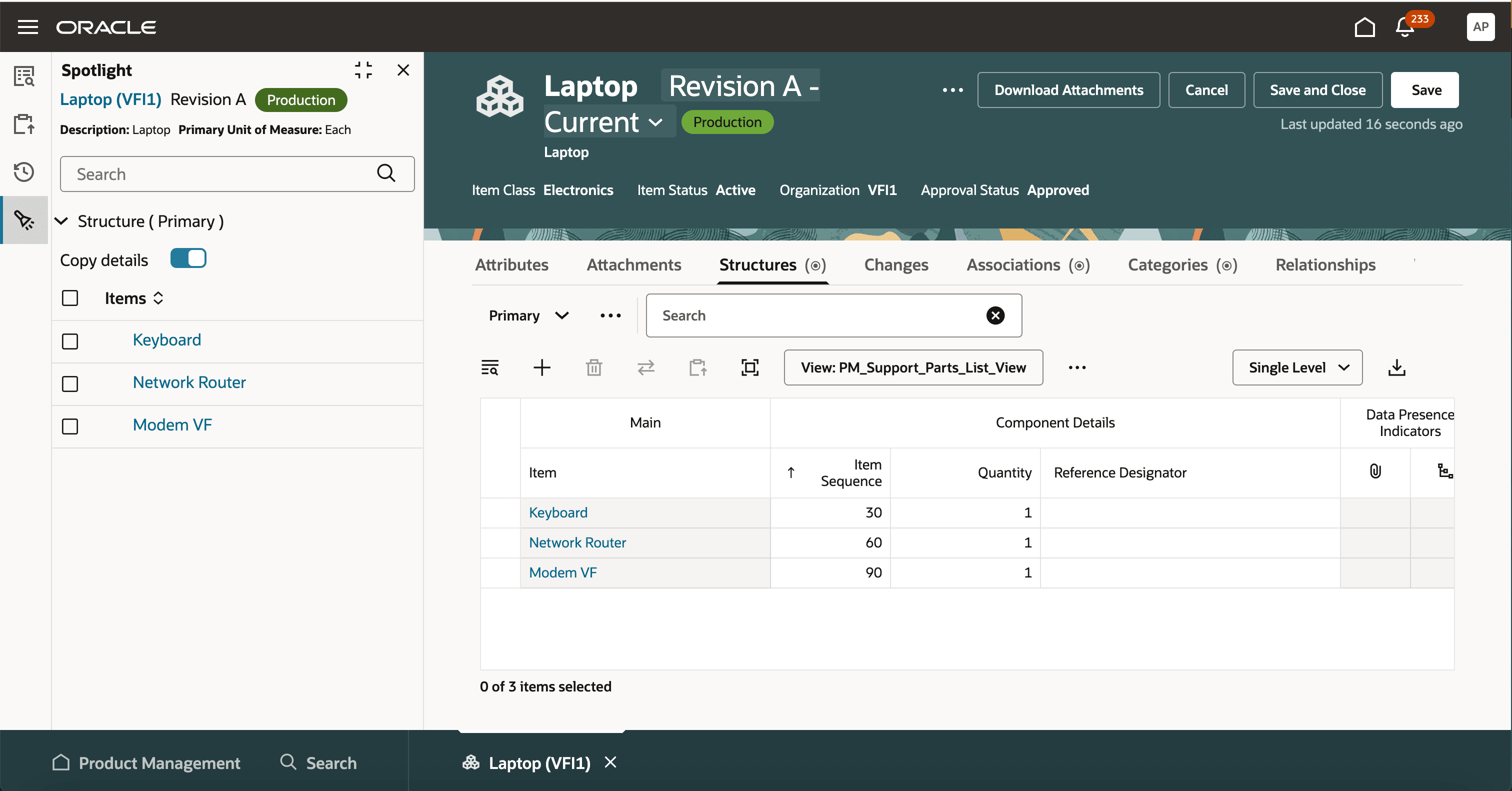
Item Added to Spotlight
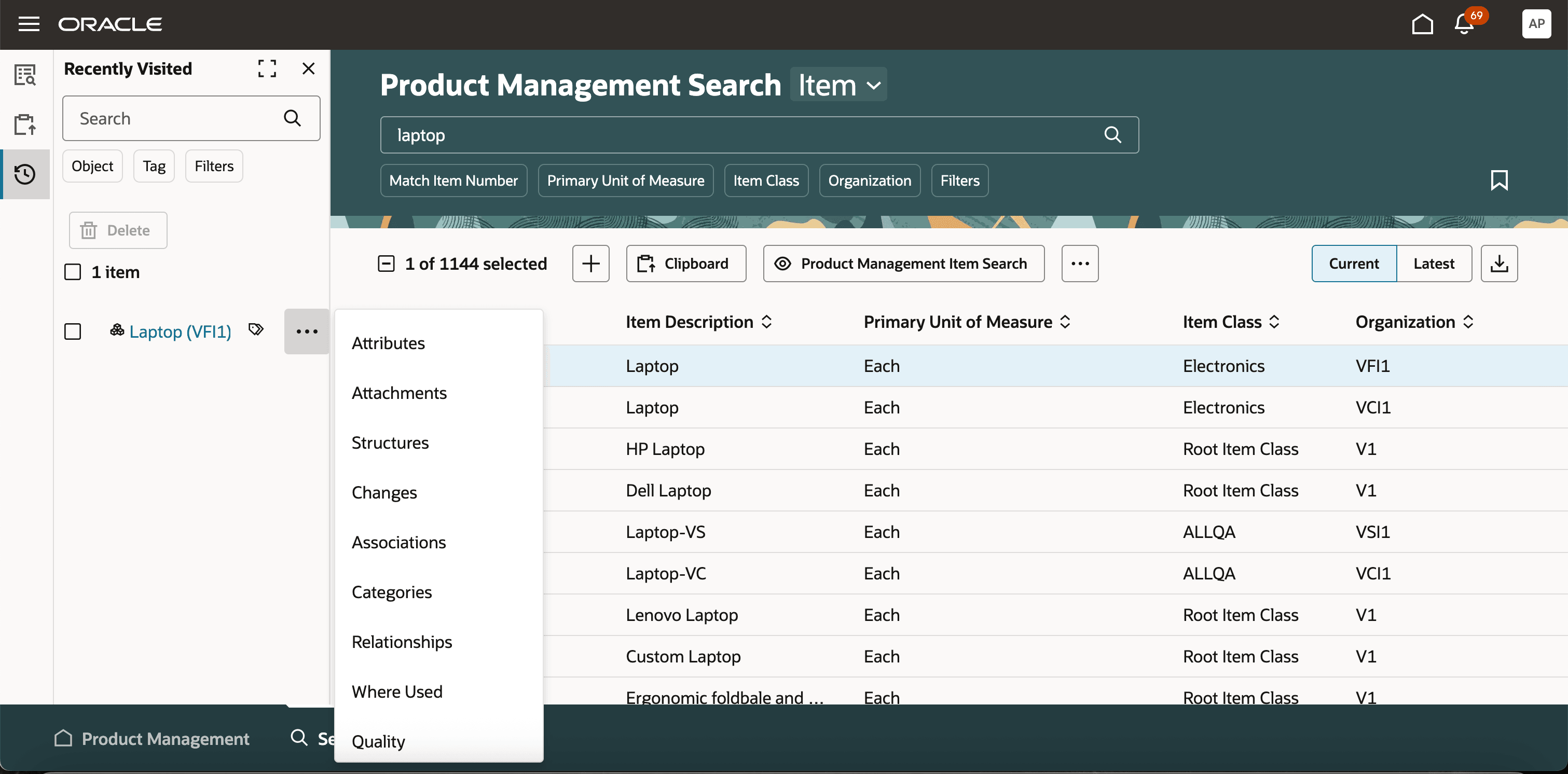
Item in Recently Visited
Clipboard and Recently Visited for Manufacturers
Users can only add manufacturers to the clipboard if they've View or Manage access to those manufacturers. From the clipboard, users can navigate to the various tabs of a manufacturer according to the permissions defined in the Item Access Control List. Users can view the manufacturers in the recently visited fragment if they've View or Manage permission on the manufacturer.
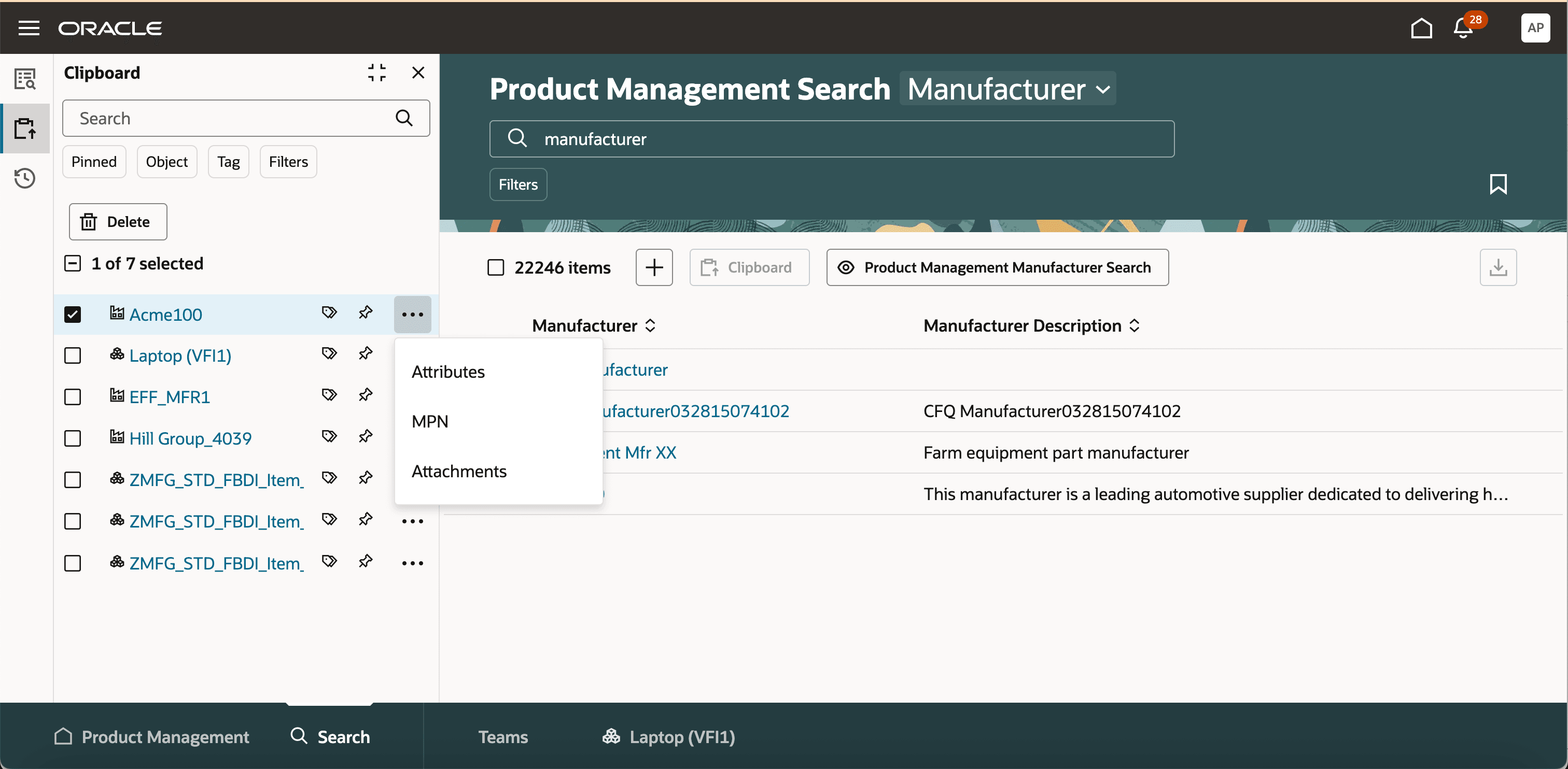
View of Manufacturer Added to Clipboard with User Access to All Tabs
Scheduled Processes
-
Refresh the Access Control List for the Teams: Runs automatically whenever you save a permission set used in a team or add a permission set to a team. If you disable and then enable the profile option (Enable Access Control List for Items), you'll need to run this process manually. After you add or remove users from roles (in Security Console), you must run this process to synchronize users in the role for conditions that include the $user.
-
Update the Members List Based on Membership Criteria: Run this the first time you associate filtered lists to the team. You can specify the frequency at which the member list should be refreshed, based on how often member data is likely to change. You can run this when you want to refresh the data before the scheduled refresh - when members are moving divisions, joining the organization, or leaving the organization. For this job to work you must enable Atom Feeds.
This improvement benefits your business by the following:
-
Empowers your business with variable support to provide flexibility when granting access based on dynamic context user for the Created by attribute.
-
Decreases the number of rules to create and maintain, making governance configuration smarter and more efficient.
-
Provides quick, at-a-glance indication of the Refresh the Access Control List for the Teams scheduled job status when modifications are made to permission sets.
-
Aids in maintaining a clean and current set of security controls with the new ability to delete permission sets.
-
Provides more comprehensive set of security restrictions to include these additional Product Management objects and actions:
-
Permit granular structure level access control including the related MPNs or workflow affected object attachments.
-
Secure view and navigation of items within Clipboard, Spotlight, and Recently Visited.
-
Secure view and navigation of manufacturers within Clipboard, Spotlight, and Recently Visited.
-
Steps to enable and configure
- To use criteria-based access control for items, you must enable the profile option Enable Access Control List for Items. By default, the profile option is set to No.
- On enabling the profile option, the items continue to honor the existing security settings till you create a permission and permission set.
Once the profile option is enabled and a permission is created for an item, all items in the application will become private, regardless of their current public or private settings. You must manually assign user permissions to these items.
Tips and considerations
-
You can set the team status to Inactive while making changes and set it back to Active once your changes are complete, to ensure that all updates are applied immediately.
-
Before allowing users to access the application, ensure that the team process status displays Completed so users have the correct permissions.
-
If there's an error in the team, you can run the Refresh the Access Control List for the Teams job again by selecting the team name.
-
After you upgrade to 26A, to apply the security on the items, run the Refresh the Access Control List for the Teams schedule process, and then run the item index process.
-
After you upgrade to 26A, to apply the security on the Manufacturers, run the Refresh the Access Control List for the Teams schedule process, and then run the manufacturer index process.
Key resources
- Oracle Fusion Cloud SCM Implementing Product Management Guide, available on the Oracle Help Center.
- Overview of Filtered Lists
- Worker Types
- Extend SCM Redwood Application Pages Using Visual Builder Studio
- Atom Feeds
- A "Delete" option should be available for Permission Sets, and Conditions for ACLs
- Redwood: Secure Items Using Access Control Lists
Access requirements
Users who are assigned a configured job role that contains these privileges can access this feature:
To configure conditions for items or manufacturers using a filtered list:
-
Use REST Service - Identity Integration (ASE_REST_SERVICE_ACCESS_IDENTITY_INTEGRATION_PRIV)
-
Use Atom Feed - Employees Workspace (PER_ATOM_WORKSPACE_ACCESS_EMPLOYEES_PRIV)
-
Manage HCM Lists (HRC_MANAGE_HCM_LISTS_PRIV)
-
Human Capital Management Application Administrator (ORA_HRC_HUMAN_CAPITAL_MANAGEMENT_APPLICATION_ADMINISTRATOR_JOB)
To configure teams, permission sets, and conditions:
-
Manage Landing Page Layout (EGP_MANAGE_LANDING_PAGE_LAYOUT_PRIV)
-
Access Clipboard (ACA_ACCESS_CLIPBOARD_PRIV)
-
Access HCM Common Components (HRC_ACCESS_HCM_COMMON_COMPONENT)
-
Manage Search Consumer Applications Rest (EGP_MANAGE_SEARCH_CONS_REST_PRIV)
-
Monitor Product Development (ACA_MONITOR_PRODUCT_DEVELOPMENT_PRIV)
-
Configure Access Control Teams, Permission Sets, and Conditions (EGP_ACCESS_CONTROL_TEAMS_PRIV)
-
Use REST Service - Identity Integration (ASE_REST_SERVICE_ACCESS_IDENTITY_INTEGRATION_PRIV)
-
Use Atom Feed - Employees Workspace (PER_ATOM_WORKSPACE_ACCESS_EMPLOYEES_PRIV)
-
Manage HCM Lists (HRC_MANAGE_HCM_LISTS_PRIV)
-
Manage HCM Rules (HRC_MANAGE_HCM_RULES_PRIV)
-
Run Scheduled Processes (HEY_RUN_SCHEDULED_PROCESSES_PRIV)
-
Manage Scheduled Processes (FND_MANAGE_SCHEDULED_PROCESSES_PRIV)
-
Access Product Management Landing Page (EGP_ACCESS_LANDING_PAGE_PRIV)
-
Manage Scheduled Job Definition (FND_MANAGE_SCHEDULED_JOB_DEFINITION_PRIV)
-
Access Users (EGP_ACCESS_USERS_PRIV)
-
Manage Item Redwood Items (EGP_MANAGE_REDWOOD_ITEM_PRIV)
-
View Product Management Search (EGP_VIEW_PRODUCT_MGT_SEARCH_PRIV)
-
Get Item Attribute Control REST (EGP_ITEM_ATTRIBUTE_CONTROL_READ_PRIV)
-
Get Item Lifecycle Phases Read Rest (EGP_ITEM_LIFECYCLE_PHASES_READ_REST_PRIV)
-
Get Item Status REST (EGP_ITEM_STATUSES_READ_PRIV)
-
Get Template REST (EGP_TEMPLATE_READ_PRIV)
-
View Global Inventory Organizations List of Values by Web Service (RCS_GLOBAL_VIEW_INV_ORG_LOV_WEB_SERVICE_PRIV)
-
View Units Of Measure List of Values by Web Service (RCS_VIEW_UNITS_OF_MEASURE_LOV_WEB_SERVICE_PRIV)
-
Get Item Class Rest (EGP_GET_ITEM_CLASS_REST_PRIV)
-
View Item (EGP_VIEW_ITEM_PRIV)
-
View Feature States Value by Web Service (RCS_VIEW_FEATURE_STATES_WEB_SERVICE_PRIV)
-
Use REST Service - Users and Roles Lists of Values (PER_REST_SERVICE_ACCESS_USERS_AND_ROLES_LOVS_PRIV)
To access the secured manufacturer data:
-
Create Manufacturer (EGP_CREATE_MANUFACTURER_PRIV)
-
View Manufacturers (EGP_VIEW_MANUFACTURER_PRIV)
-
Manage Manufacturers (EGP_MANAGE_MANUFACTURER_PRIV)
To access the secured items, users must be assigned the relevant item privilege along with the following:
-
View Feature States Value by Web Service (RCS_VIEW_FEATURE_STATES_WEB_SERVICE_PRIV)
To access journeys setup and configure the roles in role hierarchy:
-
Manage Journey (ORA_PER_MANAGE_JOURNEY_TEMPLATE)
-
Manage Guided Journeys (ORA_PER_MANAGE_GUIDED_JOURNEYS)
-
Use REST Service - Guided Journeys Read Only (ORA_PER_REST_SERVICE_ACCESS_GUIDED_JOURNEYS_RO)
-
Use REST Service - Journey Categories List of Values (ORA_PER_REST_SERVICE_ACCESS_JOURNEY_CATEGORIES_LOV)
To access business rules:
-
Administer Sandbox (FND_ADMINISTER_SANDBOX_PRIV)
Additionally, add the following to access an object report:
-
Product Catalog Transaction Analysis Duty (FBI_PRODUCT_CATALOG_TRANSACTION_ANALYSIS_DUTY)
-
Product Transaction Analysis Duty (FBI_PRODUCT_TRANSACTION_ANALYSIS_DUTY)
-
BI Consumer Role (BIConsumer)