Redwood: Configure Supplier Registration Custom Content
Without clear communication to a supplier when launching and completing the supplier self-service registration process, the potential for success is reduced and the likelihood of mistakes is increased. This leads to additional work for your procurement team and delayed supplier onboarding. Streamline the setup and maintenance of the critical welcome and success pages using rich text in supplier self-service registration. With easier, better formatted communication on these pages, you can increase success rates and reduce mistakes in supplier self-service registration.
You can now configure the welcome and success messages using a new setup page. This allows you to easily personalize well-formatted instructions displayed before suppliers begin their registration process and after they submit their registration.
Additionally, configuring your company logo has been simplified, which allows you to easily display your corporate branding throughout the supplier registration process.
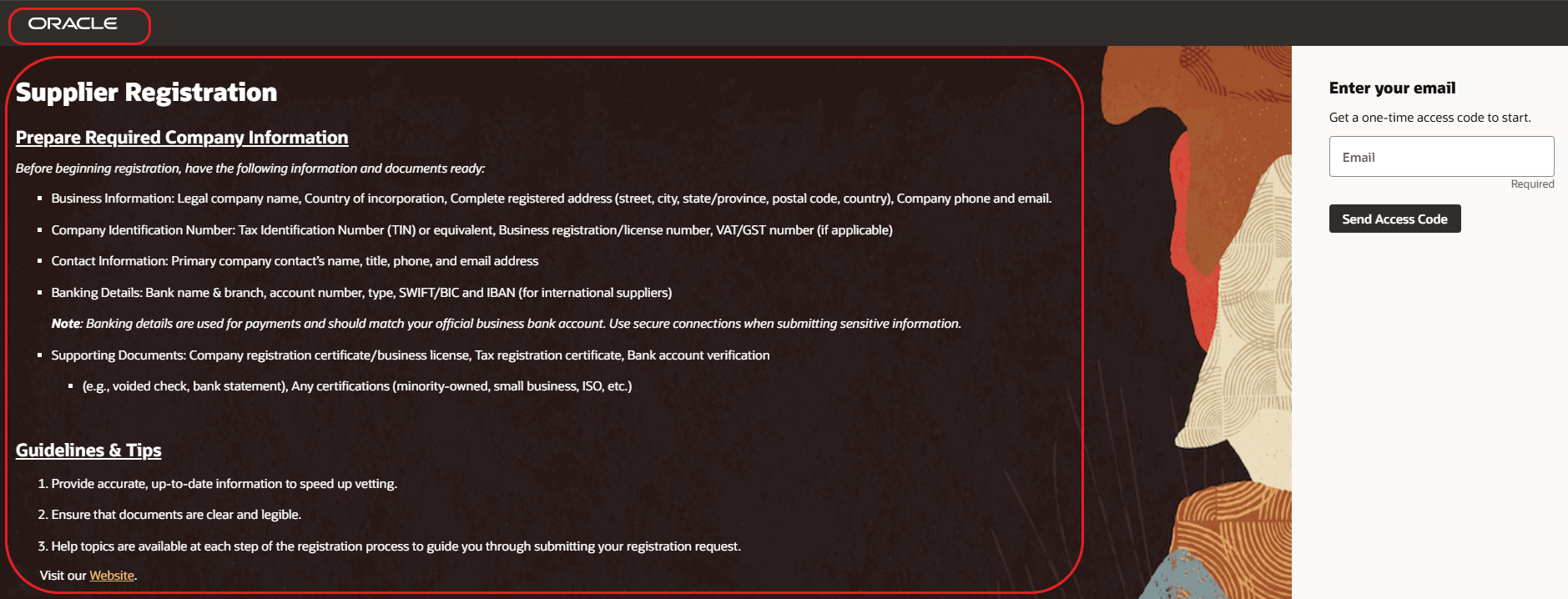
Supplier Self-Service Registration Welcome Page
Steps to enable and configure
To configure messages to appear on the supplier self-service registration welcome and success pages:
- Access the Configure Supplier Registration setup page and select Custom Content.
- Configure the welcome and success messages in their respective sections.
Note: If you already have these messages configured in VB Studio, it’s recommended to remove them before configuring in this setup page.
To add or update your logo across all Fusion pages, including the supplier self-service registration pages, follow these steps:
- Create a Sandbox with the Appearance tool enabled.
- Using the Appearance tool, navigate to the Appearance Themes page where you can upload a new logo or update the existing one.
- Preview and publish the sandbox.
Note: The logo configured in the sandbox appearance theme now also appears on the Supplier Self-Service Registration pages. If you have already published a logo from sandbox, it will automatically display on these registration pages. With this update, support for a custom logo or company name text set through previous methods is discontinued.
Key resources
- To get an overview of the Redwood supplier self-service registration feature, refer to the Oracle Fusion Cloud Procurement 23C What's New and TOI.
- For information on the setup page Configure Supplier Registration, refer to the Redwood: Set up Supplier Registration and Profile Change Request feature in this What's New.
- For information on sandbox and the appearance tool, refer to Overview of Sandboxes.
- For information on themes, refer Themes.
Access requirements
Users who are assigned a configured job role that contains this privilege can access the setup page Configure Supplier Registration.
- Configure Supplier Registration (POZ_CONFIGURE_SUPPLIER_REGISTRATION_PRIV)
Users who are assigned a configured job role that contains this privilege can access preview, edit, and publish sandboxes.
- Administer Sandbox (FND_ADMINISTER_SANDBOX_PRIV)
These privileges were available prior to this update.