Redwood: Manage Backlog Planning Rules Using a New User Experience
Use a Redwood page to search, review, edit, and create Backlog Planning rules. You can define the lead times, supply types, and other parameters that control promising. You can also assign backlog planning rules to specific items, item categories, or organizations to adjust planning behavior for subsets of your network.
Go to the Redwood Supply Chain Planning work area and open Backlog Management from the context selector. Then, under More Actions, choose View More to access Backlog Planning Rules.

Select View More
Select Backlog Planning Rules under Plan Inputs.
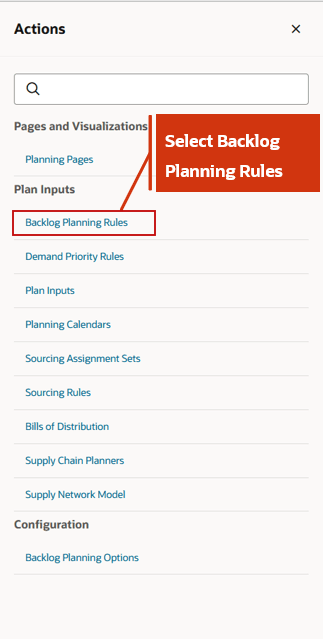
Backlog Planning Rules Action
The Backlog Planning Rules page lets you configure how items are planned in Backlog Management. These rules are shared with GOP ATP Rules. You can use the Redwood page to create, assign, and manage Backlog Planning rules.
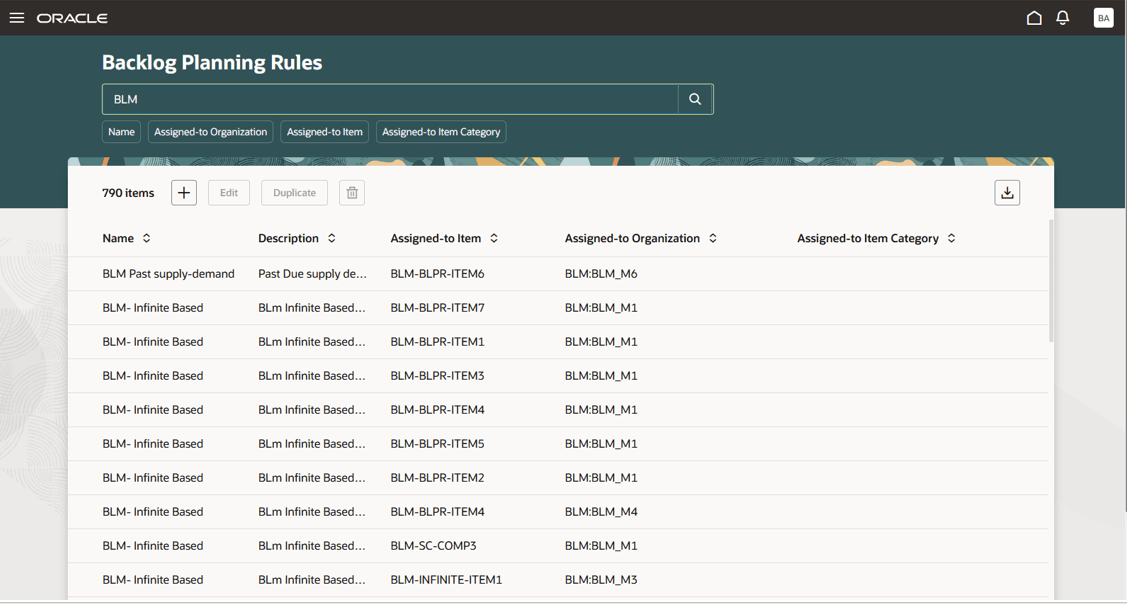
Backlog Planning Rules Page
The Backlog Planning Rules page lets you define how Backlog Management searches for supplies in an organization when promising an item. You can create Infinite Availability, Lead Time Based, or Supply Chain Availability Search Backlog Planning rules.
Here are details of the Backlog Planning Rule Criteria page:
- Infinite Availability: Assumes supply is unlimited. Assign this rule for items with unconstrained supplies.
- Lead Time Based: Assumes supply is always available after a certain lead time. Assign this rule for items with reliable lead times. Select a lead time value from different options
- Total Lead Time: Sum of pre-processing, processing, and post-processing lead times.
- Cumulative Manufacturing Lead Time: Calculated based on roll up done in Oracle Fusion Manufacturing, populated into Product Information Management and collected into the planning repository. Time to make an item if all raw materials are available, but subassemblies must be made level by level.
- Cumulative Total Lead Time: Calculated based on roll up done in Oracle Fusion Manufacturing and populated into Product Information Management and collected into the planning repository. Time to make an item if no inventory exists and all raw materials and subassemblies must be produced level by level.
- User Defined Lead Time: Lead time in days
- Supply Chain Availability Search: Tracks and allocates supply based on incoming demands. Assign this rule for critical, fast-moving items where exact supply tracking is essential. Configure the following attributes to control how the supply search progresses:
- Search components and resources: Include components and resources for manufactured items.
- Split order when supply becomes available: Allow orders to be split when enough supply is found for the user-defined minimum required quantity.
- Supply Types: Select which supply types Backlog Management should consider during order rescheduling.
- Infinite Availability Time Fence Definition: Specify the lead time used to determine the boundary date (number of days from current date) beyond which supply is considered infinite. Select from Total Lead Time, Cumulative Manufacturing Lead Time, Cumulative Total Lead Time, or User Defined Lead Time.
- Past Due Supply Days and Past Due Demand Days: Specify the interval in days for which GOP should retain back-dated demands and supplies for its internal supply demand netting calculations. This interval usually matches the average time an order takes to progress through various stages in your system.
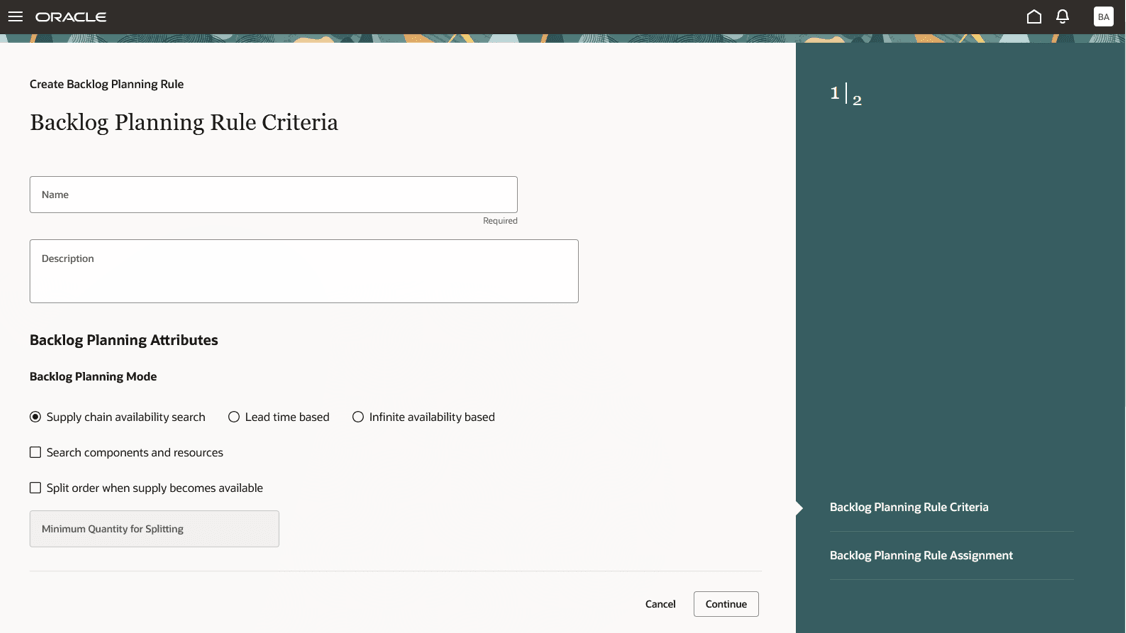
Backlog Planning Rule Criteria
You can also configure which supply types apply to an Item. For example, you can specify that only on-hand supply should be considered valid for certain items.
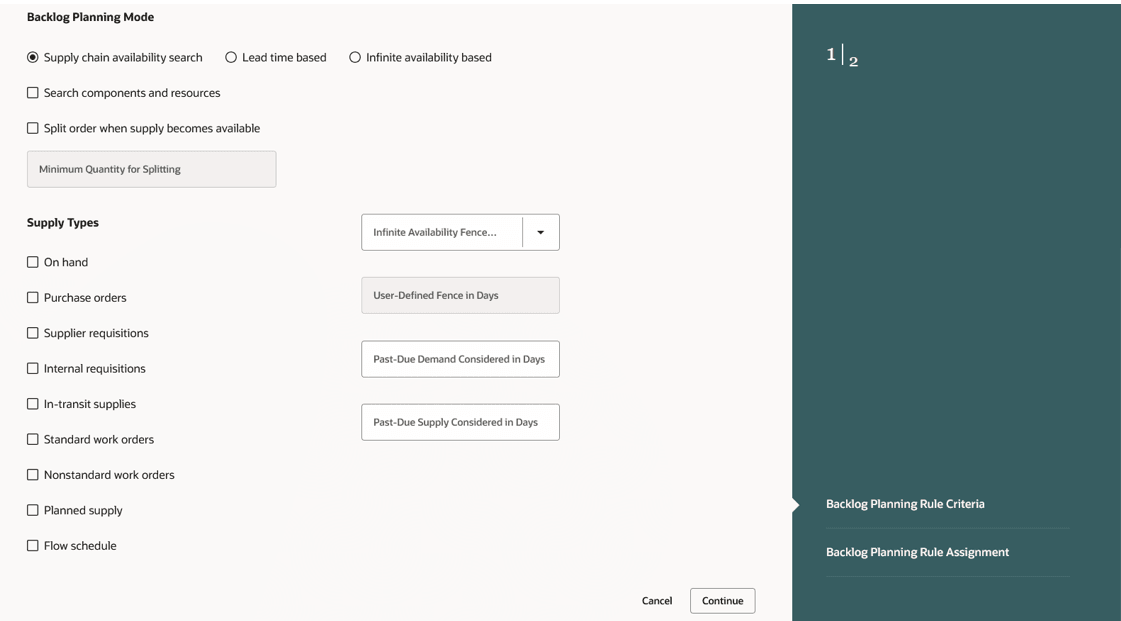
Supply Types Details
Backlog Planning rules can be assigned at different levels, in order of increasing granularity:
- Organization (least granular)
- Category
- Item
- Item and organization (most granular)
If multiple Backlog Planning rules apply to an item because they're assigned at different levels, Oracle Fusion Cloud Backlog Management picks the most granular rule for that item.
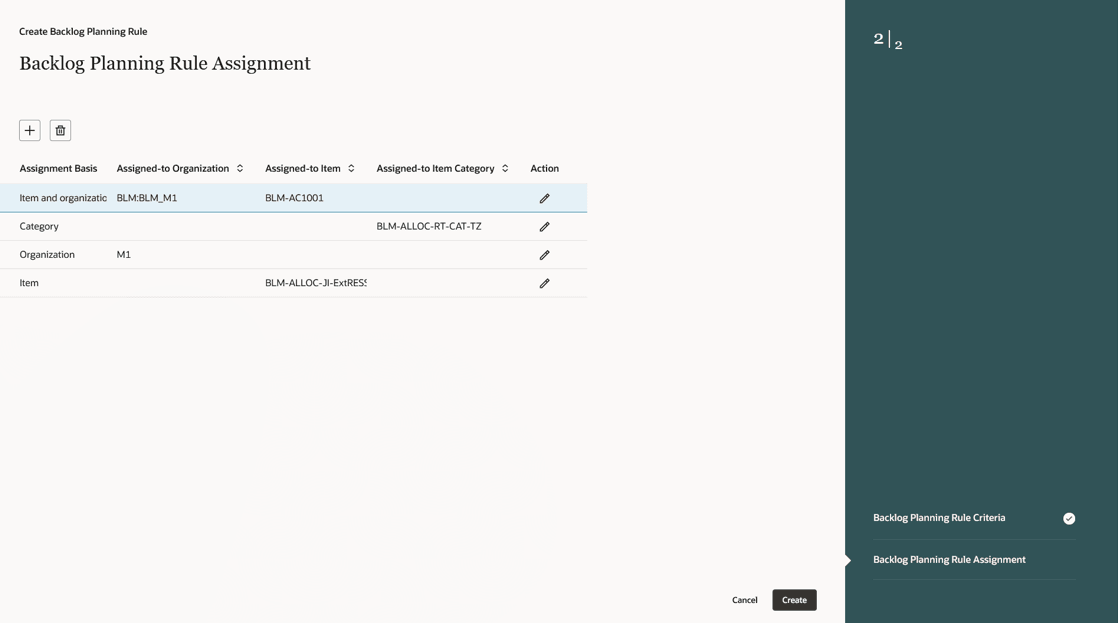
Backlog Planning Rule Assignment
Steps to enable and configure
Use the Opt In UI to enable this feature. For instructions, refer to the Optional Uptake of New Features section of this document.
Offering: Supply Chain Planning
Tips and considerations
If you want to use the Redwood: Manage Backlog Planning Rules Using a New User Experience feature, then you must opt in to its parent feature: Order Backlog Management. If you’ve already opted in to this parent feature, then you don’t have to opt in again.
- Ensure that every item that needs to be promised has a Backlog Planning rule assigned.
- Each item can have only one Backlog Planning rule. If an item falls under multiple rules at different granularities, Backlog Management applies the most granular rule.
- The new parameter Flow Schedule for flow manufacturing supply type is available only in the Redwood user experience.
- When you switch to the Redwood Manage Backlog Planning Rules user experience, you can view and edit any rules you created earlier.
- You can export up to 1000 Backlog Planning Rule assignments.
- To use existing flow schedules in the backlog plan, you must enable the Flow schedule Supply Type.
Access requirements
Users who are assigned a configured job role that contains these privileges can access this feature:
- Monitor Backlog Management Work Area (MSC_MONITOR_BACKLOG_MANAGEMENT_WORK_AREA_PRIV)
- Create Backlog Plan (MSC_CREATE_BACKLOG_PLAN_PRIV)
These privileges were available prior to this update. The following site-level profile should be enabled:
- Redwood Backlog Management Pages Enabled (ORA_MSC_BACKLOG_MANAGEMENT_REDWOOD_ENABLED)