Redwood: Compare Orders with More Flexibility
You can use the Redwood user experience to easily compare the planning results across different plan scenarios at the order level by including the planning attributes in the current plan and the compared plan. Planning attributes refer to the attributes created using the attribute-based planning framework. The planning attributes are shown as columns when comparing orders, enabling you to quickly comprehend what changed across plan scenarios.
In the 26A update, we’ve added additional capabilities to the Redwood Order Comparison visualization, as described in the following sections.
Support for Netting Attributes
When using order comparison within a plan that has a netting rule, the netting attributes are available for inclusion as columns in the changed demands or changed supplies table.
By default, netting attributes are hidden. Click on the Columns icon and use the Columns drawer to hide or show the desired netting attributes.
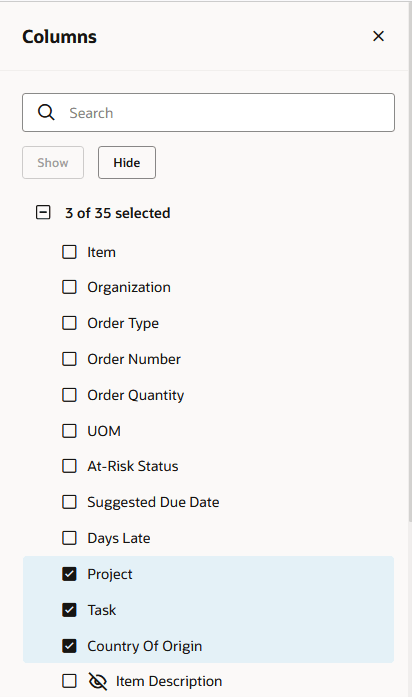
Columns Drawer with Netting Attributes
Once you close the Columns drawer after selecting to show a netting attribute, you’ll see the current plan’s value for that attribute. To see the value of a netting attribute from both the current plan and the comparison plan, click on the Select Columns to Compare action from the Actions menu. The Select columns to compare drawer opens, where you can select which attributes to show for both current and comparison plans.
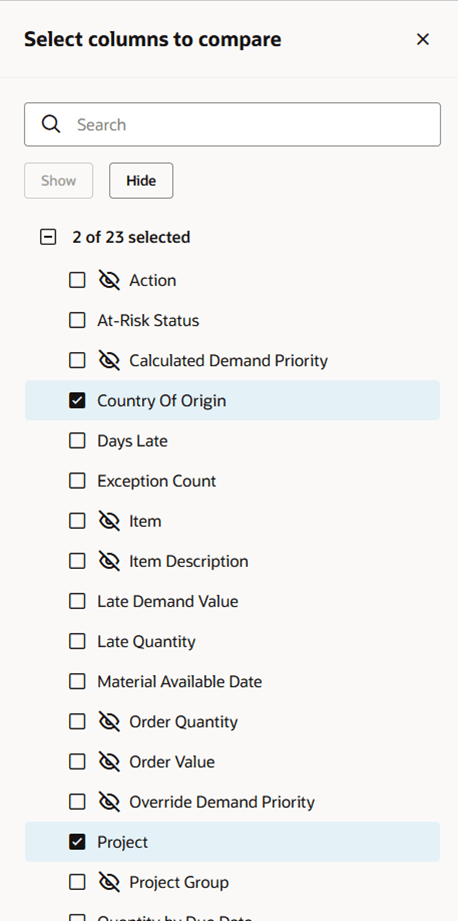
Columns to Compare Drawer with Netting Attributes
The following image shows an example of changed demands data where the plan’s netting attributes have been added for comparison.
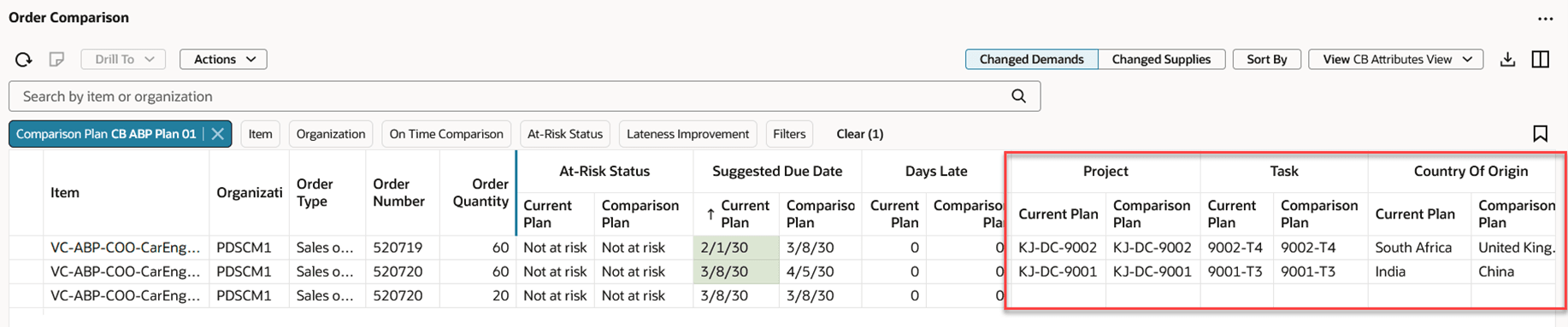
Changed Demands Showing Netting Attribute Columns
The same steps are used to expose netting attributes in the changed supplies table.
Advanced Sorting Using Multiple Columns
Previously in the Order Comparison visualization, you could only sort by a single column. With this update, you can now sort by multiple columns using the Sort By button.

Sort By Button
Clicking on the Sort By button opens the Sorting drawer, where you can select the columns to sort and the sort order.
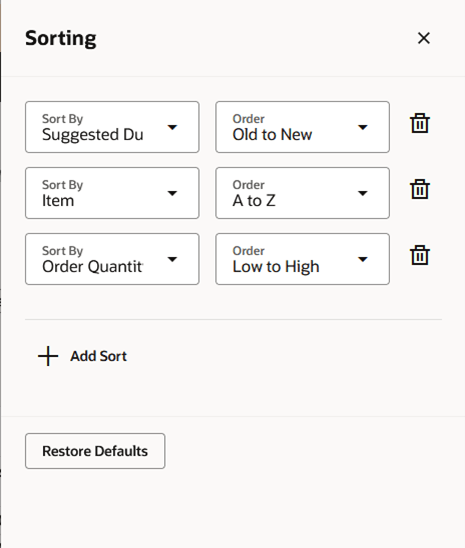
Sorting Drawer
Click on + Add Sort to add additional columns to sort by. When you close the drawer, the table is sorted based on the columns selected in the Sorting drawer.
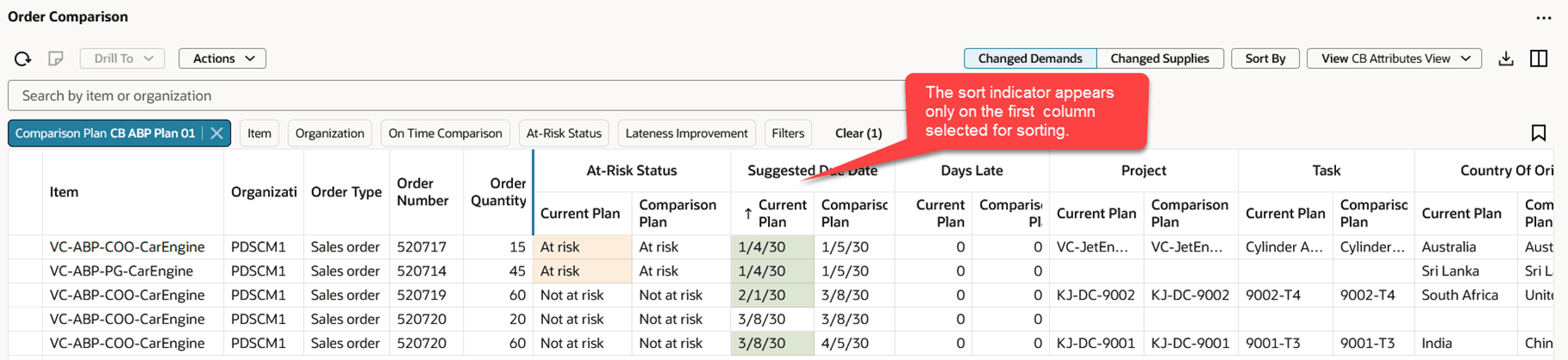
Table Sorted by Multiple Columns
Note that the sort indicator in the column header appears only on the first column that was selected for sorting.
Enhanced Integration with Page-Level Filters
Previously, only the product and organization dimensions page-level filter chips were supported in order comparison. With this update, we now support both the customer and supplier dimensions as well.
The following is an illustration of a page containing the Order Comparison visualization. In the illustration, the page-level filter is present and the user has selected to filter the page by both item and customer. The page-level filters are applied to the changed demands, and the table shows only the changed demands that meet the page-level filter criteria.
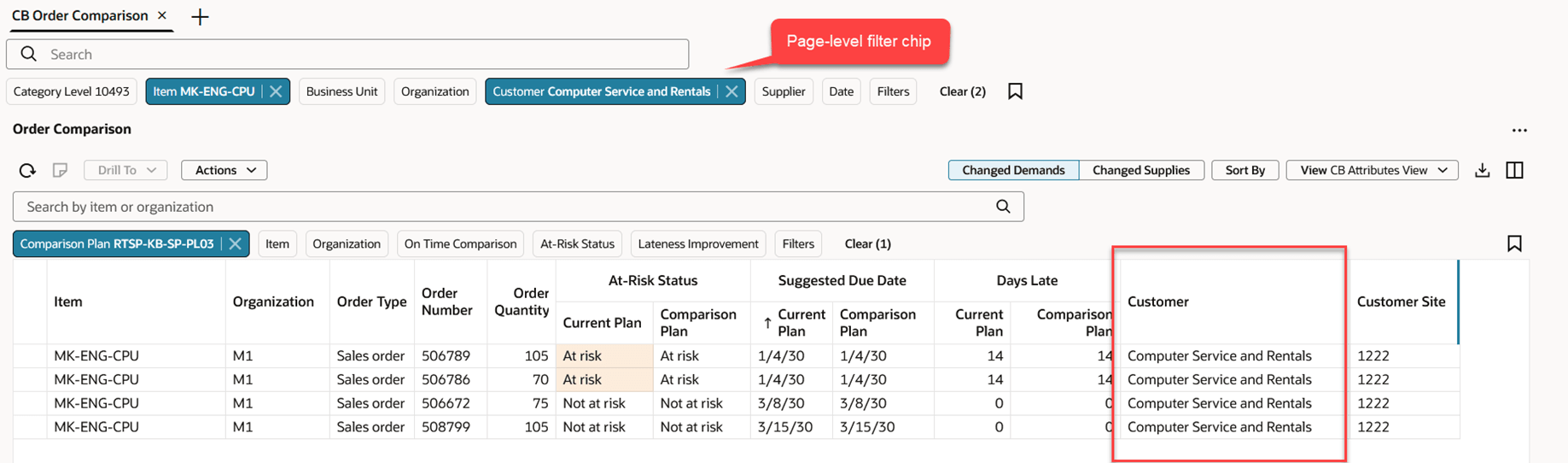
Changed Demands Filtered Using Page-Level Customer and Item Filter Chips
Note that the page-level Customer filter chip is applied only to changed demands, and the Supplier filter chip is applied only to changed supplies.
Data Security Support
Previously, data security was applied to the list of values displayed when clicking on the Item or Organization filter chip. However, when not filtering by item or organization, data security wasn’t being applied to the rows that were displayed in the changed demands or changed supplies table.
With this update, item and organization-level data security is applied to both the filter chips and the resulting rows. For example, if a user is only authorized to see rows associated with organization M1, then when displaying changed demands or changed supplies for a plan, only rows associated with organization M1 are displayed.
User-Specific Default Views
Users could previously create changed demands and changed supplies views, but they couldn’t save it as their personal default view. With this update, users can now specify their own default view by selecting the Default checkbox on the Save view drawer.
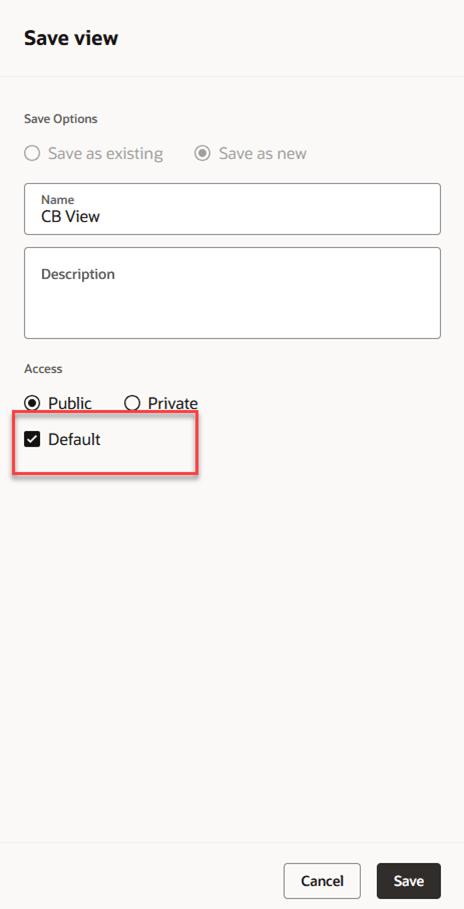
Save View Drawer with Default Checkbox
Steps to enable and configure
You don't need to do anything to enable this feature.
Key resources
- See Redwood: Compare Orders Using a New User Experience in the Oracle Fusion Cloud Supply Planning 25D What’s New
Access requirements
Users who are assigned a configured job role that contains these privileges can access this feature:
- View Demands and Supplies (MSC_VIEW_DEMANDS_AND_SUPPLIES_PRIV)
- Edit Demands and Supplies (MSC_EDIT_DEMANDS_AND_SUPPLIES_PRIV)
- View Planning Objects Using REST Service (MSC_VIEW_PLANNING_OBJECTS_REST_SERVICE_PRIV)
These privileges were available prior to this update.