Redwood: Use Additional Capabilities to Manage Demand Fulfillment
The demand fulfillment page provides an at-a-glance view to the issues preventing on-time fulfillment of time including recommended actions such as expediting supplies. The Redwood version of the page now has improvements such as the ability to dynamically drill down to the recommendations with just one click to mitigate the demand at risk that is of interest to you. Other improvements include the ability to add notes to the supplies or demands of interest and a new counter to show the number of recommendations available.
The Redwood: Manage Demand Fulfillment Using a New User Experience feature was delivered in Update 25D. In this update, this feature has been further enhanced.
Recommendation Counts
With this update, you can see the number of recommendations available for each recommendation type. For example, Expedite Buy Orders and Expedite Make Orders in the Demand Fulfillment Recommendations visualization. You can also view the total number of recommendations across different recommendation types, and the number of accepted recommendations.
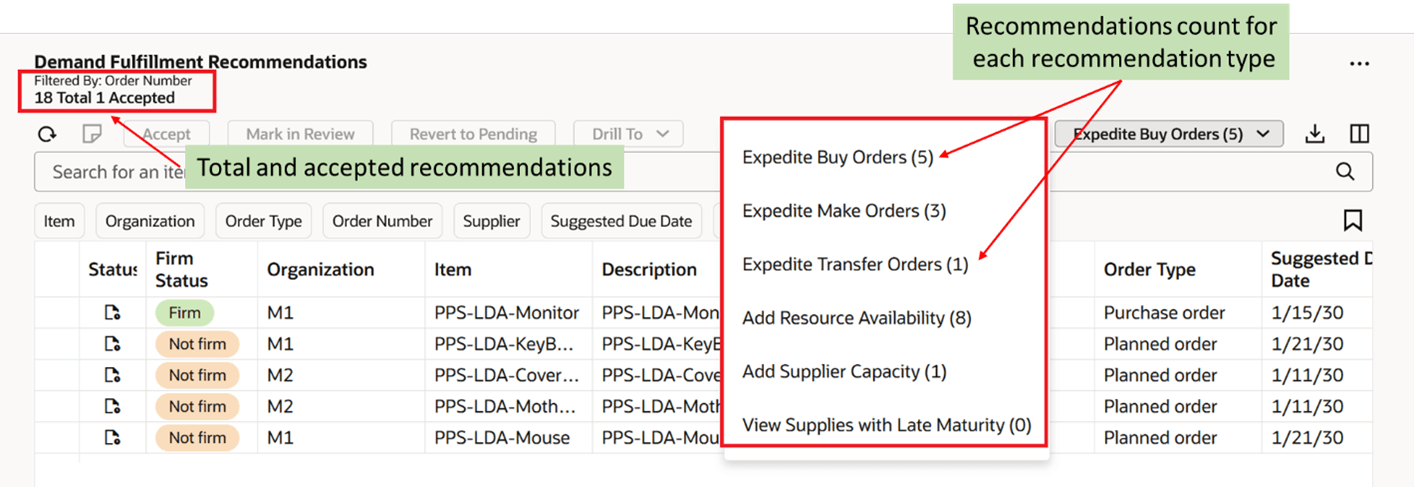
Counter to Show the Number of Recommendations
View and Edit Notes
You can view, add, edit, and delete notes against a demand or supply in At-Risk Demands and Demand Fulfillment Recommendations. The notes capability can be invoked in the following ways:
- Select a single row in either At-Risk Demands or Demand Fulfillment Recommendations and click the notes icon in its toolbar to create or edit a note.
- Click the notes icon in the Notes column to edit or add a note, or click the Add icon to create one.
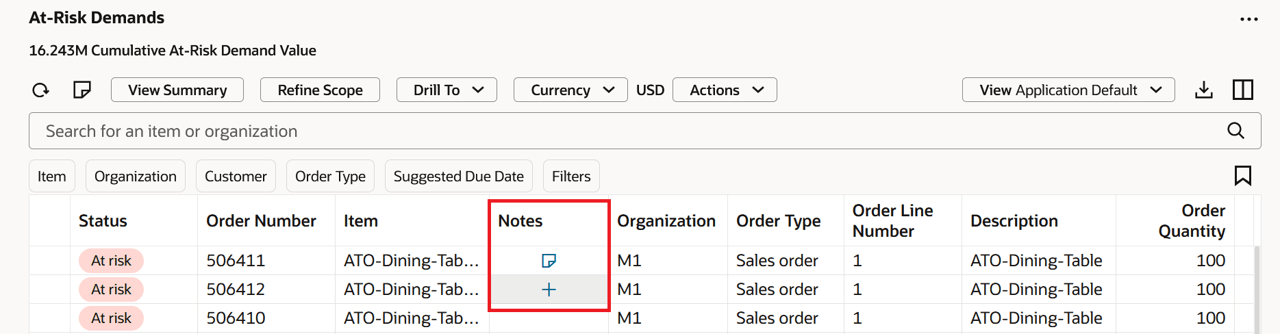
At-Risk Demands Notes column
When you click the Notes icon, the Notes drawer opens. In the Notes drawer, you can add a note by clicking the Add button or can edit an existing note.
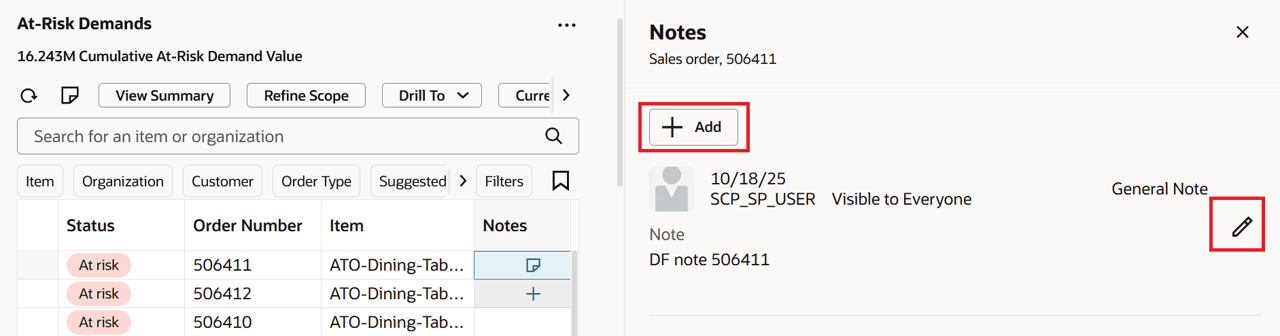
Notes Drawer
Notes created in either At-Risk Demands or Demand Fulfillment Recommendations are associated with a demand or supply. They aren’t plan-specific. For example, if you add a note to a sales order in At-Risk Demands, then that note is visible in Supplies and Demands, Plan Inputs, or in any Simulation Set or Plan that contains that sales order.
To know more about how notes work, refer to Redwood: Manage Planning Notes Using a New User Experience feature in the Oracle Fusion Cloud Supply Planning 25B What’s New.
Dynamic Linking
With this update, you can dynamically (one-click) drill down to the recommendations to mitigate the demand at risk. On the Demand Fulfillment page, when you select a demand in the At-Risk Demands, it automatically shows the corresponding recommendations in the Demand Fulfillment Recommendations without a manual drill-to.
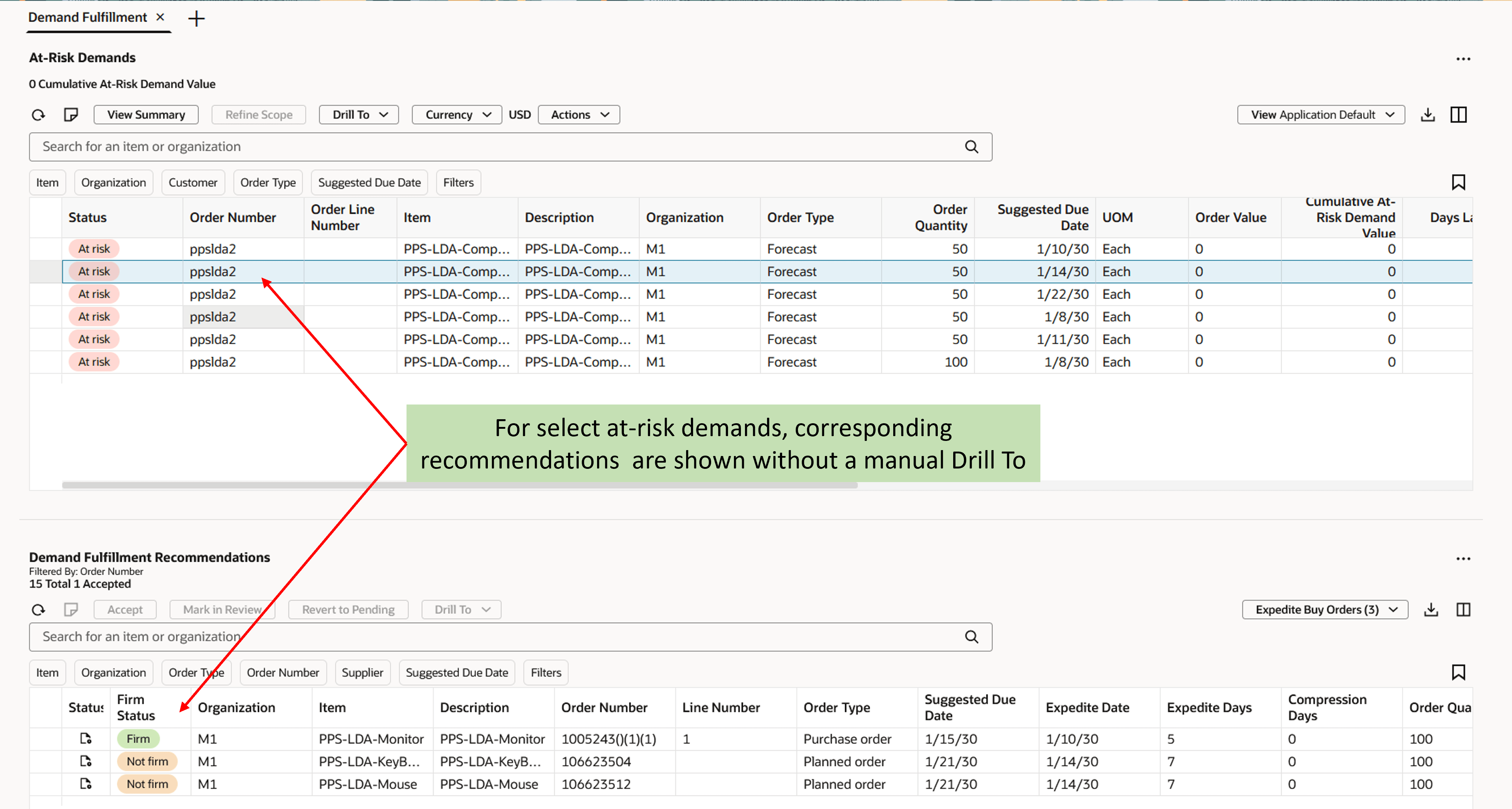
Dynamic Linking between At-Risk Demands and Demand Fulfillment Recommendations
Badge
A badge has been added in the Status column in At-Risk Demands.
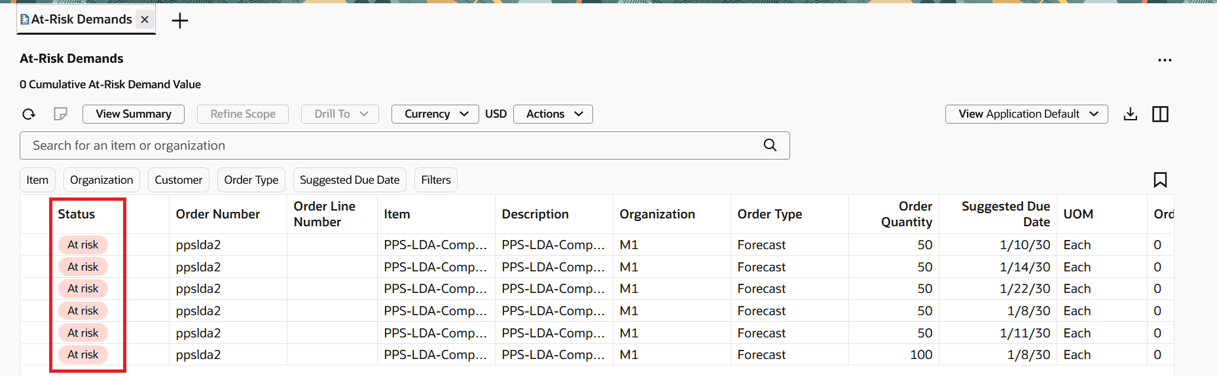
Badge for Status column
Manage Views for At-Risk Demands
You can control which columns are visible and the order in which the columns appear with the Views feature. With this update, you can create, edit, restore, or delete views in the At-Risk Demands visualization.
To create views:
- Click the Columns icon.
- Specify the columns you want to be visible and the order in which the columns appear.
- On the Actions Menu, select Save View.
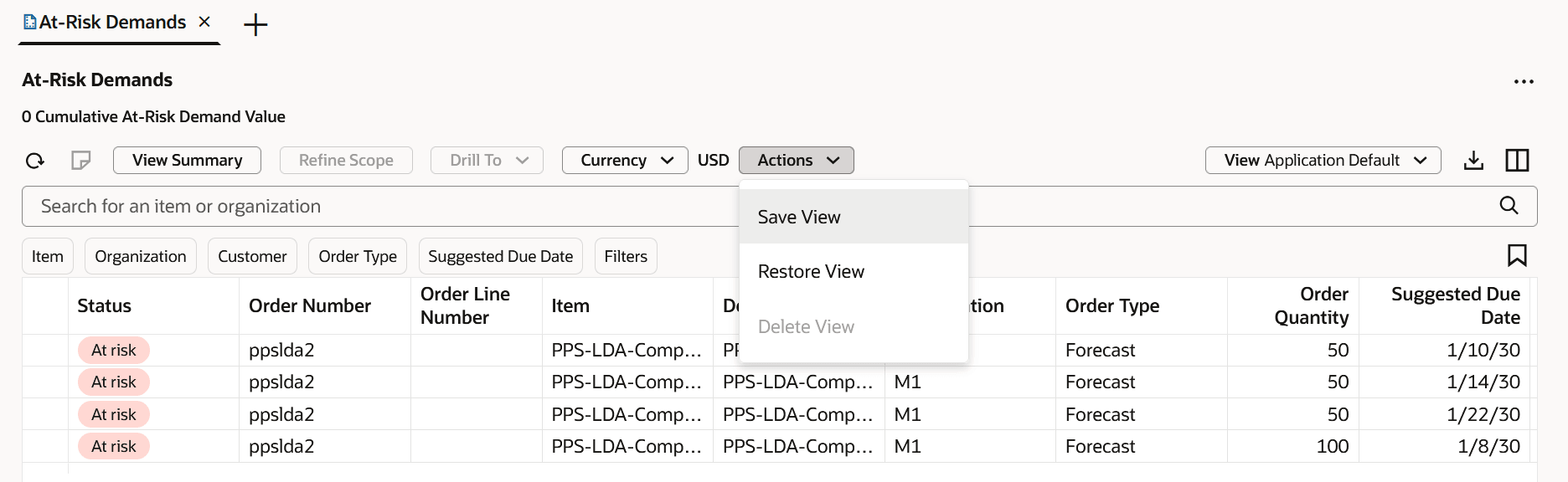
Save View Action
The View drawer opens. From here, you can either update the current view by selecting the Save as existing option, or you can create a new view by selecting the Save as new option.
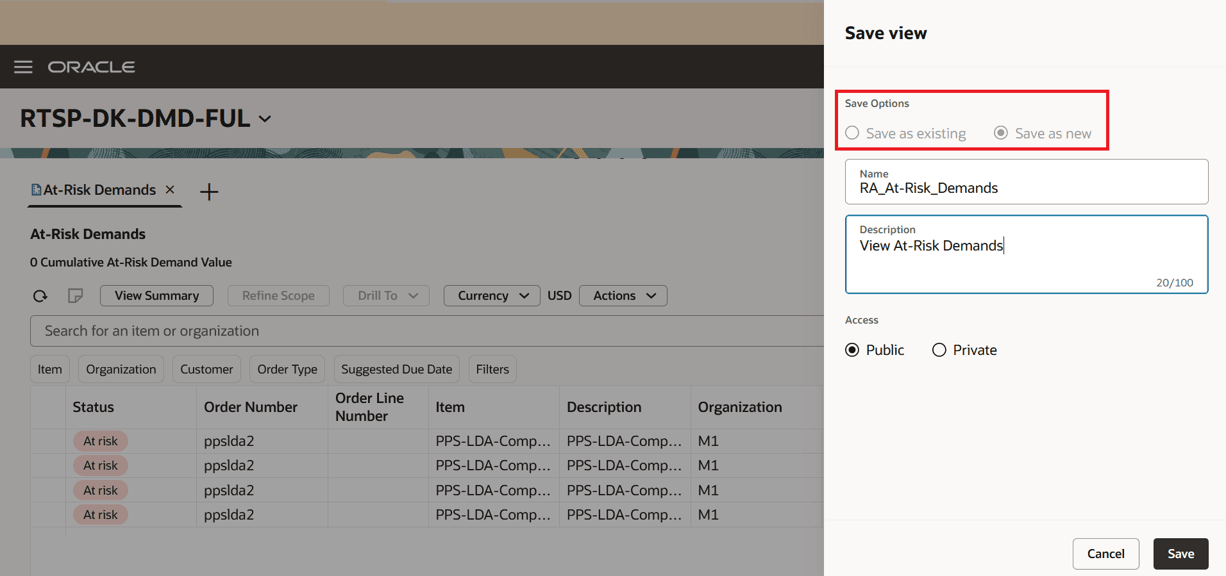
Save View Drawer
After the view is saved, you can easily switch between views to see a different set of columns based on the task you want to perform.
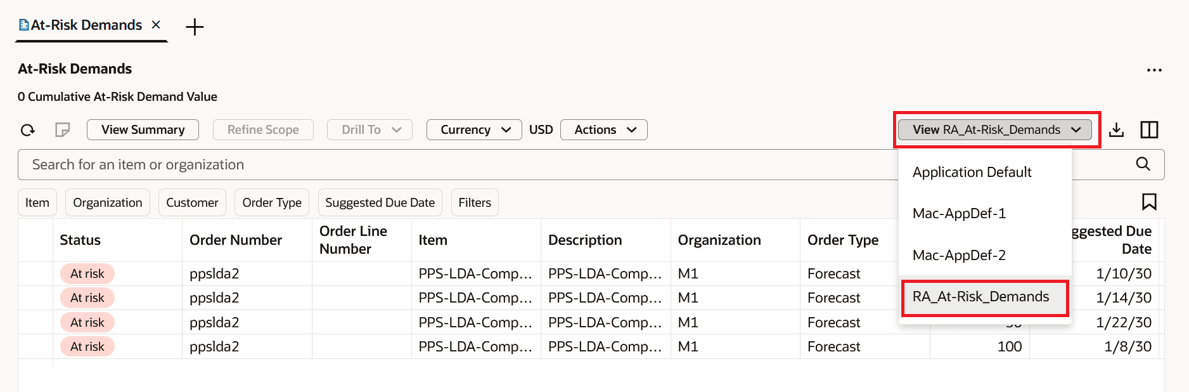
Switch Between the Views
Column Filters for At-Risk Demands
Column filters are ad-hoc filters that are appended to the keyword search and suggested filter allowing you to further refine your results. With this update, column filters have been added for columns in the At-Risk Demands visualization.
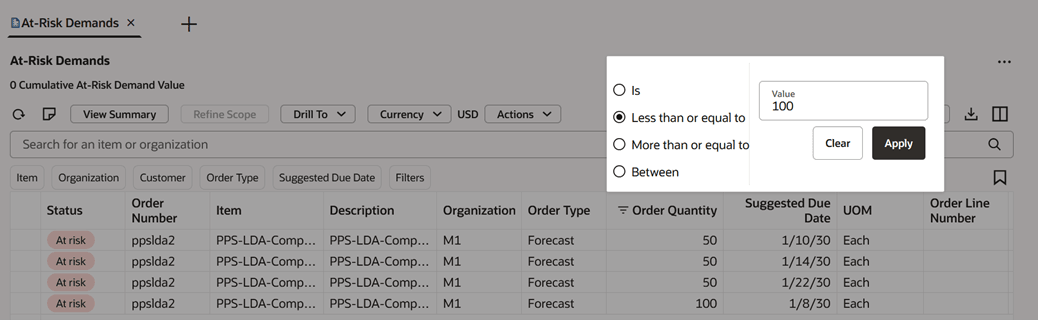
Column Filter
Steps to enable and configure
You don't need to do anything to enable this feature.
Tips and considerations
- The count of a recommendation type in Demand Fulfillment Recommendations doesn’t change when you further filter the records after drilling from another visualization such as At-Risk Demands or opening in a standalone mode.
- The dynamic linking is available only when you select one or more demands in the At-Risk Demands to show its corresponding recommendations and not vice-versa. To view which all demands that are at risk for a particular recommendation, you need to manually drill-to At-Risk Demands from Demand Fulfillment Recommendations.
- Dynamic linking is available only within the Demand Fulfillment page.
- Manage views and column filters aren’t part of Demand Fulfillment Recommendations visualization.
Key resources
- Review the release 25D feature: Redwood: Manage Demand Fulfillment Using a New User Experience.
Access requirements
Users who are assigned a configured job role that contains these privileges can access this feature:
- Monitor Supply Planning Work Area (MSC_MONITOR_SUPPLY_PLANNING_WORK_AREA_PRIV)
- Edit Plans (MSC_EDIT_PLANS_PRIV)
- Manage Search Views (HCM_MANAGE_SEARCH_VIEWS)
These privileges were available prior to this update.