Redwood: Analyze Supplies and Demands Using Additional Capabilities
The Supplies and Demands page is critical to understanding the details of the plan output, enabling you to analyze the plan at the order-level detail. In the past few updates, the Redwood version of the Supplies and Demands page has been incrementally improved so that the functionality matches or improves that available in the classic (non-Redwood) version. This update includes additional capabilities, such as the ability to edit the pegged supplies to a demand in an in-line fashion and also the ability to one-click view to the pegged end demands of a particular supply.
If you haven’t already, please review the documents listed in the Key Resources section for an overall explanation of how the Redwood version of Supplies and Demands works. In this update we’ll specifically focus on the individual capabilities delivered in 26A that continue to enhance the Redwood Supplies and Demands user experience.
Copy Cell Contents to Clipboard
In Supplies and Demands you can now copy cell contents to the clipboard using keyboard shortcuts, such as Ctrl+C. For example, to filter by a specific order number, you can select an order number cell, use the Ctrl+C keyboard shortcut to copy the order number to the clipboard, and then paste the clipboard contents into the order number filter chip.
Additional Information Drawer
You can now display additional information such as item attributes, free-text display attributes, and flexfields by using the additional information drawer. There’s two ways in which you can access the additional information drawer.
Method 1 – Right Click Within a Row
Right click in a supply or demand row and select the Additional Information action from the context menu.
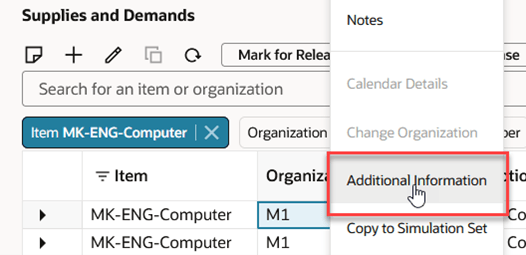
Context Menu Showing Additional Information Action
Method 2 – Click on the Additional Information Icon
If the additional information column is visible in the current view, you can click on the additional information icon. This icon is available only if the order has one or more associated free-text display attributes or associated flexfields. To display item attributes when there’s no associated free-text display attributes or associated flexfields, you must use the right-click context menu.
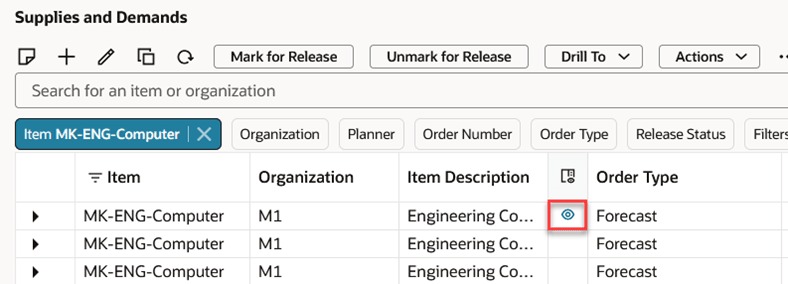
Additional Information Column
The additional information drawer has three sections: Item attributes, Display attributes, and Flexfields.
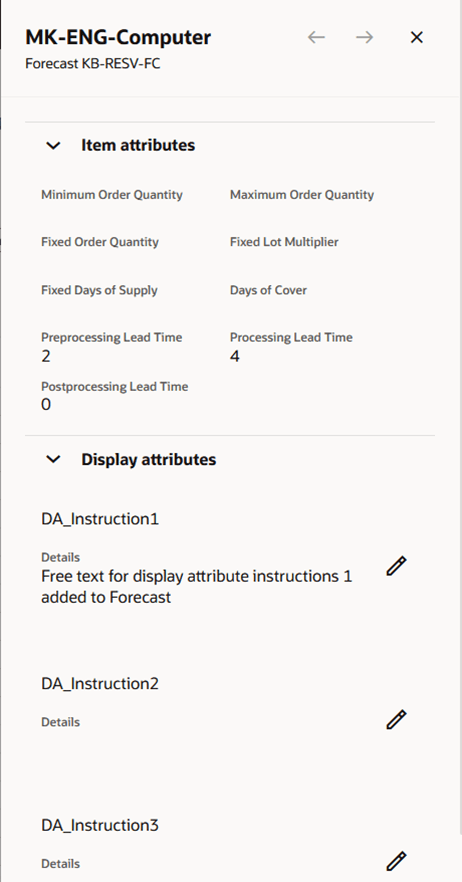
Additional Information Drawer
- The Item attributes section is always present. It displays the order modifiers and lead time attributes for the item associated with the selected supply or demand.
- The Display attributes section is displayed only if you’ve configured free-text display attributes. If you have edit privileges, then you can click the Edit (pencil) icon to add or change the text.
- If flexfields have been configured, then a third section is displayed (not shown in the preceding image). This section contains the flexfield values associated with the order. The flexfield attributes are read-only and can’t be edited.
To close the drawer, click the x in the upper-right corner of the drawer or click anywhere outside of the drawer.
End Demands Only Action
The End Demands Only action filters out orders for any subassemblies from the pegging details so that only end demands are displayed. For example, the following image shows the pegging details when End Demands Only isn’t selected. In this example, you see orders for the component item and the subassembly orders, as well as the end demands.
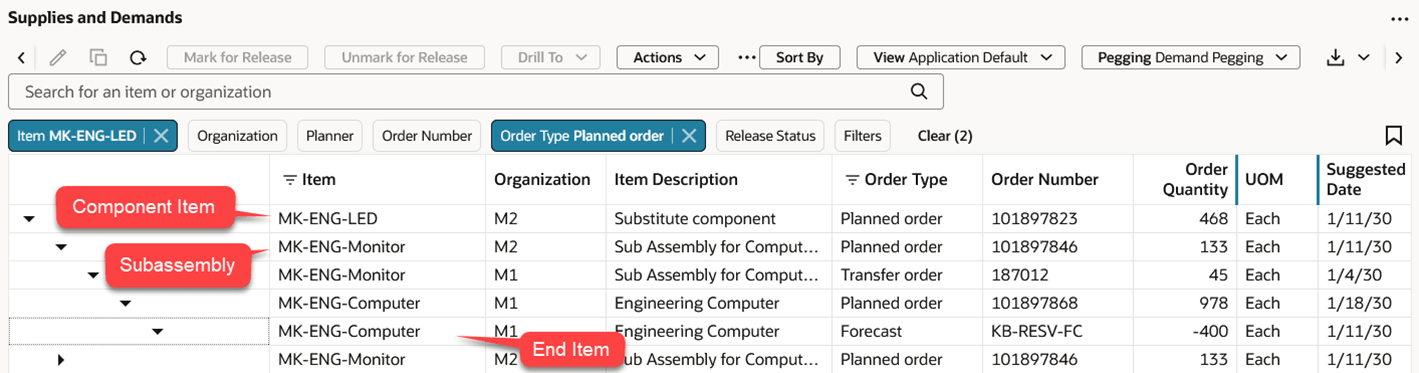
Example Showing All Pegging Rows
When the End Demands Only action is selected from the More Actions (…) menu and the pegging rows are expanded, the intermediate subassembly orders are skipped. Only the end demands are displayed as child rows.
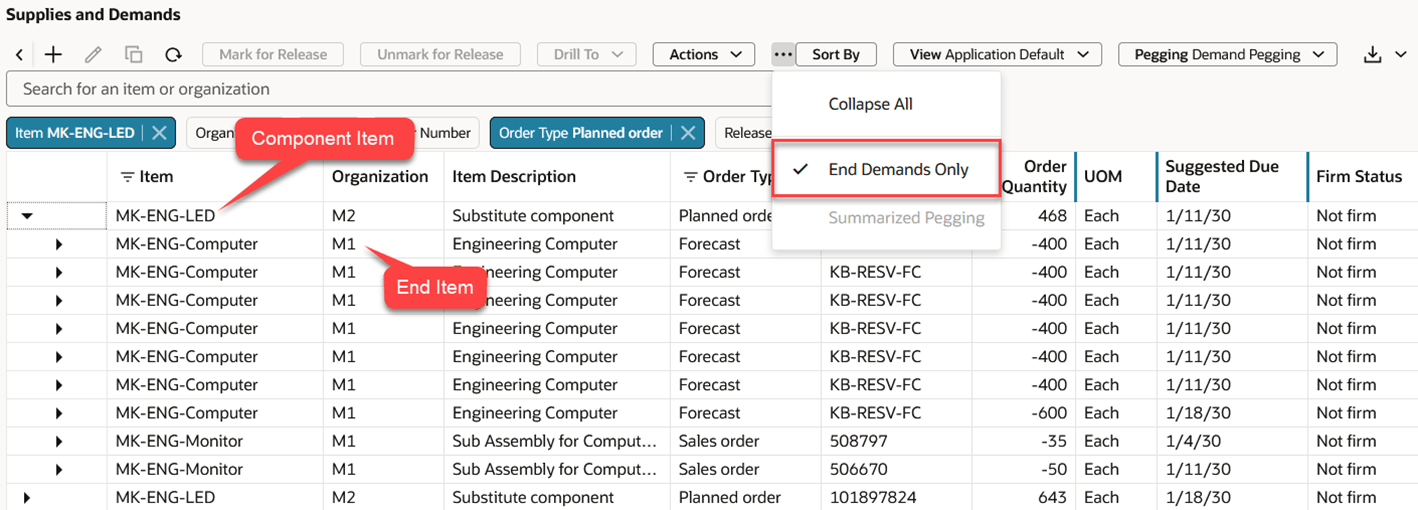
Example Showing Only End Demands
The End Demands Only action is valid only when Demand Pegging is selected from the Pegging menu. If Supply Pegging or No Pegging is selected, then the End Demands Only action is disabled.
Firm Components Action
As in the classic version of Supplies and Demands, the Firm Component action firms components on a planned make order. These firmed components can then be released to the execution system so that the resulting work order uses the firmed component.
To firm components, select one or more planned make orders for the same item and organization combination and then select the Firm Components action from the Actions menu. Alternately, you can access the Firm Components action from the right-click context menu. The following image shows an example of firming a substitute component, DK-Cathode-S2, in place of the DK-Cathode standard component.
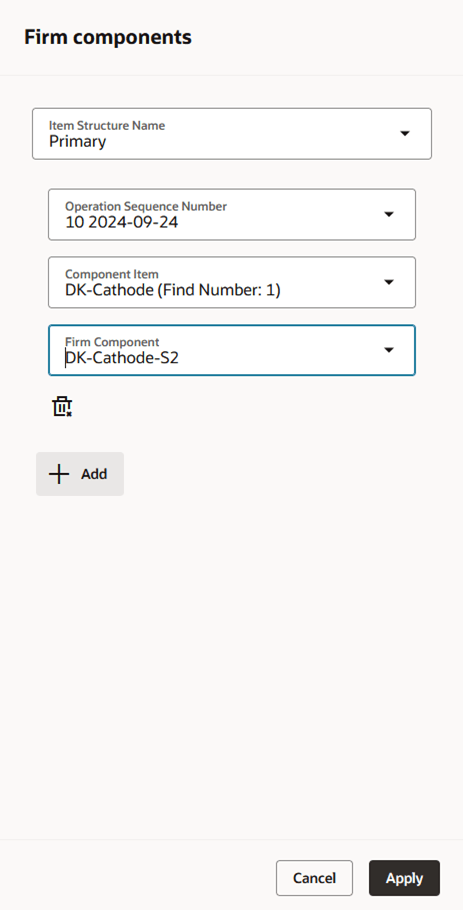
Firm Components Drawer
You can firm more than one component by using the + Add button. When you click the Apply button, the drawer closes. You must click the Save button in the upper-right corner of the page to save your changes.
Firm Resources Action
As in the classic version of Supplies and Demands, the Firm Resources action firms resources on a planned make order. These firmed resources can then be released to the execution system so that the resulting work order uses the firmed resource.
To firm resources, select one or more planned make orders for the same item and organization combination and then select the Firm Resources action from the Actions menu. Alternately, you can access the Firm Resources action from the right-click context menu. The following image shows an example of firming an alternate resource, 02C200-2, in place of the 02C200 primary resource.
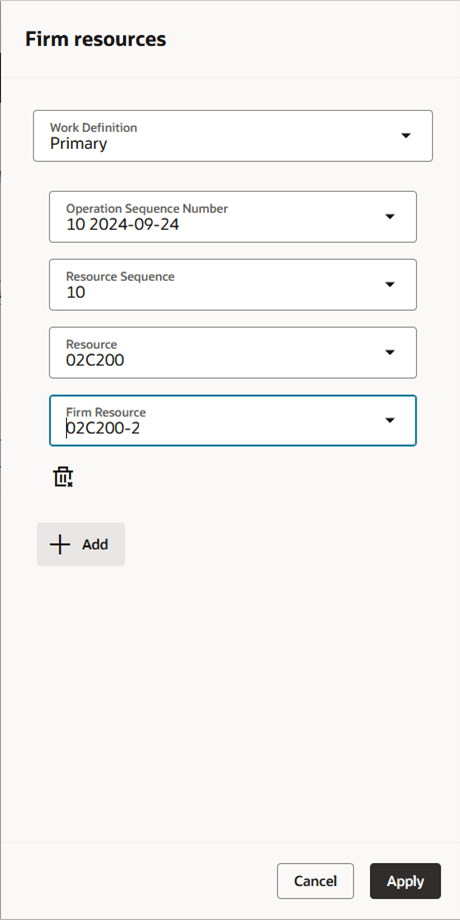
Firm Resources Drawer
You can firm more than one resource by using the + Add button. When you click the Apply button, the drawer closes. You must click the Save button in the upper-right corner of the page to save your changes.
Change Organization Action
The Change Organization action is used to change a sales order’s organization. This action is used to change the organization from a drop ship organization to an inventory organization, or vice versa. You can also change the organization from one inventory organization to another inventory organization. Once the change is saved you can release the change back to the execution system.
To open the Change organization drawer, select a single sales order and then select the Change Organization action from the Actions menu or from the right-click context menu.
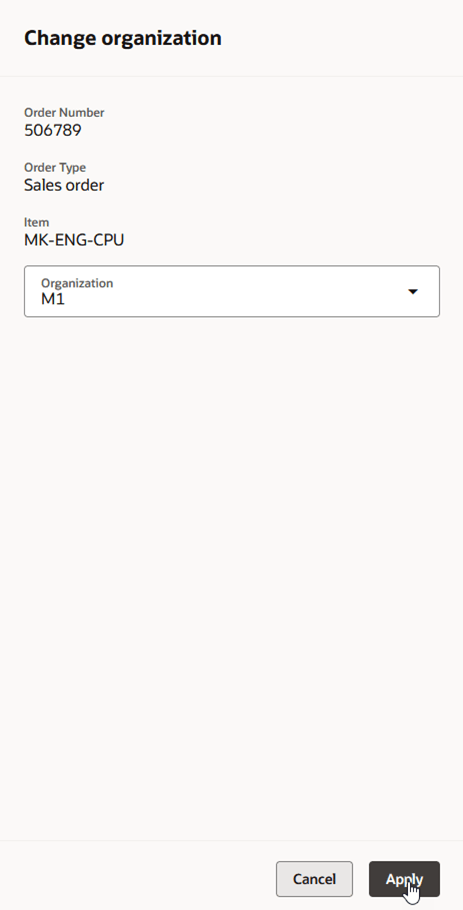
Change Organization Drawer
When you click the Apply button, the drawer closes. You must click the Save button in the upper-right corner of the page to save your changes.
Publish Order Forecast Action
The Publish Order Forecast action is used to publish planned orders for the selected plan, item, and organization combination to Supply Collaboration. To execute the Publish Order Forecast action, select a single supply or demand and then select the Publish Order Forecast action from the Actions menu or from the right-click context menu. The Publish Order Forecast scheduled process is submitted and a confirmation message is briefly displayed, showing the request ID.
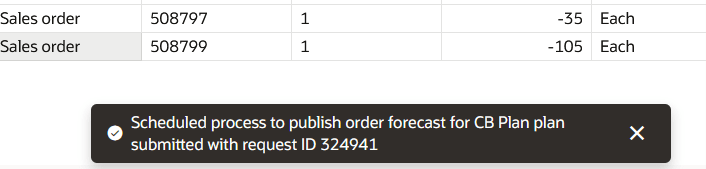
Publish Order Forecast Confirmation Message
Display Netting Sequence Information
For plans that have an associated netting rule, you can display details of which netting rule sequence was used to peg supplies to demands. Clicking on the hyperlinked value in the Netting Sequence column opens the Netting sequence step drawer.
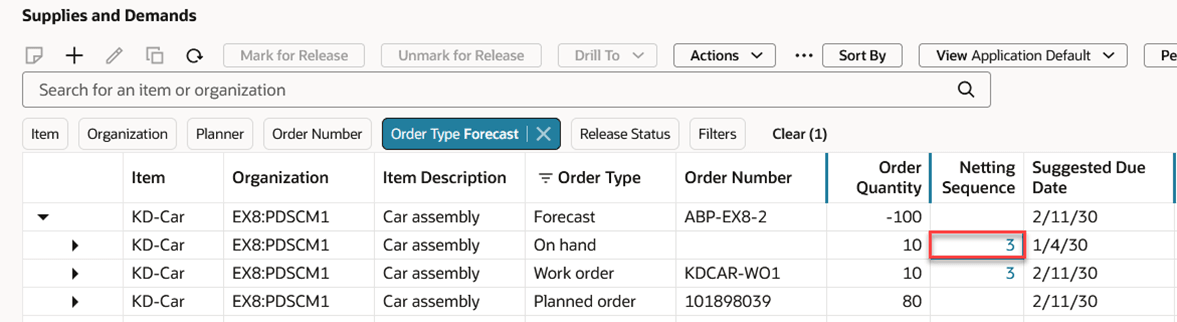
Netting Sequence Column Showing Hyperlink
The Netting sequence step drawer shows the details of the step that was used to match the supply to the demand.
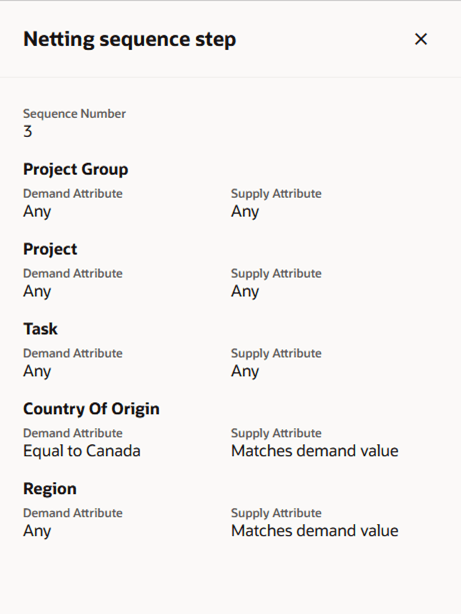
Netting Sequence Step Drawer
To close the drawer, click the x in the upper-right corner of the drawer or click anywhere outside of the drawer.
Edit Planning Attributes
With the 26A update, you can now update planning attributes in the Supplies and Demands table. Previously, planning attributes were read-only.
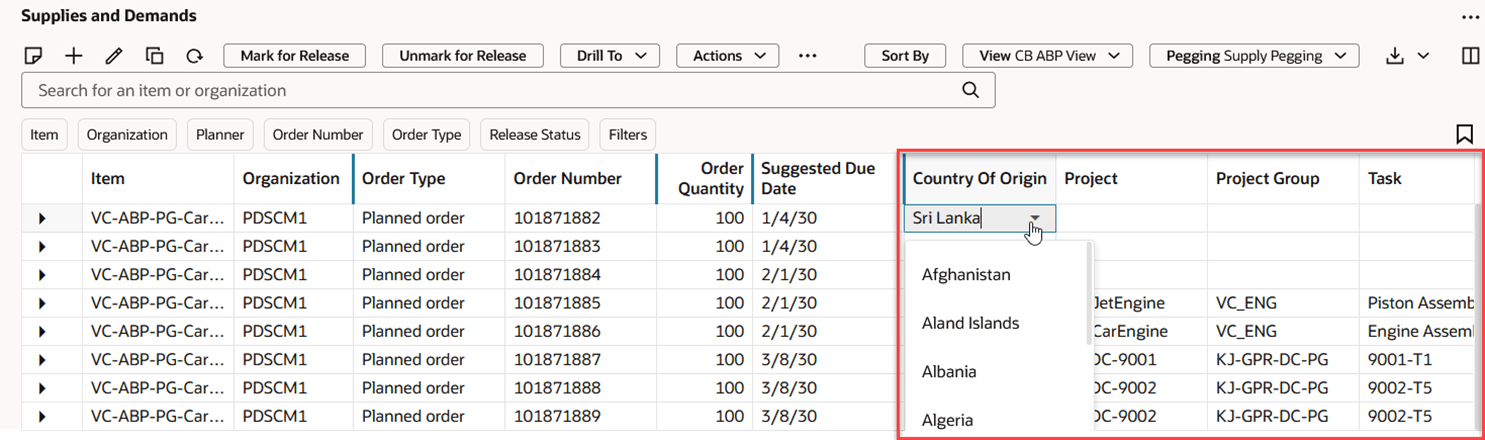
Editing Planning Attributes
Netting attributes are available only in plans that have an associated netting rule.
Multicolumn Sorting
Previously, you could only sort the Supplies and Demands table by a single column. With this update, you now have the capability to sort by multiple columns using the Sort By button.

Sort By Button
Click on the Sort By button to open the Sorting drawer.
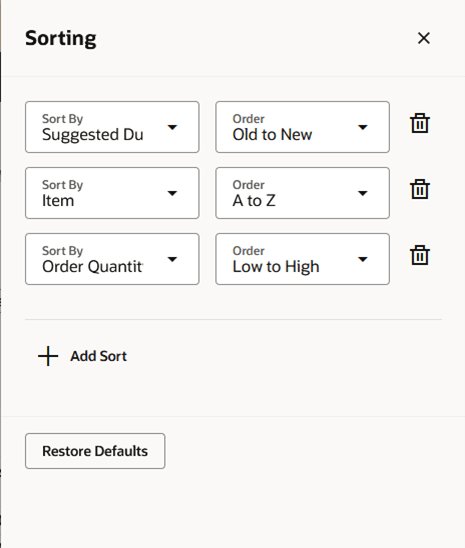
Sorting Drawer
Click + Add Sort to add additional columns to sort by. When you close the drawer, the table is sorted based on the columns selected in the Sorting drawer.
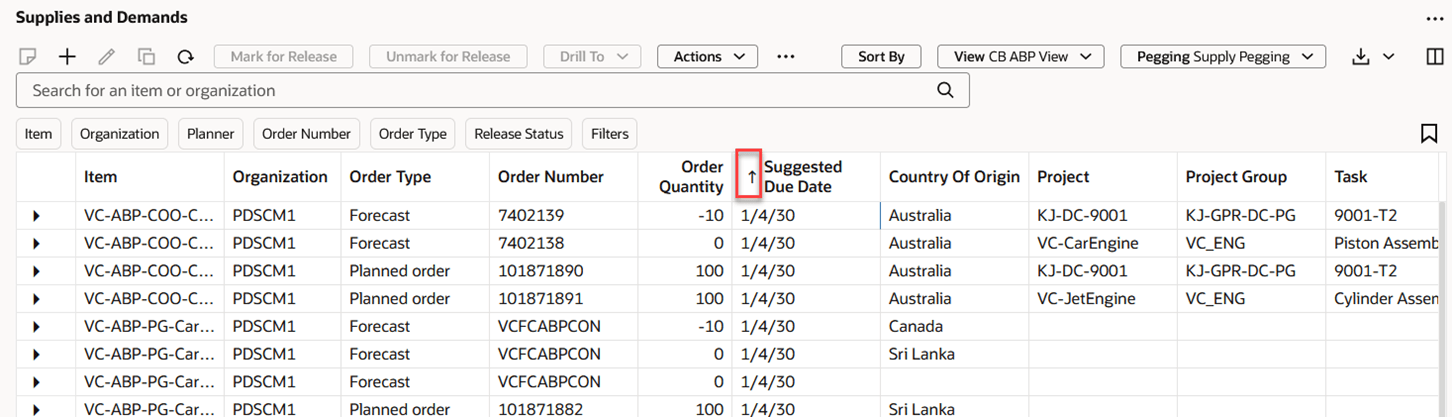
Supplies and Demands Table Sorted by Multiple Columns
Note that the sort icon in the column header appears only on the first column that was selected for sorting.
Customer and Supplier List of Values
Previously, when selecting both supplier and supplier site, or customer and customer site, using a single list of values, the list of values showed as two columns. This caused issues with being able to differentiate between rows when supplier site or customer site was truncated.
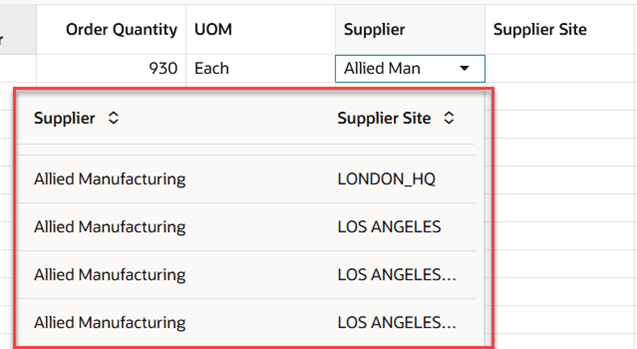
Supplier and Supplier Site List of Values Prior to the 26A Update
With this update, when selecting both supplier and supplier site, or customer and customer site, using a single list of values, the site is displayed below the supplier or customer to avoid truncation.
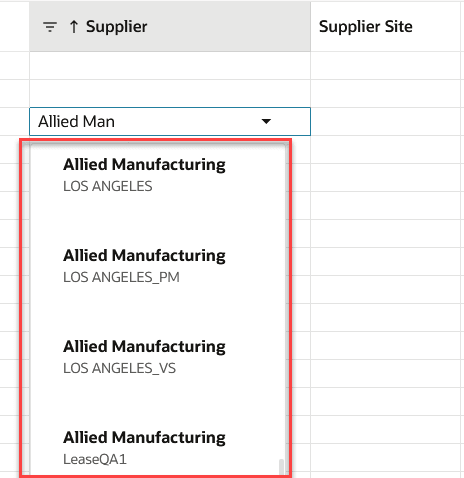
Supplier and Supplier Site List of Values in the 26A Update
Supplies and Demands Totals
Totals have been added to the Supplies and Demands table, as shown in the following image.

Supplies and Demands Totals
Here’s some additional information on the totals:
- Total Rows. Number of main rows that match the filter criteria. This value doesn’t include pegging rows that are displayed when the main row is expanded. The Total Rows field is displayed only if Supplies and Demands data is being retrieved from an Oracle Search Index.
- Rows Retrieved. The number of rows retrieved so far from the REST services. As you scroll down and additional rows are retrieved, this number will increase. If you select rows by clicking on the upper-left corner of the Supplies and Demands table, only the rows that have been retrieved so far by the REST service are selected.
- Rows Selected. The number of selected rows.
- Selected Order Quantity. The sum of the order quantities of the selected rows.
Mass Edit of Override Demand Priority
In plans that have an associated demand priority rule, you can now update the Override Demand Priority value of a sales order using the standard edit action.
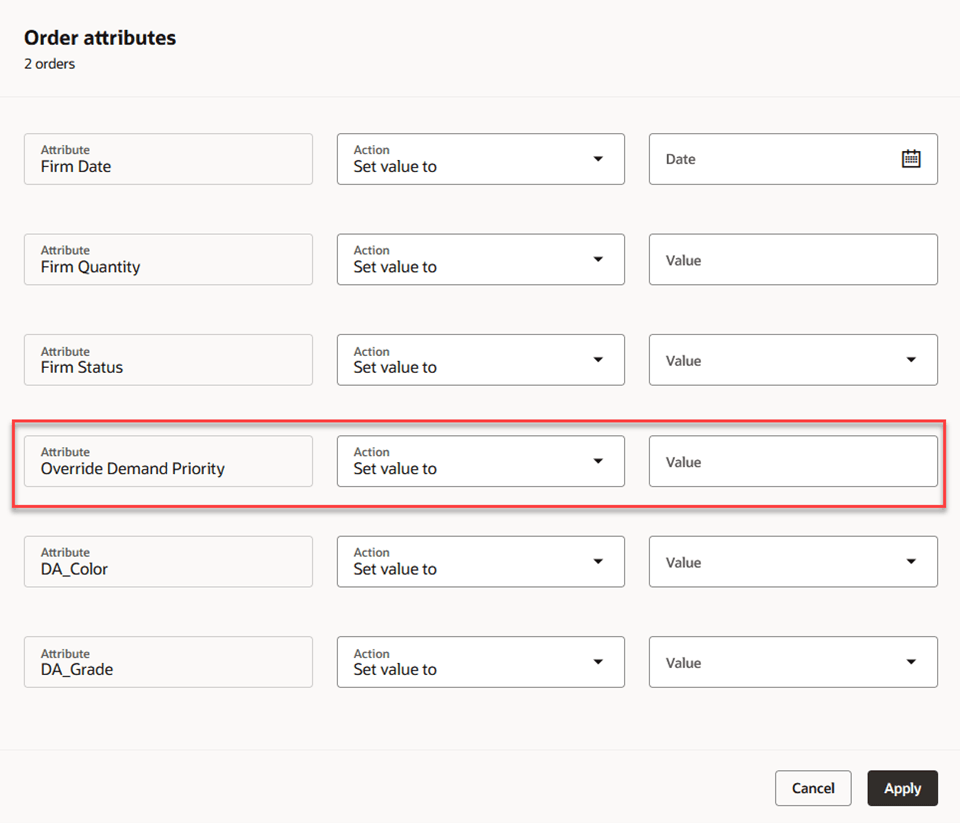
Editing Override Demand Priority
When you click the Apply button, the drawer closes. You must click the Save button in the upper-right corner of the page to save your changes.
Save View – Saved Summarized Pegging State
Now when you save a view, the view will also include whether or not summarized pegging is turned on. You can easily switch between a view that has summarized pegging turned on to a view that has summarized pegging turned off and vice versa.
Increase Rows That Can Be Exported to Excel
Previously, the maximum number of rows exported to Excel was 1,000 rows. In this update, the export limit has been increased as follows:
- When the Supplies and Demands Oracle Search Index is used and the No pegging view is selected, the maximum number of rows exported will be 10,000, or the limit specified in the FND_EXPORT_ROWLIMIT profile option, whichever is less.
- If the Supplies and Demands Oracle Search Index isn’t being used, or if the Supplies and Demands Oracle Search Index is being used and the Supply Pegging or Demand Pegging view is selected, the maximum number of rows exported will be 5,000, or the limit specified in the FND_EXPORT_ROWLIMIT profile option, whichever is less.
Decimal Precision of Quantity Fields
Supplies and Demands will now use the MSC_QUANTITY_DECIMAL_PRECISION profile option to determine the number of decimals positions to display in both the quantity and percentage fields.
Steps to enable and configure
You don't need to do anything to enable this feature.
Tips and considerations
When filtering supplies and demands using the Category filter chip, it’s important to understand what catalog is being used.
Key resources
- See Redwood: Manage Supplies and Demands Using a New User Experience in the Oracle Fusion Cloud Supply Planning 25B What’s New
- See Redwood: Analyze and Manipulate Supplies and Demands Using Additional Capabilities in the Oracle Fusion Cloud Supply Planning 25C What’s New
- See Redwood: Use Additional Capabilities to Analyze Supplies and Demands in the Oracle Fusion Cloud Supply Planning 25D What’s New
Access requirements
Users who are assigned a configured job role that contains these privileges can access this feature:
- View Demands and Supplies (MSC_VIEW_DEMANDS_AND_SUPPLIES_PRIV)
- Edit Demands and Supplies (MSC_EDIT_DEMANDS_AND_SUPPLIES_PRIV)
- View Planning Objects Using REST Service (MSC_VIEW_PLANNING_OBJECTS_REST_SERVICE_PRIV)
These privileges were available prior to this update.