Redwood: Manage Attribute-Based Transfer Recommendations Using a New User Experience
You can now use the Redwood user experience to review and release attribute-based transfer recommendations. Attribute-based transfer recommendations refer to the capability to move inventory or on-order supply attribution from one to the other. For example, if you have a shortage of inventory dedicated for one project and excess in another, supply planning may recommend the transfer from the project with excess to the one with a shortage.
The Redwood Attribute-Based Transfer Recommendations page displays details of transfer recommendations for supplies allocated to demands based on the attribute-based netting rule set in a plan’s plan options. It’s available in supply plans and in demand and supply plans. You can release the displayed recommendations. You can also drill to other Redwood visualizations while passing planning attributes as context.
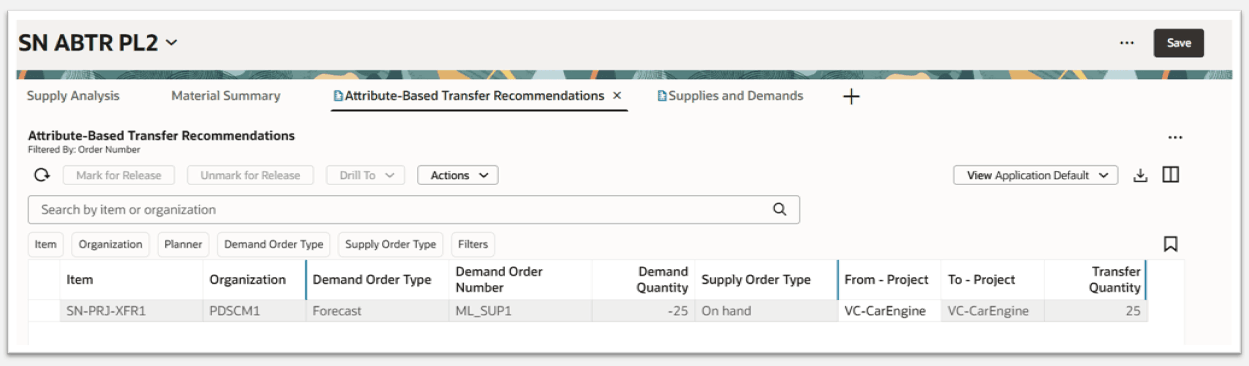
When you open the Attribute-Based Transfer Recommendations page, you’ll see a toolbar, search bar, filters, and a table with attribute-based transfer recommendation details.
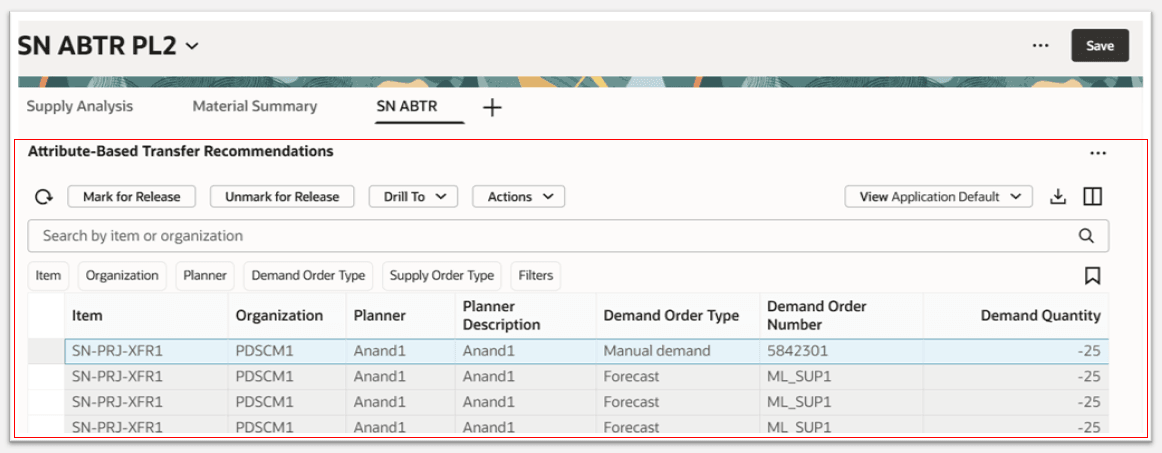
Attribute-Based Transfer Recommendations Displayed on a Supply Plan Page
Attribute-Based Transfer Recommendations Toolbar
The actions on the Attribute-Based Transfer Recommendations toolbar are as follows:

Attribute-Based Transfer Recommendations Toolbar
- Refresh. The Refresh action performs the following:
- Notifies you if there are unsaved changes. If you proceed with the refresh, then any unsaved changes you made to the transfer recommendations are discarded.
- Removes any column filters or column sorting that you’ve applied.
- Queries the data again using existing filters, such as drill-to context or selected filter chips.
- Mark for Release. This action works like the classic (non-Redwood) version, where you first select one or more orders that are eligible for release and then click Mark for Release.
- Unmark for Release. This action also works like the classic version, where you first select one or more orders that were previously marked for release and then click Unmark for Release to set the orders back to their original release status.
- Drill To – You can pass transfer-recommendation related context to a destination table by selecting one or more transfer recommendations. When you then select a destination from the Drill To menu, a temporary page opens. To add more drill-to destinations, select Manage Links from the Actions menu (…) in the upper-right corner.
- Actions – Save, restore, or delete attribute-based transfer recommendation views.
- View – Lets you select a previously saved view.
- Export – Exports the attribute-based transfer recommendations content returned by the current filter criteria to a spreadsheet. The exported columns are based on the current view.
- Columns – Lets you select the columns you want to display in the Attribute-Based Transfer Recommendations table. You can reorder the columns in one of two ways:
- Within the Columns drawer, you can grab the equal sign (=) and move the column up or down.
- Within the table, you can drag and drop columns to rearrange their order.
Searching and Filtering for Attribute-Based Transfer Recommendations

Search and Filter Options
- Keyword search – Lets you search across columns in the Attribute-Based Transfer Recommendations table. You can search for an item or organization for attribute-based transfer recommendations. Keyword search is case insensitive and performs a search using the contains operator.
- Suggested filters – Lets you apply column-specific filters. For example, you can search for transfer recommendations of all supplies for a specific demand by selecting a demand order number.
- Filters – Lets you select and filter by additional columns beyond the default filters.
- Saved searches – Lets you save the current keyword search and suggested filter values under a named saved search so you can reuse a set of search filters.
Suggested Filters and Filter Drawer
Suggested filters are available for all attribute-based transfer recommendation columns. Following are the default columns displayed in the Application Default View:
- Item
- Organization
- Planner
- Planner Description
- Demand Order Type
- Demand Order Number
- Demand Quantity
- Supply Order Type
- Supply Order Number
- Supply Quantity
- Transfer Quantity
Filters Drawer
You can filter any one of the columns in Attribute-Based Transfer Recommendations by clicking on the Filters button, which opens the Filters drawer.
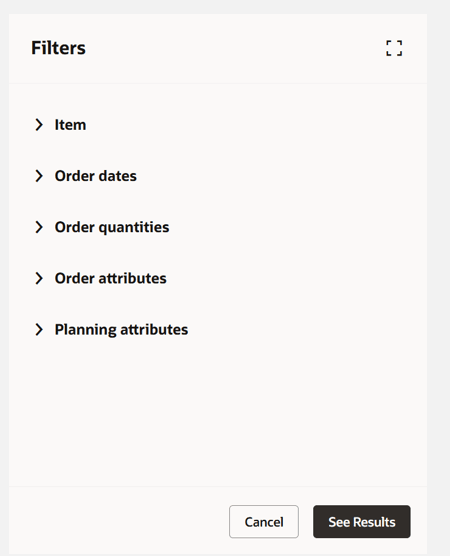
Filters Drawer
In this drawer, the columns that you can filter by are arranged in groups:

Filter Groups in the Filter Drawer
The Attribute-Based Transfer Recommendations page displays “From” and “To” planning attributes columns, with “From” or “To” added to the name of the planning attributes associated with the attribute-based netting rule of the plan. For example, if the plan is assigned with Project Group, Project, Task, and Country of Origin planning attributes in the netting rules:
- From Planning Attributes will be From - Project Group, From - Project, From - Task, From - Country of Origin. These attributes will also be displayed as columns and they represent the attributes of the supply allocated to a demand.
- To Planning Attributes will be To - Project Group, To - Project, To - Task, To - Country of Origin. These attributes will also be displayed as columns and they represent the attributes of the demand.
The type of filtering that you can do (single value, multiple values, date or numeric ranges, and so on) depends on the data type of each column.
Click See Results to apply the filters and to add them to the attribute-based transfer recommendations search bar.
Column Sorting
You can change how attribute-based transfer recommendations are sorted. Hovering over a column heading gives you access to the Sort icon. This icon, when selected, toggles between sort ascending and sort descending. Click on the column header to toggle between ascending, descending, and no sort. Sort direction is indicated by an arrow next to the column header.
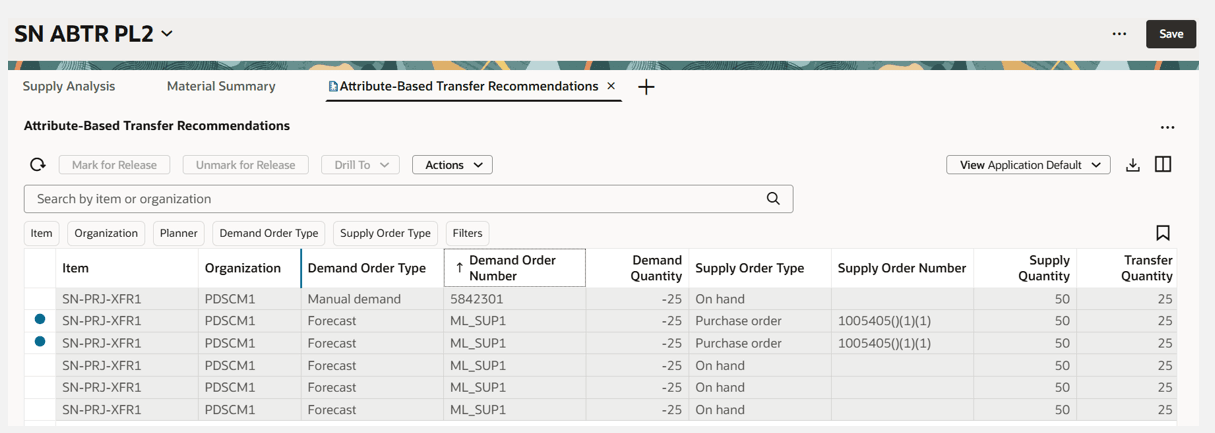
Example of Attribute-Based Transfer Recommendation Sorted in Ascending Order for Demand Order Number
Column Filtering
Column filters are ad-hoc filters that are appended to the keyword search and filter chips, allowing you to further refine your results. To access column filters, hover over the column header and click on the Filter icon.
Here’s an example of applying a column filter. The first image shows that “Purchase order” is selected as a filter for the Supply Order Type column. The results of this column filter—only showing recommendations in the table that have a Supply Order Type equal to Purchase order—are shown in the table in the second image.
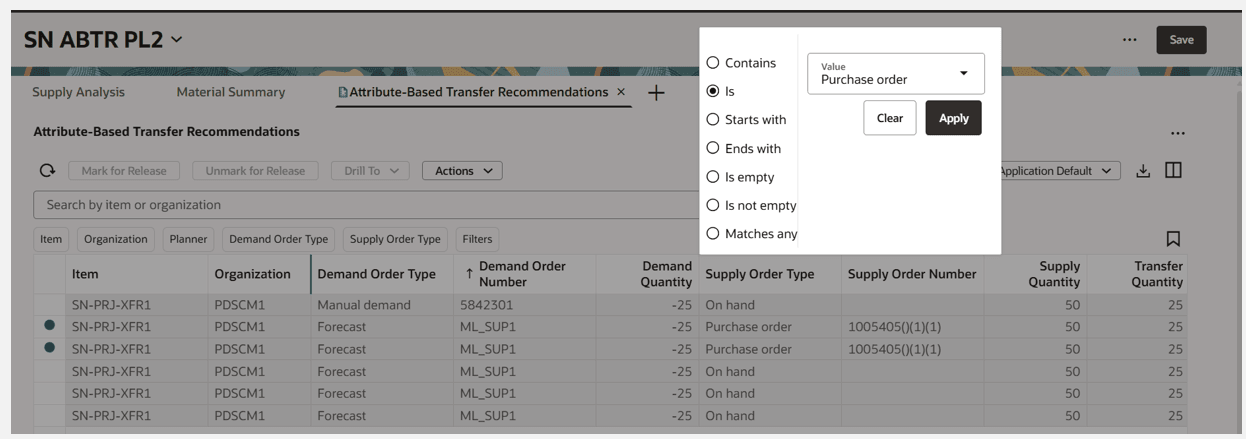
Column Filter for Supply Order Type
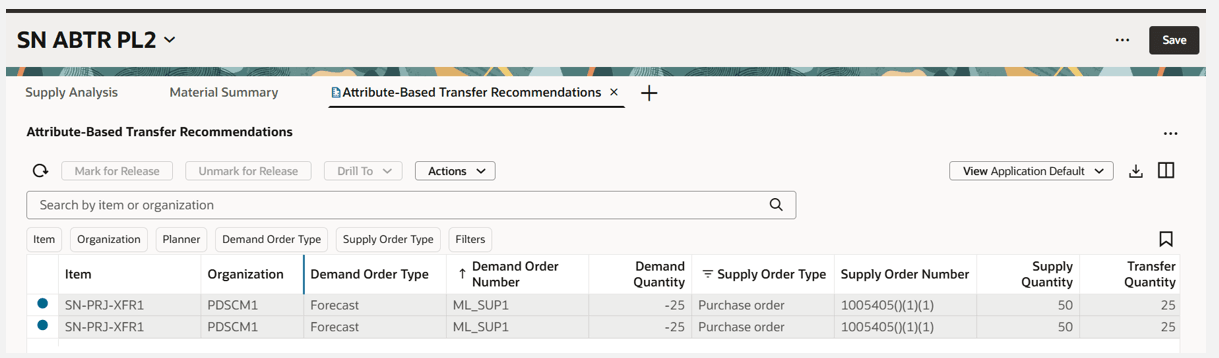
Result Displayed After Applying Column Filter
Drill from Attribute-Based Transfer Recommendations
Predefined drill-to navigation is available for the Supplies and Demands page from the Attribute-Based Transfer Recommendations page. You can also use the Manage Links feature to add drill-to quick access to other Redwood pages, such as Items, Material Plan, or Build Plan. For any user-defined drill-to navigations, the demand's item and organization will be passed as navigation context. When you select a record and drill to the Supplies and Demands page from the Attribute-Based Transfer Recommendations page, both demand and supply identifiers are passed as navigation context.
Here’s an example that shows selecting a manual demand with order number 5842301 with its associated supply with different Project attribute values to pass to the Supplies and Demands page.
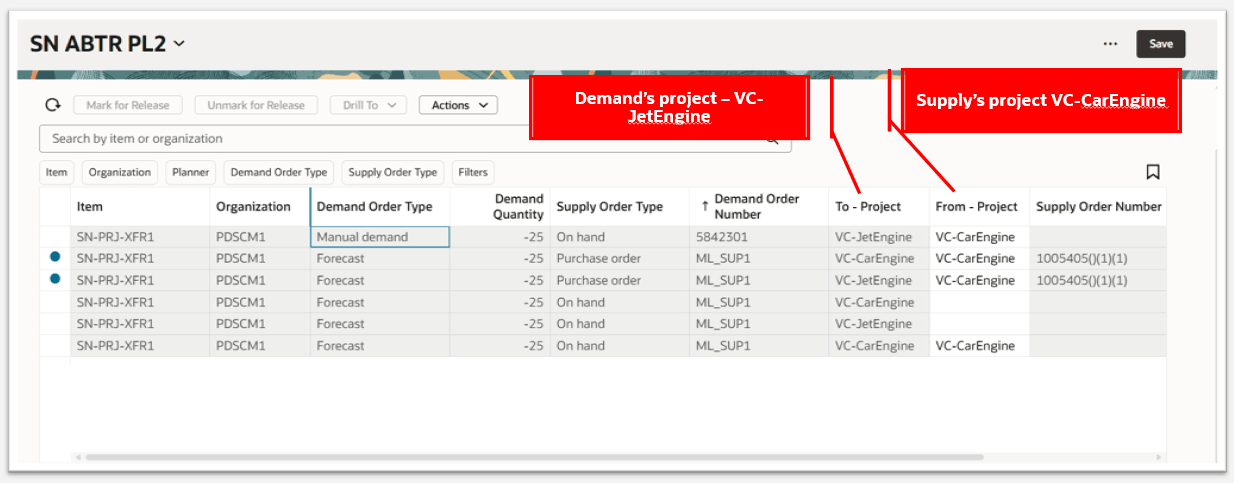
Select a Record for Drill To from Attribute-Based Transfer Recommendation
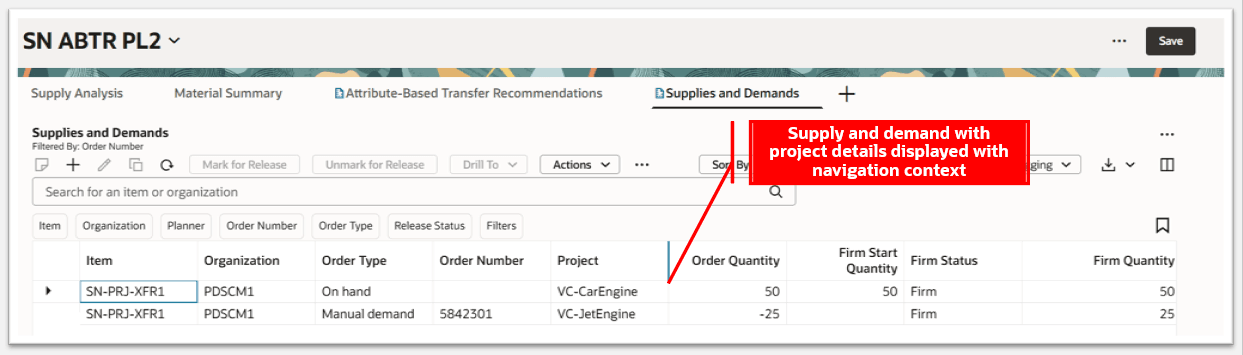
Supplies and Demands Page Displays Details with Navigation Context
Drill To Attribute-Based Transfer Recommendations
You can drill to Attribute-Based Transfer Recommendations from Supplies and Demands.
- The demand order number is passed as context.
- All associated pegged supplies and their planning attribute details will be shown.
You can drill to Attribute-Based Transfer Recommendations from the following measures:
- Attribute Transfer Demand (context passed: From planning attributes)
- Attribute Transfer Supply (context passed: To planning attributes)
You can drill to Attribute-Based Transfer Recommendations from other visualizations such as Build Plan and Items.
- Context will be passed into To planning attributes.
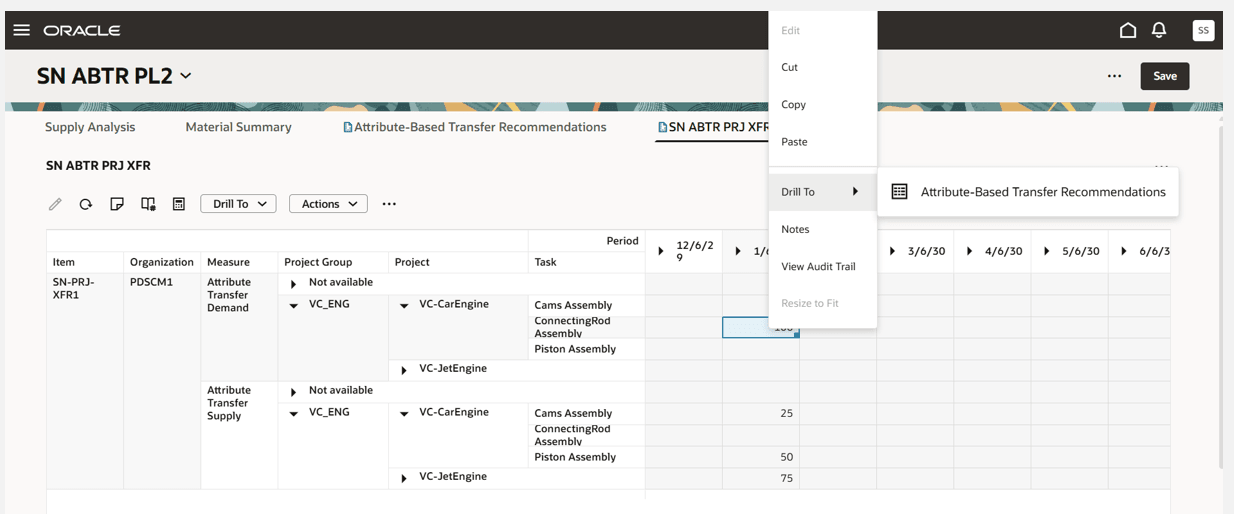
The following two images show an example of drilling from the Supplies and Demands page to the Attribute-Based Transfer Recommendations page for a Forecast order for project VC-CarEngine.
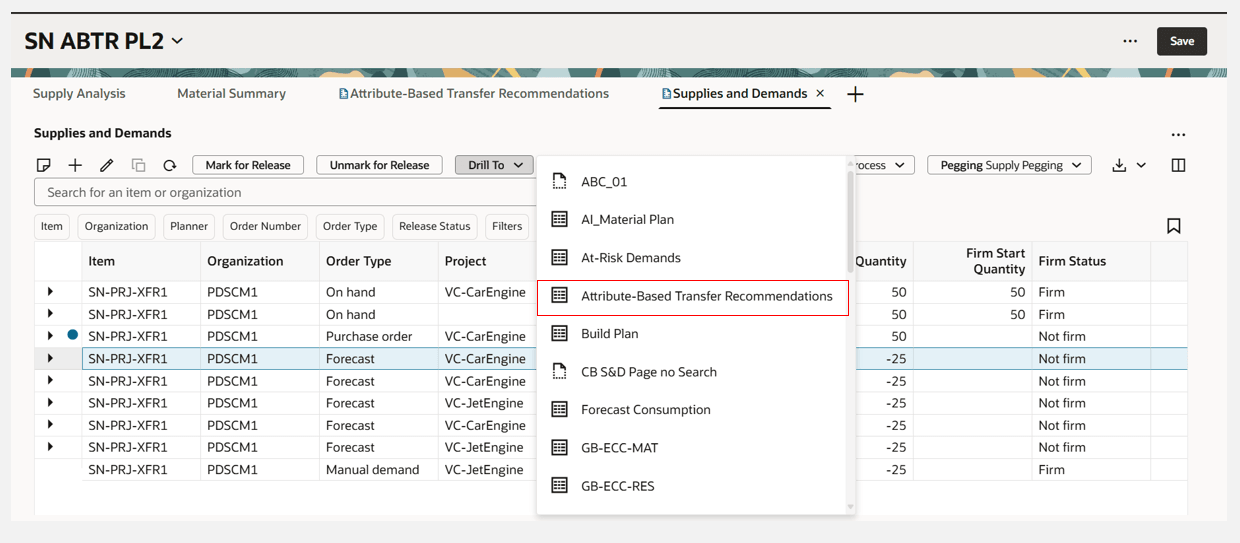
Drill from Supplies and Demands to Attribute-Based Transfer Recommendations
Attribute-Based Transfer Recommendations Page Displays Details for Forecast and Its Associated Supplies
In this example, the user is drilling from Attribute Transfer Demand measure, with a measure value of 100 on bucket date 6 January 2030, for Project Group “VC_ENG,” Project “VC-CarEngine,” Task “ConnectingRodAssembly” to Attribute-Based Transfer Recommendations. The navigation context passes the attributes and measure details and displays all the transfer recommendations on the Attribute-Based Transfer Recommendations page related to the supplies with these attribute values allocated to demands.
Drill from Measure Attribute Transfer Demand
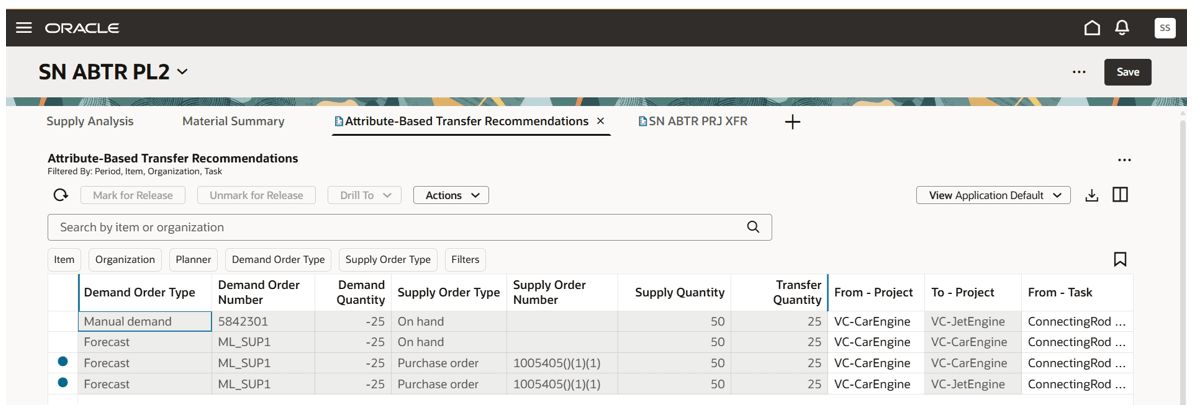
Attribute-Based Transfer Recommendations Page Displays Details for the Planning Attributes Reference from the Attribute Transfer Demand Measure
Releasing Recommendations
You can release orders that have been marked for release using the plan-level Release action. This action submits the Release Plan scheduled process. If the Release by user checkbox is selected in plan options, then only the recommendations that you’ve marked for release within the plan are released. If the Release by user checkbox isn’t selected, then all recommendations that have been marked for release within the plan are released.
- You can release attribute-based transfer recommendations for project supplies to Oracle SCM Cloud.
- You can perform a partial release of a project on-hand transfer to Oracle SCM Cloud by selecting a transfer recommendation row on the page.
- Release recommendations from Attribute-Based Transfer Recommendations are synced with the Supplies and Demands page.
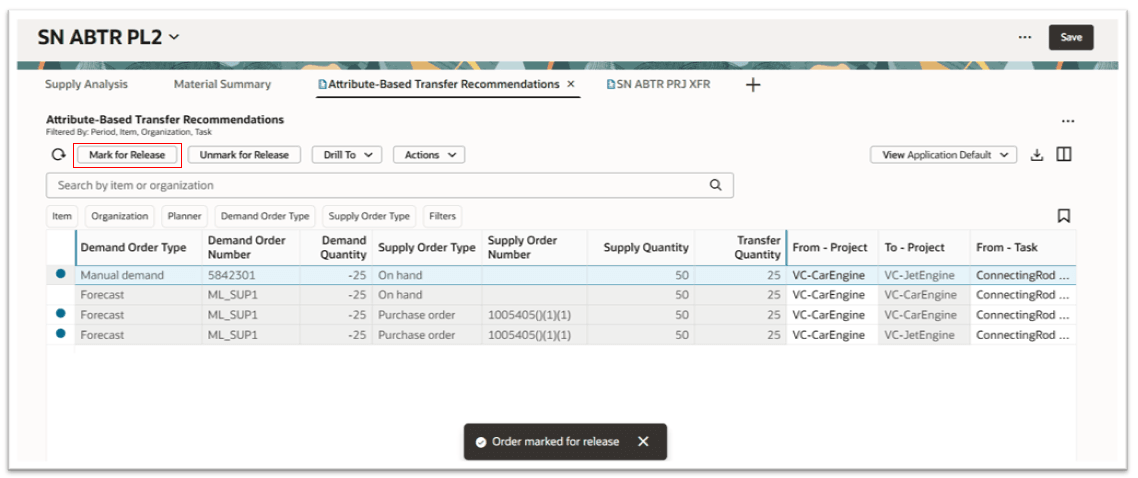
Project Transfer Recommendation for On-Hand Marked for Release from Attribute-Based Transfer Recommendations
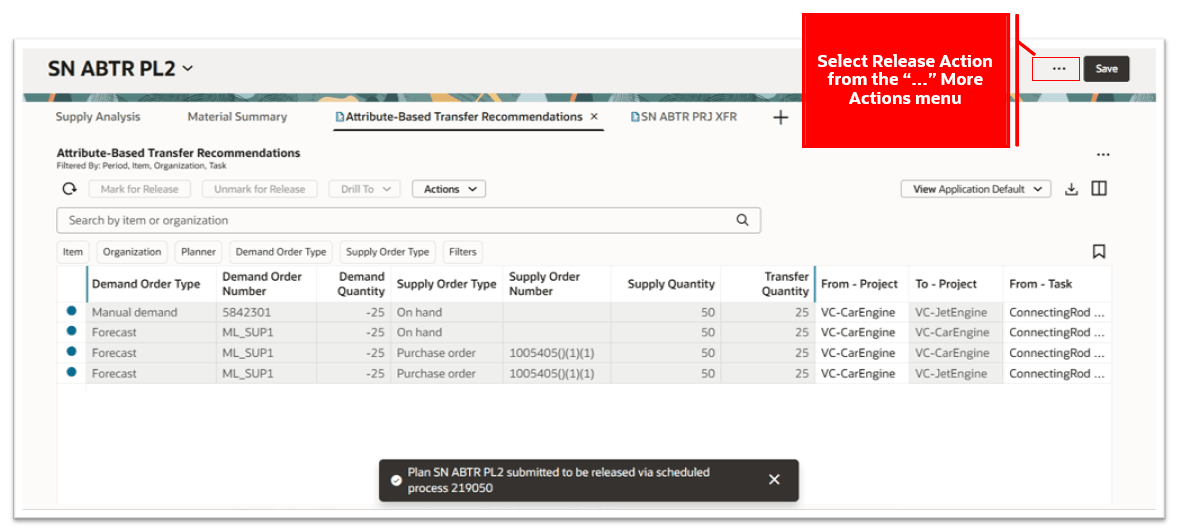
Release from Attribute-Based Transfer Recommendations
Attribute-Based Transfer Recommendations REST Services
This update contains the following new REST services for Attribute-Based Transfer Recommendations. The REST services apply to supply plans and demand and supply plans.
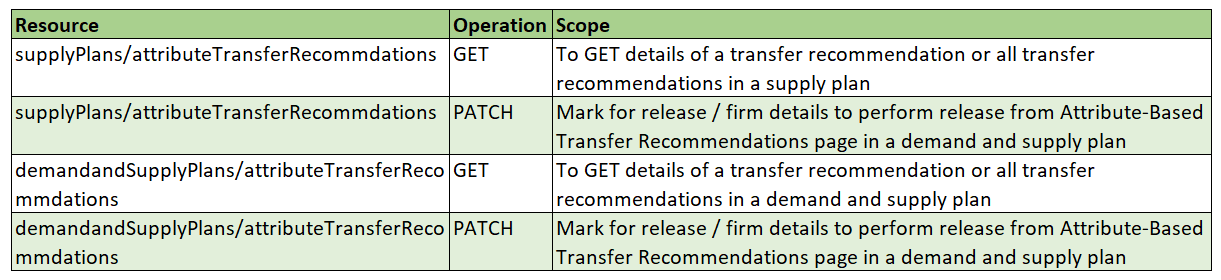
REST Service Details for Attribute-Based Transfer Recommendations
Steps to enable and configure
Use the Opt In UI to enable this feature. For instructions, refer to the Optional Uptake of New Features section of this document.
Offering: Supply Chain Planning
Enable the Attribute-Based Planning feature as follows:
- In the Offerings work area, select the Supply Chain Planning offering, and then click Opt In Features.
- On the Opt In: Supply Chain Planning page, click the Features icon for the Supply Chain Planning offering, and
- Enable the Attribute-Based Planning feature.
Enable the Plan Project-Specific Supply feature as follows:
If your enterprise doesn’t use Oracle Supply Chain Execution Cloud:
- In the Offerings work area, select the Supply Chain Planning offering. Then, click Opt In Features.
- On the Opt In: Supply Chain Planning page, click the Features icon for the Supply Chain Planning offering.
- Then, enable the Project-Driven Supply Chain feature, and then enable the Plan Project-Specific Supply feature.
If your enterprise uses Oracle Supply Chain Execution Cloud and has already opted into the Project-Driven Supply Chain feature:
- In the Offerings work area, select either the Manufacturing and Supply Chain Materials Management offering or the Supply Chain Planning offering. Click Opt In Features.
- On the Opt In page, click the Features icon for the offering.
- Then, enable the Plan Project-Specific Supply feature.
If your enterprise uses Oracle Supply Chain Execution Cloud and hasn't already opted in to the Project-Driven Supply Chain feature:
- In the Offerings work area, select either the Manufacturing and Supply Chain Materials Management offering or the Supply Chain Planning offering. Click Opt In Features.
- On the Opt In page, click the Features icon for the offering.
Finally, enable the Project-Driven Supply Chain feature, and then enable the Plan Project-Specific Supply feature.
Tips and considerations
- When you enter a value in the keyword search or select values from a suggested filter, it overrides any existing drill-to context.
- You can update from planning attributes, firm date, firm status, and firm quantity for planned orders on the Attribute-Based Transfer Recommendations page for simulations.
- The Attribute-Based Transfer Recommendations page displays any errors in the release process in the Release Errors column.
Key resources
- Refer to the REST API for Oracle Fusion Cloud SCM guide on the Oracle Help Center for additional details.
- Refer to update 21C Attribute-Based Planning release readiness for additional details on Attribute-Based Planning.
- Refer to update 22B release readiness for feature Review Attribute-Based Transfer Recommendations for more details related to this Redwood page described with reference to the classic version of Attribute-Based Transfer Recommendations.
- Refer to update 22D release readiness for feature Release Planned Supplies from the Attribute-Based Transfer Recommendations Page for more details related to this Redwood page described with reference to the classic version of Attribute-Based Transfer Recommendations.
Access requirements
Users who are assigned a configured job role that contains these privileges can access this feature:
- Monitor Supply Planning Work Area (MSC_MONITOR_SUPPLY_PLANNING_WORK_AREA_PRIV)
- Monitor Demand and Supply Planning Work Area (MSC_MONITOR_DEMAND_AND_SUPPLY_PLANNING_WORK_AREA_PRIV)
These privileges were available prior to this update.