Redwood: Manage Measure Catalogs Using a New User Experience
You can use the new Measure Catalogs page for centralized administration of measure catalogs. Using the page, you can search for a measure catalog by name and description, and you can quickly create, duplicate, edit, or delete measure catalogs. This update replaces the classic UI page named Configure Planning Analytics with a standalone, consistent Redwood UI designed for faster configuration and better productivity across planning teams.
In the Redwood work area named Supply Chain Planning, you can open the Measure Catalogs page from a demand, demand and supply, replenishment, sales and operations, or supply plan or the Plan Inputs.
Select More Actions > View More to open the Actions drawer, and then select Measure Catalogs in the Configuration section.
The Measure Catalogs page will open on a new browser tab and display a list of measure catalogs.
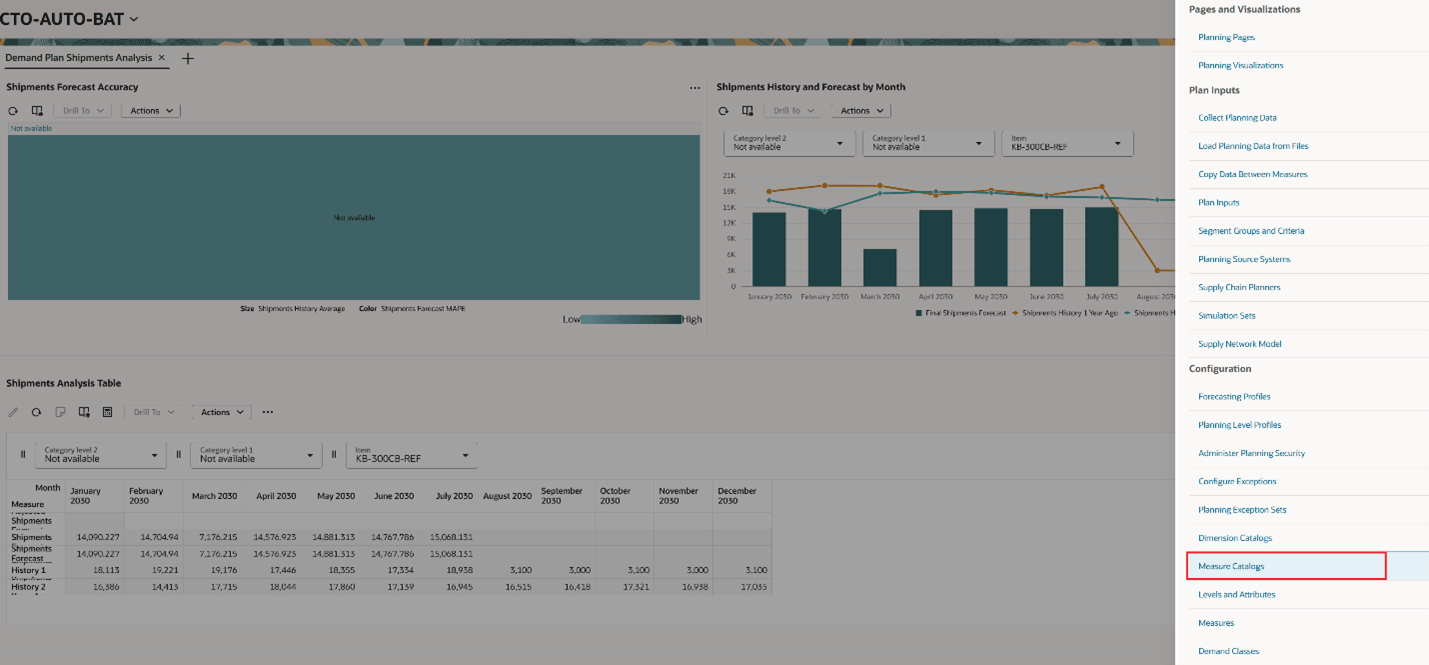
Actions Drawer for a Demand Plan
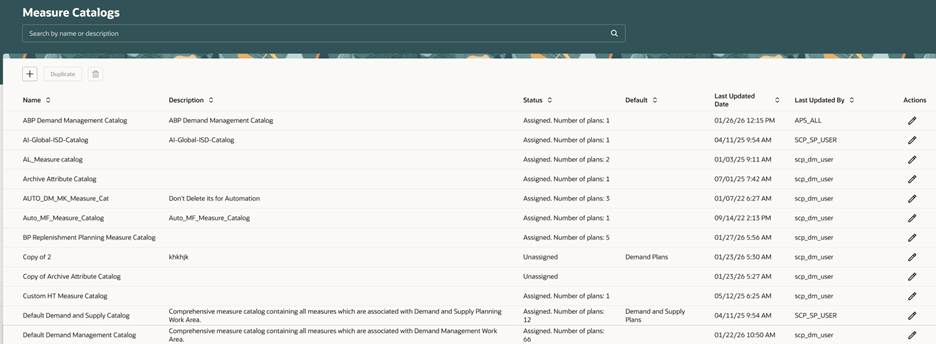
Measure Catalogs Page
You can use the search bar to search for measure catalogs by name or description.
The Measure Catalogs page includes seven columns:
- Name: Provides the name of the measure catalog.
- Description: Provides the description of the measure catalog.
- Status: Indicates how many plans the measure catalog is assigned to or if it’s unassigned.
- Default: Indicates if the measure catalog is the default for a plan type and automatically selected in the Measure Catalog field on the General tab in the Plan definition step of the guided process for creating or editing a plan. You can choose a measure catalog to be the default for more than one plan type.
If you select a measure catalog as the default for a plan type, the measure catalog replaces any other measure catalog that might have been previously selected as the default for that plan type.
- Last Updated Date: Provides the date when the measure catalog was last updated.
- Last Updated By: Provides the name of the user who created or last updated the measure catalog.
- Actions: Provides the Edit icon.
Create a Measure Catalog
Follow these steps to create a measure catalog:
- Select the Create icon to open the drawer named New measure catalog.
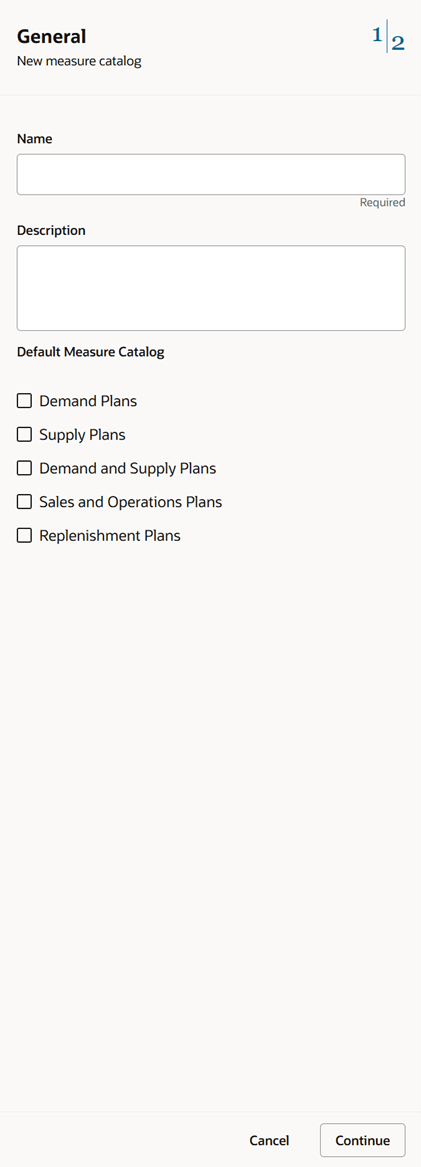
General Tab of Drawer Named New Measure Catalog
- On the General tab, enter a name for the measure catalog.
Optionally provide a description, and select one or more plan types for which the measure catalog will be the default. - To go to the Measures tab, select Continue at the bottom or select the numbers at the top and then select Measures.
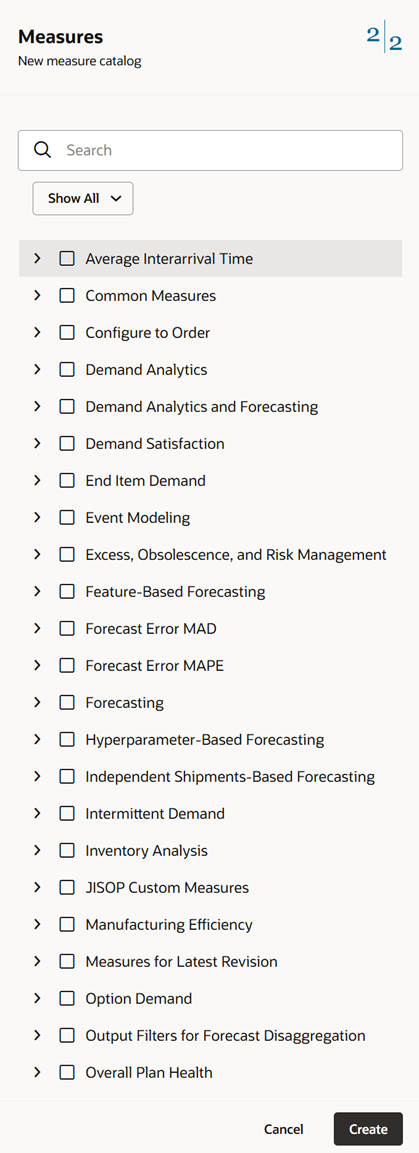
Measures Tab of Drawer Named New Measure Catalog
- On the Measures tab, select the measures for the measure catalog.
You must select at least one measure to be able to save the measure catalog.
- Select Create.
A confirmation message is displayed at the bottom of the Measure Catalogs page.
Edit a Measure Catalog
Note: If you have edit privileges, you can edit measure catalogs. If you have view privileges, you can only view the measure catalog details.
Follow these steps to edit a measure catalog:
- Select the Edit icon for the measure catalog.
A drawer with the name of the measure catalog being edited will open.
- On the General tab, change the name and description as required.
You can also select or deselect the plan types for which the measure catalog is the default.
- To go to the Measures tab, select Continue at the bottom or select the numbers at the top and then select Measures.
- On the Measures tab, select or deselect the measures for the measure catalog.
The label for the menu button is Show Selected when you’re editing the measure catalog. To see all the available measures for selection, select Show All.
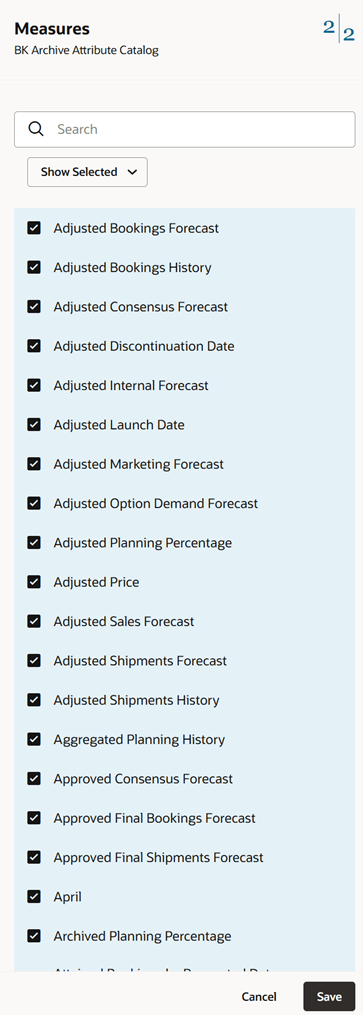
Measures Tab of Drawer for Editing Measure Catalog
- Select Save.
A confirmation message is displayed at the bottom of the Measure Catalogs page.
Duplicate a Measure Catalog
Follow these steps to duplicate a measure catalog:
- Select the measure catalog, and select the Duplicate button at the top of the Measure Catalogs page.
The drawer named Duplicate measure catalog will open.
- On the General tab, change the name and description as required.
You can also select or deselect the plan types for which the measure catalog is the default.
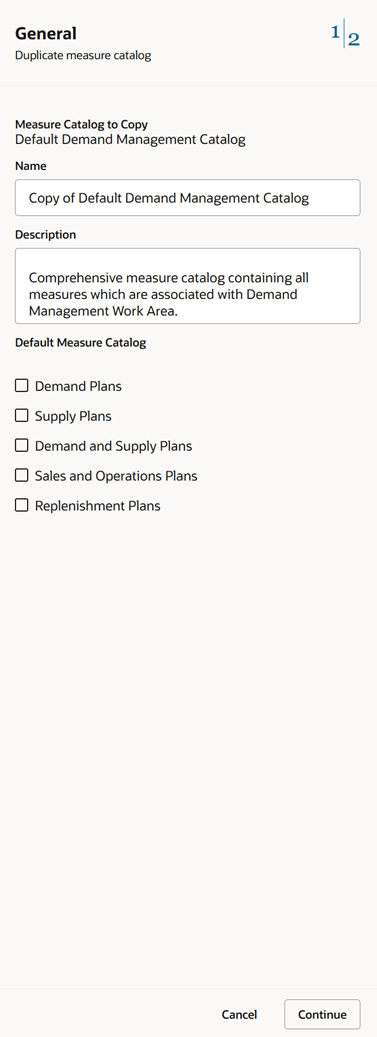
General Tab of Drawer Named Duplicate Measure Catalog
- To go to the Measures tab, select Continue at the bottom or select the numbers at the top and then select Measures.
- On the Measures tab, select or deselect the measures for the measure catalog.
The label for the menu button is Show Selected when you’re duplicating the measure catalog. To see all the available measures for selection, select Show All.
- Select Duplicate.
A confirmation message is displayed at the bottom of the Measure Catalogs page.
Delete a Measure Catalog
Follow these steps to delete a measure catalog:
- Select the measure catalog, and select the Delete icon at the top of the Measure Catalogs page.
A dialog box is displayed.
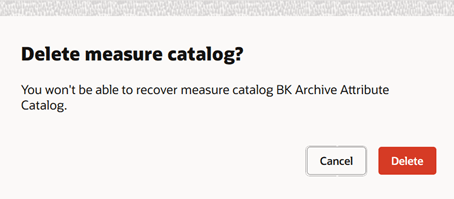
Warning Message for Deleting Measure Catalog
- Select Delete.
A confirmation message is displayed at the bottom of the Measure Catalogs page.
If any errors or warnings occur, they’re displayed at the top of the page.
You can’t delete the measure catalog in these cases:
- The measure catalog is assigned to plans.
To delete the measure catalog, you first need to remove it from the plans.
- The measure catalog is predefined.
- The measure catalog is the default for a plan type.
If the measure catalog is user-defined, you need to deselect the checkboxes for the plan types before you can delete the measure catalog.
Steps to enable and configure
You don't need to do anything to enable this feature.
Tips and considerations
If you want to use the Redwood: Manage Measure Catalogs Using a New User Experience feature, then you must opt in to its parent feature: Replenishment Planning. If you’ve already opted in to this parent feature, then you don’t have to opt in again.
To go to the General tab from the Measures tab, select the numbers at the top of the page, and then select General.
Key resources
Visit https://redwood.oracle.com/ for more information about the Redwood experience.
Access requirements
Users who are assigned a configured job role that contains these privileges can access this feature:
- Edit Planning Analytics Configuration (MSC_EDIT_PLANNING_ANALYTICS_CONFIGURATION_PRIV)
- View Planning Analytics Configuration (MSC_VIEW_PLANNING_ANALYTICS_CONFIGURATION_PRIV)
- Delete Measure Definition (MSC_DELETE_MEASURE_DEFINITION_PRIV)
- Maintain Measure Definition (MSC_MAINTAIN_MEASURE_DEFINITION_PRIV)
These privileges were available prior to this update.