Redwood: Export Plan Data Using a New User Experience
You can now use the Redwood user experience to export planning results from Oracle Fusion Cloud Supply Chain Planning to external files or downstream systems for reporting, analysis, or integration with other business applications. This capability offers both manual and scheduled exports, maintains data integrity and security, and records timestamps and unique IDs, ensuring auditable, consistent extracts of the plan results.
The Export Plan Data feature gives you greater flexibility, faster access to results, and better control over exported planning outputs. This helps how you consume and leverage plan results for reporting, analysis, and downstream integration.
With the Export Plan Data feature you can:
- Gain faster insights into plan results by leveraging the data across applications
- Improve collaboration across planning, operations, and finance
- Reduce manual data handling
- Support data-driven planning decisions with flexibility
Prerequisites for exporting plan data
Before exporting plan data, make sure:
You have the required planning and reporting privileges, Refer to the Access Requirement section.
- The plan has completed successfully and is in Completed status.
- The plan option Enable for Extracting is enabled.
To enable this option,
- Open the plan and select the More Options icon.
- From the menu, select View More.
- From the Actions menu, select Edit Plan Options.
- On the Plan Definition page, under the Archive and Extract tab, select the option, Enable for extracting.
- Select the measure catalog you need for extraction.
Note: The measure catalog must be either the same measure catalog associated with the plan or a measure catalog that contains only a subset of the measures found within the plan.
- Select Submit
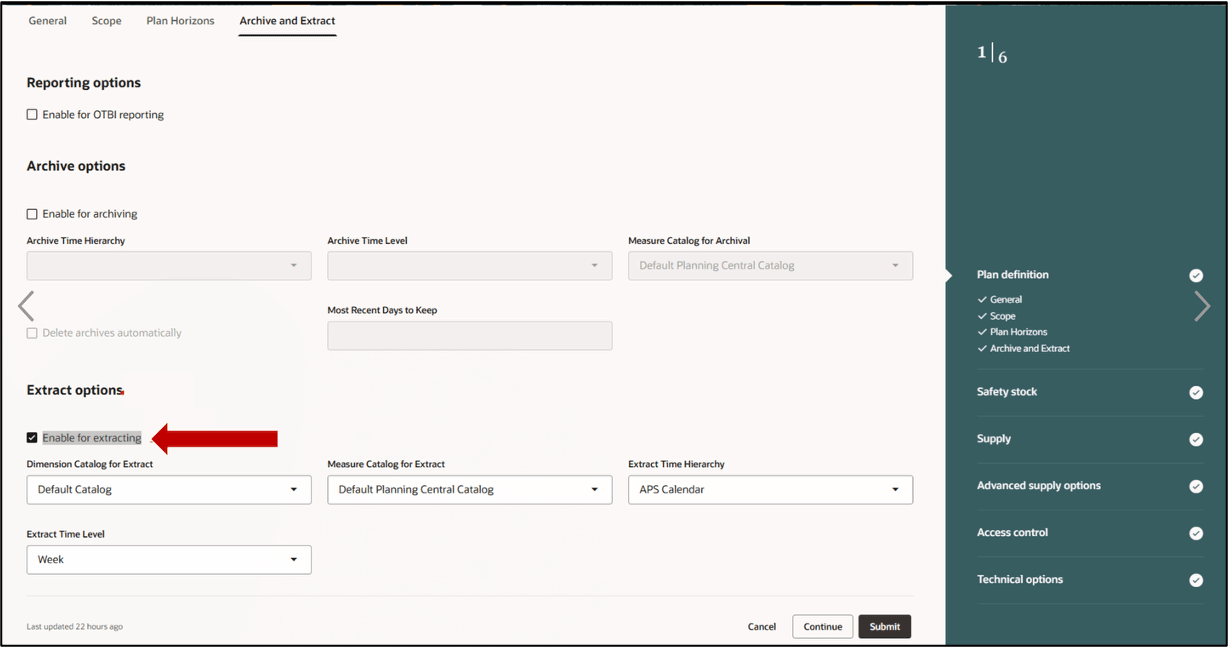
Enabling the option
Using the Export Plan Data feature
- Op en the plan and select the More Options icon.
- From the menu, select View More.
- From the Actions menu, select Export Plan Data
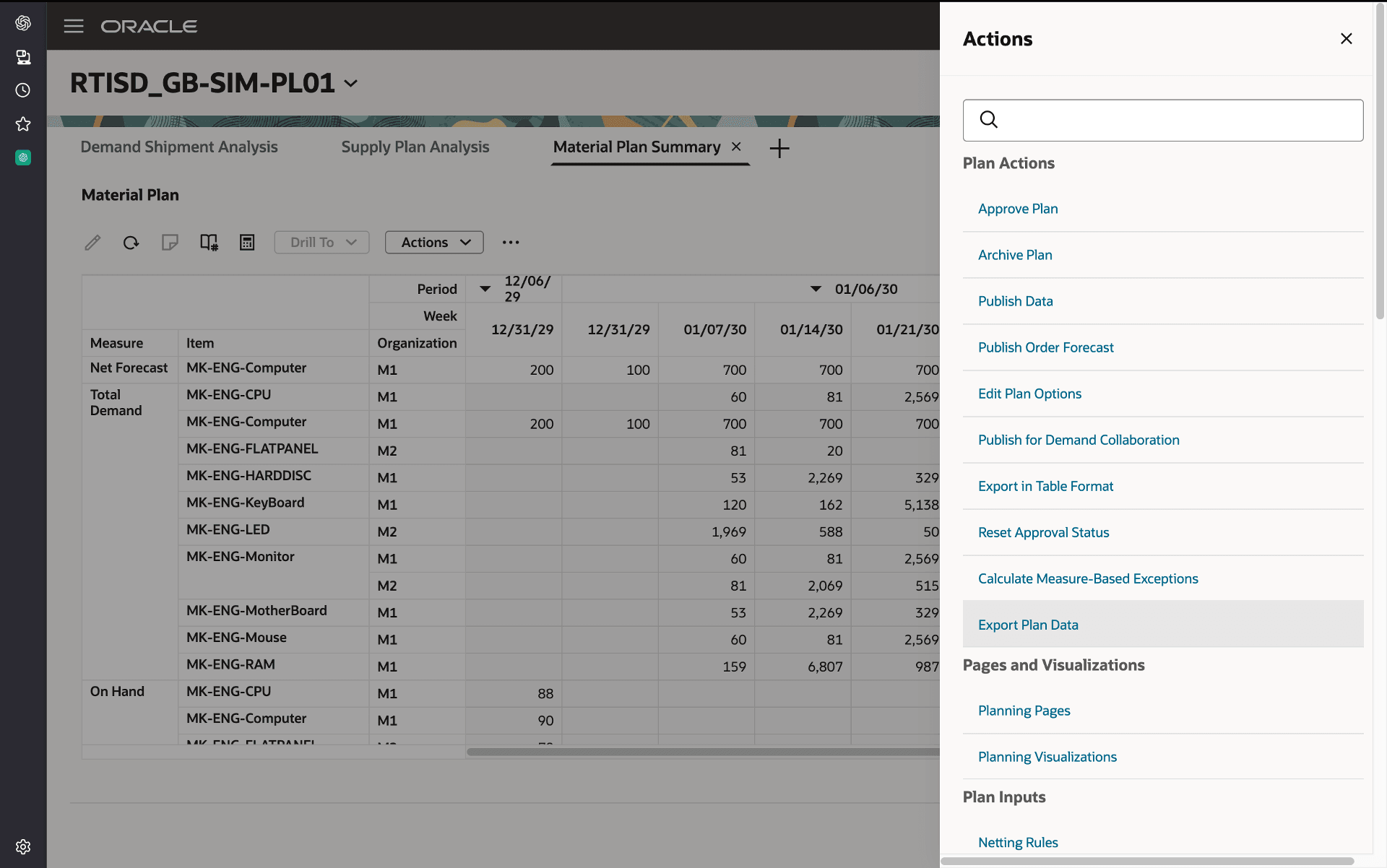
Actions Menu
-
This action triggers the Export plan data scheduled process. This is confirmed by a message.
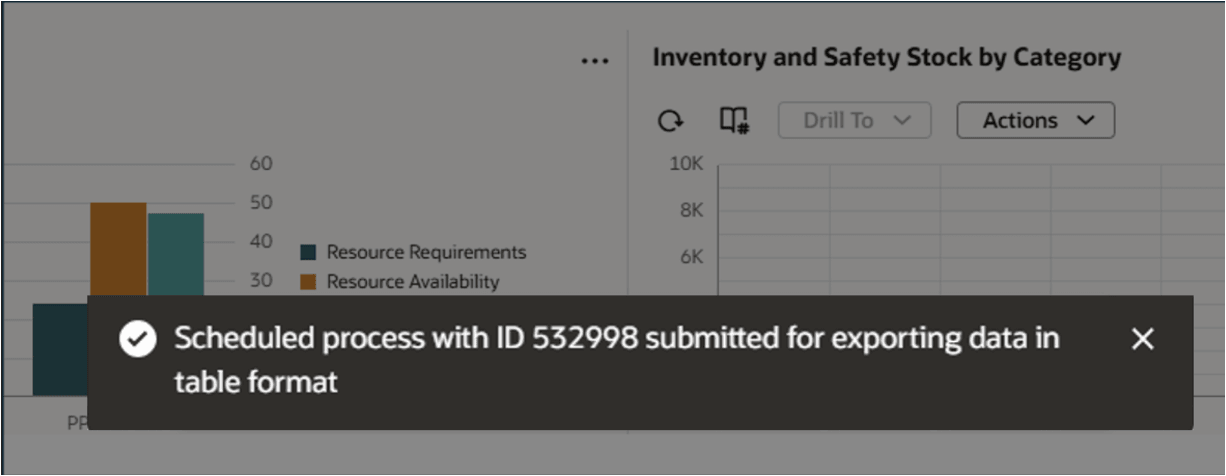
Confirmation Message
You can also run the export as a Scheduled Process.
-
Us e Export Data in Table Format when you want to quickly extract planning data exactly as it appears in the application for review, analysis, or downstream reporting.
-
Use Prepare Supply Chain Planning Data for Export when you need a structured, validated data set prepared for external consumption, integrations, or large-scale extracts.
You can choose either one based on whether your goal is ad hoc data analysis (table export) or a system-based data export (prepare data for export).
To schedule a new process:
- Go to the Scheduled Processes work area and select Schedule New Process.
- Search for and select Export Data in Table Format or Prepare Supply Chain Planning Data for Export.
- In the process parameters, specify your plan and select the relevant table such as Sourcing Rules, Assignment Sets, or specific plan measures.
- Select Submit.
- Monitor the process in the Scheduled Processes work area.
- After the scheduled process is finished, download the CSV/XLS file from Tools > File Import and Export option.
You can also export the plan data from the Manage Plans page:
On your plan’s page, click the More Actions icon. A page with all the plans opens.
- Find and select the specific plan you want to export the data from.
- Click the Actions icon for that plan.
- Select Export in Table Format.
- In the drawer, select the specific measure catalog to be used and the file type (CSV or XLS).
- Select Export.
A scheduled process will run, and a confirmation message with a Process ID will be displayed.
After the process is completed, check the Scheduled Processes work area. You can find the file in Tools > File Import and Export.
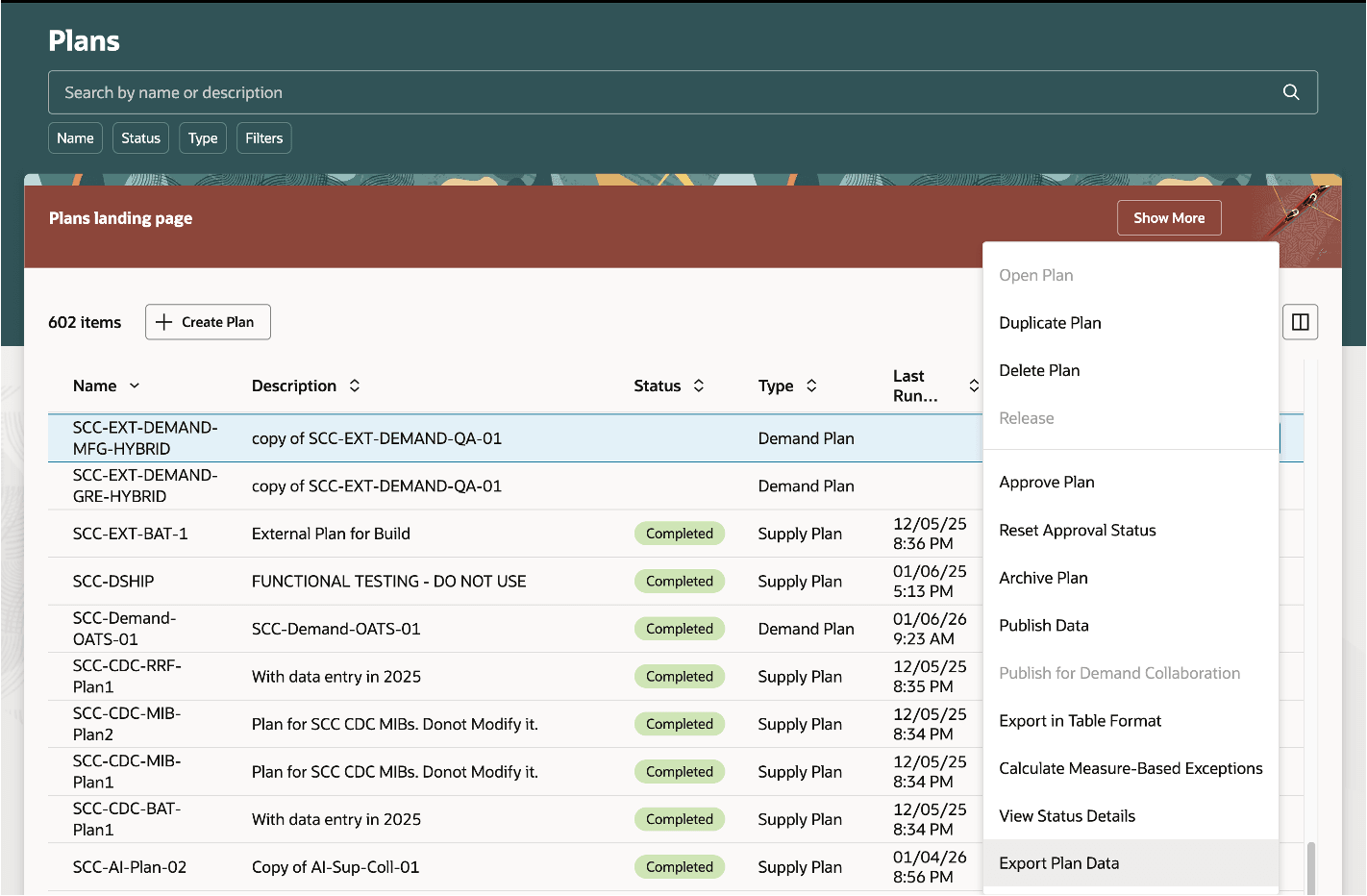
Exporting Plan Data from Manage Plans
Steps to enable and configure
You don't need to do anything to enable this feature.
Access requirements
Users who are assigned a configured job role that contains these privileges can access this feature:
-
MSC_VIEW_PLANS_PRIV (View Plan definitions)
-
MSC_VIEW_PLANNING_DATA_PRIV (View Plan Output)
-
MSC_EXPORT_PLANNING_DATA_PRIV (Export Plan Data)
These privileges existed prior to this update.