Redwood: Review Units of Measure Using a New User Experience
You can now use the Redwood user experience to review the units of measure associated with items and the conversion rate between interclass and intraclass items. This capability aligns the data with Oracle Inventory, ensuring consistent conversion rates across source and planning applications. It also offers search, filtering, sorting, column management, saved searches, and export to Excel.
Units of Measure Overview
You can view the Units of Measure table on the Units of Measure page. The Units of Measure page is available only in the Plan Inputs mode.
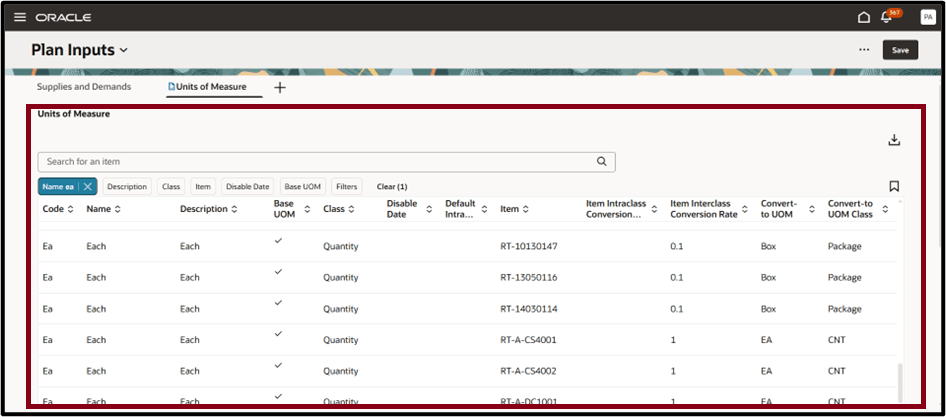
Units of Measure
The Units of Measure table displays the collected units of measure, the items they apply, and the numerical conversion rates used to convert these units to other units for the selected items. Code and Name represent the source unit of measure, while Convert to UOM and Convert to UOM Class represent the unit of measure to which it is converted.
Units of Measure Toolbar
The following screenshot shows the Units of Measure toolbar.

Units of Measure toolbar
The export action is available only on the Units of Measure toolbar.
- Export: Export the records from the table. Only the columns currently visible in the table are included in the exported spreadsheet, and they appear in the same order as displayed.
Searching and Filtering Items
You can search for Units of Measure using the search bar and the suggested filters.

Units of Measure Search and Filter options
Use the search and suggested filters to locate and filter specific units of measure as follows:
- Keyword search bar: Search across multiple columns by entering text in the keyword search field. For items, the keyword search applies specifically to the Item columns and uses the contains operator. For example, type ITE in the keyword search field and select Enter or click the search icon. The table displays all item names containing ITE, such as ITEMS1.
Note: Keyword search isn’t case sensitive.
- Suggested filters: Filter units of measure using the column-specific filter suggestions. For example, select an item name from the suggested filters and select Enter or click outside the filter. The table updates to display only rows that match the selected criteria.
- Filters button: Access additional filtering options not available through the suggested filters. Use these filters for more advanced or refined data searches.
- Saved searches: Save and name your current keyword search and suggested filters. You can quickly reapply saved searches to reuse frequently used search criteria without resetting the filters manually.
Filters Drawer
You can further filter the Units of Measure table by clicking Filters, which opens the Filters drawer.
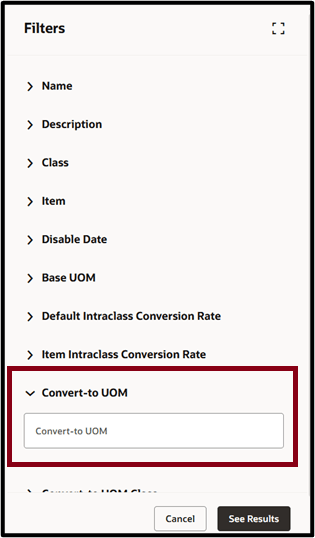
Units of Measure Filter Drawer
After specifying the desired filter conditions, select See Results. The table refreshes and displays only the rows that match your selected criteria. The suggested filters remain visible alongside the additional filters, allowing you to adjust or refine your search as needed.
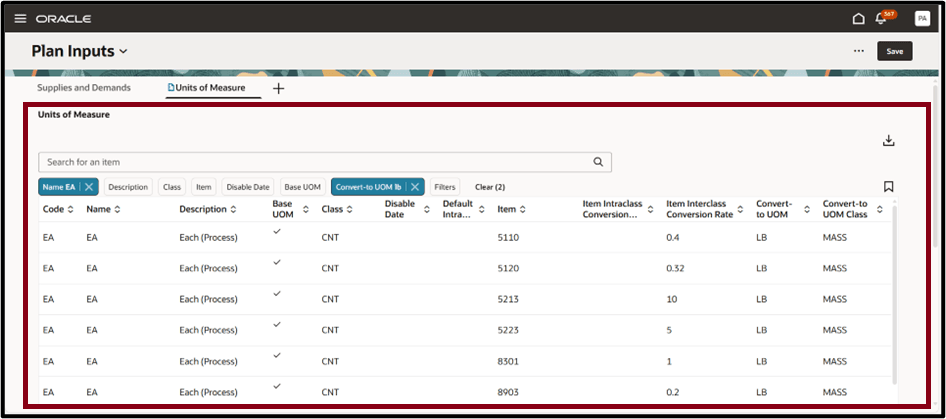
Units of Measure Search Result
Steps to enable and configure
You don't need to do anything to enable this feature.
Key resources
See Redwood: Analyze Supply Plans Using a Configurable Redwood Page feature.
Access requirements
Users who are assigned a configured job role that contains these privileges can access this feature:
- Review Planning Units of Measure (MSC_REVIEW_PLANNING_UNITS_OF_MEASURE_PRIV)
Review Planning Units of Measure privilege was available prior to this update.