Redwood: Assign Any Public Page Group as the Default Page Group
Currently, each plan type has an assigned default page group that is displayed when you select a plan of that type. Now you can enable any public page group created by any user to serve as a default page for a given plan type. However, when a page mixes visualizations from multiple plan types and you lack access to some of them, the page shows a banner for inaccessible context. This reduces clicks and context switching by providing a consistent starting point for you across plan types. This capability delivers flexible, secure personalization with clear messaging and safe fallbacks.
This functionality gives you greater flexibility and personalization by allowing any page group to be used as a default landing page, regardless of plan type. This enhancement removes rigid plan-type constraints and helps you start your planning work with the right visualizations and pages required for your unique planning needs.
Key benefits are:
- Set your own default page group: You no longer have to use the system-provided default page group for each plan type.
- Greater flexibility across plan types: You use page groups flexibly across different plan types, instead of being limited to a single plan type. For example, you can apply the same page group to view output from Demand plans, Supply plans, or Demand and Supply plans. If you have access to multiple plan types, you can view visualizations from all of them within a single page group.
- Improved user productivity: You improve productivity by automatically opening the page group you use most frequently, eliminating the need to navigate to it each time you open a plan.
- Reduced clicks and context switching: By starting on the most relevant page group, you spend less time navigating and more time analyzing and resolving planning issues.
- Personalization with consistency: You get a personalized planning experience while maintaining consistent default behavior across all plan types you work with.
Prior to this feature, each plan type such as a demand plan, supply plan, or an S&OP had a predefined default page group. While you could personalize each page group within a plan type, you could not use the same page group as the default one across the other plan types.
Setting a page group as default
When you open the plan for the first time, the system uses the default page group or that plan type. For example, supply plans open with Supply Plan Overview or a demand plan opens with the Demand Management default page group.
To set up a page group as default, select an existing page group provided by the application, such as SEED_FROM_APPLICATION or a public page group created by another user.
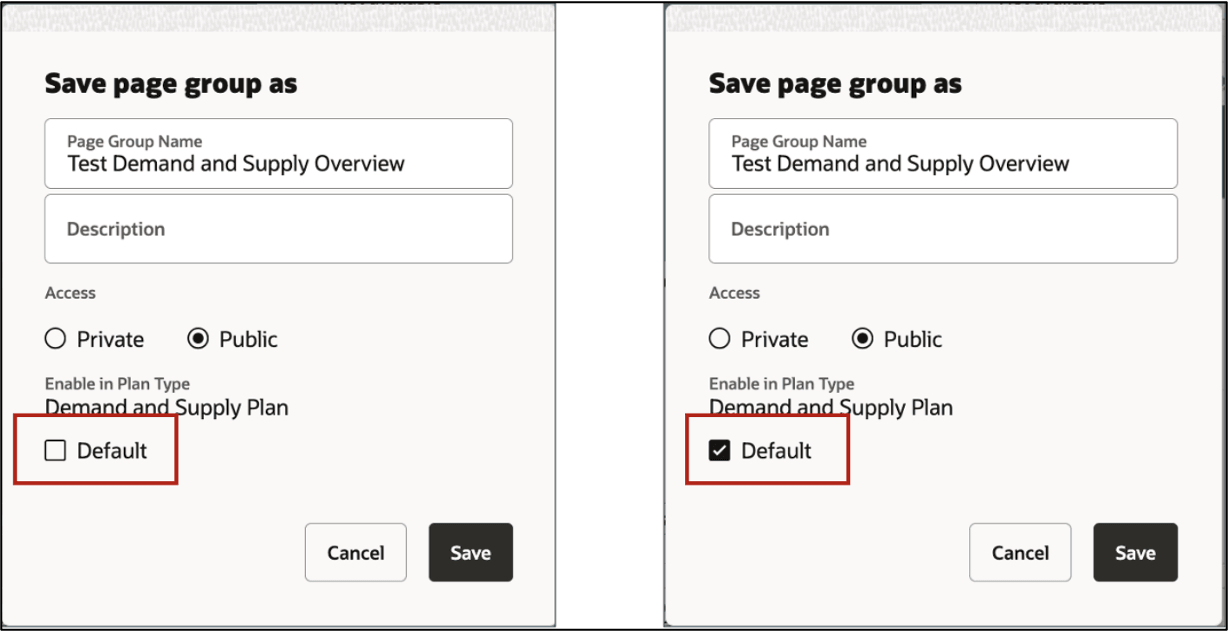
Setting a Page Group as Default
Steps to enable and configure
Use the Opt In UI to enable this feature. For instructions, refer to the Optional Uptake of New Features section of this document.
Offering: Supply Chain Planning
Tips and considerations
If you want to use the Redwood: Assign Any Public Page Group as the Default Page Group feature, then you must opt in to its parent feature: Replenishment Planning. If you’ve already opted in to this parent feature, then you don’t have to opt in again
- You can’t select page groups owned by another user that are restricted to a different plan type.
- When the default checkbox is edited, all other fields become read-only to prevent conflicting changes.
- If the default page group is deleted or becomes inaccessible due to permission changes, you’re notified that the layout is no longer available. The system then automatically uses the standard default page group for that plan type.
- If a page group contains visualizations from multiple plan types and you don’t have access to some of them, a banner message appears for those visualizations. For example, if you have access only to Supply Planning, the Demand visualization shows an informational message.
Access requirements
Users who are assigned a configured job role that contains these privileges can access this feature:
- Manage Planning Pages (MSC_MANAGE_PLANNING_PAGES_PRIV)
- View Planning Objects (MSC_VIEW_PLANNING_OBJECTS_REST_SERVICE)
These privileges were available prior to this update.