Redwood: Manage Item Costs Using a New User Experience
You can use the Redwood user experience to view, search, or filter on item cost details spanning across organizations and suppliers. This page offers search, filter by organization, supplier, item, column sort, and pagination for large datasets.
Using the Item Costs feature, you can search, filter, analyze, and export item cost data for specific suppliers, items, or organizations.
The key benefits of the new Redwood Item Costs page are:
- Improved cost visibility across organizations, suppliers, and items from a single, centralized page
- More accurate supply planning decision by leveraging up-to-date item costs in planning calculations.
- Enhanced financical analysis through better insight into project costs, profitability and inventory valuations.
- Faster analysis and troubleshooting with intuitive search, filtering and sorting capabilities.
Capabilities of the Item Costs Page
Centralized Item Cost Review
The Item Costs page provides a consolidated view of item costs used in supply planning:
- Displays the as-of-date cost of an item based on the selected cost and valuation unit.
- Supports the analysis of both manufactured (make) and purchased (buy) items
- For make items, the item costs are used with bills of material and work definitions to roll-up the total finished goods cost.
- For buy items, the item cost represents the acquisition cost used in planning and financial metrics.
Support for Cost-Based Planning Analysis
Item costs are a critical input for:
- Calculating the projected costs, profitability, and inventory valuations within supply plans
- Evaluating the plan performance and financial trade-offs
- Creating and analyzing cost scenarios to simulate the impact of different sourcing strategies or manufacturing processes on overall supply chain profitability.
Accessing the Items Costs Page
To access the Item Costs page:
-
On the plan’s page, select the More Actions icon.
-
From the menu, select View More.
-
From the Actions menu, select Plan Inputs.
-
Open a new page by selecting the + icon.
-
Select the visualizations tab
-
From the list, select Item Costs
The Items cost page opens in a separate temporary tab, so that you can analyze cost data without disrupting their current workflow.
Searching and Filtering
The Item Costs page provides you with searching and filtering tools to quickly locate relevant data. You can use the search bar or the suggested filters.
- Using the Search bar: Search by Item attributes such as item name, Item number or description.
- Suggested filters: Apply quick filters for Organization, Supplies, or Items. Filters apply across the entire dataset for efficient data refinement.
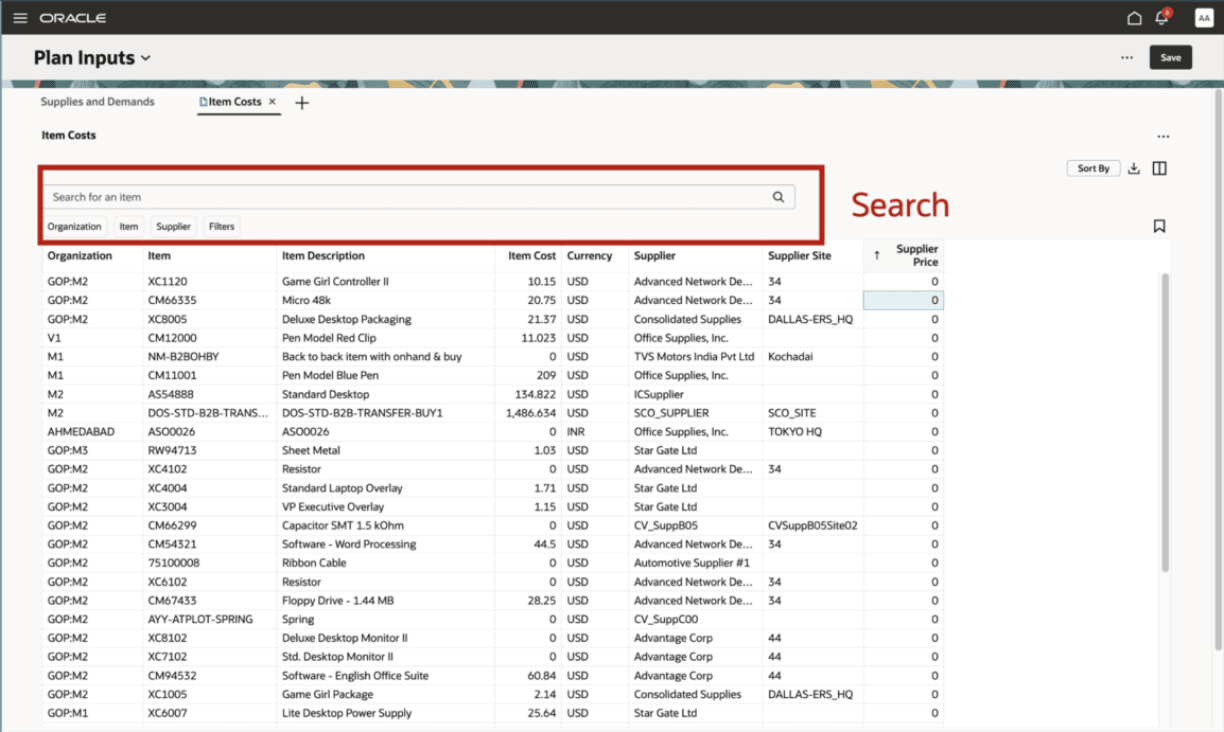
Searching and Filtering
Column Descriptions
|
Column |
Description |
Example Value |
|
Organization |
Organization Code | M1 |
|---|---|---|
|
Item |
Item code or unique item number |
OP-ANALOG |
|
Item Description |
Description of the item |
Watch-M |
| Item Cost | Internal calculated/planned unit cost |
6.11 |
| Currency |
Currency of the item cost |
USD |
| Supplier | Supplier Name | GOPDS - Supplier 1 |
| Supplier Site | Supplier Site / Location Code | GODPDS Site |
| Supplier Price | Unit Price from Supplier quotation / purchase agreement | 6.11 |
Sorting and managing Data Columns
- Column Management: Columns can be resized or reordered to tailor the view.
- Pagination: Large Datasets are loaded incrementally, improving performance while navigating across result pages.
- Downloading the page contents: Download the contents of the current page to an Excel file to work with the planning data.
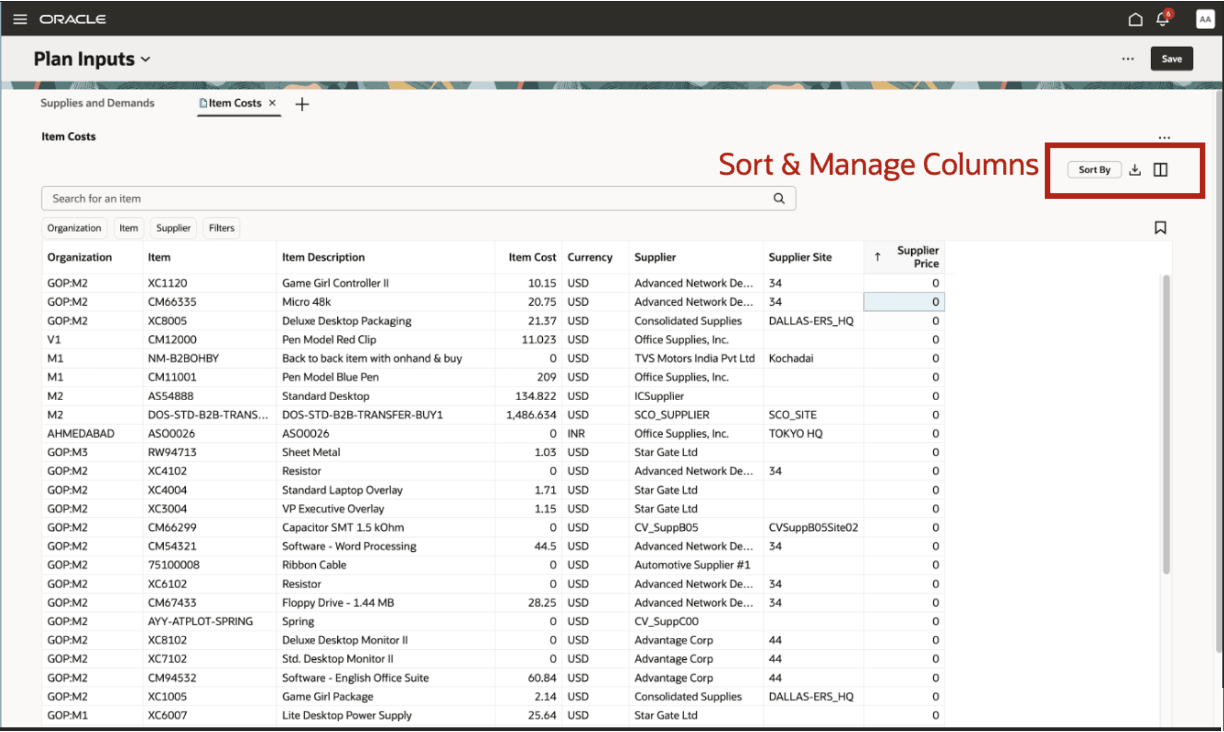
Column Management
Column Sorting: Sort data in ascending or descending order by clicking the column headers.
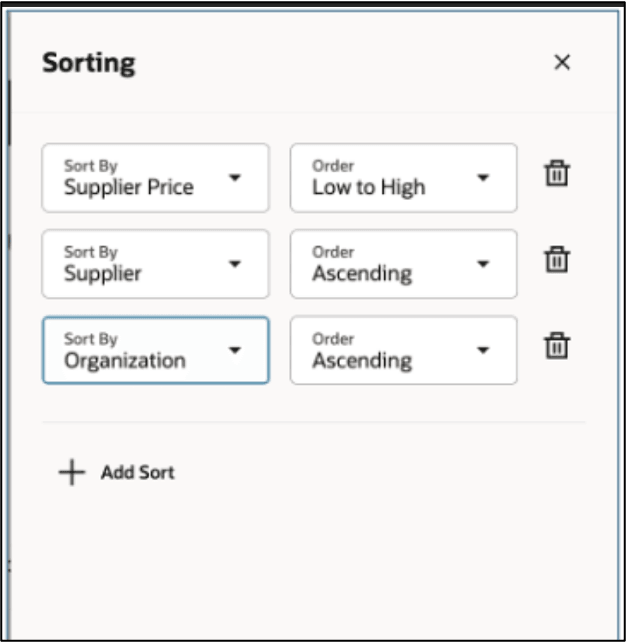
Data Sorting
Importing Item Cost Data
Item cost data can be loaded using file-based data import (FBDI):
-
FBDI Template: ScpItemCostImportTemplate.xlsm
-
Scheduled Process: Load Planning Data from Flat Files
-
Control File: Item Cost Import Control File
-
Database Table: MSC_ST_ITEMS_ADDTL_ATTRIB
These tools enable you to efficiently load and maintain item cost data used by Supply Chain Planning.
Steps to enable and configure
Use the Opt In UI to enable this feature. For instructions, refer to the Optional Uptake of New Features section of this document.
Offering: Supply Chain Planning
Tips and considerations
If you want to use the Redwood: Manage Item Costs Using a New User Experience feature, then you must opt in to its parent feature: Replenishment Planning. If you’ve already opted in to this parent feature, then you don’t have to opt in again
Access requirements
Users who are assigned a configured job role that contains these privileges can access this feature:
- MSP_REVIEW_PLANNING_ITEM_PRIV
These privileges were available prior to this update.