Redwood: Use Additional Business Rules
Business rules allow you to control the appearance and behavior of fields within various Redwood pages. This can include hiding fields that aren't necessary for your business process or making extra fields required for every transaction. In this update, the available business rules have been expanded to include additional functionality. These enhancements give you more control over how users interact with inventory and logistics transactions, helping reduce errors, simplify data entry, and enforce business policies without customization.
Restrict Transaction Type List of Values
You can now restrict the Transaction Type list of values using inclusion and exclusion rules on the Miscellaneous Transaction page. This ensures users see only the transaction types that are valid for your business process. This helps to:
- Prevent incorrect transaction selection
- Simplify the user experience
- Improve data accuracy
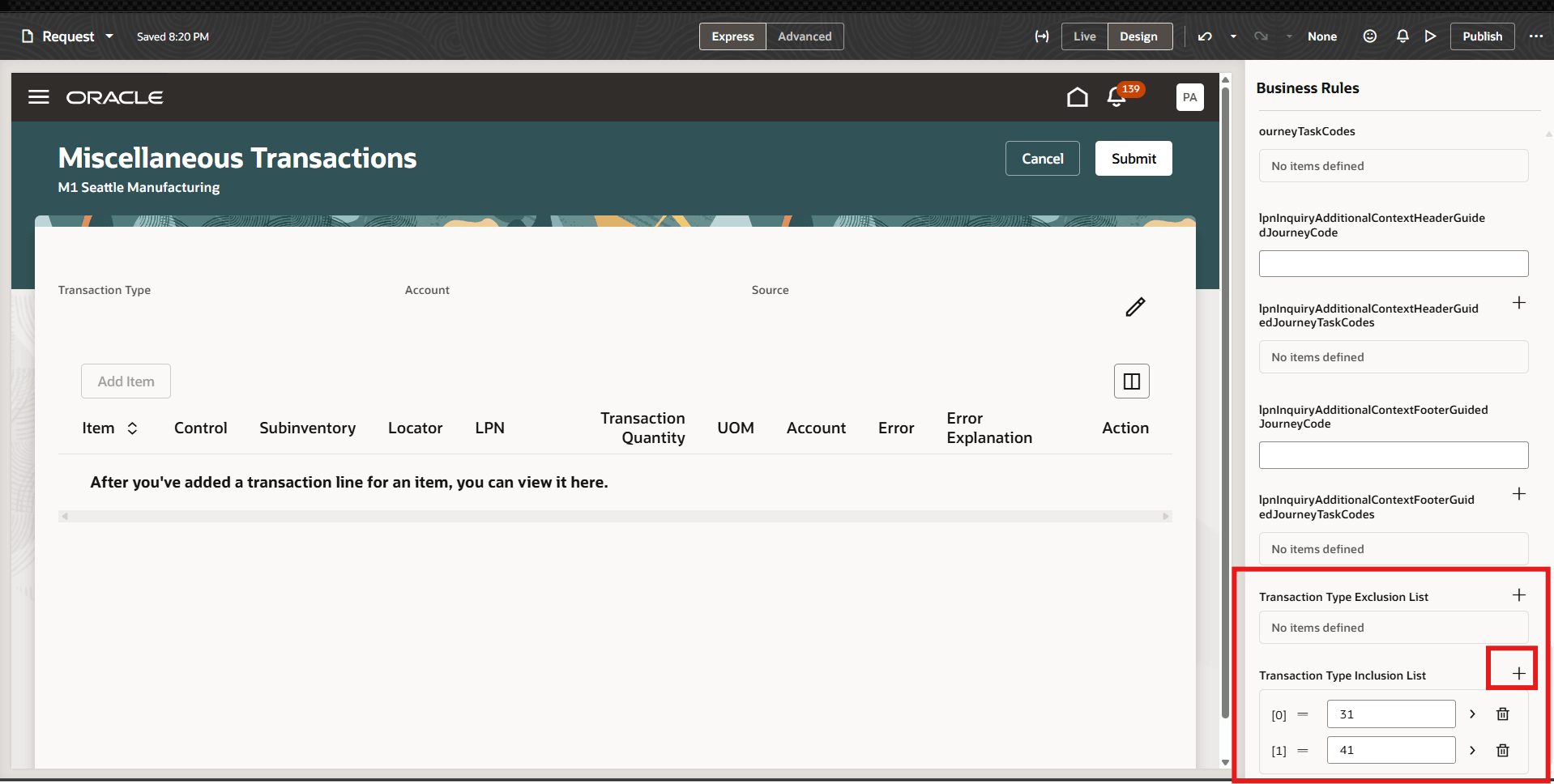
Exclude and Include Transaction Types Through Business Rules
To update this list, go to Page Properties in Edit Page in Visual Builder Studio and update the Transaction Type Exclusion List to exclude specific transactions. The transaction IDs provided in this list will be excluded. Alternatively, if transaction IDs are entered in the Transaction Type Inclusion List, only those transaction types will be shown. Users can add multiple transaction type IDs by clicking the + icon.
Users must ensure that they use the transaction ID, not the transaction name or code.
Default and Read-Only Field Configuration
Business rules can now be used to default and control editability of key fields such as:
- Transaction Date
- Use Current Cost
- Return Date
The following pages support field defaulting through business rules:
| Pages | Fields Supporting Defaulting |
|---|---|
| Miscellaneous Transactions (Desktop) |
|
| Receiving Returns |
Return Date |
| Subinventory Transfer |
Transaction Date |
| Receiving Returns (Create and Edit Returns) |
Physical Material Return Required (defaults to No) |
This reduces manual effort and ensures consistent values across transactions.
Business Rule Validations
You can now configure business rule validations to enforce business requirements across these tasks:
- Miscellaneous transactions
- Expected shipment lines
- Confirm pick slips
- Outbound shipments
- Inbound shipments
- Create project transfer
- Create interorganization transfer
- Received lines
- Receiving returns
Business rule validations are evaluated when users perform actions such as Done, Save, or Submit. When a validation evaluates to true, the configured error message displays and the transaction can't proceed until the validation criteria are met. For example, you can configure a validation to allow only whole-number values for the Secondary Quantity field. If a user enters a decimal value, an error message displays and the transaction is prevented from proceeding.
Configure a Validation Rule
To configure a validation rule:
- Open the page where you want to configure business rules. Navigate to Visual Builder Studio, and then click Configure Validations.
- Click + to create a new validation.
- Enter a validation label and click Create.
- Click Edit.
- In the condition editor, select Use Advanced Expression.
- Click the Code tab in the upper-right corner of the editor.
- Enter the validation expression. You can write your own expression to implement your business requirements and click Save. The following example validates that the Secondary Quantity field contains only whole-number values in miscellaneous transactions.
let num = $fields?.inventoryStagedTransactions?.SecondaryTransactionQuantity?.$numberValue();
if (num !== null &&
num !== undefined &&
!Number.isNaN(num) &&
!Number.isInteger(num)) {
return true;
}
return false;
- Add the error message to display when the validation expression evaluates to true.
- Save and publish the business rule.
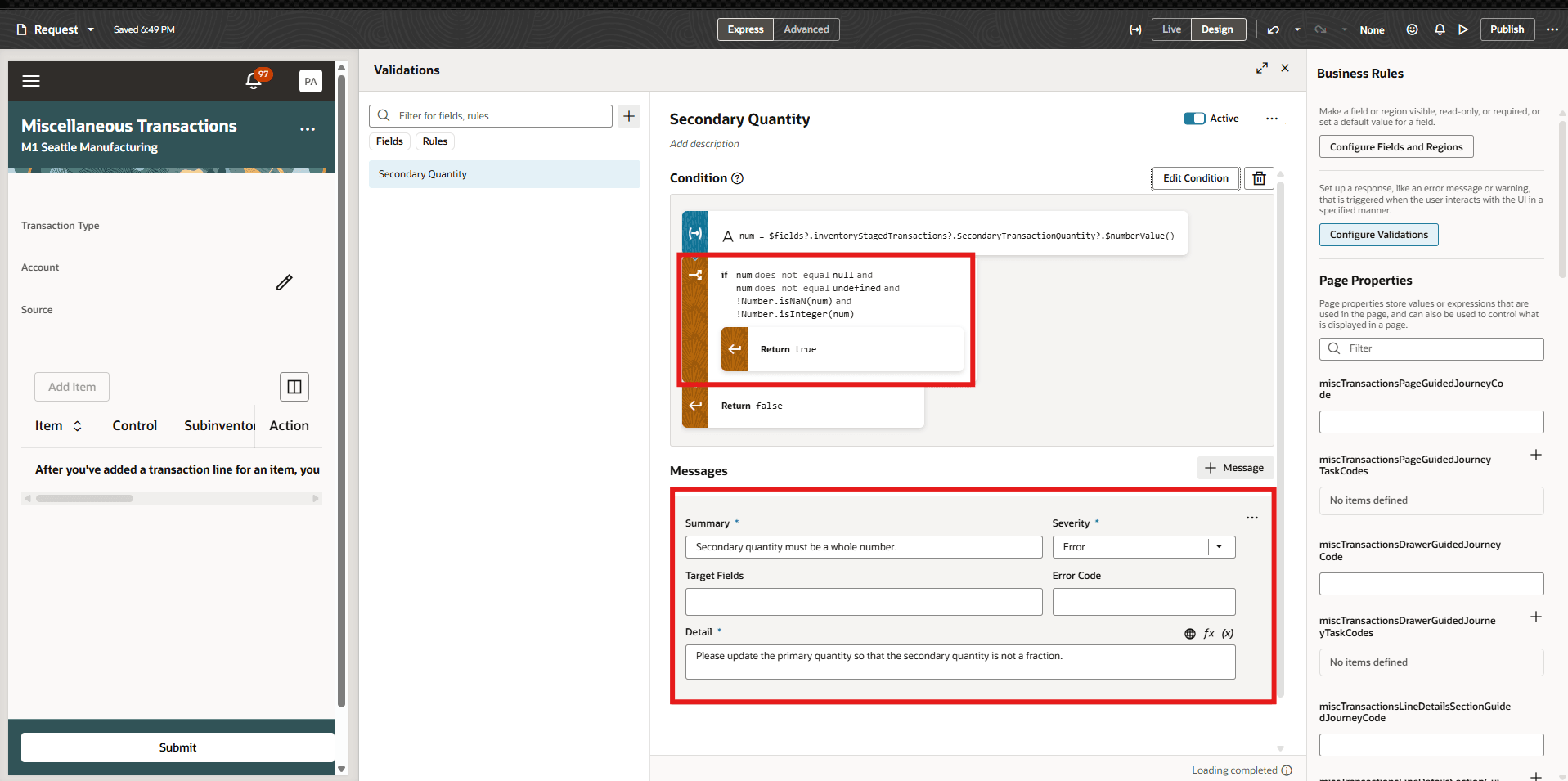
Validation Expression and Message for Secondary Quantity Check
Hide Sections and DFFs on Miscellaneous Transactions
On the Miscellaneous Transactions page, users can now use business rules to control the visibility of descriptive flexfields. The Additional Information section, which contains the transaction DFF, can be hidden at the section level.
Users can also hide individual DFF segments within the transaction DFF in the Add and Edit Item drawer, allowing you to expose only the attributes required for your transaction flow.
This capability helps streamline the UI and keep users focused on relevant fields during transaction entry.
Control Lot and Serial Navigation Tabs
New configuration options allow you to control the visibility of Lot and Serial navigation tabs on Item Quantities pages. By default, these tabs are visible, but they can be hidden if they aren’t relevant to business processes.
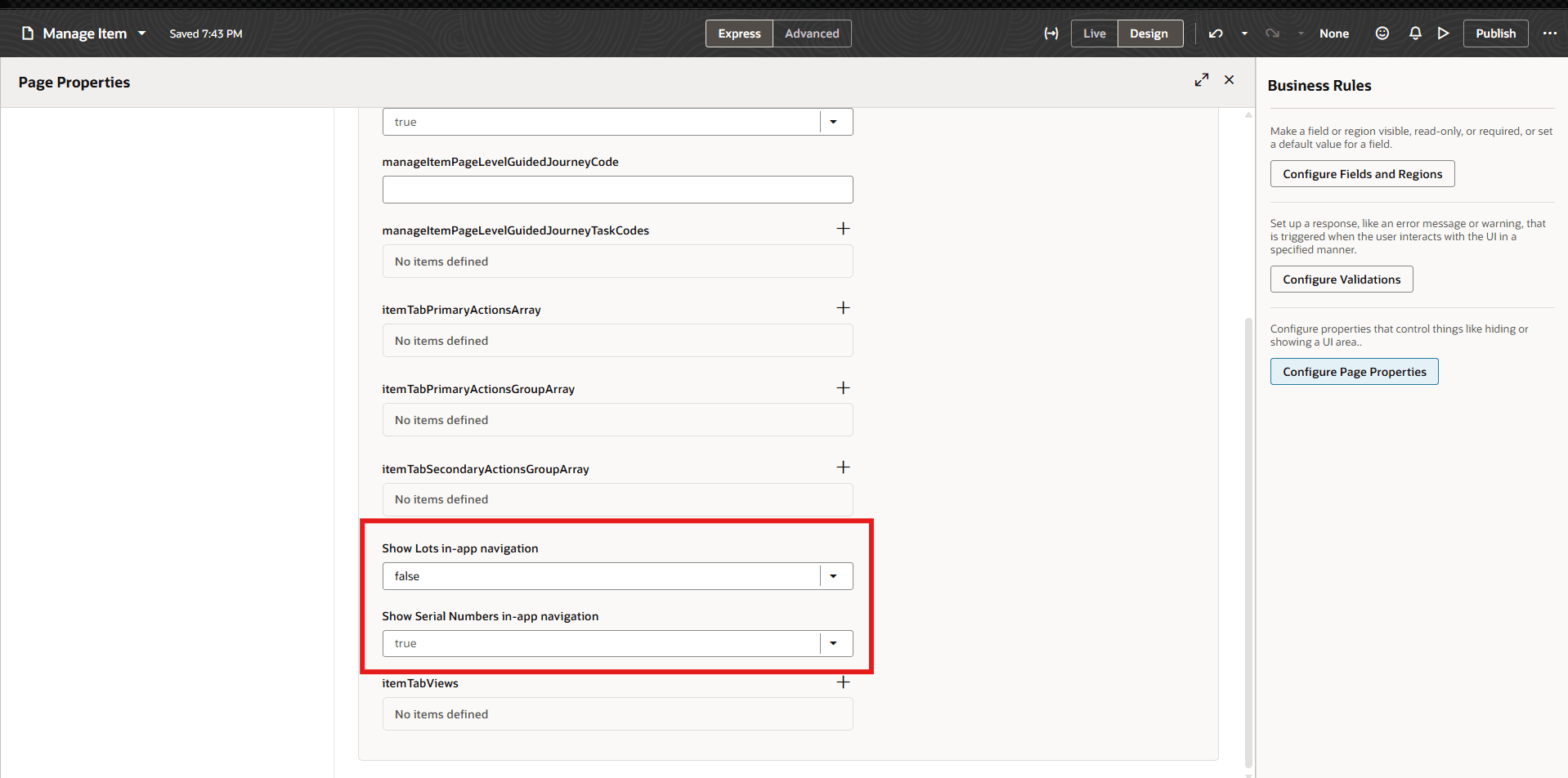
Update Lot and Serial Tab Properties
To update this setting, go to Page Properties through Edit Page in Visual Builder Studio, and set Show Lots in-app navigation and Show Serial Numbers in-app navigation to false to hide the respective tabs.
Secure New Lot Creation
You can now secure new lot creation on the Lot and Serial page by controlling access through a configurable page property and standard application privileges. This enhancement ensures that only authorized users can view and use the New Lot button, helping prevent unauthorized lot creation and improving process control.
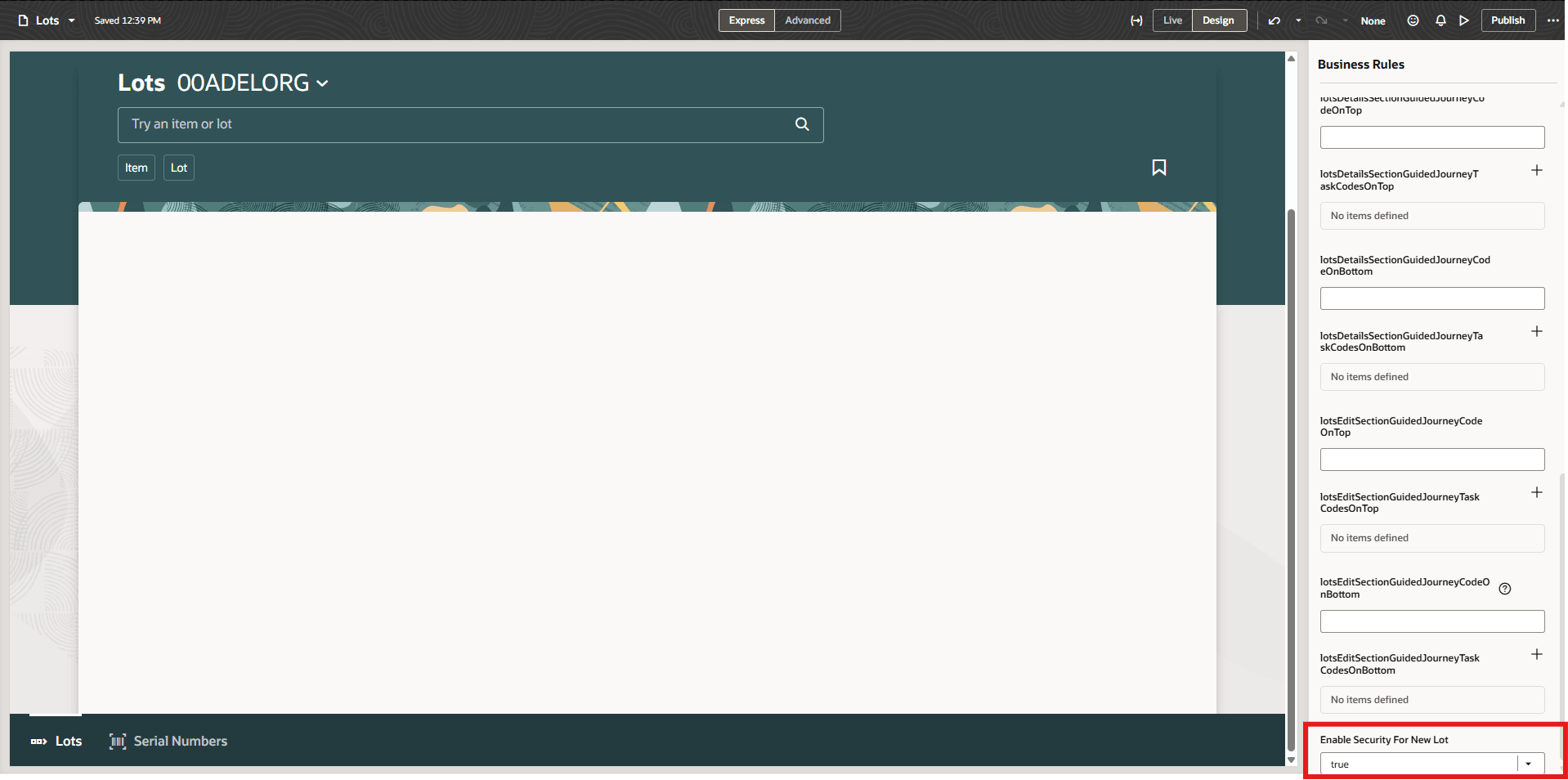
Hide Lot Button
To enable this security, administrators must go to Page Properties in Edit Page in Visual Builder Studio and set Enable Security for New Lot to true. Once enabled, the New Lot button is hidden by default for all users. In this release, a new privilege, Create Item Lot (INV_CREATE_ITEM_LOT_PRIV), is introduced. Users who are granted this privilege will be able to see and use the New Lot button, while the button remains unavailable for all other users after the above configuration is set to true.
This feature helps organizations enforce tighter controls over lot creation while maintaining a simple and secure Redwood user experience. All changes are configurable and help you enforce business processes consistently while maintaining a clean and user-friendly Redwood experience.
This feature provides you more control and flexibility in how specific pages behave in the application.
Steps to enable and configure
Leverage the Visual Builder Studio to expose your applications. To learn more about extending your application using Visual Builder, visit Oracle Help Center > your apps service area of interest > Books > Configuration and Extension.
Tips and considerations
- You can determine whether you can extend a specific page using Visual Builder Studio by using the Edit Page in Visual Builder Studio task from the Setting and Actions menu.
- Keep the Pages list closed while you work in Visual Builder Studio Express mode to get a cleaner view of the page you’re extending.
Key resources
- Follow the instructions here to Access Visual Builder Studio and start extending your application pages in Visual Builder Studio.
- Refer to these resources for additional information:
Access requirements
To extend application pages using Visual Builder Studio, you must be assigned a configured job role that contains this privilege:
-
Administer Sandbox (FND_ADMINISTER_SANDBOX_PRIV)
This privilege was available prior to this update.