AI Agent: Transfer Price Advisor
Enterprises must prioritize compliance, speed, and margin protection for intercompany flows across globally distributed fulfillment networks. However, transfer pricing is often finalized only at the time of transaction, leaving finance and operations to discover errors after the shipment. By then, corrections are costly, and reporting has already been impacted. Fragmented tools, manual spreadsheets, and delayed updates slow document generation and create inconsistencies across finance, supply chain, and shipping.
With the Intercompany Transfer Price AI Agent, cross-functional users can now get proactive, policy-aware transfer price intelligence before shipment. The agent estimates transfer prices for each leg in complex flows, including stocked intercompany chains and supplier drop ship or back-to-back scenarios, and embeds the results directly into preshipment workflows. Role-based controls ensure shipping users see only transfer prices by default, while profitability and gross margin surface solely on request and when privileges permit.
With the agent, teams can now:
- Validate alignment with organization-specific transfer pricing policies ahead of fulfillment, reducing corrections at a later stage.
- Accelerate shipping document generation by eliminating manual coordination.
- Improve financial planning with on-demand estimates, and support audit and compliance when authorized.
In addition to calculating transfer prices, the agent can also compute the resulting gross margin to support profitability analysis and decision-making. It also validates the calculations against the organization’s transfer pricing policy document, ensuring compliance with internal guidelines and strengthening governance and controls.
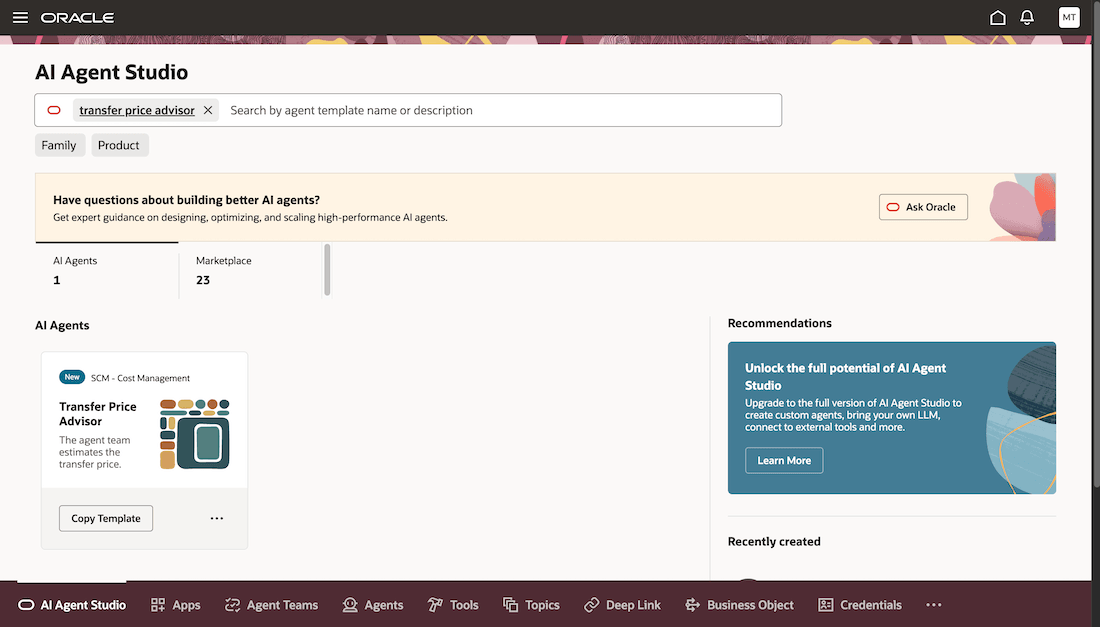
Transfer Price Advisor Template
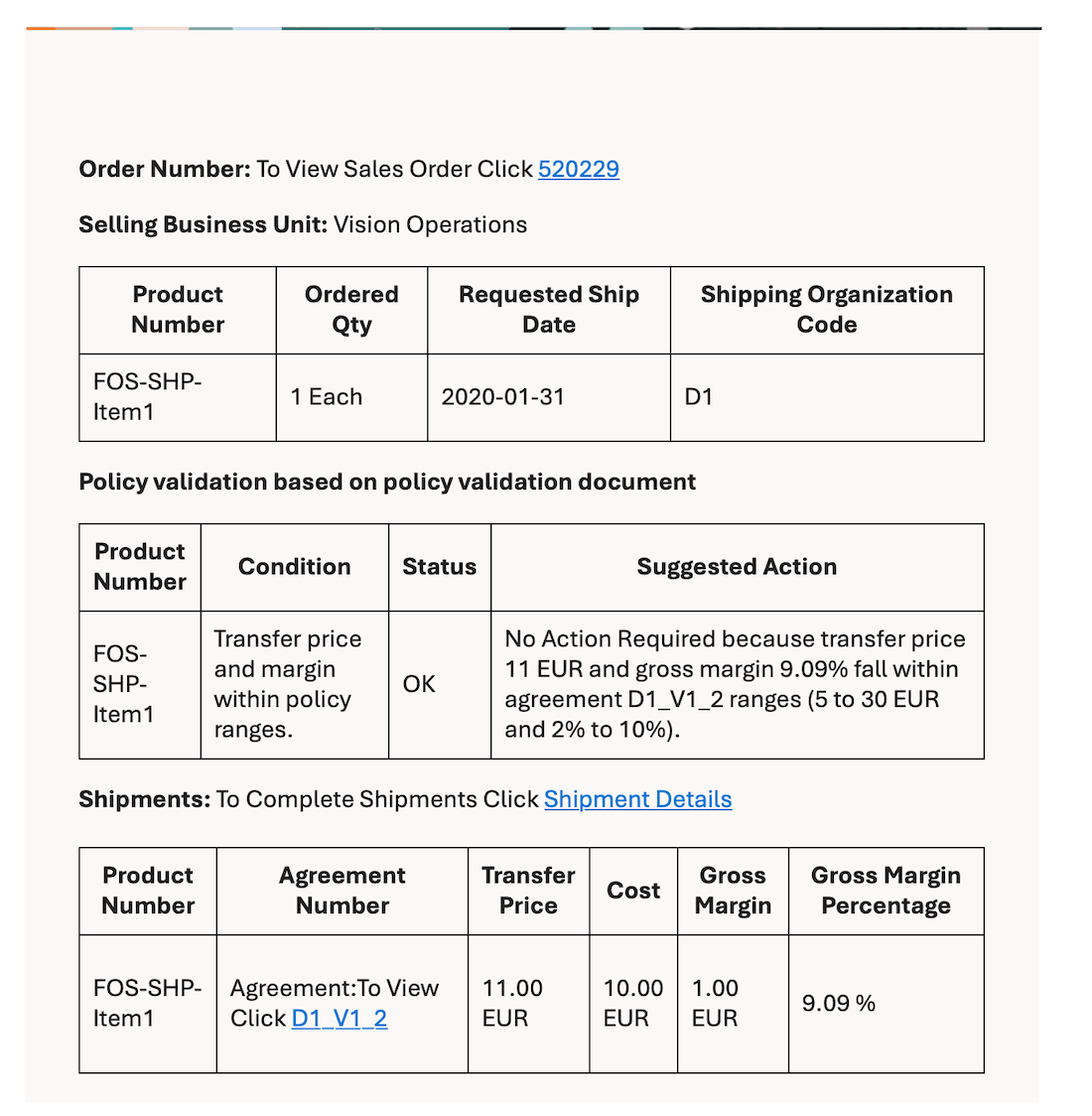
Email Template on Completion of Transfer Price Estimate
You now have access to faster, more reliable intercompany execution, stronger compliance, and pricing decisions which are delivered within the operational flow and governed by enterprise-grade access controls.
Steps to enable and configure
To use the Transfer Price Advisor Agent (Email), you need to create an email account first. Here's how you do that:
- In the AI Agent Studio page, select the Credentials tab.
- Select Add Account.
- On the create drawer, select your email provider. As of this update, Microsoft and Google accounts are supported.
- Select the Inbound radio button and provide the following information:
- Account Name for the email account.
- Email Address from where sales order number or other details are to be picked by the agent.
- Email Folder from which the emails are to be picked. The agent will check the folder and calculate transfer price for all unread emails. It is advisable to create a separate folder for transfer price advisor emails instead of using the inbox folder.
- Pooling Interval at which the agent will look at the emails to calculate the transfer price.
- Description for the account.
- Email credentials including Tenant ID, Client ID, and Client Secret.
- Select Create.
After the email account has been created, you need to copy the agent template. Here's how you do that:
- Select the AI Agent Studio navigation tab and search by Agent Team Name, Family, Product, or Created By.
- Locate Transfer Price Advisor and select Copy Template.
- Provide a valid suffix and select Continue to view the Agent Team.
- After copying the template, select the Agent Team Settings icon.
- Navigate to the Triggers tab and select Add button for Email trigger.
- Select the email account created earlier and select Update.
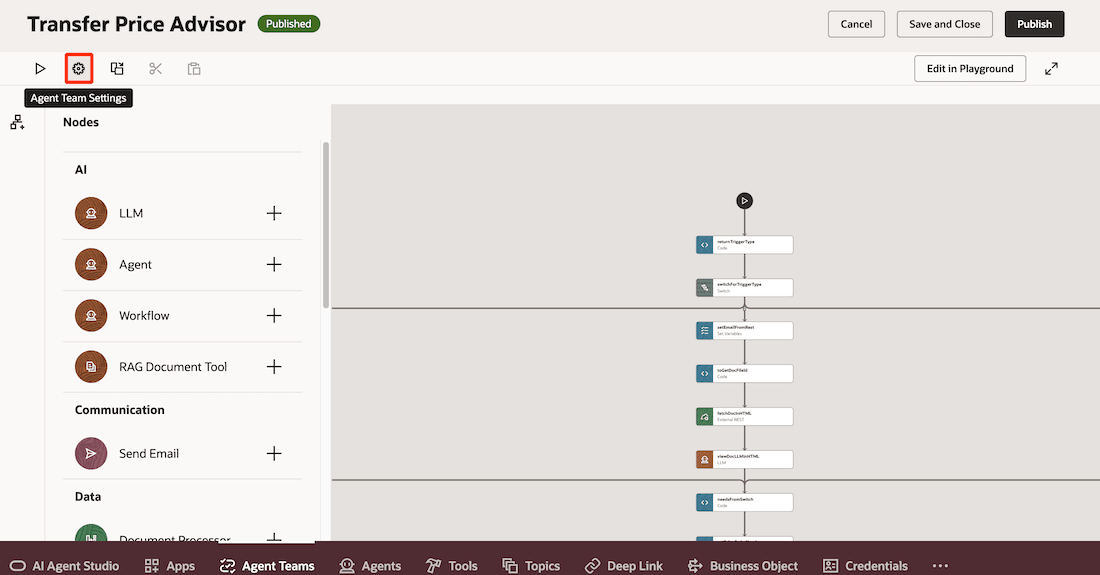
Agent Team Settings to Set Email Trigger
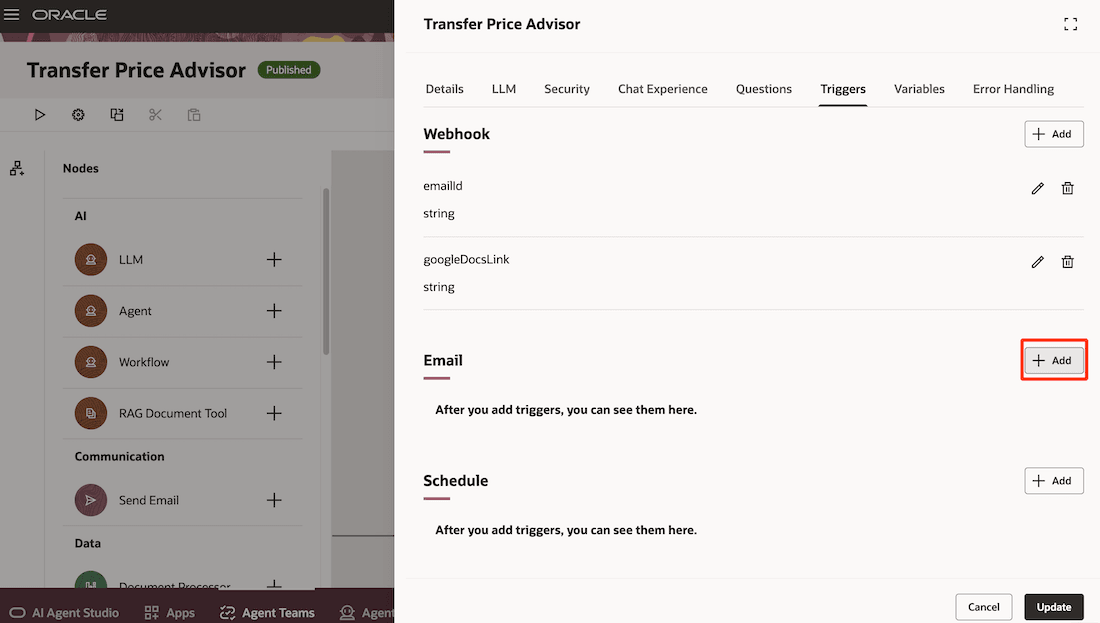
Adding Email Trigger
Trigger Using Chat Interface:
- Select the Debug icon.
- Select Rest as the Trigger Type and leave the Sample Trigger Input for emailId and googleDocsLink empty.
- Enter the prompt below and select Start Test.
Here's a prompt for retrieving transfer price using sales order number:
For sales order number <Sid>, calculate the transfer price.
For example, For sales order number 520229, calculate the transfer price.
Here's a prompt for retrieving transfer price using Sales Order Details:
Calculate the transfer price for fromBuOrgCode <buCode> sellingBuName <buName> InventoryItemNumber <itemNumber> OrderedUnitPrice <unitPrice> OrderedCurrencyCode <currencyCode> UnitOfMeasureCode <UOM> TransactionDate <date> Quantity <quantity>
For example, Calculate the transfer price for fromBuOrgCode D1 sellingBuName Vision Operations InventoryItemNumber FOS-Item115 OrderedUnitPrice null OrderedCurrencyCode null UnitOfMeasureCode Ea TransactionDate null Quantity 1
NOTE: All fields other than OrderedUnitPrice, OrderedCurrencyCode, and TransactionDate are mandatory.
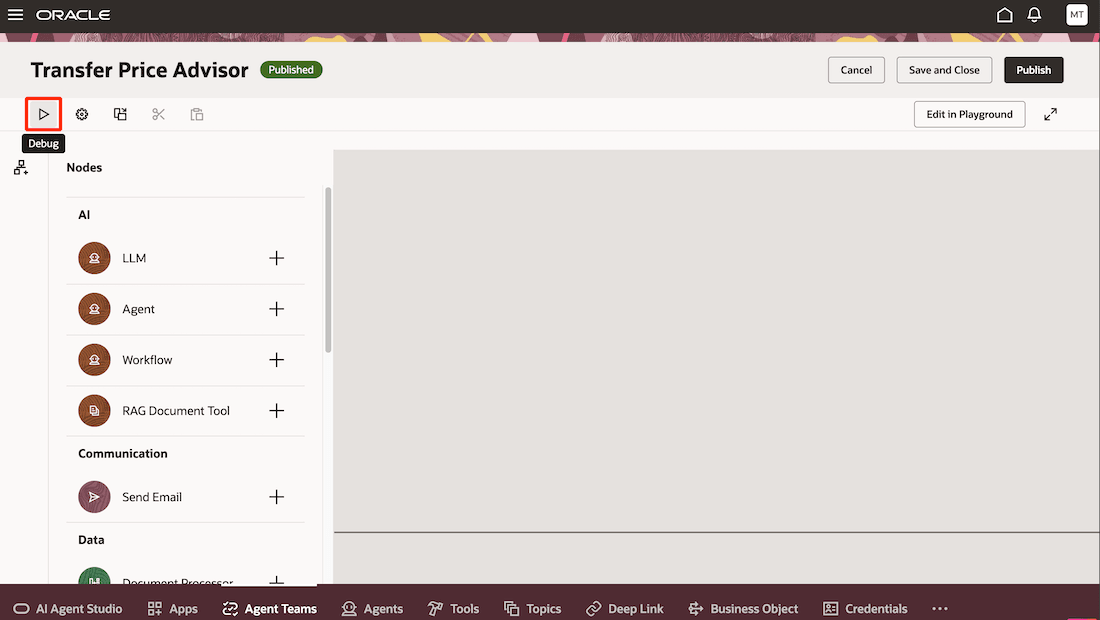
Running Agent Using the Debug Option
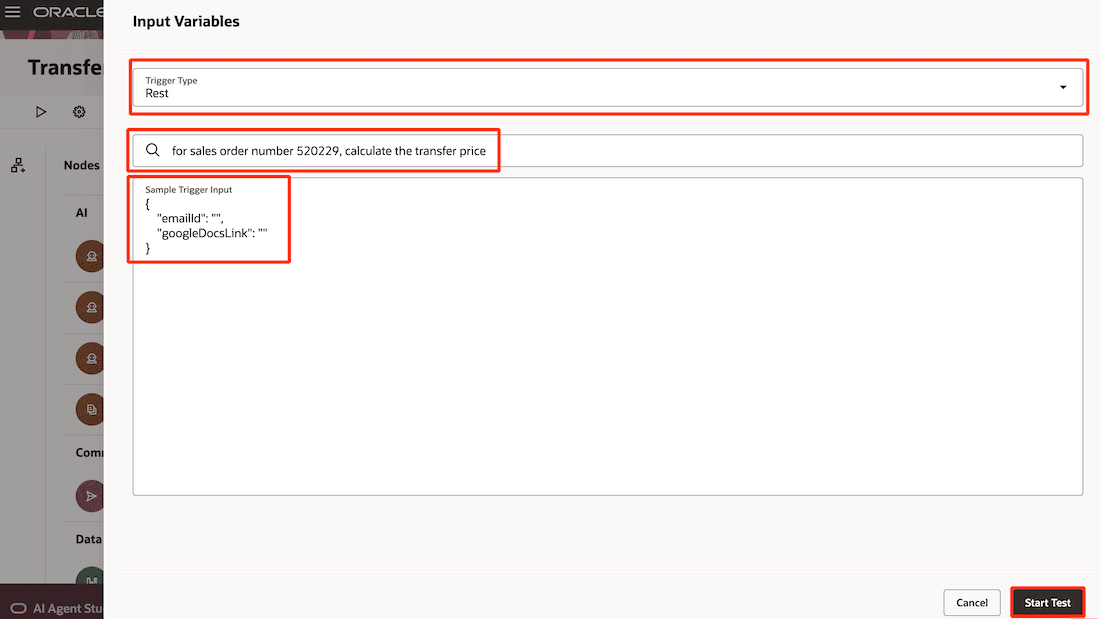
Run Agent Through Chat Interface
Here's a prompt to get the gross margin along with the transfer price:
For sales order number <Sid>, calculate the transfer price and gross margin.
For example, For sales order number 520229, calculate the transfer price and gross margin.
Optionally, you can use this prompt along with the sales order details prompt to get the gross margin.
Here's a prompt to receive an email with the transfer price details:
For sales order number <Sid>, calculate the transfer price, gross margin and send mail to <email ID>.
For example, For sales order number 520229, calculate the transfer price, gross margin and send mail to transferPriceAdvisor@oracle.com.
Optionally, you can use this prompt along with the sales order details prompt to get the email with transfer price details.
Steps to Setup Document for Transfer Price Validation:
- Select the Tools navigation tab and search by <Document_reference>, your organization specific document. For example, TransferPricePolicyDocument.
- Select Edit in the Action tab.
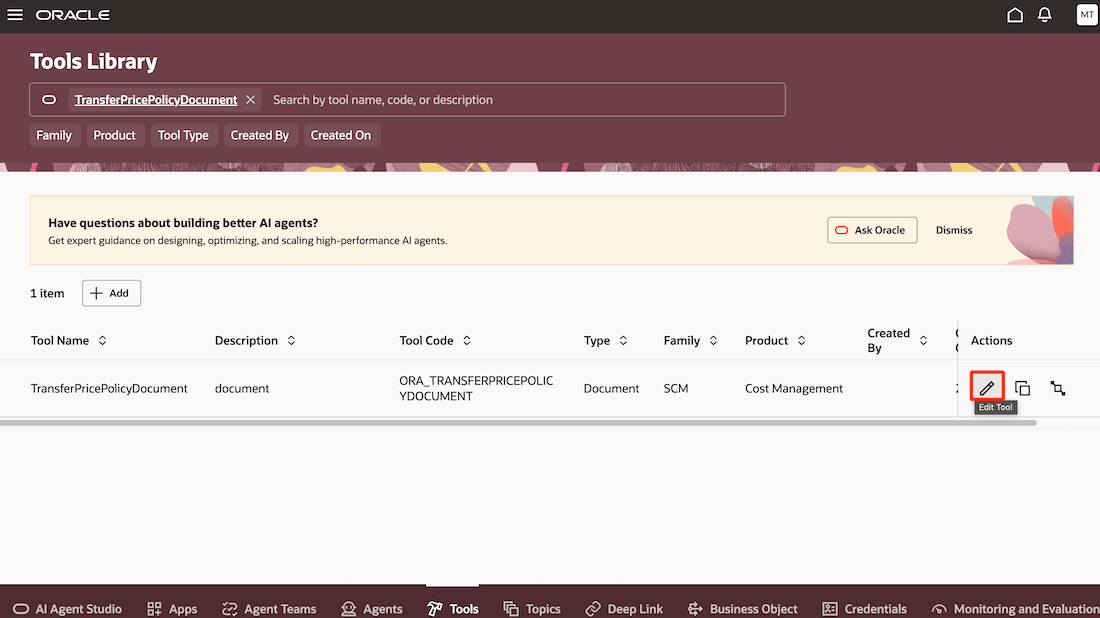
Viewing TransferPricePolicyDocument Tool
- In the Documents section, enter a name and description, and set the status to Ready to publish.
- When uploading the document, ensure it's in PDF format only.
- Select Save.
Run the ESS job below to publish the document and keep it ready for the agent.
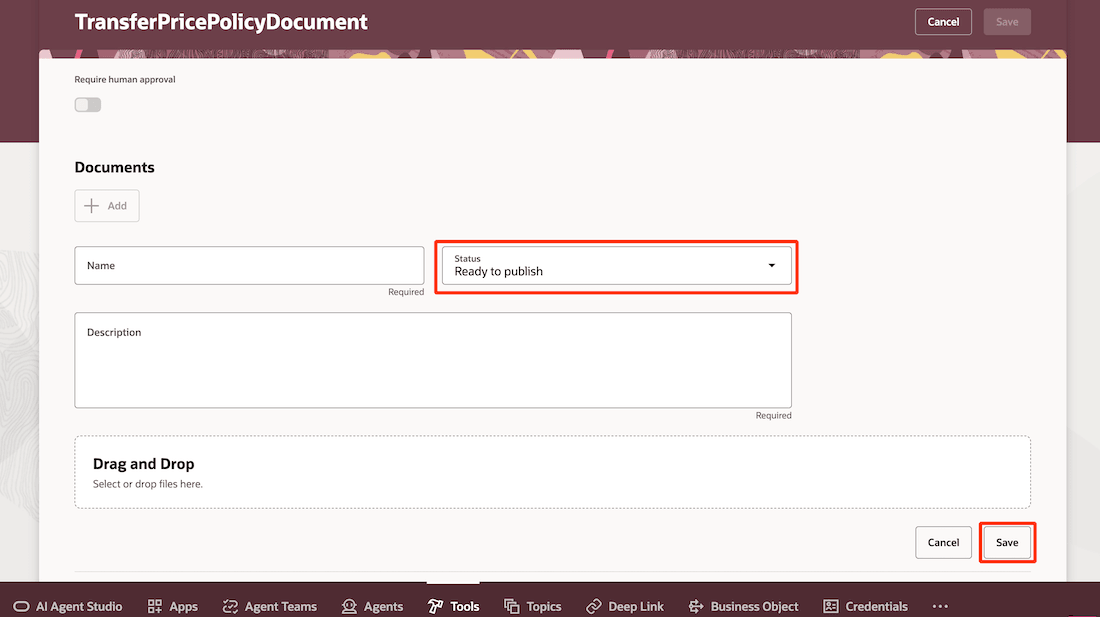
Uploading a Document Ready to Publish
6. Select Schedule New Process.
7. Select the Type as Job and search for the name Process Agent Documents.
8. Select OK.
9. Select Refresh and check if the task status is Succeeded.
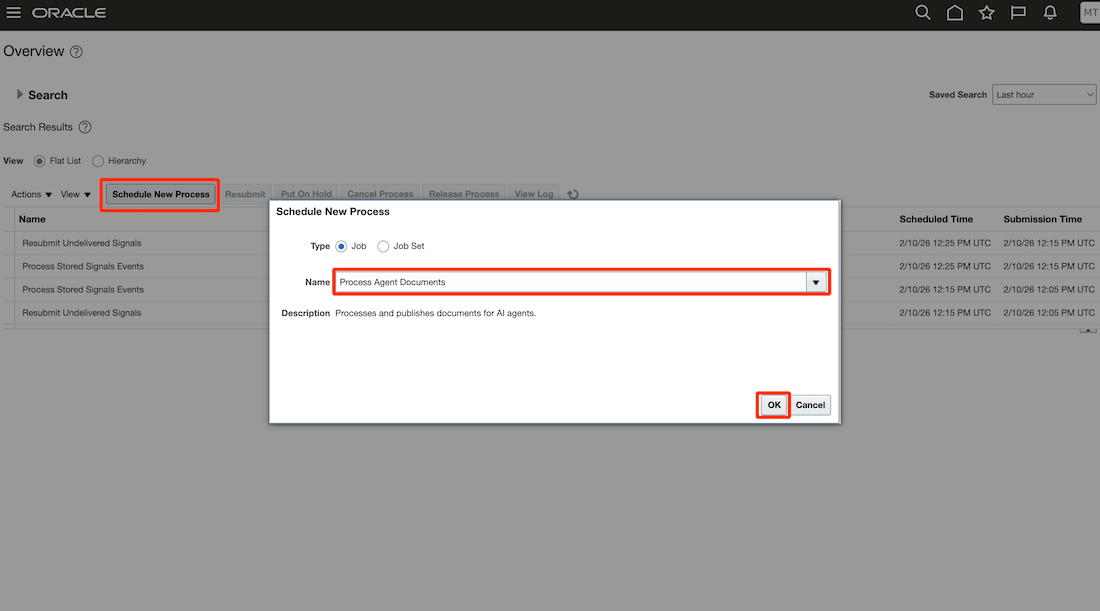
Running the Process Agent Documents Task
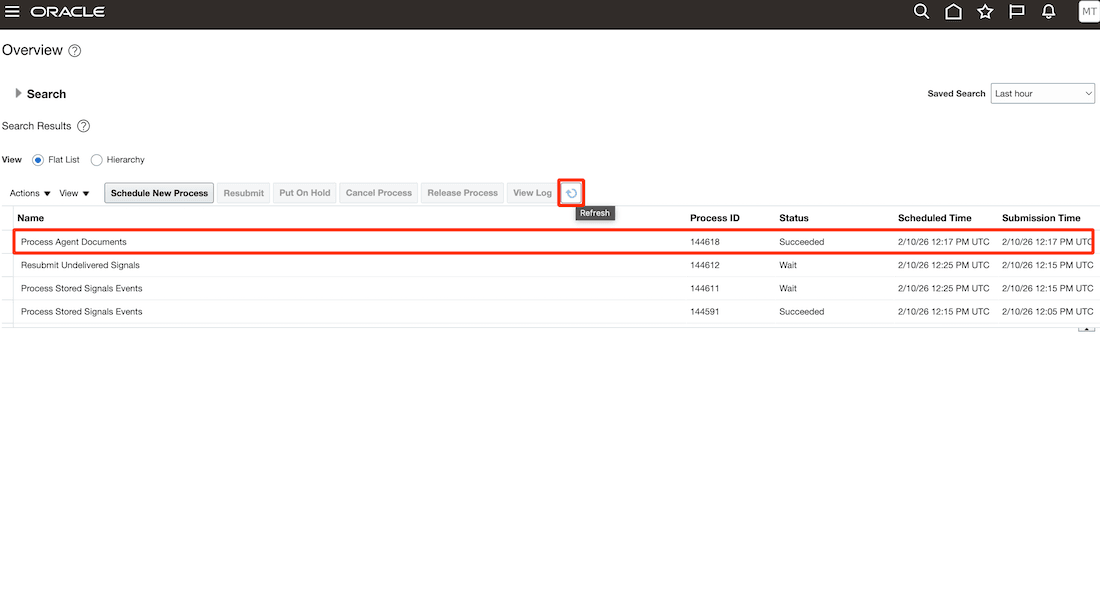
Check for Task Status
10. Navigate to the Tools in AI Agent Studio and select your document example TransferPricePolicyDocument.
11. Check the status of the document. It should be Published. The agent can now be used with document for validation.
Tips and considerations
- Once your emails are accessed by the agent, it will automatically set the email as read.
- Transfer price estimation for complex items like PTO, ATO, or kits are not supported.
Key resources
- Oracle Fusion Cloud SCM: Using Cost Management guide, available on the Oracle Help Center.
- Oracle Fusion Cloud SCM: Implementing Manufacturing and Supply Chain Materials Management guide, available on the Oracle Help Center.
- Oracle Fusion Cloud SCM: Security Reference for Manufacturing and Supply Chain Materials Management guide, available on the Oracle Help Center.
- Access Requirements for AI Agent Studio
- How can I give users access to AI agents?
- Create AI Agents
Access requirements
To access the Oracle AI Agent Studio for Fusion Applications and manage SCM AI agents, users must be assigned a configured job role that contains these duty roles:
- SCM Intelligent Agent Management Duty (ORA_RCS_SCM_AI_AGENT_MANAGEMENT_DUTY)
- SCM Intelligent Agent Management Duty (ORA_RCS_SCM_AI_AGENT_MANAGEMENT_DUTY_HCM)
- Fai Genai Agent SCM Administrator Duty (ORA_DR_FAI_GENERATIVE_AI_AGENT_SCM_ADMINISTRATOR_DUTY)
To interact with AI agents in product pages, users must be assigned a configured job role that contains this duty role:
- Fai Genai Agent Runtime Duty (ORA_DR_FAI_GENERATIVE_AI_AGENT_RUNTIME_DUTY)
To allow users to interact with agents, you must also enable permission groups in the Security Console on those users’ configured job roles that contain the Fai Genai Agent Runtime Duty role. You can enable permission groups when you manage the basic information of your configured job roles.
Users who are assigned a configured job role that contains this privilege can use this agent to estimate Transfer Price:
- Get Financial Orchestration Transfer Price by Service (FOS_GET_TRANSFER_PRICE)
-
Get Internal Transfer Requesting Organization Price (FOS_INTERNAL_TRANSFER_TRADE_AGREEMENT_SERVICE_GET_REQUESTOR_ORG_PRICE)
In addition, they must also have a configured job role that contains any one of the following privileges:
- View Supply Chain Financial Orchestration Flow by Web Service (FOS_VIEW_SUPPLY_CHAIN_FINANCIAL_TRADE_AGREEMENT_WEB_SERVICE)
Users’ configured job roles must also contain privileges that allow access to the pages where AI agents are enabled.