Redwood: Add Notes to Sales Orders
Add one or more notes to a sales order or order line. You can also edit and delete notes when you revise the order.
Realize these benefits:
- Improve customer satisfaction. Add details that are unique to each customer so you can meet their requirements. For example, add unique delivery details, unboxing instructions, usage tips, instructions for how to transport hazardous materials, special greetings, and so on.
- Be flexible. Add a note when you create the sales order or after you submit it. Add a note that applies for the entire order on the order header or add a unique note for each order line.
You can use the Order Management work area, the salesOrdersForOrderHub REST API, or an order management extension to create a note.
Order Management Work Area
Use redesigned pages in the Order Management work area to manage your notes.
Try it:
- Go to Home > Order Management > Order Management (New) > Sales Orders > Create Order.
- Add a business unit and customer, then click Save.
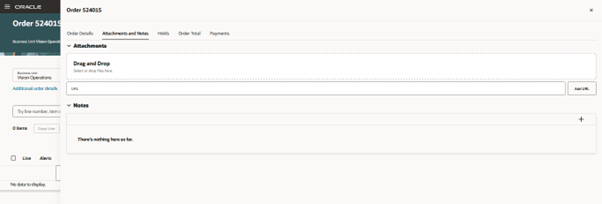
- Click Additional Order Details > Attachment and Notes, then click Add (the + icon):
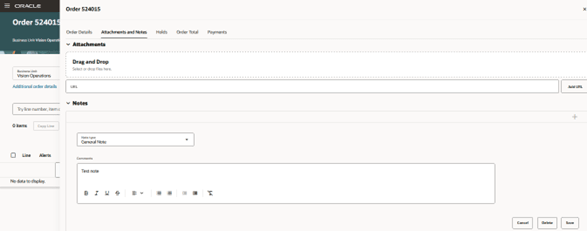
- Use the default General Note type or select a different one, enter your note, then click Save:
- Click Customize Columns in the note section, then display the Attachments and Notes column.
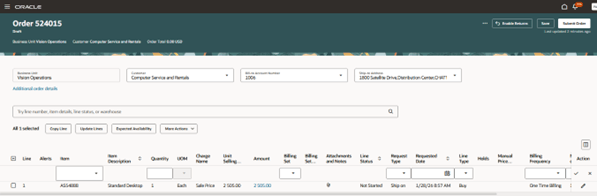
- Add an order line, then click the icon in the Attachment and Notes column:
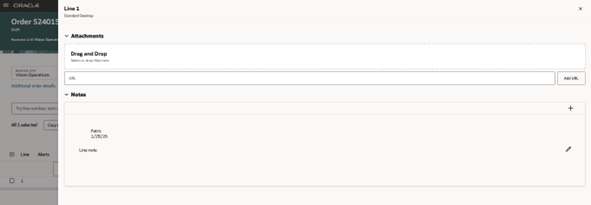
- Add your note:
You can use this feature to create, update, or delete a note only with Order Management's redesigned pages. You can't do this on the classic pages:
- If you create a text note on a classic page, then you can view it as an attachment on the redesigned page.
- If you create a note on a redesigned page, then you can't view it on a classic page.
Order Management Extension
This example adds a note to the order header and the order line:
import oracle.apps.scm.doo.common.extensions.Note;
if (!"HdrLineNote".equals(header.getAttribute("CustomerPONumber"))) return;
Note header_note = new Note();
header_note.setText("This is test note");
header_note.setNoteTypeCode("ORA_SCM_FOM_SO_GENERAL");
header.createNote(header_note);
def lines = header.getAttribute("Lines");
Note line_note = new Note();
while(lines.hasNext()) {
  def line = lines.next();
  line_note.setText("This is test line note");
  line_note.setNoteTypeCode("ORA_SCM_FOM_SO_GENERAL");
  line.createNote(line_note);
}
This example gets all the notes that are currently on the order header:
import oracle.apps.scm.doo.common.extensions.Note
if (!"GetHdrLineNote".equals(header.getAttribute("CustomerPONumber"))) return
def notes = header.getNotes()
for (note in notes) {
  String text = note.getText() + "These are header notes";
  header.setAttribute("PackingInstructions",text);
}
This example gets all the notes that are currently on an order line:
import oracle.apps.scm.doo.common.extensions.Note;
if (!"DeleteNoteOnSave_run_extension".equals(header.getAttribute("CustomerPONumber"))) return;
List<Note> notes = header.getNotes();
Iterator<Note> it = notes.iterator();
header.setAttribute("PackingInstructions", "it");
while (it.hasNext()) {
    def note = it.next();
    long text = note.getNoteId();
    header.setAttribute("PackingInstructions", text.toString());
    header.deleteNote(text);
}
def lines = header.getAttribute("Lines");
while(lines.hasNext()){
  def line = lines.next();
  List<Note> lnotes = line.getNotes();
  Iterator<Note> lit = lnotes.iterator();
  while(lit.hasNext()){
     def lnote = lit.next();
     long ltext = lnote.getNoteId();
     line.deleteNote(ltext);
  }
}
This example gets all the notes that are currently on an order line, deletes them, then creates new ones:
import oracle.apps.scm.doo.common.extensions.Note
if (!"deleteandadd".equals(header.getAttribute("CustomerPONumber"))) return
def lines = header.getAttribute("Lines");
while(lines.hasNext()){
  def line = lines.next();
  def lnotes = line.getNotes();
  for(lnote in lnotes){
    long noteId = lnote.getNoteId();
    line.deleteNote(noteId);
  }
  Note line_note = new Note();
  line_note.setText("This is new note on line");
  line_note.setNoteTypeCode("ORA_SCM_FOM_SO_GENERAL");
  line.createNote(line_note);
}
You can use an extension only to create or update a note. Use these attributes:
- NoteIdText (NoteText)
- NoteTypeCode
- NoteTypeMeaning
- ObjectId
- ObjectType
REST API
|
Description |
CURL |
Payload |
|
Create header notes. |
https://envxxxx.fusionapps.ocs.oc-test.com:443/fscmRestApi/resources/11.13.18.05/salesOrdersForOrderHub/header_id/child/notes |
{ "Text": "This is header note", "NoteTypeCode": "ORA_SCM_FOM_SO_GENERAL" } |
|
Get header notes. |
https:// envxxxx.fusionapps.ocs.oc-test.com:443/fscmRestApi/resources/11.13.18.05/salesOrdersForOrderHub/GPR:KH_1001-01/child/notes |
|
|
Get line notes. |
https://envxxx.fusionapps.ocs.oc-test.com/fscmRestApi/resources/11.13.18.05/salesOrdersForOrderHub/GPR:OM_01_01/child/lines/100106911191729/child/notes/ |
|
|
Update header notes. Get the note, then use Upsert to update it. |
{ "OrderKey": "GPR:KH_1001-01", //OrderKey is required to identify order to operate on "notes": [ {"NoteId": "300100665390458", "NoteTypeCode":"ORA_SCM_FOM_SO_GENERAL", "Text": "Update note" } ] } |
You can use REST API only to create or update a note. Use these attributes:
- Text. This is the note text.
- NoteTypeCode
- NoteTypeMeaning
- NoteId
Steps to enable and configure
You don't need to do anything to enable this feature.
As an option, you can use these lookup codes to add a note type:
- Use Sales Order Notes to add a note type to the order header.
- Use Order Line Notes to add a note type to the order line.
Assume you need to add a note type for the header and line:
- Go to Home > My Enterprise > Setup and Maintenance > Manage Extended Lookup Codes.
- Search for the Sales Order Notes lookup type, add a new row and set its attributes, such as Lookup Code, Extended code, and Extended Name, then click Save:
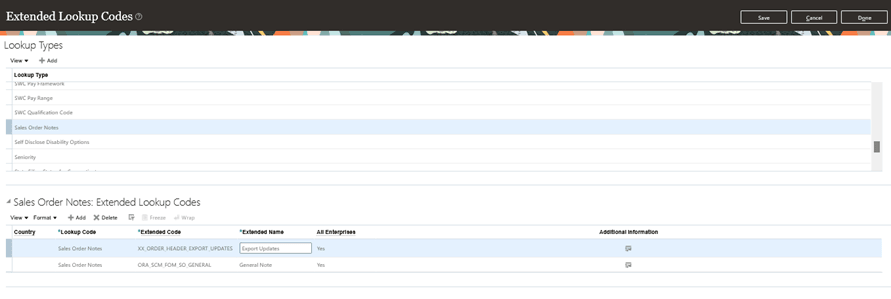
- Do the same for the Order Line Notes lookup code:
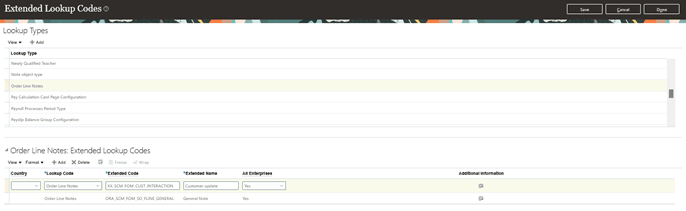
Note that the Manage Extended Lookup Codes task is an Oracle Human Capital Management task. If you need to export and import these note types across environments, then you must create an implementation project to export the configuration package, and then import it into the destination environment. See Copy Setups Between Instances of Order Management.
Tips and considerations
You can't view a note in a work order or a purchase order in a back-to-back flow or drop ship flow.
If you apply a format to the note when you use the workarea, such as apply bold to text, then Order Management uses a format tag to save that format in its database. If you then use an extension or REST API to get the note, then Order Management includes the tag in the response. You might need to crop the tag to get only the text. For example: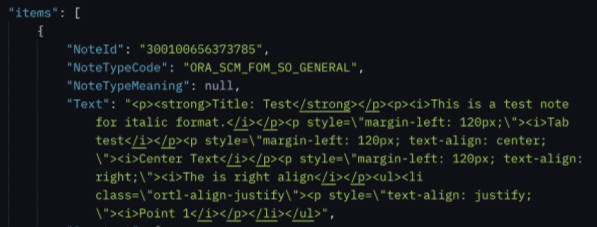
Key resources
Access requirements
No new privileges are needed to use this feature.