Redwood: Calculate Quantities in Secondary UOM According to Item's Lot on Sales Orders
Automatically calculate a quantity in the secondary UOM according to a UOM conversion that you set up for the item's lot. Use this feature with your inventory transactions and returns when you order an item that's under lot control and that you track in dual units of measure.
Realize these benefits:
- Achieve higher precision, regulatory compliance, operational efficiency, and improved financial integrity throughout your supply chain.
- Improve your billing's accuracy. Bill accurately so you can increase profitability.
- Improve the accuracy of the price that you charge or credit your customer. Use the UOM conversion for the item’s lot to bill according to the quantity that you actually sell or return in the secondary UOM.
You might sell your items in lots or batches, such as in food, beverages, chemicals, and so on. Each lot might have physical variations that affect potency, concentration, volume, weight, and so on. Applying a unit of measure (UOM) conversion for an item to all of its lots might cause inaccurate pricing, inventory tracking, and cost calculations, increase compliance risk, and cause fulfillment problems.
Oracle Inventory Management introduced the Redwood: Use Lot-Specific Unit of Measure Conversions feature in update 26A. You can use it to set up a unique UOM conversion for each individual lot for an item, and Oracle Order Management can use it for its transactions.
Create Sales Order
Create a sales order for the inventory transaction:
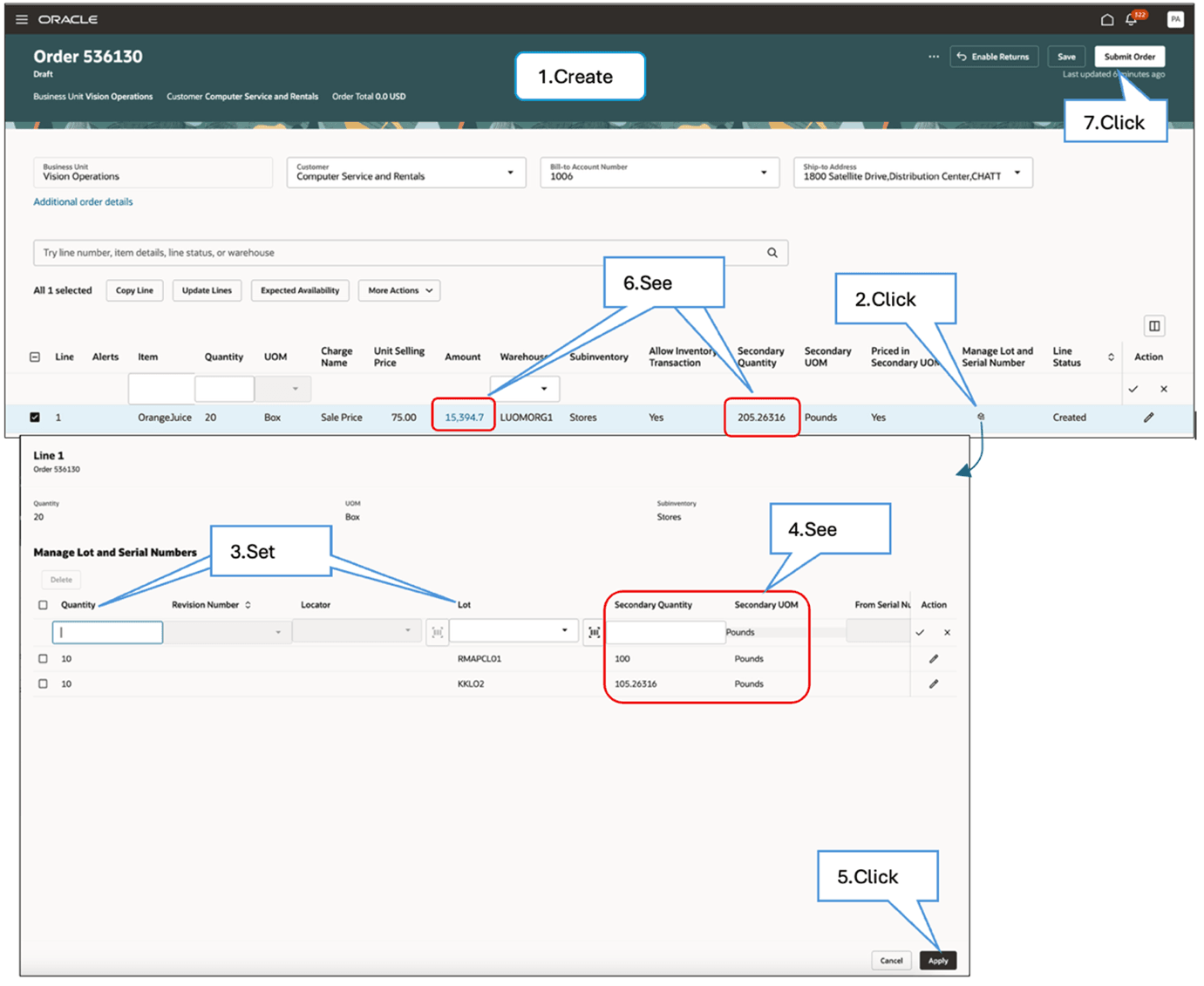
Try it:
- Create a sales order with a line that has:
- Allow Inventory Transaction attribute set to Yes.
- An item that’s under lot control and that you track in dual units of measure.
- A warehouse where the Enable Lot Specific Conversions option is enabled in the inventory organization parameters. See Redwood: Use Lot-Specific Unit of Measure Conversions.
- Click the icon in the Manage Lot and Serial Numbers attribute.
- Set the Quantity attribute and the Lot attribute. Make sure the sum of the quantities across the lots is equal to the order line's quantity.
- Notice that Order Management uses the current date to automatically calculate the Secondary Quantity according to the UOM conversion that you set up for the lots.
- Click Apply.
- Notice that Order Management adds together the lots' secondary quantities and applies it to the order line's secondary quantity. It also calls Oracle Pricing to reprice the order line according to the updated secondary quantity.
- Click Submit Order.
Note:
-
As an option, you can set the secondary quantity for the lot in step 3 instead of quantity. Order Management will automatically calculate quantity according to the lot's UOM conversion.
-
If you price the item in the primary UOM, then Pricing won't reprice the order line in step 6.
Create Return Order
Create a referenced return:
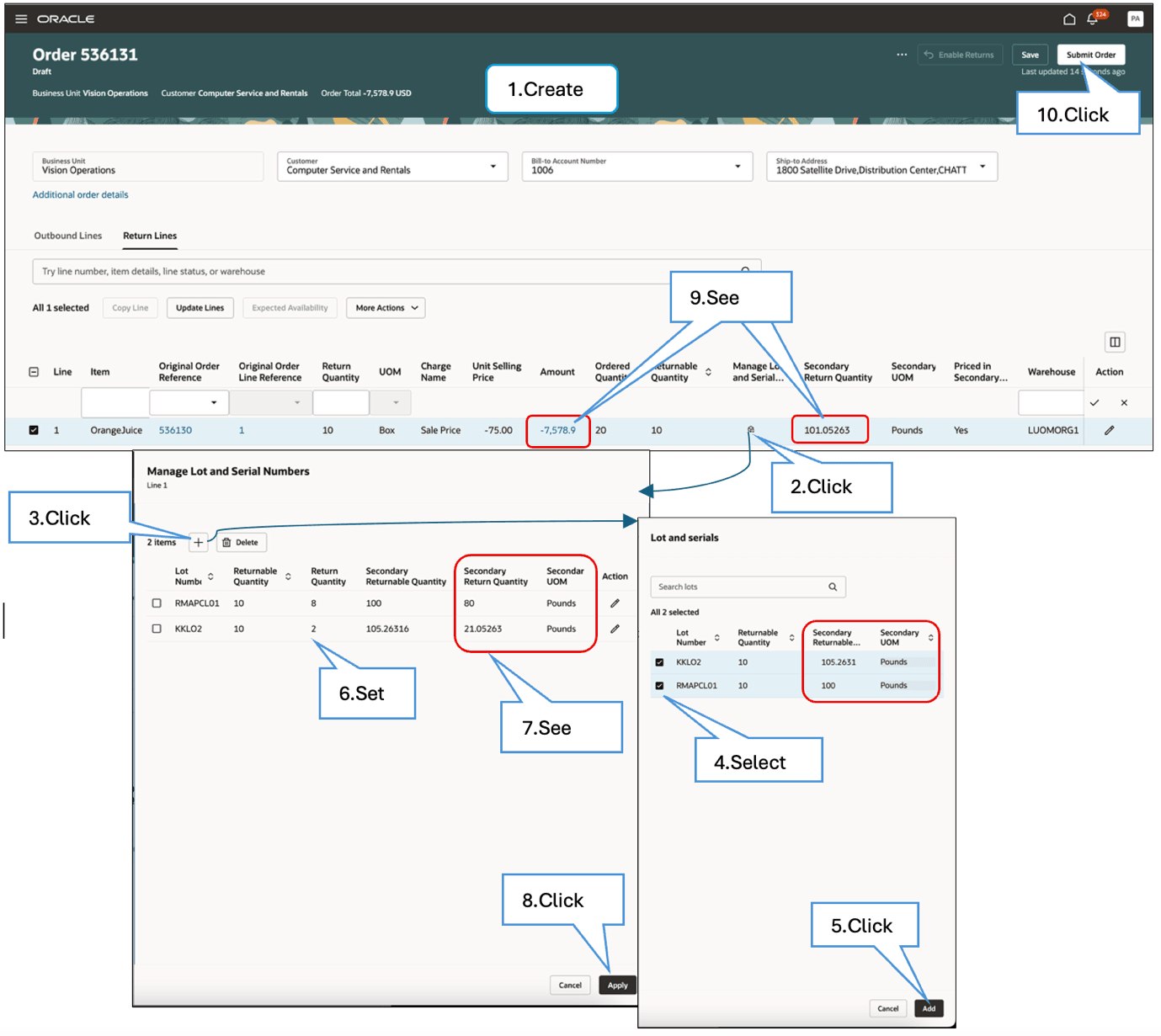
Try it:
- Create a referenced return with a line that has:
- An item that’s under lot control and that you track in dual units of measure.
- A receiving warehouse where the Enable Lot Specific Conversions option is enabled.
- Click the icon in the Manage Lot and Serial Numbers attribute.
- Click + (the plus icon) to open a dialog that displays the list of lot numbers that Order Management shipped for the original order.
- Select the lot number that you want to return.
- Click Add to add the lot numbers.
- Set the Return Quantity that you want to return for each lot. Make sure the sum of the return quantities for all lots is equal to the return line's quantity.
- Notice that Order Management automatically calculates Secondary Return Quantity according to the lots' UOM conversion that was in effect when Order Management shipped the original order.
- Click Apply.
- Notice that Order Management adds together the lots' secondary return quantities and applies it to the return line's secondary quantity. It also calls Pricing to reprice the return line according to the updated secondary return quantity.
- Click Submit Order.
Note:
-
As an option, you can set the secondary return quantity for the lot in step 6 instead of the return quantity. Order Management will automatically calculate the return quantity according to the lots' UOM conversion that was in effect when Order Management shipped the original order.
-
If you price the item in the primary UOM, then Pricing won't reprice the return line in step 9.
-
If the receiving warehouse on the referenced return is different from the warehouse on the original order, then Order Management will use the receiving warehouse's Enable Lot Specific Conversions option. If that option isn't enabled in the receiving warehouse, then Order Management won't calculate the secondary return quantity for the lot, and the Manage Lot and Serial Numbers page won't display the secondary attributes.
You can do the same procedure to create an unreferenced return:
- In step 3, the dialog will display a list of the item's shipped lots.
- In step 7, Order Management will use the current date to automatically calculate the Secondary Return Quantity according to the lots' UOM conversion.
Steps to enable and configure
You must set up these features:
- Redwood: Create and Manage Sales Orders. You must opt into this feature even if you only use REST API or file-based data import (FBDI).
- Redwood: Use Lot-Specific Unit of Measure Conversions
- Create and Fulfill Sales Orders and Transfer Orders in Dual Units of Measure
- Reduce Inventory When a Sales Order Doesn't Require Picking or Shipping
- Redwood: Specify Lot and Serial Numbers on Return Order Lines
Tips and considerations
- You can use this feature on redesigned pages in the Order Management work area, through the Sales Orders for Order Hub REST API, or FBDI (file-based data import).
- If you create a sales order on the classic Order Management page or through the Order Import web service, then Order Management won’t calculate the quantity in the secondary UOM for the item’s lot, and it won't determine the order line's secondary quantity according to the UOM conversion that you set up for the item's lot.
- If you update an order line's ordered quantity or secondary quantity, the return quantity or secondary return quantity, UOM, or item, then Order Management will use an item conversion or standard conversion to recalculate the secondary quantity or secondary return quantity. You must use the Manage Lot and Serial Numbers page to update the lots' quantities so Order Management can update the line's secondary quantity or secondary return quantity according to the lots' UOM conversion.
- If Order Management can't find the lot's UOM conversion, then it will use the item conversion to calculate secondary quantities. If the item conversion isn’t available, then Order Management will use the standard conversion.
If an item’s lot on the order has a secondary quantity but your fulfillment system didn't send that quantity, then you can’t edit, revise, cancel, or apply an action on the classic Order Management page or through the Order Import web service. If you can't use the redesigned pages because you opted out of the Redwood: Create and Manage Sales Orders feature, then you can use REST API to:
- Delete or cancel the order.
- Revise the order or submit a draft order. You must delete the lot on the order line and add a new one that has the same quantity and lot attributes when you revise or submit the draft.
Note: Starting in update 26A, if you set up the Redwood: Use Lot-Specific Unit of Measure Conversions feature for a warehouse, and if you ship or deliver an item from this warehouse that's under lot control and tracked in dual units of measure, then Inventory Management will calculate the secondary quantities according to the lots' UOM conversion, send them to Order Management, and Order Management will update the sales order's secondary quantities and recalculate price.
If you need to revise a sales order or submit a draft order that you created before you opted into the Redwood: Create and Manage Sales Orders feature, and if you enabled the warehouse's Enable Lot Specific Conversions option, and if:
- The order contains an inventory transaction or return line that you haven't sent to inventory or received in the warehouse, and
- The item is under lot control and tracked in dual units of measure.
. . .then you must delete the lot on the line and add a new one that has the same quantity and lot attributes. You can use the redesigned Manage Lot and Serial Numbers page or REST API to do it.
Key resources
See the links in the Steps to Enable section.
Access requirements
No new privileges were added for this feature.