Redwood: Use Promised Ship and Arrival Dates to Manage Order Lines
You can now use promised ship and promised arrival dates to filter and edit order lines, and to manage delay.
Filter
Go to Home > Order Management (New) > Sales Order Lines > Filters, then set these filters:
- From Promised Ship Date
- To Promised Ship Date
- From Promised Arrival Date
- To Promised Arrival Date
For example:
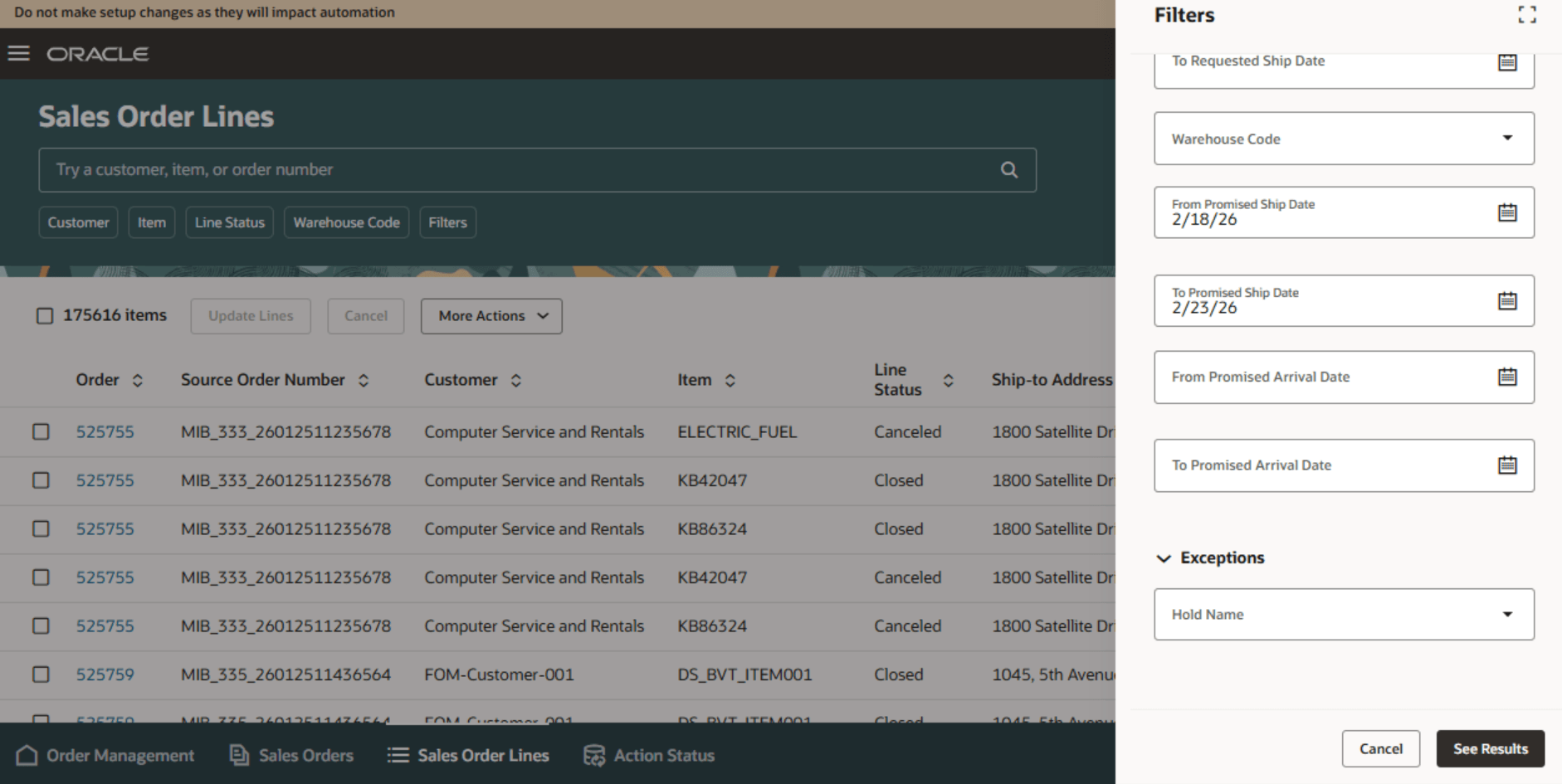
Notice the result in the Promised Ship Date and Promised Arrival Date attributes:
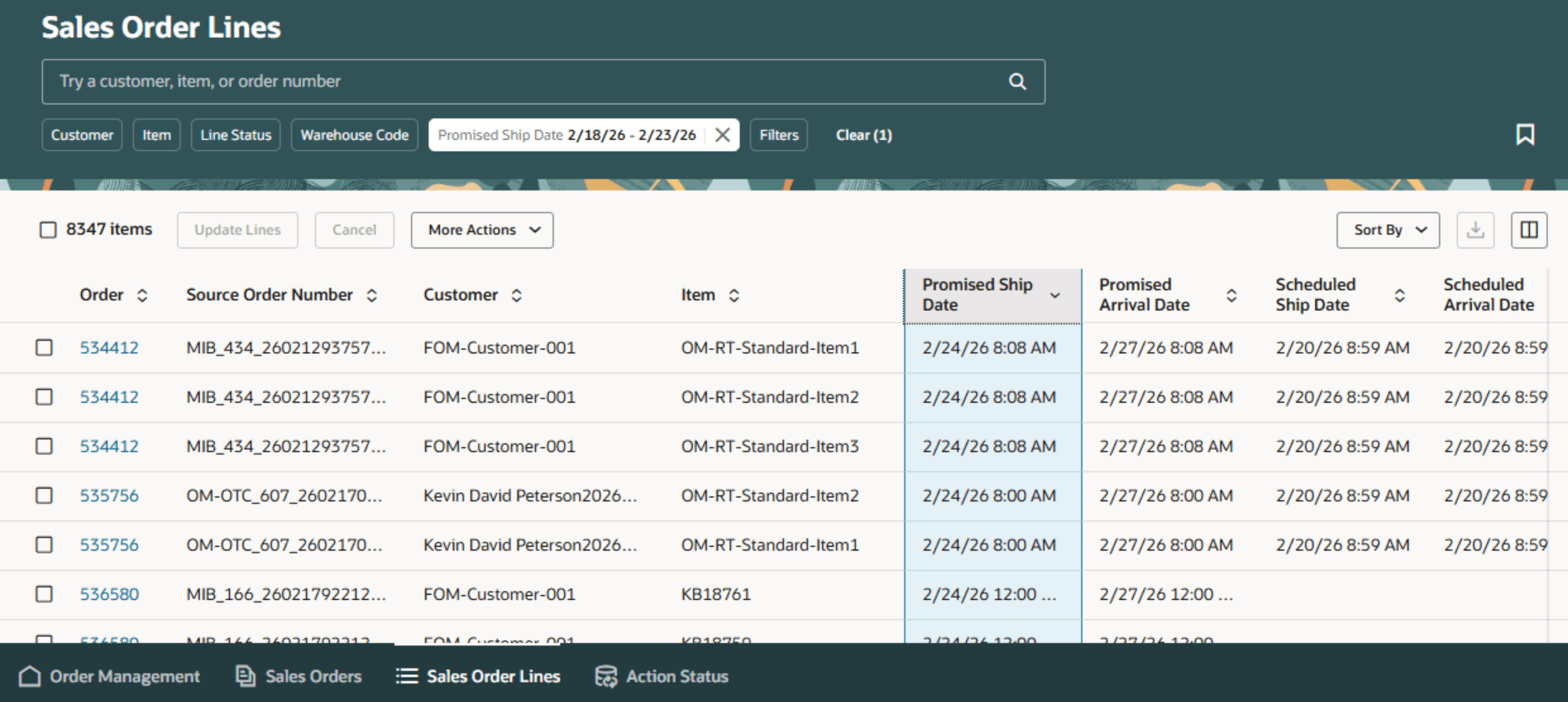
Set Promised Dates On Order Lines
If you set the order line's Request Type attribute to:
- Ship On. Order Management will store the value that's in the Promised Date attribute in the Promised Ship Date attribute.
- Arrive On. Order Management will store the value that's in the Promised Date attribute in the Promised Arrival Date attribute.
For example, if you set the Request Type to Ship On, set the Promised Date to February 18, then Order Management will set the Promised Ship Date to February 18:
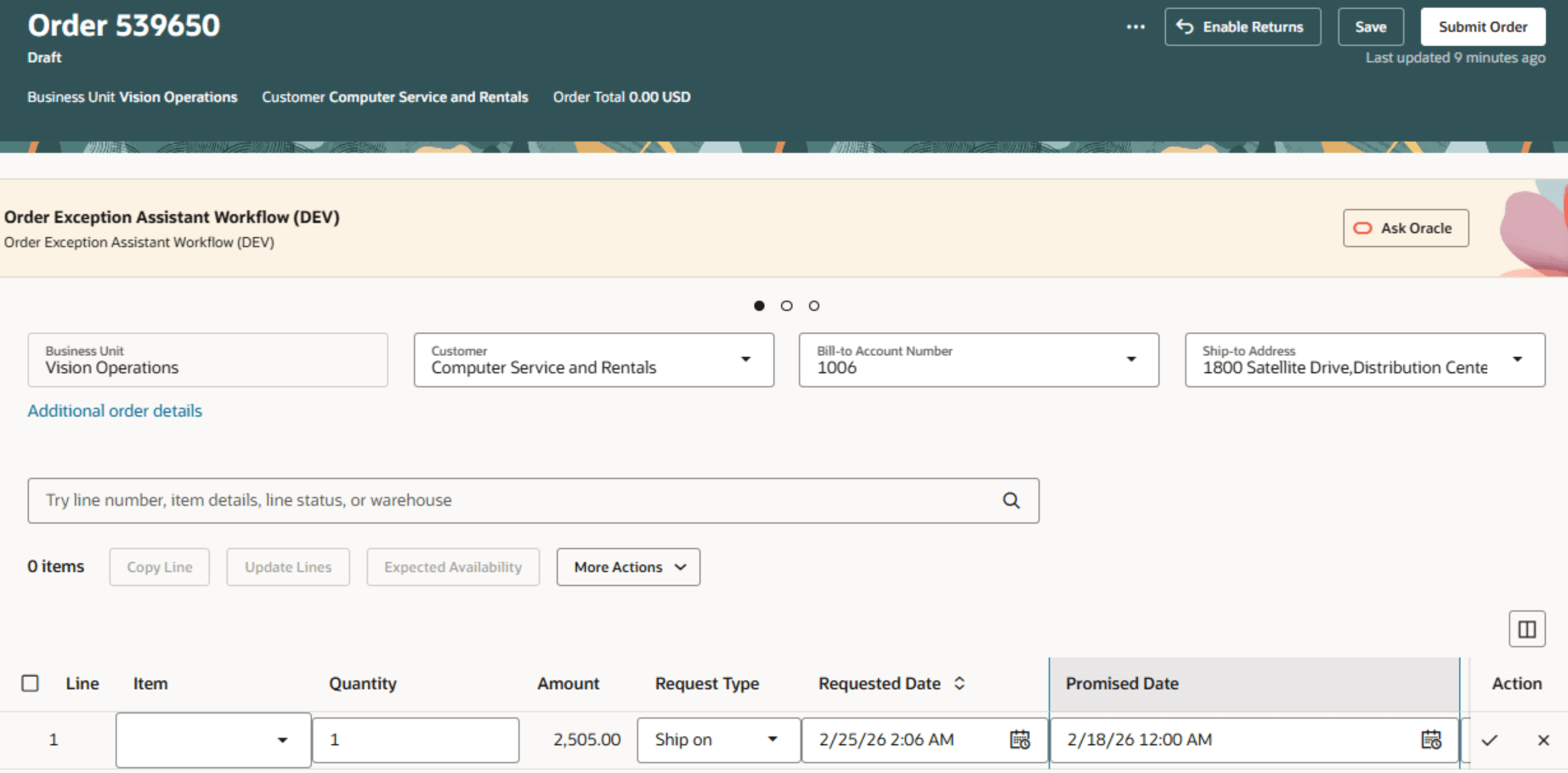
Note that the Order Management work area doesn't display the Promised Ship Date attribute or the Promised Arrival Date attribute.
Use Order Management Extensions
You can use an Order Management Extension to set the promise dates:
def headerRSD = header.getAttribute("RequestShipDate");
if (headerRSD == null) return;
def headerRSD_Time = headerRSD.getTime();
def vPSD = new java.sql.Date(headerRSD_Time + getTimeInMillis(4));
def vPAD = new java.sql.Date(headerRSD_Time + getTimeInMillis(7));
def lines = header.getAttribute("Lines");
while( lines.hasNext() ) {
  def line = lines.next();
  line.setAttribute("PromiseShipDate", vPSD);
  //line.setAttribute("PromiseArrivalDate", vPAD);
}
public static long getTimeInMillis(long days) {
  return days * 24 * 60 * 60 * 1000;
Mass Edit
Select more than one order line, click Update Lines, set the Promised Date, then click Update:
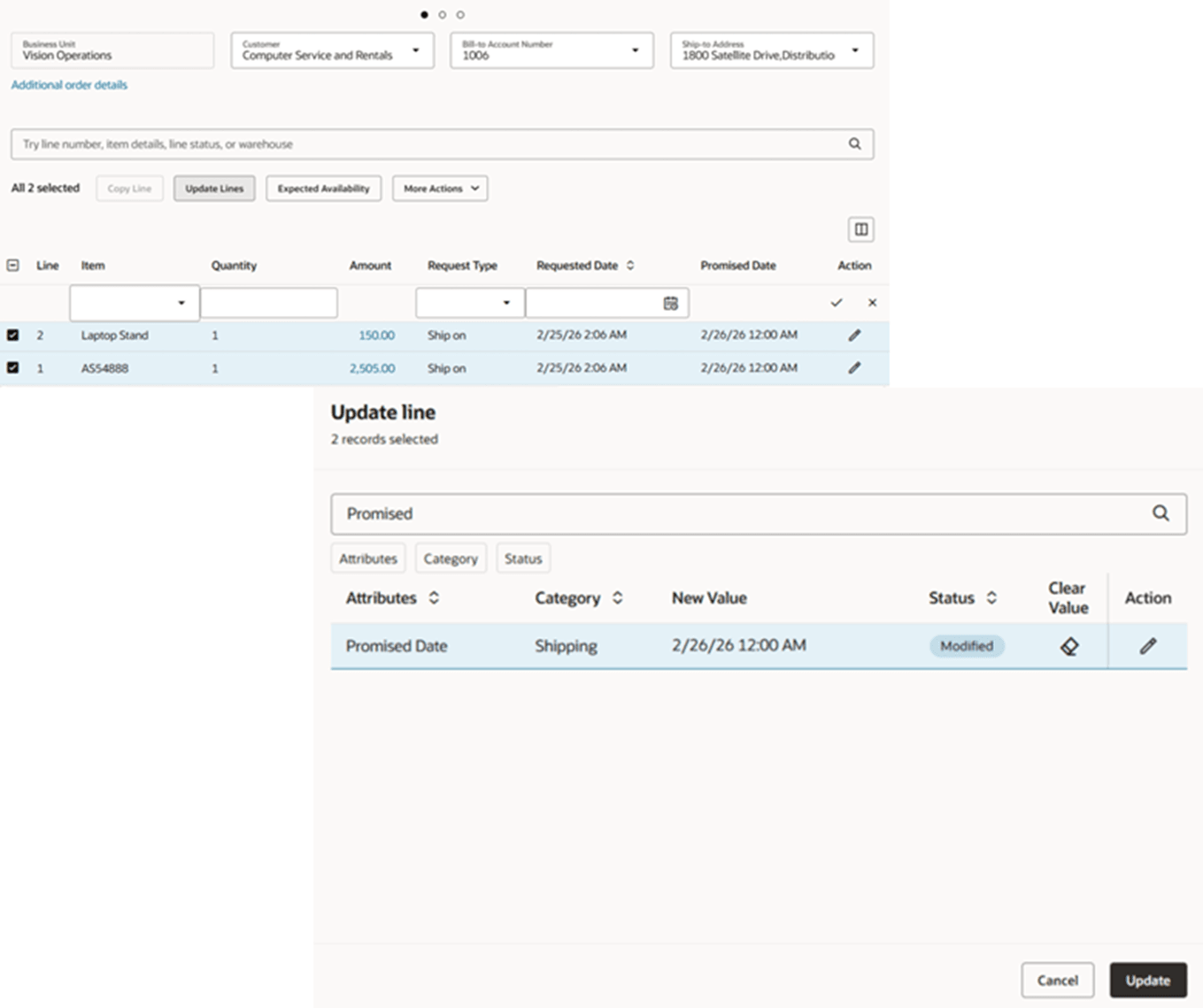
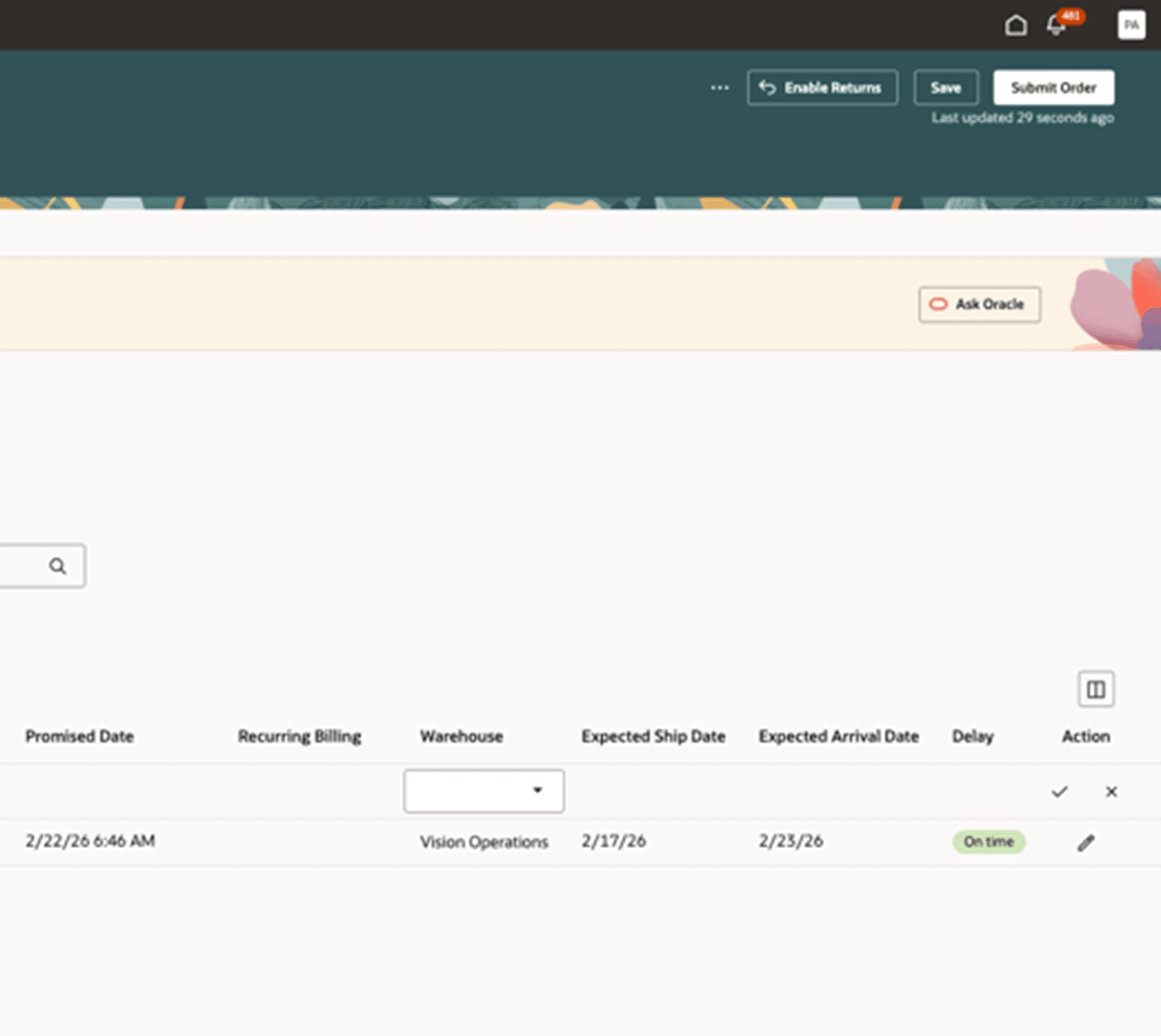
Examine the Delay
Look at the Delay attribute to see if the line is on time or delayed. If the Scheduled Ship Date or the Scheduled Arrival Date happens:
- On or before the Promised Date. Delay contains On Time.
- After the Promised Date. Delay contains Delayed.
For example:
Note:
-
Delay considers the Scheduled Ship Date or the Scheduled Arrival Date depending on how you set the Request Type.
-
If the Promised Date is empty, then delay uses the Requested Date.
Steps to enable and configure
You don't need to do anything to enable this feature.
Tips and considerations
Before update 26B, Order Management validated the Promised Date to make sure it happened after the Requested Date. Starting with update 26B, Order Management no longer does this validation regardless of whether you use the Redwood or the classic pages.
Access requirements
No new privileges were introduced for this feature.