Redwood: Configure Conditional Content Display Using Business Rules
You can now use the restructured Visual Builder object pages that reflect the layout of the business user interface. As part of this enhancement, tab-specific pages have been introduced to help you easily navigate to the Item, or Workflow, or Manufacturer object pages for configuration.
| Item | Workflow | Manufacturer |
|---|---|---|
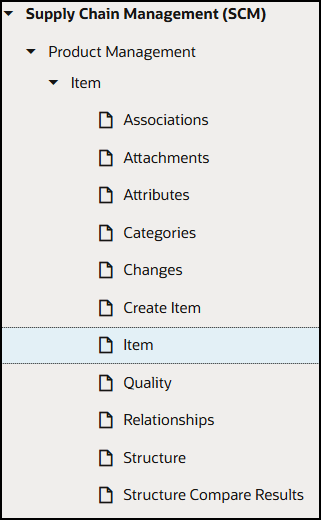
Item Business Rule Structure |
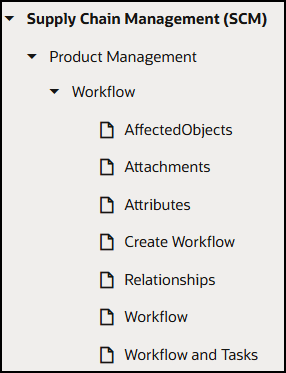
Workflow Business Rules Structure |
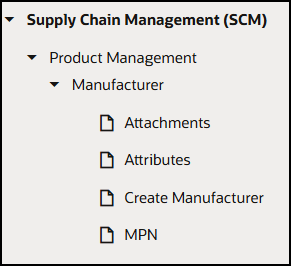
Manufacturer Business Rules Structure |
Restructured Business Rules for Item, Workflow and Manufacturer
In this release, you can leverage Business Rules to perform the following configurations based on attribute values, users, or roles:
-
Hide or show tabs and tables using page properties constants
-
Hide columns within the tables
-
Hide or show attribute groups or attributes within an attribute group conditionally.
Hide or Show Tabs and Tables using Page Property Constants
You can leverage the page property constants provided in the following table to hide or show tabs by setting values to true or false. By default, a tab is displayed when the page property constant is left blank. You can hide certain tables within the tab for Items, Workflows and Manufacturers using business rules:
Hide or Show Tabs and Tables using Page Property Constants
| Object | Page Property Constant |
|---|---|
| Item | Hide Variants Tab (Currently unavailable) |
| Item | Hide Categories Tab |
| Item | Hide Relationship Tab |
| Item | Hide Change Tab |
| Item | Hide Quality Tab |
| Item | Hide Structures Tab |
| Item | Hide Attributes Tab |
| Item | Hide Associations Table |
| Item | Hide Supplier Association Tab |
| Item | Hide Attachments Table |
| Item | Hide Revision Attachments Table |
| Item | Hide Corrective Actions Table |
| Item | Hide Problem Report Table |
| Item | Hide Quality Actions Table |
| Item | Hide Cross References Table |
| Item | Hide GTIN Table |
| Item | Hide Links Table |
| Item | Hide Related Items Table |
| Item | Hide Spoke System Table |
| Item | Hide Trading Partner Items Table |
| Workflow | Hide Affected Objects Tab |
| Workflow | Hide Attachment Tab |
| Workflow | Hide History Tab |
| Workflow | Hide Relationships Tab |
| Workflow | Hide Workflow and Tasks Tab |
| Workflow | Hide Activity Tab |
| Workflow | Hide Tasks Tab |
| Manufacturer | Hide Attachments Tab |
| Manufacturer | Hide Details Tab |
| Manufacturer | Hide Locations Tab (Available in Edit mode) |
| Manufacturer | Hide MPN Tab |
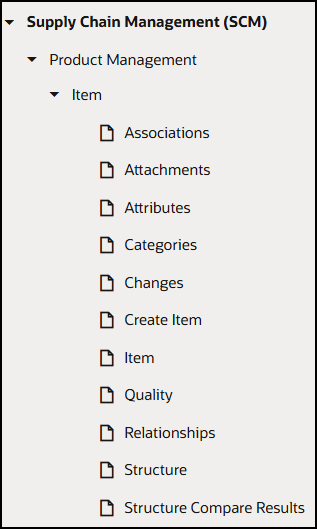
Use the subpages under each object page to configure page properties. These pages have the same name as the corresponding object. You can similarly configure page properties for other objects as well. The following screenshot shows one of the configurations that you can apply to an Item.
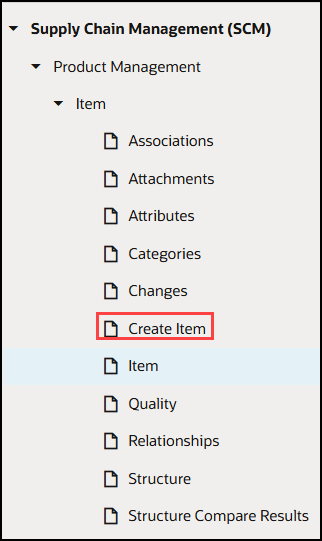
Select Item Page Under Item For Configuring The Page Properties
The following screenshot shows an example of hiding tab and tables within a tab for an engineering item:
-
Condition: Engineered Item Flag = true
-
Tabs being hidden: Associations Tab
-
Tables being hidden:
-
Cross Reference
-
GTIN
-
Spoke Systems
-
Related Items
-
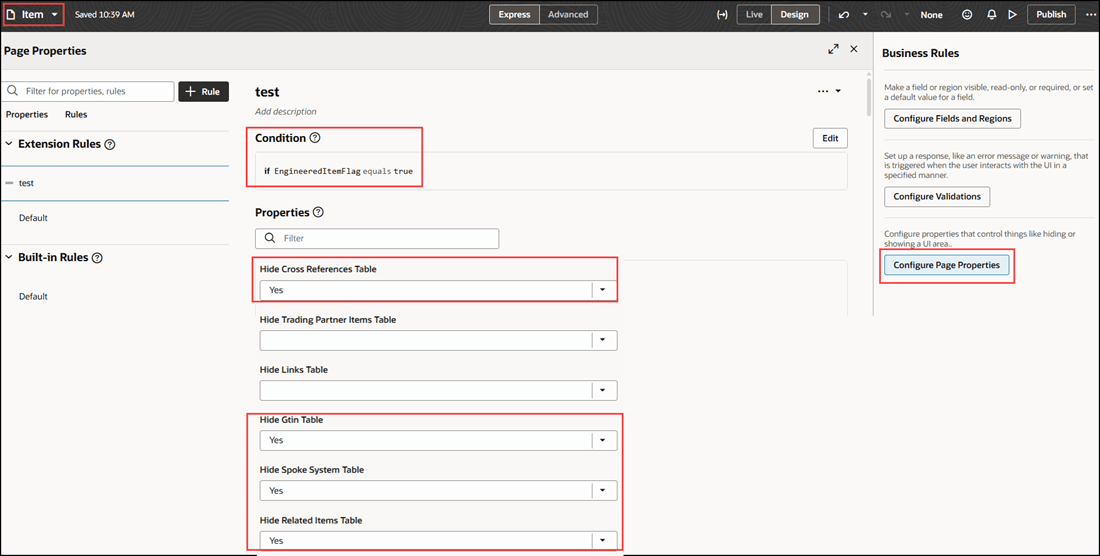
Hide Certain Tab Based On Condition Using Page Property Constants
Hide Columns within the Tables
Use the Configure Fields and Regions to conditionally display or populate values during view, edit, or create flows:
-
Tables
-
Hide Columns
-
You can hide the following tables in the associated tabs for Items, Workflows, or Manufacturers using the business rules:
Hide Columns within the Tables
| Item | Associations | |
| Item | Attachments |
Item Attachments Item Revision Attachments |
| Item | Categories | Item Category |
| Item | Changes |
Change Orders Change Requests |
| Item | Create Item |
Create Item Popup Create Item Primary Attributes |
| Item | Quality |
Quality Issues Quality Actions Problem Reports Corrective Actions |
| Item | Relationships |
GTIN Relationships New GTIN Relationship New GTIN Additional Attributes Existing GTIN Relationship Edit GTIN Relationship Edit GTIN Additional Attributes Trading partner item relationships New trading partner item relationship Edit trading partner item relationship Create Trading partner items additional attributes Edit Trading partner items additional attributes Create link Spoke System Relationships New spoke system item relationship Create Spoke System Additional Attributes Edit spoke system item relationship Edit Spoke System Additional Attributes Cross-references Relationships New cross-reference relationship Create Cross Reference Additional Attributes Edit cross-reference relationship Edit Cross Reference Additional Attributes Related Items Edit related item relationship Edit Related Item Additional Attributes New related item relationship Create Related Item Additional Attributes |
| Workflow | Affected Object | Line Attachments |
| Workflow | Attachments |
Workflow Attachments |
| Workflow | Create Workflow |
Create Workflow Duplicate Workflow Additional Info |
| Workflow | Relationships |
Relationships |
| Workflow | Workflow and Tasks |
Workflow Create Task Workflow Edit Task |
| Manufacturer | Attachments |
Attachment |
| Manufacturer | MPN |
Manufacturer Part Number |
Hide or Show Attribute Groups or Attributes within an Attribute Group
Use the Configure Fields and Regions to conditionally display or populate values during view, edit, or create flows:
-
Attributes
-
Show or hide Attributes
-
Default value of an Attribute (create pages only)
-
You can hide the attribute groups or attributes within an attribute group for the Items, Workflow and Manufacturer as described in the following table:
Hide or show attribute groups
| Item |
Attributes |
Basic-Description Basic-Main Basic-Unit Of Measure Item Operational Attributes |
| Workflow | Attributes |
General Information Formatted Description General Information Description General Information Main |
| Manufacturer | Attributes |
Location Manufacturer Header |
You can include the object attributes when building your conditions:
Hide or Show Attribute Groups or Attributes Within an Attribute Group Using Attributes Supported In Conditions
| Item |
|
| Workflows |
|
| Manufacturer |
|
You can default attribute values (create pages only) and make them read-only wherever applicable to prevent users from modifying the default values. Select create page of the objects under Product Management object -specific folder to default attribute value. The following example shows how to default an attribute value based on a user role:
Attributes Page To Hide Operational Attribute Groups
Choose the Configure Fields and Regions as highlighted in the following image:
-
Condition: Role= SupplierProductDesignEngineer
-
In the Regions and Fields area expand Create Item Popup folder:
-
Mark field as read only and Engineered value = true
-
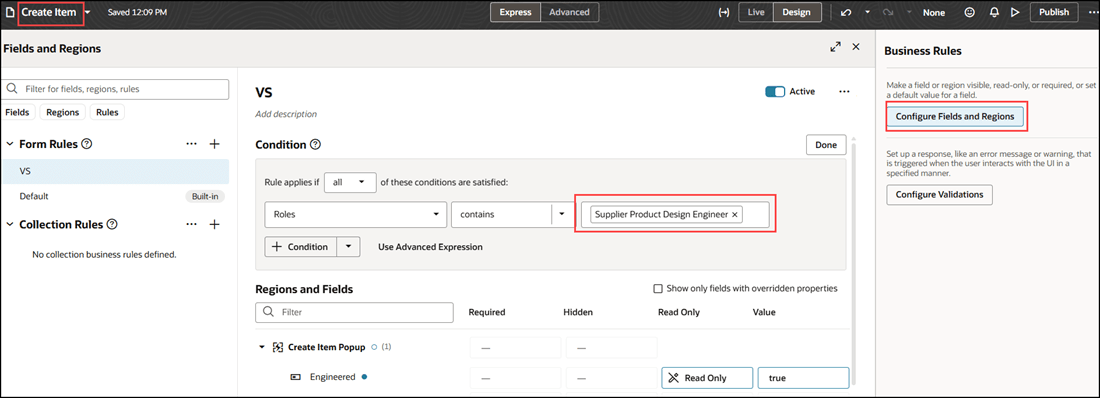
Business Rule Created For A SupplierProductDesignEngineer In Condition
Another example of hiding certain attribute groups that is based on the Engineered Item Flag:
- Condition: Engineered Item Flag = true
- Hide Operational Attributes
- In Regions and Fields use hidden column to hide operational attribute groups
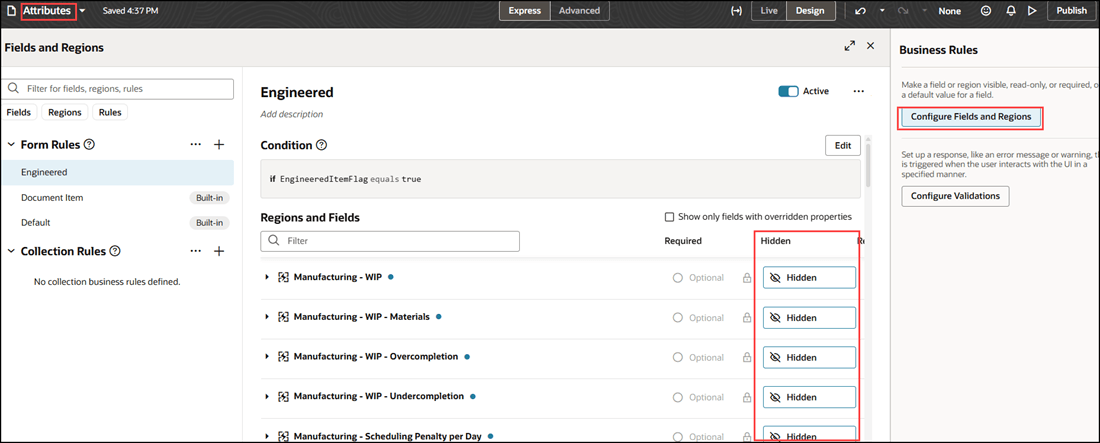
Hide Operational Attributes Based on a Condition
This feature empowers your business with granular flexibility and control, enabling governance over which data is displayed across product and workflow objects. By allowing you to selectively share sensitive information such as pricing or R&D details, you can safe-guard business intellectual property and mitigate risks of miscommunication.
Steps to enable and configure
N/A
Tips and considerations
You can now leverage business rules to:
-
Test new configurations in Preview mode before publishing them.
-
Configure for different users based on user roles in any given condition.
-
Use page constants to show or hide tabs and tables within a tab.
-
Hide the Activity and Tasks subtabs within the Workflow and Tasks tab of a workflow object using page property constants.
-
If access control list is enabled, you must use access control list to show or hide tabs and tables instead of Business Rules.
-
You can show or hide or default attributes (create pages only) within attribute groups, except Descriptive Flexfields and Extensible Flexfields, for item and workflow objects.
-
You can't create conditions using Descriptive Flexfields or Extensible Flexfields for item or workflow objects.
-
Use the status code when creating conditions based on workflow status.
-
If you set up multiple rules, they're evaluated top-down and the first rule that matches the condition will be the only one executed. All the other rules are ignored.
Key resources
Oracle Fusion Cloud SCM Implementing Product Management Guide, available on the Oracle Help Center.
Extending Oracle Cloud Applications with Visual Builder Studio Guide, available on the Oracle Help Center.
Access requirements
To create business rules using Visual Builder Studio in express mode you must have the following privileges:
-
Application Implementation Consultant (ORA_ASM_APPLICATION_IMPLEMENTATION_CONSULTANT_JOB)
Privileges required:
|
VB Studio administrator (DEVELOPER_ADMINISTRATOR) |
|
VB Studio user (DEVELOPER_USER) |