Redwood: Create and Manage New Item Requests
With the new Redwood: Create and Manage New Item Request feature, you can access new item requests on Redwood pages. The enhanced pages not only allow you to review new item requests more quickly but also feature data presence indicators, making it easy to see when key information is available or missing at a glance. You can seamlessly navigate from a summary to the item’s details page and further enrich item information within the context of your new item request. This feature makes managing new item requests faster, more intuitive, and more reliable, saving you time and supporting better decision-making.
Workflow Search
-
Workflow header attributes on the page header persist across all the tabs, providing context for new item requests.
-
The Workflow Type filter on the Product Management Search Workflow page now includes New Item Request in the drop-down list.
-
Search across attributes in new item requests.
-
Use filters to search for header attributes, additional attributes, and data presence indicators.
-
Use the Match Workflow Number filter to search for items whose item numbers contain your search criteria. For example, if “bike” is used as the search criteria, the results may include items with numbers such as Ebike or NextGen Bike.
-
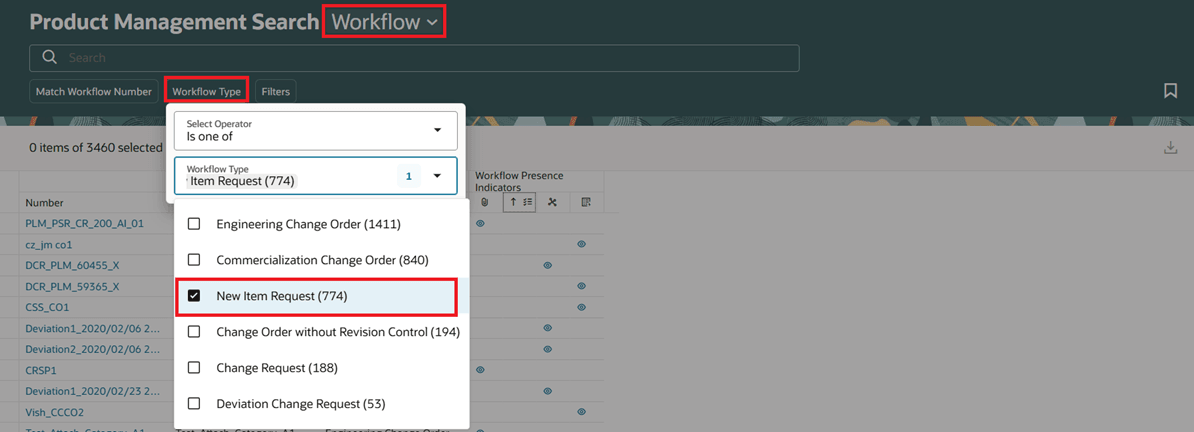
Workflow Type Filter on Search Workflow Page with New Item Request Selected
-
Use the Add (+) icon on the Search Workflow page to create new item requests.
-
The item number is supported in new item requests on Redwood pages.
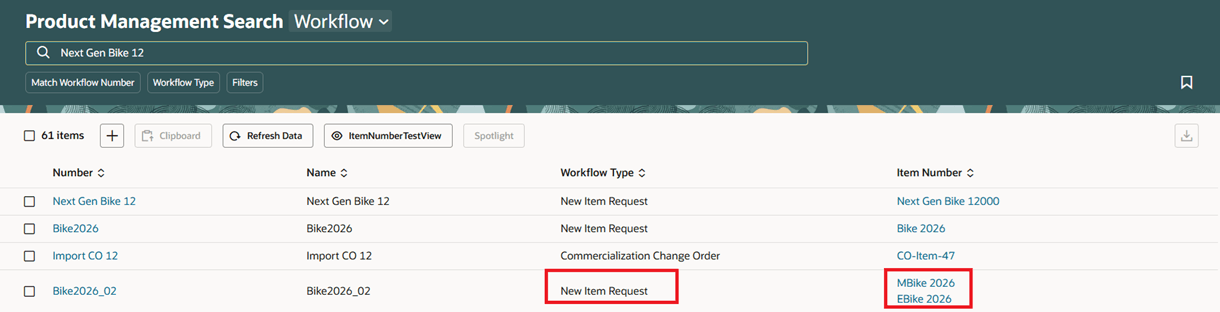
Search Results Showing Item Numbers that Contain Search Criteria
-
Use the workflow history search to search for information across approvers, status changes, comments, and attributes in multiple new item requests.
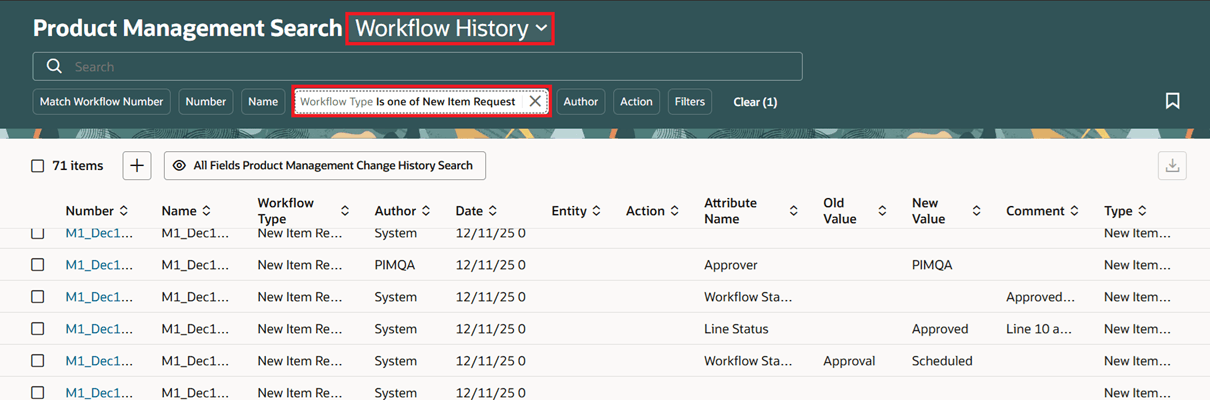
Workflow History Search with the Workflow Type Filter Set to New Item Request
New Item Request Page
-
Use links to navigate to the new item request page from the workflow search, the item attributes page, or the notification.
-
Drag and drop (select and move) items from the clipboard or spotlight to the Items tab.
-
Change the status using the Change Status button on the new item request.

Change Status Button on New Item Request
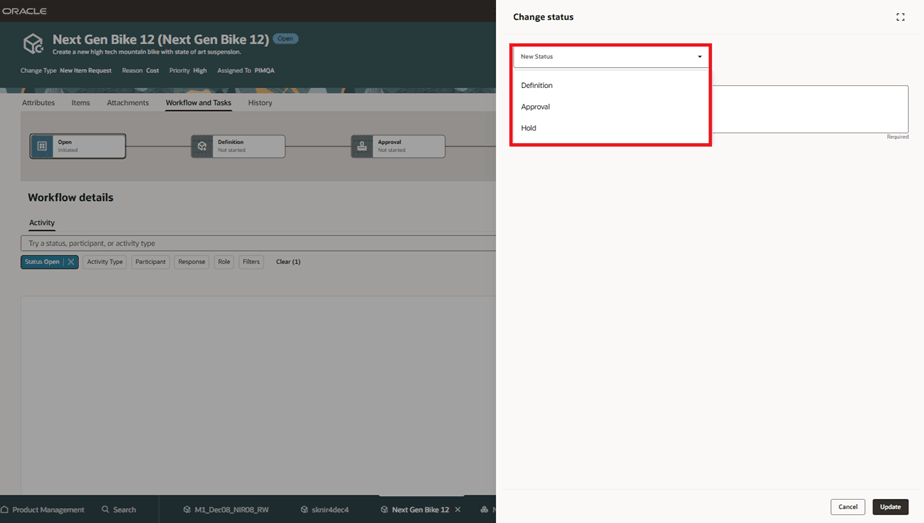
Select the New Status and Enter a Comment
-
You can access data in the following tabs on the new item request:
-
Attributes: includes General Information, Main, and Additional Attributes sections.
-
Use the Edit (pencil) button to toggle between the edit and read-only modes.
-
An indicator appears when there are unsaved changes.
-
-
Items: add items to the new item request.
-
Only items that are enabled for new item request in the item class and have the Approval Status as Draft, can be added to a new item request.
-
-
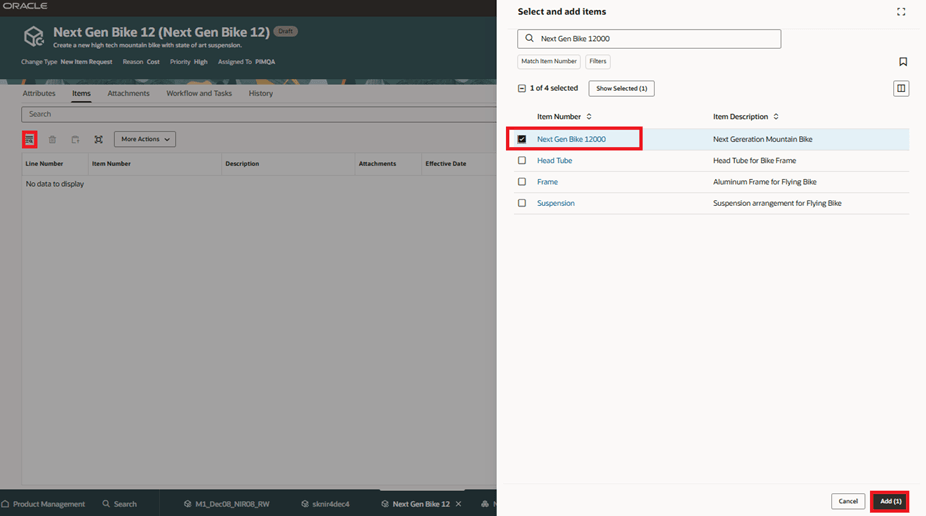
Add an Item to a New Item Request
-
You can also use the item action Assign to New Item Request to add an item to an existing new item request or a new one.
-
Selecting a field in the Attachments column opens a drawer that will allow you to add line attachments.
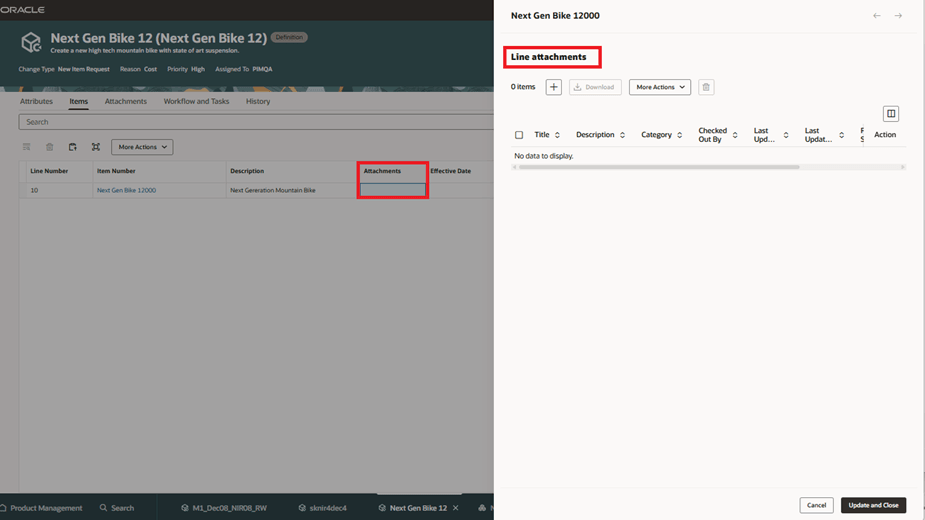
Attachments Field on New Item Request and Line Attachments Drawer
-
Flexfields (that are effective on the item line) are also supported in the Items tab.
-
Attachments
-
You can add, modify, delete, download, and preview attachments on new item requests.
-
Workflow and Tasks
-
When the new item request is in Definition status you can:
-
Quickly filter the table using one of the following: All Tasks, My Tasks, My Current Tasks, or Current Tasks. The default view is set to My Current Tasks.
-
Use columns such as Owner, Started On, and Completed On to track who claimed the task, who completed the task, when the task was started, and when it was completed.
-
Use the Required Definition Values link to open a drawer that displays details on what updates need to be completed for the selected task.
-
Select the Go to Task link to navigate to the item enrichment page for the selected task.
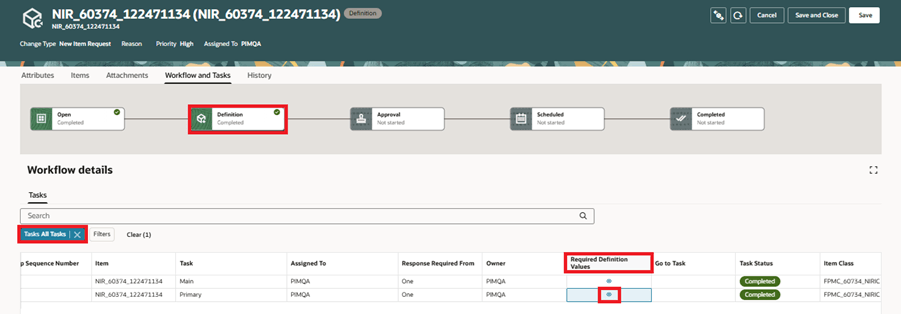
Definition Step with All Tasks Listed and Required Definition Values Link
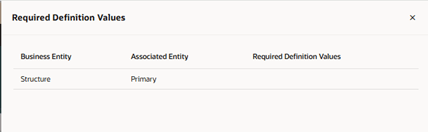
Required Definition Values Drawer
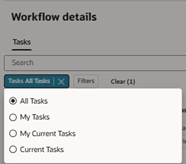
Tasks Filter with All Tasks Selected
- History
- The History tab displays edits made to the new item request attributes and change in status including comments.
Item Enrichment
-
Use links to navigate to the new item request page from the workflow search, the item attributes page, or the notification.
-
You can enrich an item directly in the new item request context.
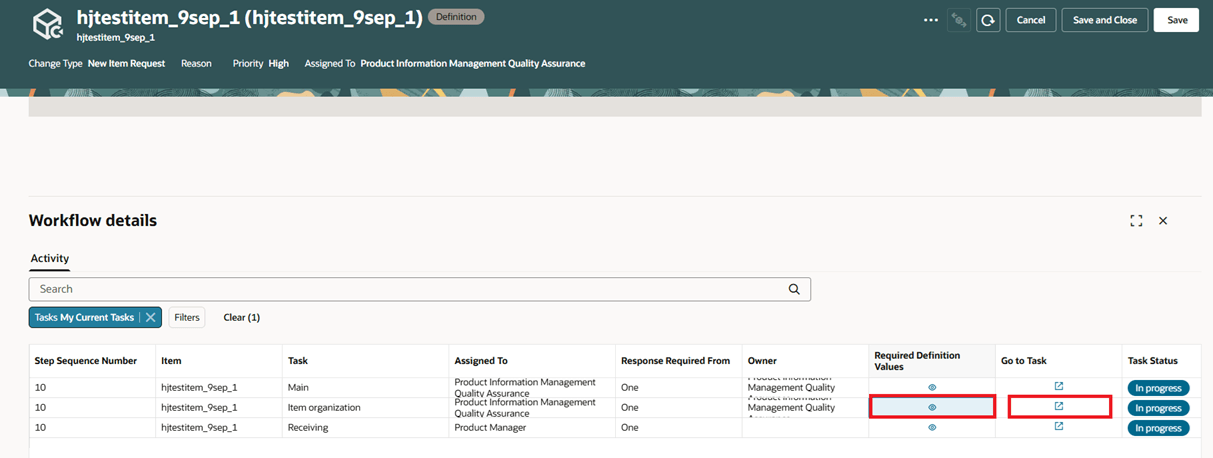
Links in the Required Definition Values and Go To Task Columns
-
Only tabs that are configured for enrichment will be displayed. An administrator can configure the item enrichment for each step during the item class configuration.
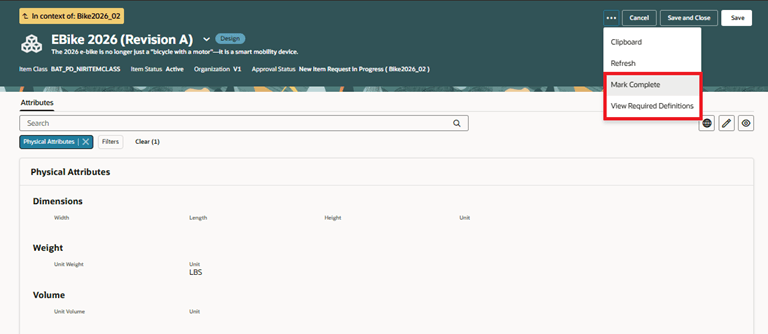
Item Actions in the Definition Step on the New Item Request
-
Here's what you can do on the enrichment page of an item:
-
Select the header "In context of: <new item request number>" to navigate back to the new item request.
-
Navigate to the other affected items on the new item request using the context selector.
-
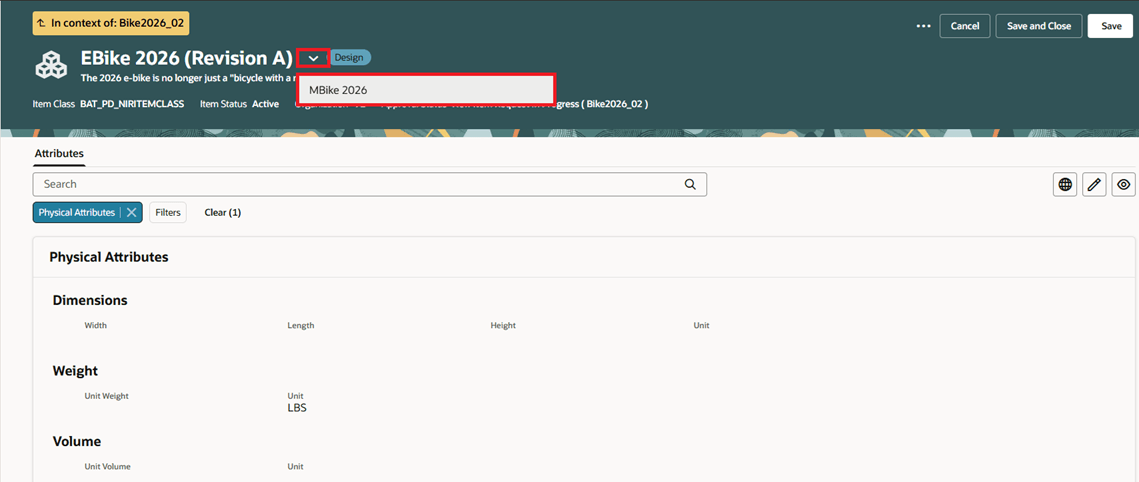
Navigate to Other Affected Items in Context of the New Item Request Using Context Selector
- Select one of the following from the Actions menu:
-
Mark Complete: Mark all your tasks for the definition step as complete.
-
Claim Task or Release Task: Claim the definition task if this task is configured for a role that you are a member of.
-
Claim All Tasks: Claim all tasks for the definition step if tasks are configured for a role that you are a member of.
-
View Required Definitions: Open a drawer that will display the fields that require enrichment.
-
-
Use the Edit button to update the required fields.
This feature benefits your business by the following:
-
Provides an intuitive and consistent Redwood user experience to create and manage your enrichment workflows.
-
Leverages Redwood Search and Spotlight features such as dynamic search counts and filters to easily search or iterate through items in new item request.
-
Increases productivity by decreasing navigation away from tasks with the new persistent in-context header information.
-
Provides access of new item requests through a unified search experience.
Here's the demo of these capabilities:
Steps to enable and configure
Use the Opt In UI to enable this feature. For instructions, refer to the Optional Uptake of New Features section of this document.
Offering: Product Management
-
Set the administrator profile value for the profile option ORA_ACA_WORKFLOW_REDWOOD_ENABLED to Y.
-
Run the Upgrade Product Management Data Scheduled Process to view the existing new item requests in Workflow Search and Workflow History Search. Here’s what you must select to complete the upgrade:
- Upgrade Process: Execution
-
Functional Area: New Item Requests
-
Feature: Execute each of the following:
-
Ingest active new item requests as workflow
-
Upgrade new item request history
-
Update all data presence indicators
-
-
Update item index for new item requests.
-
On the Index Management page, click the Item card.
-
On the Configure Index page, click More Actions (…) and select Enable attribute sets.
-
Search for Product Management New Item Picker.
-
Enable Product Management New Item Picker click Apply and click Save.
-
Rebuild the item index.
-
-
Enable the item for new item request using the Manage Item Classes task in the Setup and Maintenance work area. Also configure the definition task, assign roles, and assign users for the new item request.
Tips and considerations
-
The Workflow Search and Workflow History Search require index and view configuration. Details can be found in the Key resources section.
-
Item Packs aren’t supported for new item requests on Redwood pages.
-
Comments on new item requests are recorded in the History tab on new item requests.
-
You can't request comments for new item requests on Redwood pages.
-
You can use Business Rules to configure the Create panel, entity tabs and child table, and view and edit functions on new item requests.
-
The tree view on the classic Manage New Item Requests page and actions on the classic Search Results page aren’t available on Redwood pages.
Key resources
-
Oracle Supply Chain Management Cloud Using Product Master Data Management guide, available on the Oracle Help Center.
-
Topics Configure Index, Configure Views, and Overview of Product Management Search in Implementing Product Management Guide, available on the Oracle Help Center.
Access requirements
Users who are assigned a configured job role that contains these privileges can access this feature:
To view or edit new item requests on the new item request pages, or to access new item request notifications:
-
View New Item Request (EGO_VIEW_NEW_ITEM_REQUEST_PRIV) or
-
Manage New Item Requests (EGO_MANAGE_NEW_ITEM_REQUEST_PRIV)
To create new item requests from the search pages or when using links in Actions on the Product Management home page:
-
Manage New Item Request (EGO_MANAGE_NEW_ITEM_REQUEST_PRIV)
-
Access Change Types Using a REST Service (EGO_GET_CHANGE_TYPES_REST_PRIV)
To create a new item request from the item by using the Assign to action:
-
Manage New Item Request (EGO_MANAGE_NEW_ITEM_REQUEST_PRIV)
-
Access Change Types Using a REST Service (EGO_GET_CHANGE_TYPES_REST_PRIV)
To approve or reject new item requests:
-
Approve New Item Request (EGO_APPROVE_NEW_ITEM_REQUEST_PRIV)
To move lines from an existing new item request to a new one:
-
Manage New Item Request (EGO_MANAGE_NEW_ITEM_REQUEST_PRIV)
To move lines from a new item request to an existing one:
-
Manage New Item Request (EGO_MANAGE_NEW_ITEM_REQUEST_PRIV)
To view the history tab on the new item request:
-
View Change History (EGO_VIEW_CHANGE_HISTORY_PRIV)
To search for new item requests on Redwood pages:
-
Get Search View REST (EGP_GET_SEARCH_VIEW_REST_PRIV)
-
GET Product Management Index REST (EGP_GET_PM_INDEX_REST_PRIV)
-
Access Product Management Change Search (EGO_VIEW_PRODUCT_MANAGEMENT_CHANGE_SEARCH_PRIV)
-
View New Item Request (EGO_VIEW_NEW_ITEM_REQUEST_PRIV) or
-
Manage New Item Requests (EGO_MANAGE_NEW_ITEM_REQUEST_PRIV)
To configure Business Rules on new item requests:
-
Manage Item Rule Set (EGO_MANAGE_ITEM_RULE_SET_PRIV)
These privileges were available prior to this update.
To run workflow OTBI reports for new item requests:
-
Product Catalog Transaction Analysis Duty (FBI_PRODUCT_CATALOG_TRANSACTION_ANALYSIS_DUTY)
-
Product Transaction Analysis Duty (FBI_PRODUCT_TRANSACTION_ANALYSIS_DUTY)
-
BI Consumer Role (BIConsumer)