Redwood: Tailor Your Manufacturer Toolbar and Action Menu
You can sequence the actions that appear on the Manufacturer pages and set the maximum number of actions that must be visible on these pages.
On the Product Management page, in the Actions section, select the View all actions link. The Actions drawer is displayed as shown in the following screenshot. Select Settings.
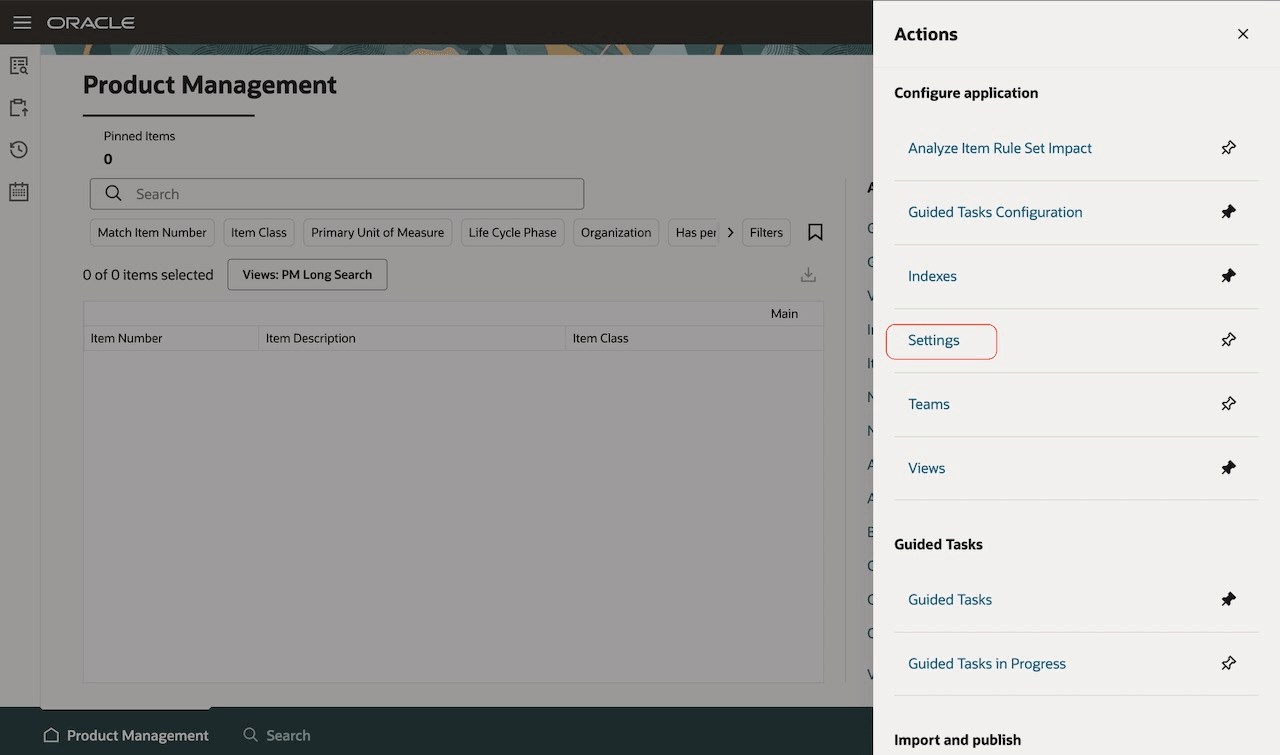
Actions Drawer – Settings
The Settings page is displayed. On the Manufacturer tab, you can configure the following settings:
- Set the maximum number of actions that must be visible on the page. In the following screenshot, the Maximum visible actions is set to 5 for the Manufacturer pages.
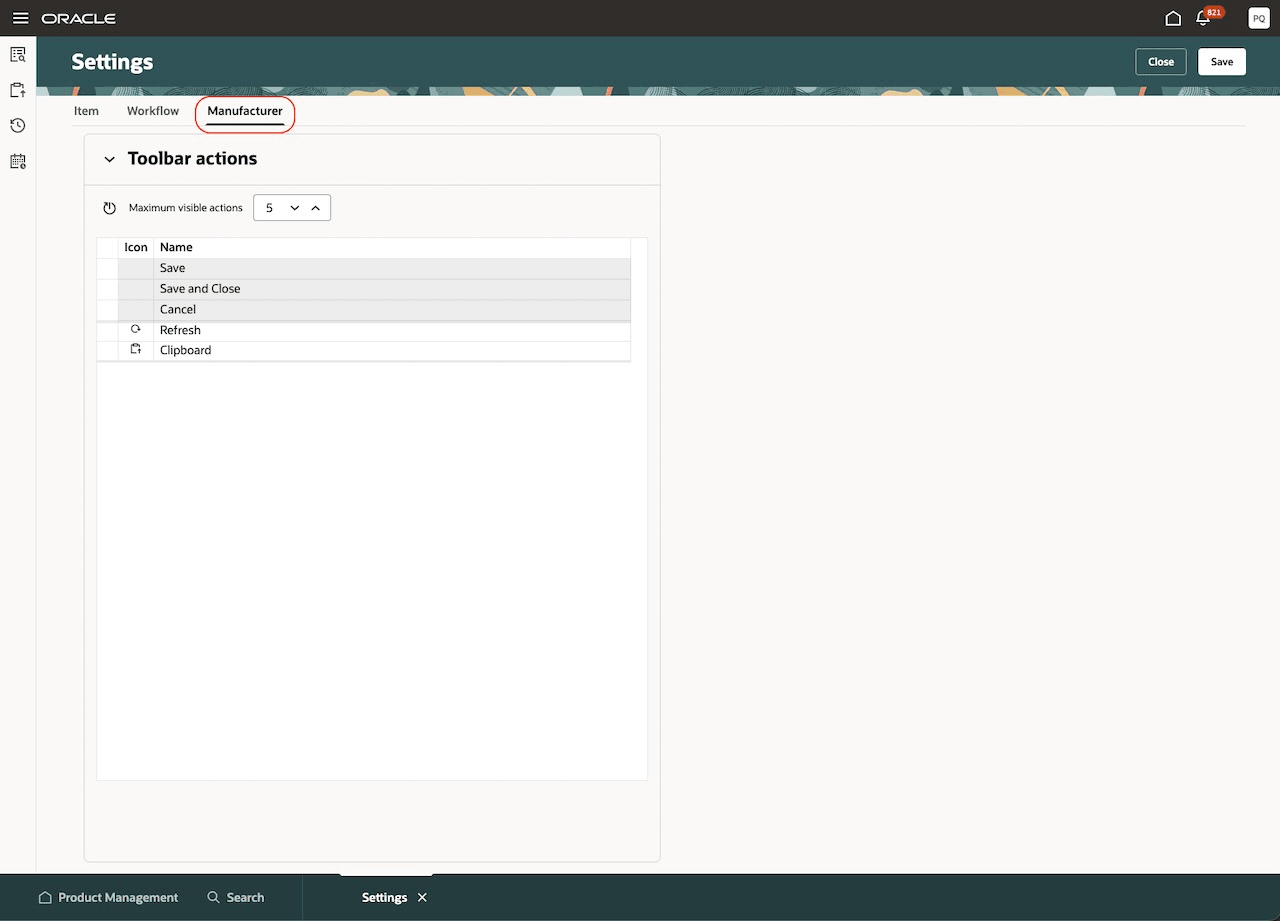
Maximum Visible Actions
- Set the sequence of the actions. To do this, select the row that you want to move. Hover on the first cell of the row to display the hand icon as shown in the following screenshot. Grab the row, and then drag and drop the row to the required position.
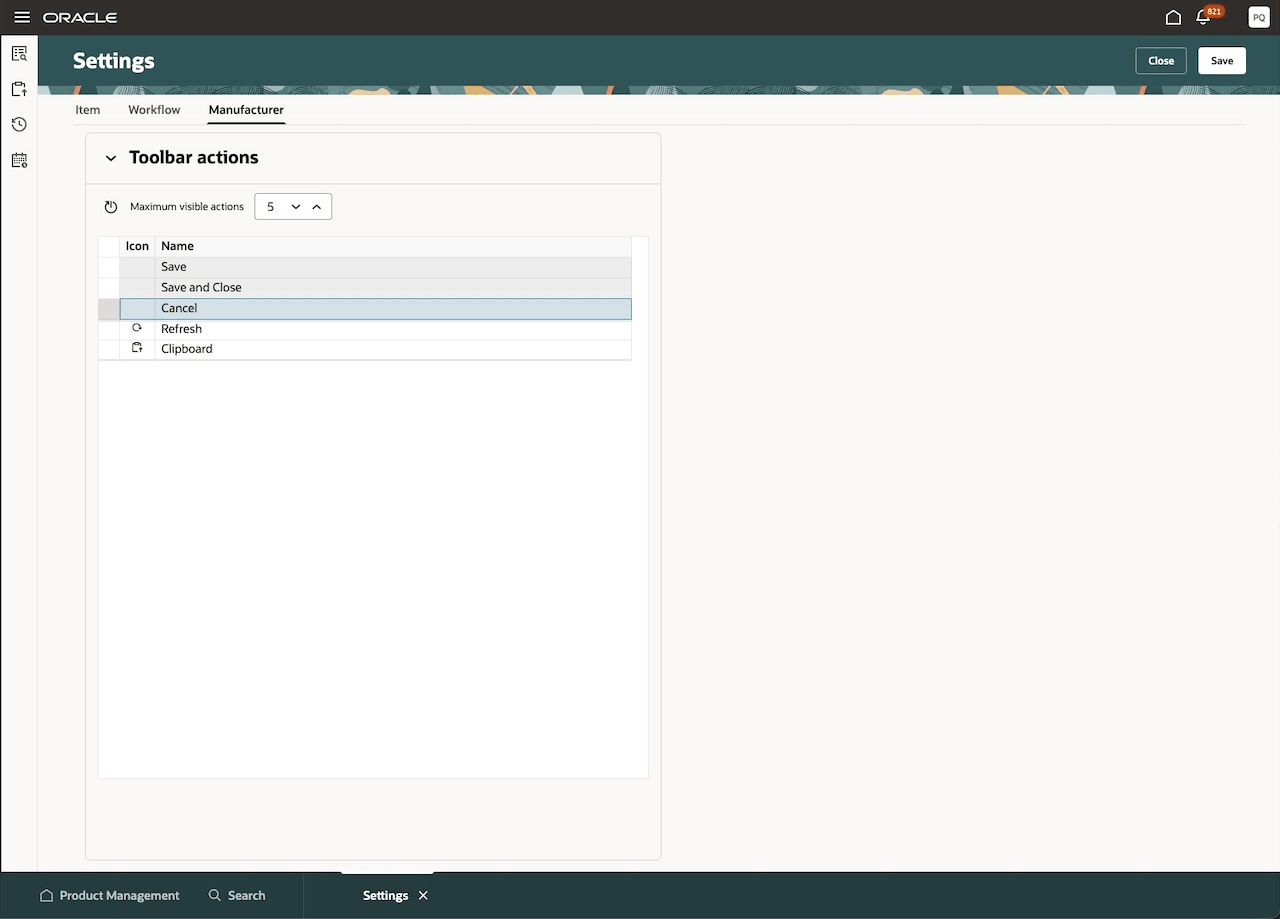
Move Action Using Drag and Drop
- Reset to the default settings using the Reset to Default icon as shown in the following screenshot.
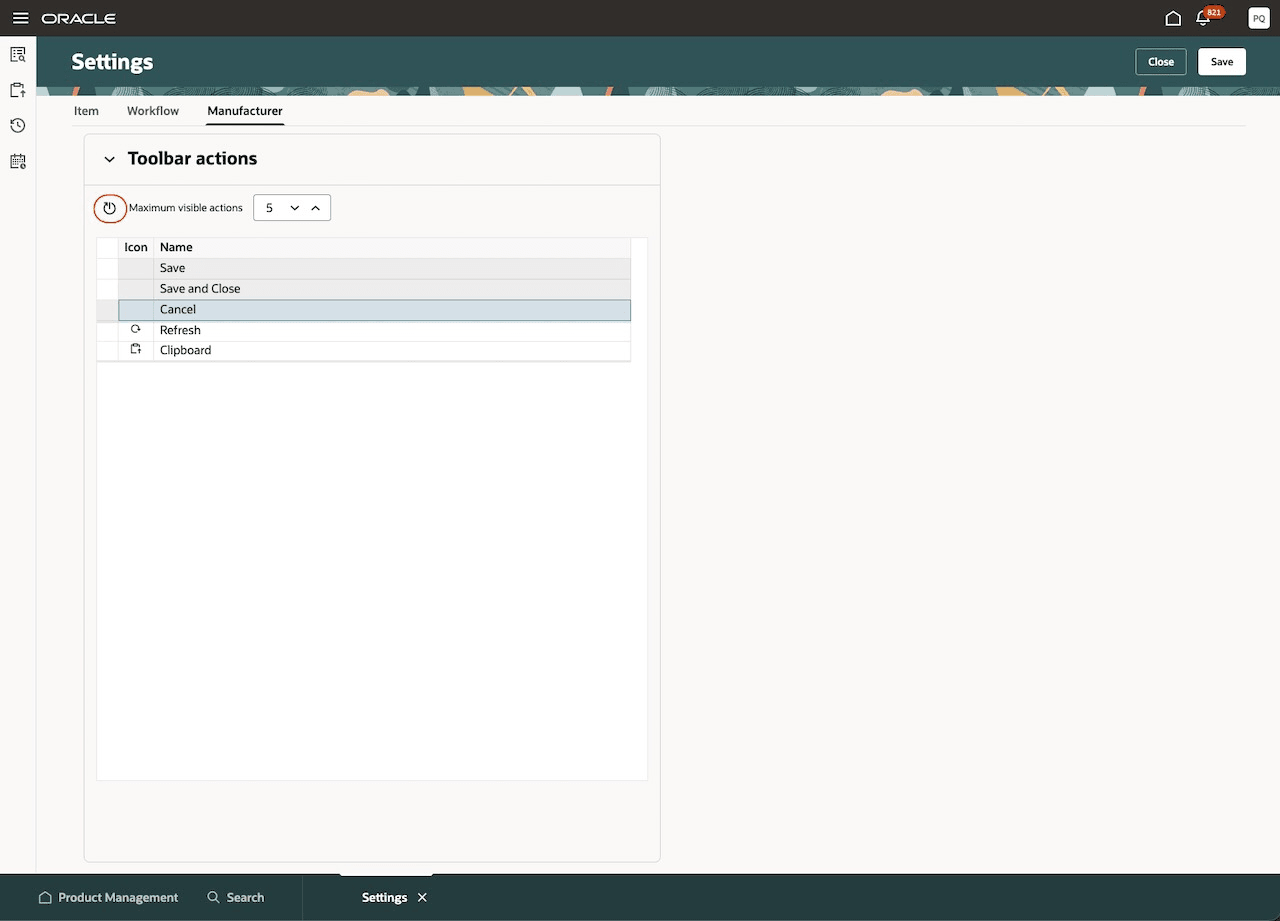
Reset to Default Action
Select Save to save the changes.
Log out and log in again for the changes to take effect. You can view the updated sequence of actions on the Manufacturer pages.
This feature benefits your business by providing quick access to frequently used actions thereby accelerating productivity.
Steps to enable and configure
You don't need to do anything to enable this feature.
Key resources
Refer to the Oracle Fusion Cloud SCM: Using Product Master Data Management guide, available on the Oracle Help Center.
Access requirements
Users who are assigned a configured job role that contains these privileges can access this feature in Product Management:
- Manage Redwood Product Management Setting (EGP_MANAGE_REDWOOD_PM_SETTINGS_PRIV)
This privilege was available prior to this update.