Redwood: Manage Structured Terms, Notes and Related Contracts
You can now use the Redwood experience to author and manage contract terms with support for template-based Structured Terms and enhanced Attached Document authoring. This release also introduces the ability to Apply and Remove Hold at both contract and line levels, a new Notes feature for capturing contract-specific information, and Related Contracts functionality to define and manage relationships between contracts.
1. Structured Terms (Internal Authoring + Terms Template)
Users can add contract terms using approved Structured Terms Templates from the Terms Library through the Add Contract Terms drawer. Simplified terms and templates enabled with Contract Expert are not available for selection.
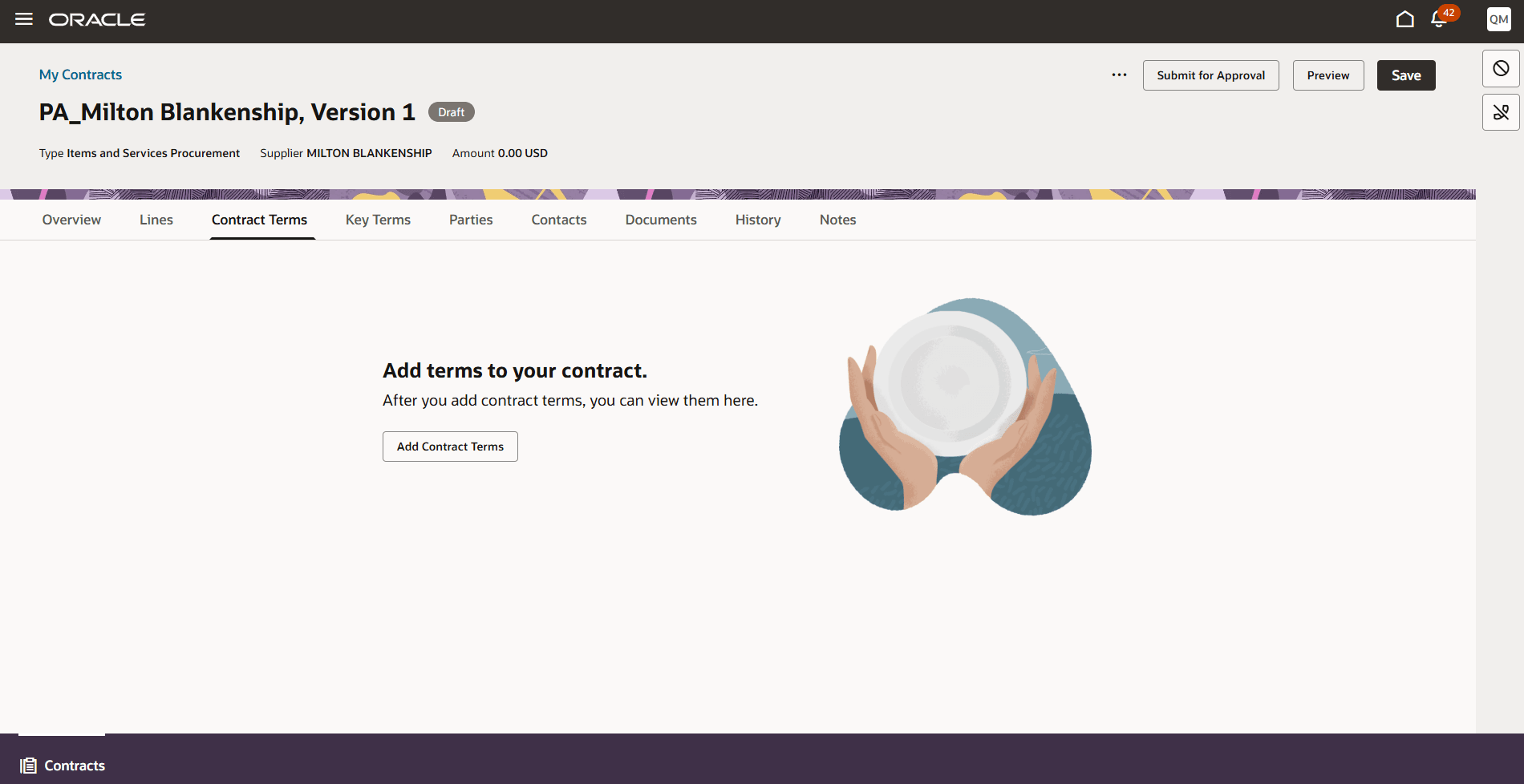
Contract Terms Empty State
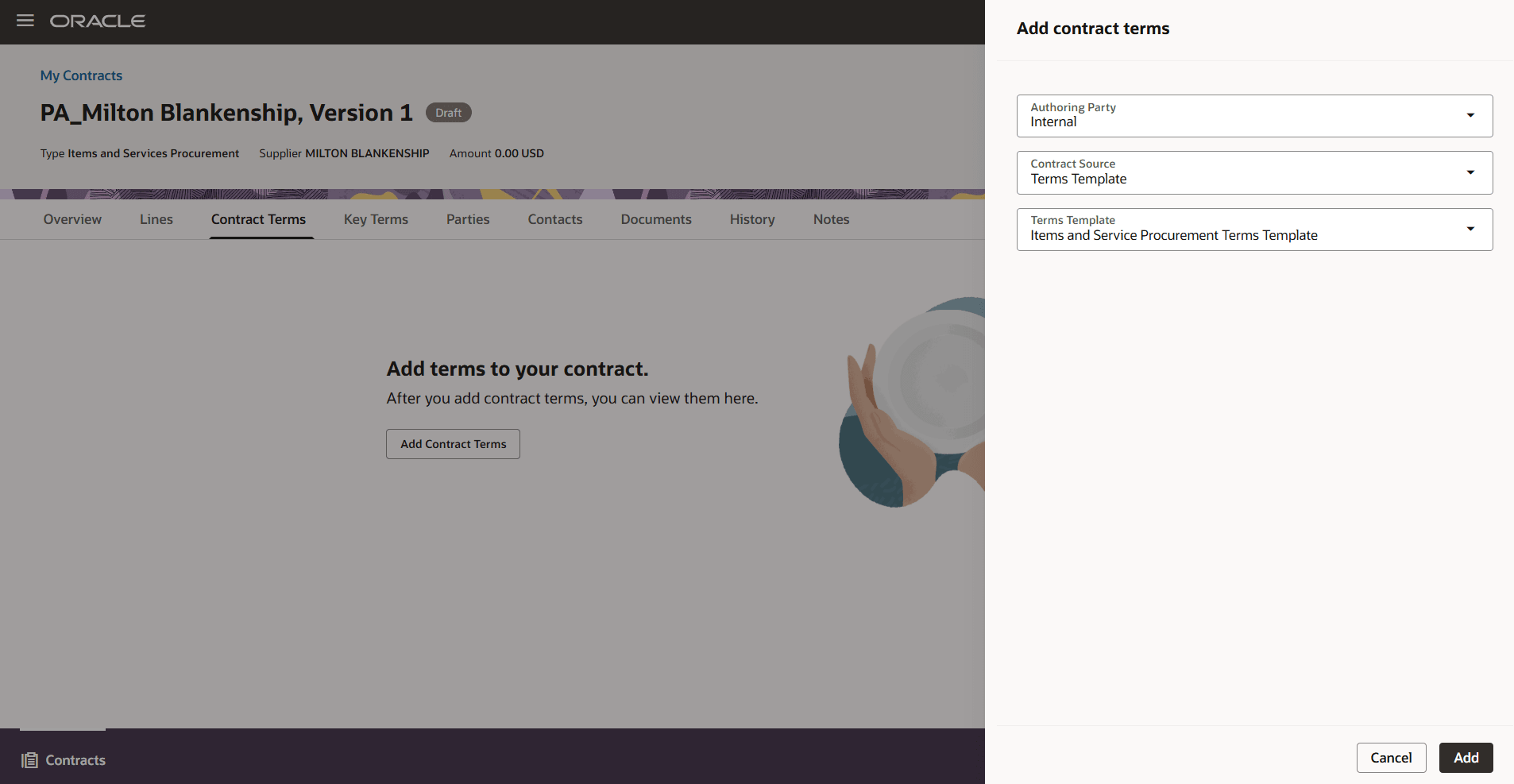
Add Terms Drawer
After adding structured terms, the Contract Terms tab renders:
- Clickable Primary Contract Document Link
- Allows users to download the contract terms as a PDF (or Word document, where applicable) for viewing purposes. Downloading via this link does not trigger contract term locking.
- Authoring Party: Internal
- Terms Template Name
- 3-dot action menu
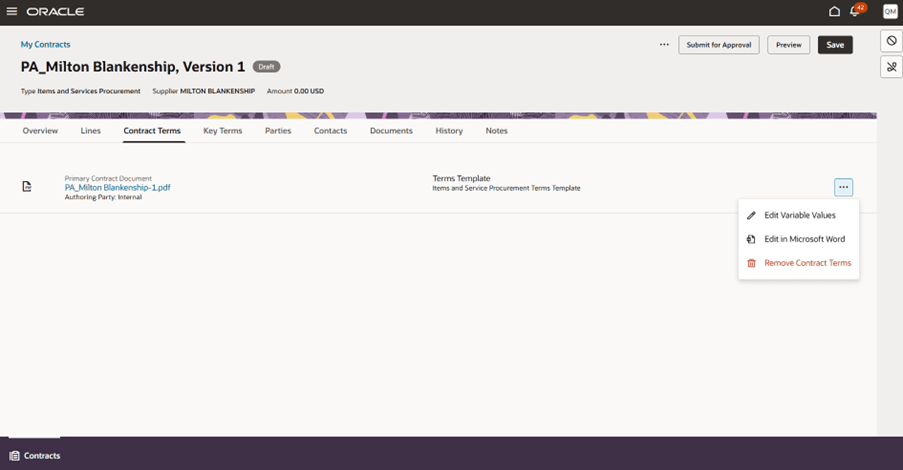
Contract terms after adding Structured Terms
Supported Actions (Structured Terms)
Supported Actions for Structured Terms
| Action | Applicable To | Contract Status | Lock Condition | Required Privileges | Visible to Read Only Users |
|---|---|---|---|---|---|
|
Edit Variable Values |
Structured Terms Only | Contract must be editable | Terms must not be locked | OKC_AUTHOR_CONTRACT_TERMS_AND_CONDITIONS_TEMPLATE_PRIV | No |
| Edit in Microsoft Word | Structured Terms and Word based Attached Documents | Contract must be editable | Terms must not be locked | OKC_EDIT_CONTRACT_PRIV | No |
| Unlock Terms | Structured Terms and Word based Attached Documents | Contract must be editable | Terms must be locked | OKC_AUTHOR_CONTRACT_TERMS_AND_CONDITIONS_NON_STANDARD_PRIV | No |
| Remove Contract Terms | Structured and Attached Document flows | Contract must be editable | Terms must not be locked | OKC_AUTHOR_CONTRACT_TERMS_AND_CONDITIONS_NON_STANDARD_PRIV and OKC_DELETE_CONTRACT_PRIV (Delete Contract) |
No |
Edit Variable Values
When structured terms are first added and remain unlocked, Edit Variable Values is visible and enabled. Once a user downloads the terms using Edit in Microsoft Word (which locks the contract terms), the Edit Variable Values action is no longer visible.
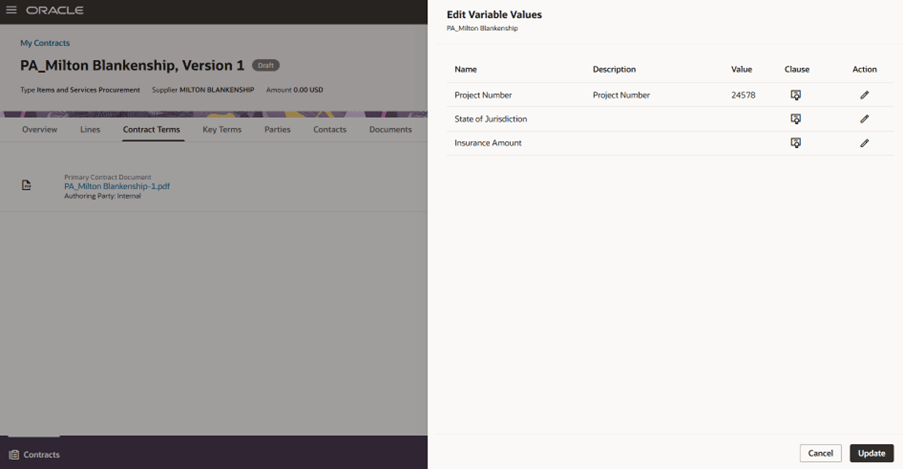
Edit Variable Values
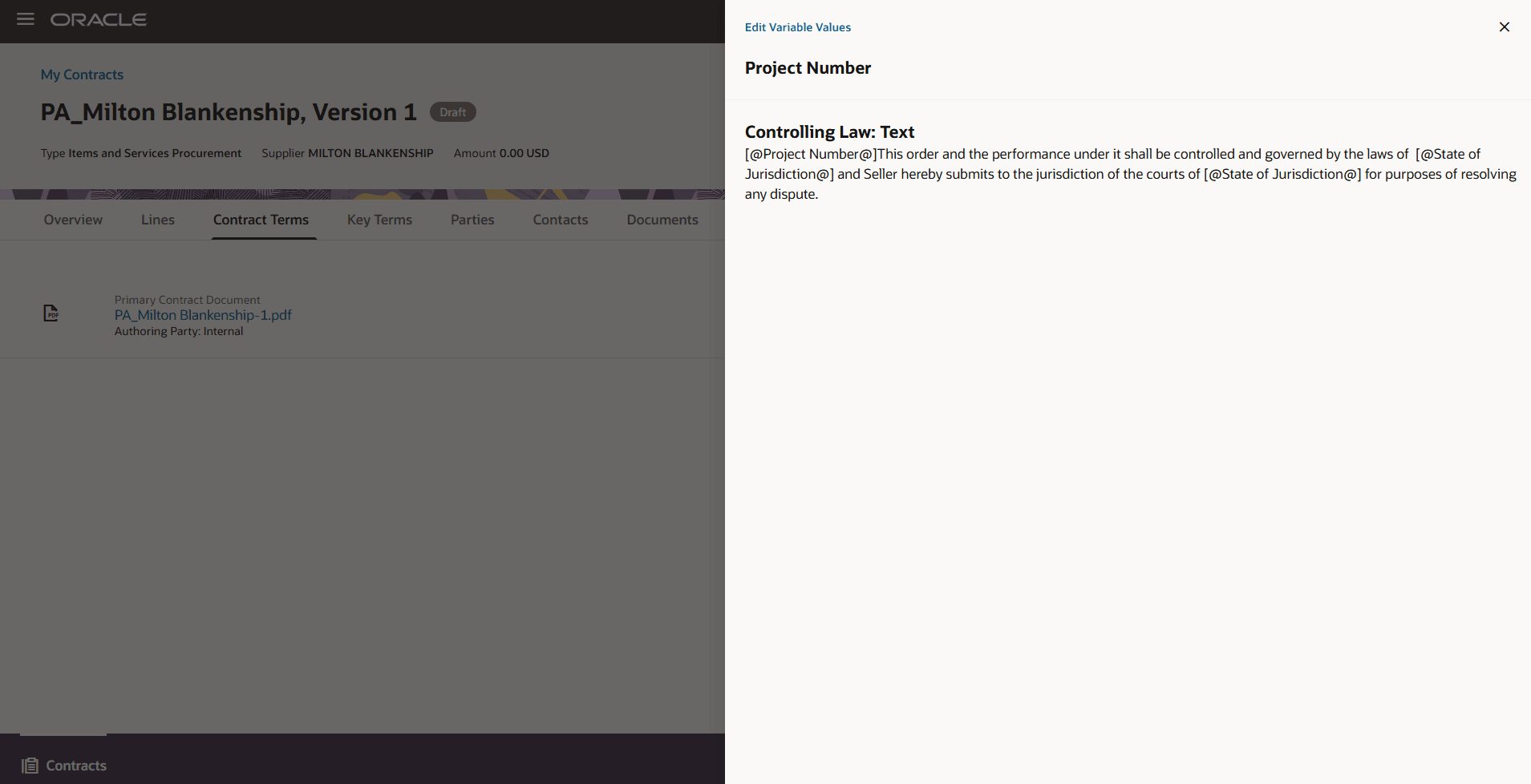
Clause Text
Edit in Microsoft Word
The Edit in Microsoft Word action enables controlled Word-based editing with automatic locking and revision tracking. When contract terms are not locked, Edit in Microsoft Word is visible and enabled.
Behavior
When a user selects Edit in Microsoft Word:
- A Word (.docx) document is generated and downloaded.
- Contract terms are automatically locked to prevent simultaneous edits.
- When users download terms using Edit in Microsoft Word, the system generates a Word document compatible with the Redwood Terms experience and the new Contracts Word Add-in.
Documents downloaded from Redwood can be uploaded back only through new Contracts Word Add-in.
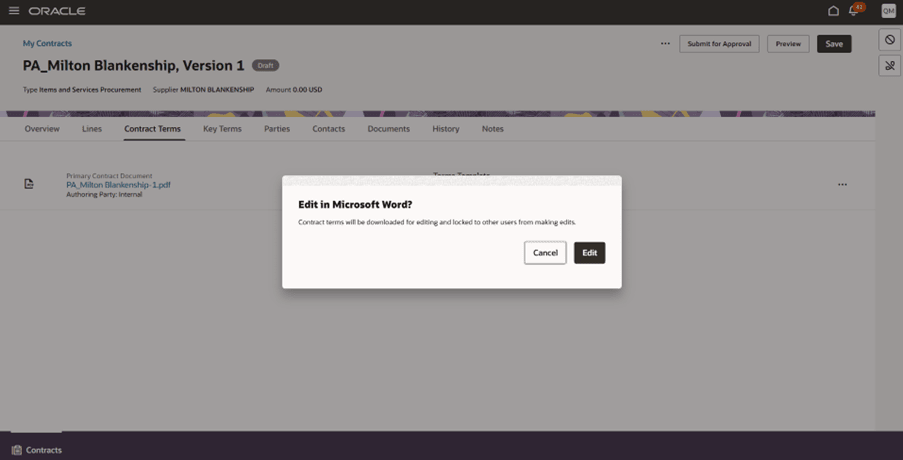
Edit in Microsoft Word
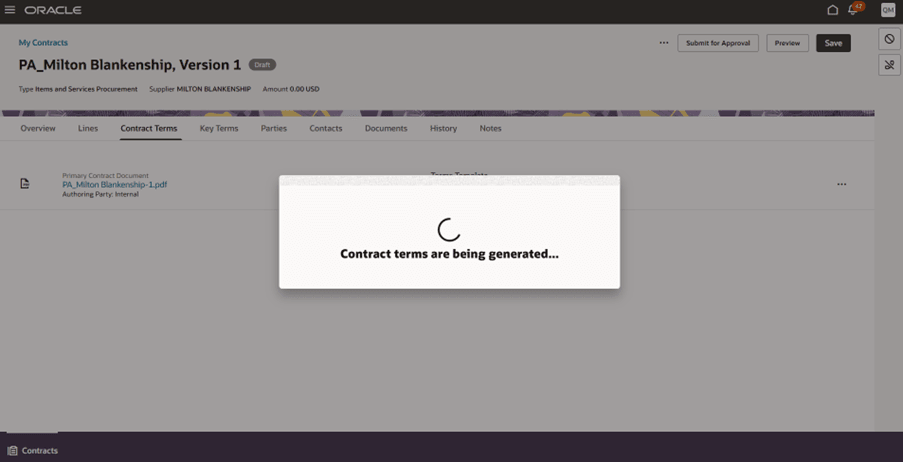
Contract terms generation
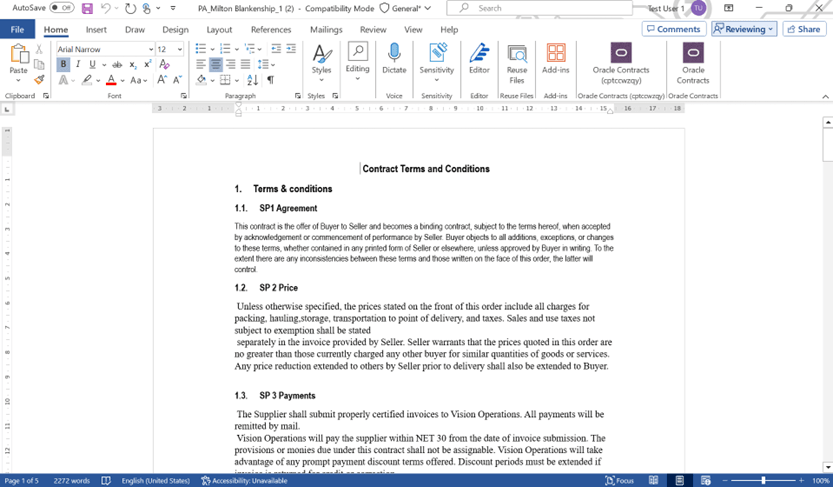
Downloaded Contract Terms with Word Add in
Locking Behavior
Upon download:
- The contract terms are locked to the user who initiated editing.
- Other users cannot edit the contract terms until it is unlocked.
- Lock ownership is clearly displayed in the application.
The lock is automatically released when:
- A revised document is uploaded from Word Add-in
- An authorized user manually unlocks the terms.
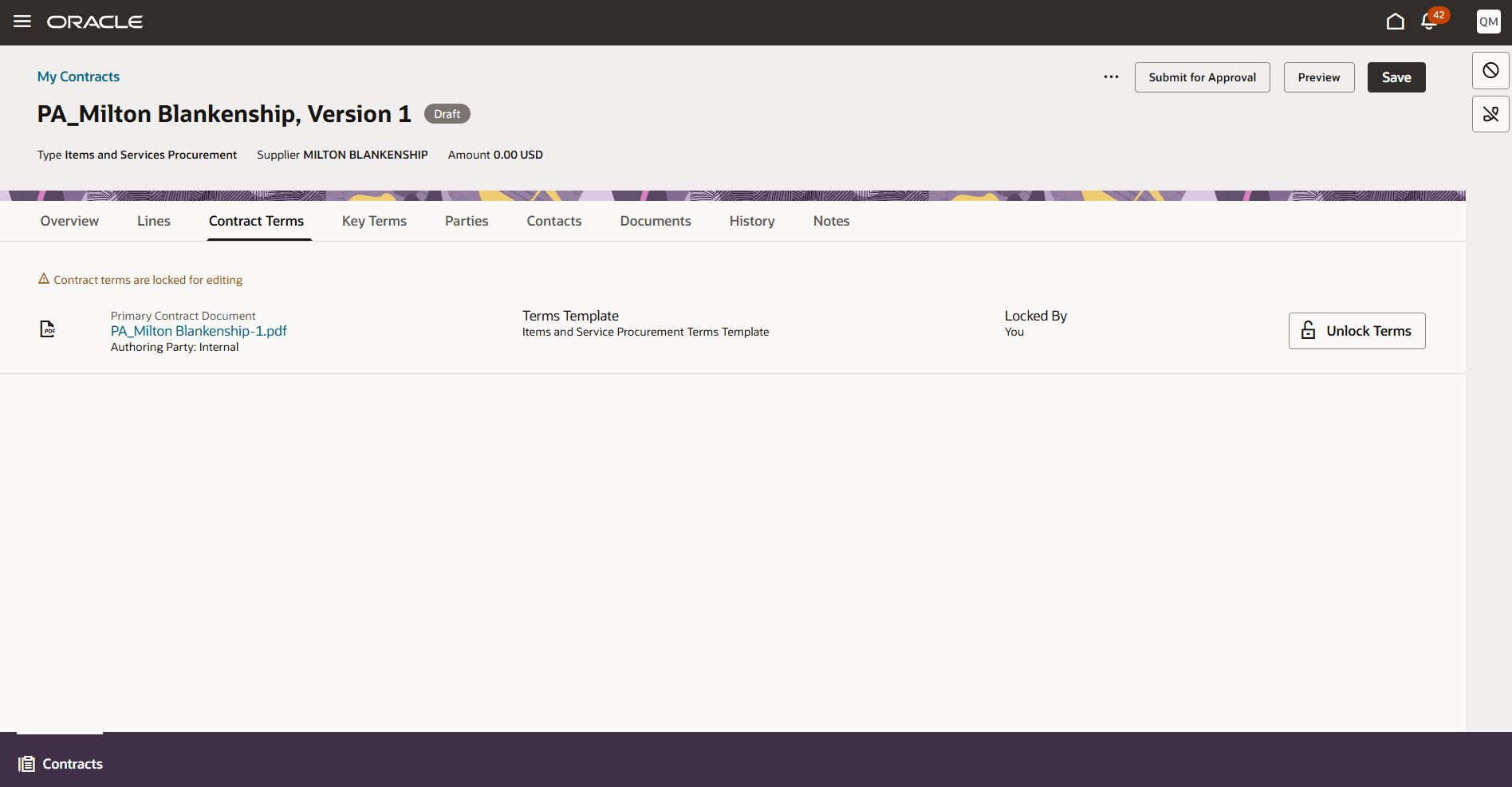
Contract Terms Locked
Unlock Terms
The Unlock Terms action is introduced to allow authorized users to release a contract terms lock applied during Microsoft Word editing. This ensures controlled collaboration when Word-based editing is in progress.
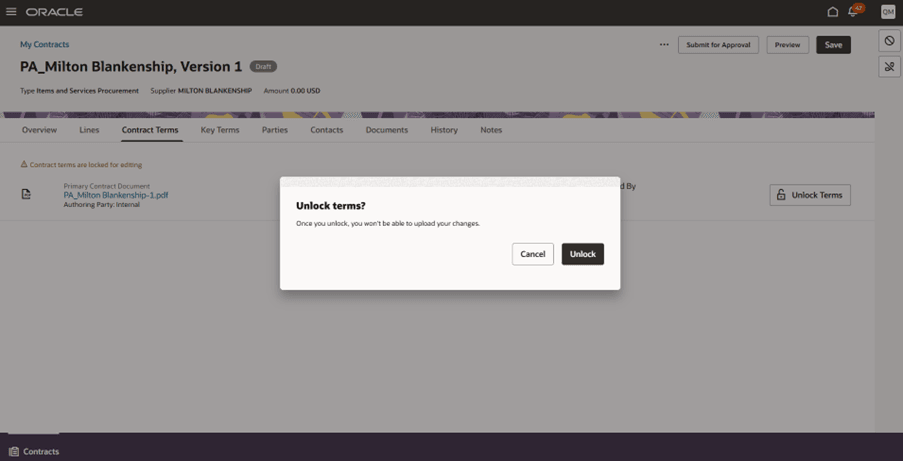
Unlock Terms
By default, the action is hidden.
It becomes visible only after a user initiates Edit in Microsoft Word, which applies the lock.
The contract terms lock can be released in the following ways:
- A user manually selects Unlock Terms.
- A revised document is uploaded through the Microsoft Word Add-in.
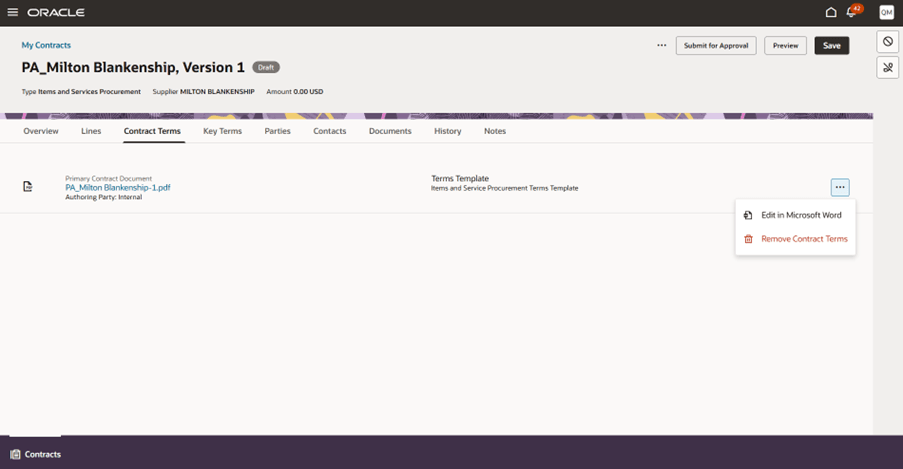
Contract Terms post Unlock
Remove Contract Terms
The Remove Contract Terms action provides a controlled way to remove existing contract terms from the Contract Terms tab. If contract terms are locked, the Remove Contract Terms action is hidden. When terms are unlocked and the above conditions are met, the action is enabled by default.
2. Attached Document Terms
Users can upload contract terms as attached documents via the Add Contract Terms drawer.
Supported combinations:
- Internal + Attached Document
- External + Attached Document
The Reference Terms Template option is available only when Authoring Party is set to External in the Attached Document flow. The field is optional. When selected, the Reference Terms Template serves as a baseline for comparison within the Microsoft Word Add-in. This enables AI-assisted capabilities that allow users to compare the externally provided attached document against the selected structured template within word add-in. Simplified terms and templates enabled with Contract Expert are not available for selection.
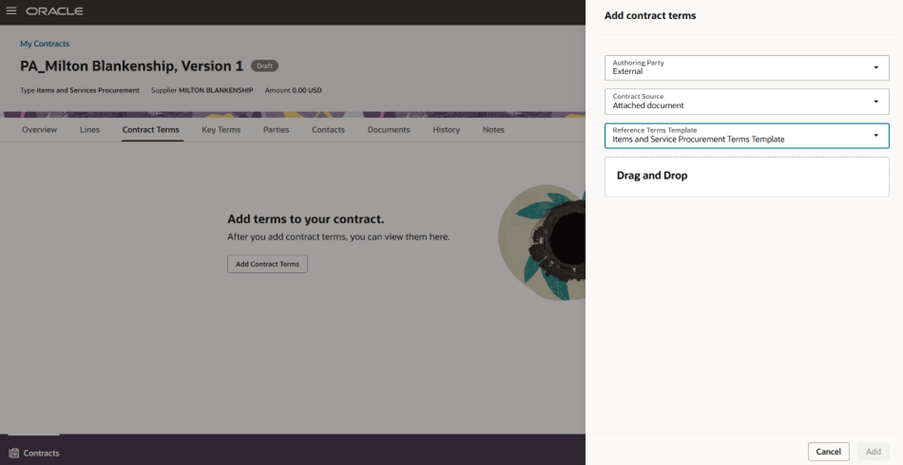
Reference Terms Template
Supported Actions – Word Documents (DOCX, DOC, RTF)
When a Word document is the active Primary Contract Document: Available actions are Edit in Microsoft Word, Upload Contract, Remove Contract Terms and Unlock
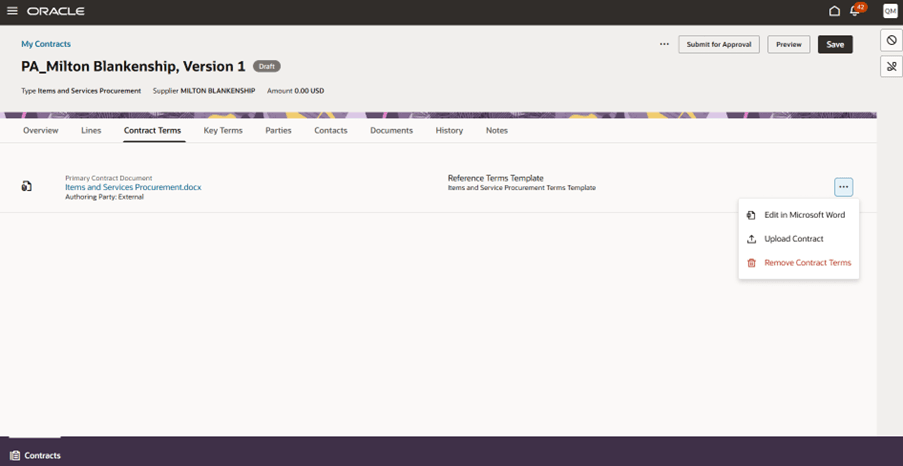
Supported Actions for Word Documents
Supported Actions – Non Word Formats (PDF, JPG etc)
Available actions : Upload Contract and Remove Contract Terms
Upload Contract
The Upload Contract action is available only for contracts authored using the Attached Document flow (Internal or External). This action enables users to upload revised versions of contract documents, maintain revision history, and update the Primary Contract Document (PCD) directly within Redwood. This action is not applicable to Structured Terms (template-based authoring). Each uploaded file is stored as a separate revision and maintains a full history in the Documents tab. The most recently uploaded file is always treated as the active PCD.
- Documents downloaded from Redwood can be uploaded back through:
- The Upload Contract action in Redwood, or
- The new Contracts Word Add-in.
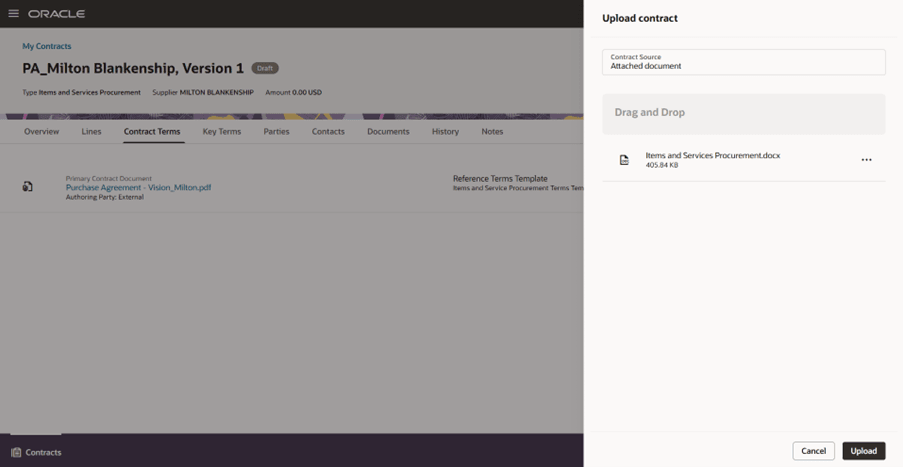
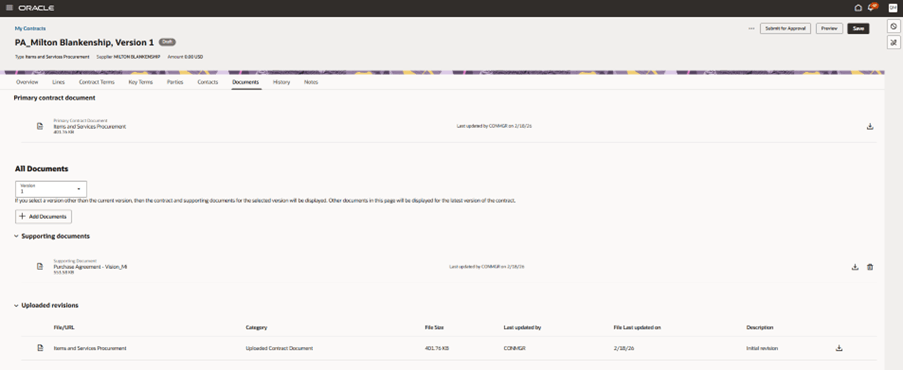
Revisions in Documents Tab
Upload Contract
The Upload Contract action is displayed when all of the following conditions are met:
- The contract is in an editable status.
- The user has edit access to the contract.
- The user has the required privilege:
OKC_AUTHOR_CONTRACT_TERMS_AND_CONDITIONS_NON_STANDARD_PRIV (Author Nonstandard Contract Terms and Conditions). - Users with read-only access do not see this action.
The action is available:
- When terms are not locked.
- When terms are locked but only to the user who holds the lock.
- Other users do not see the Upload action while the contract is locked.
Apply and Remove Hold
This release introduces Apply Hold and Remove Hold capabilities at both contract header and contract line levels. Users can temporarily place a contract or individual contract lines on hold, controlling further processing.
Apply Hold
Header-Level Apply Hold
Users can apply a hold to the current version of a contract when:
- The contract status is Active or Expired.
- The user has the required privilege:
OKC_HOLD_CONTRACT_PRIV (Hold Contract).
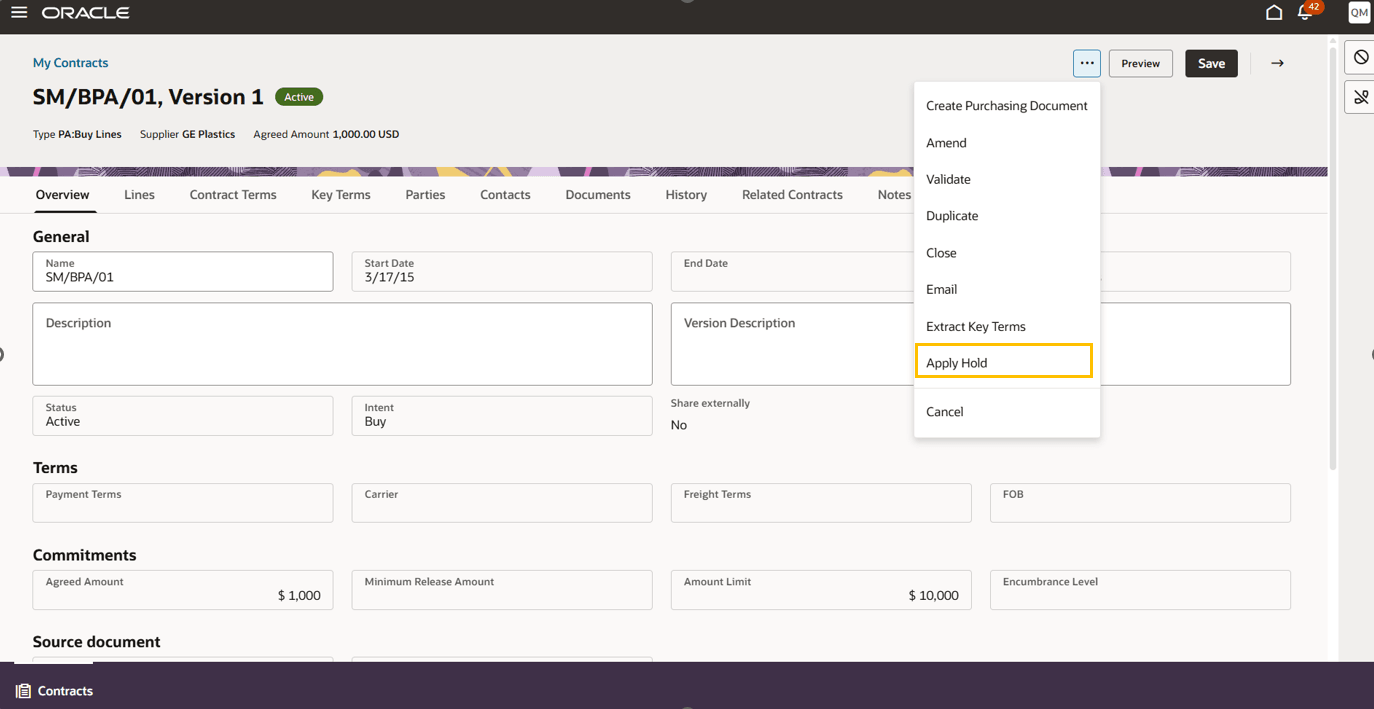
Apply Hold Button
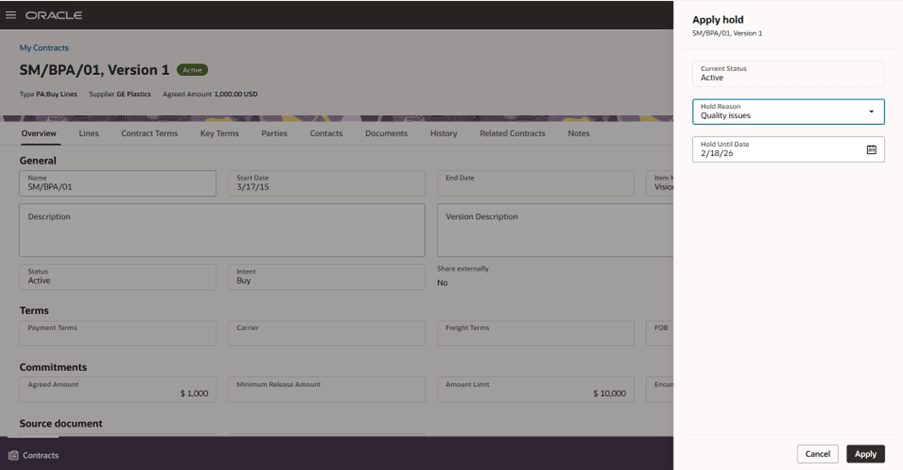
Apply Hold Drawer
When a hold is applied:
- Contract status changes to Hold.
- All contract lines are updated to Hold.
- Hold details (Reason and Hold Until Date, if provided) are displayed in a new Hold Details section in the Overview.
- The Remove Hold action becomes available.
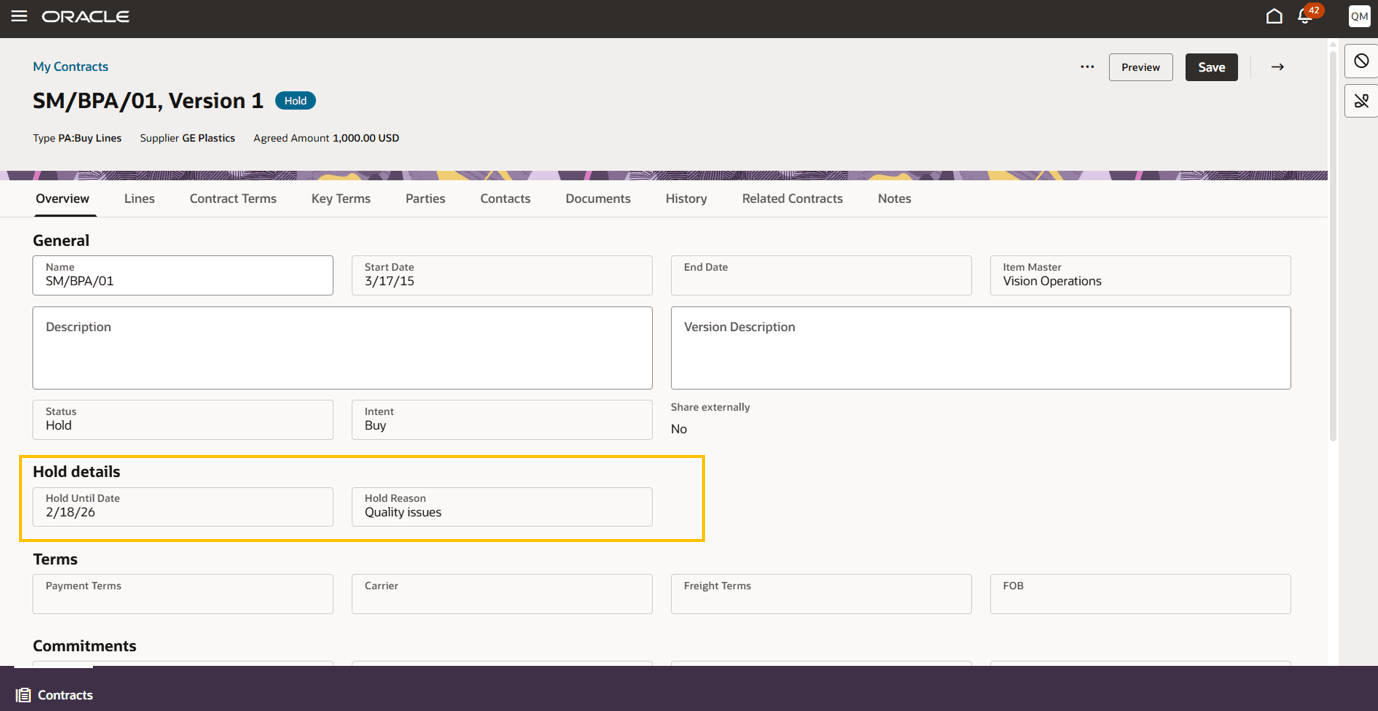
Hold Details
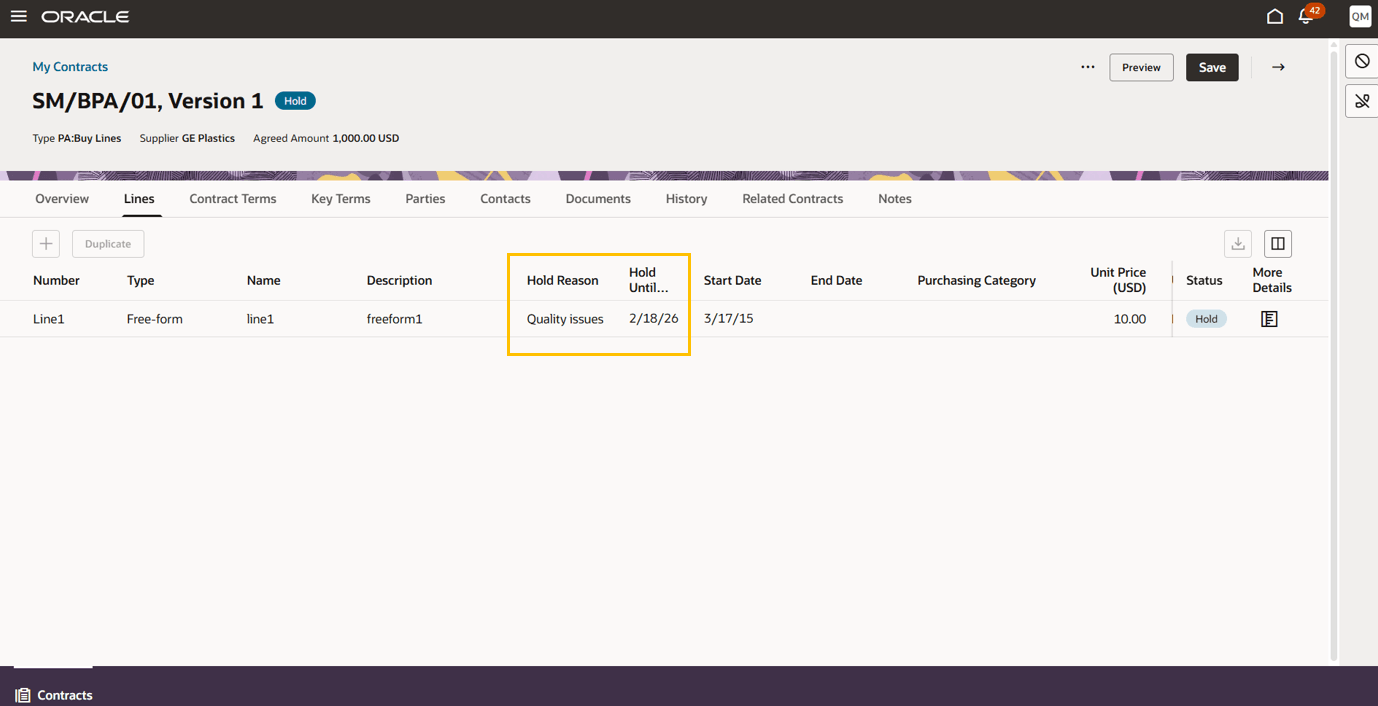
Hold Details at Line Level
Line-Level Apply Hold
Users can apply hold to a single contract line when:
- Exactly one line is selected.
- Line status is Active or Expired.
- Contract header status is Active or Expired.
- The user has OKC_HOLD_CONTRACT_PRIV.
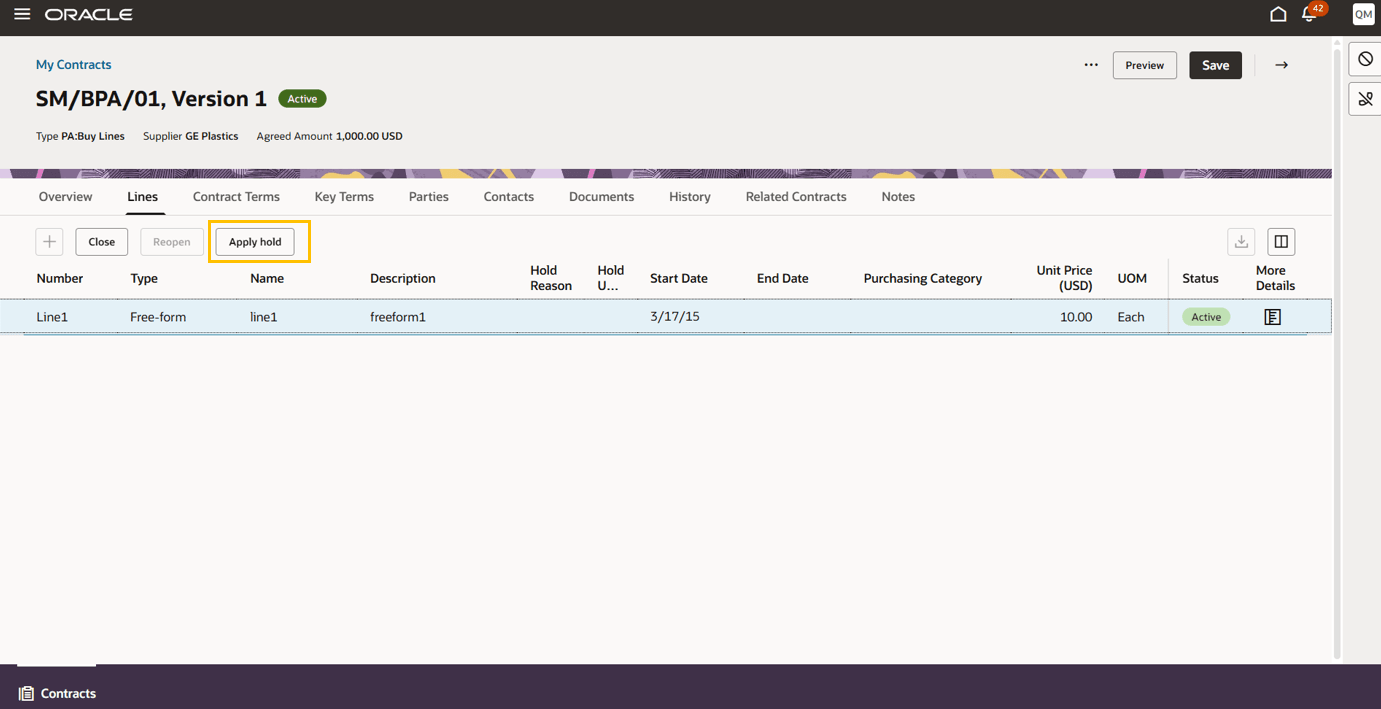
Apply Hold Line Level
If the contract header is later placed on Hold:
- Header-level hold overrides all line-level holds.
- Line-level hold actions become unavailable.
Remove Hold
Header-Level Remove Hold
The Remove Hold action is available when:
- The contract status is Hold.
- The user has OKC_HOLD_CONTRACT_PRIV.
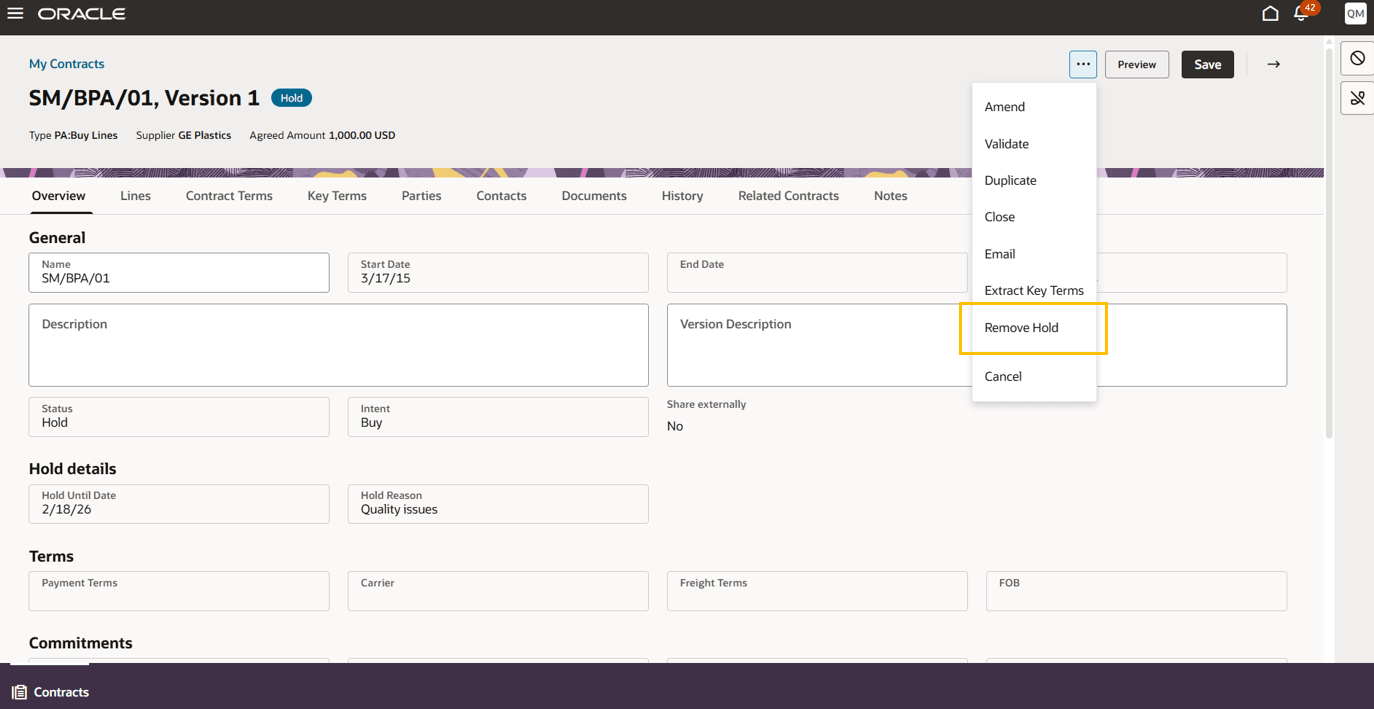
Remove Hold Action
Line-Level Remove Hold
Line-level Remove Hold is available when:
- Exactly one line is selected.
- The selected line is on Hold due to line-level hold.
- The contract header is not on Hold.
- The user has OKC_HOLD_CONTRACT_PRIV.
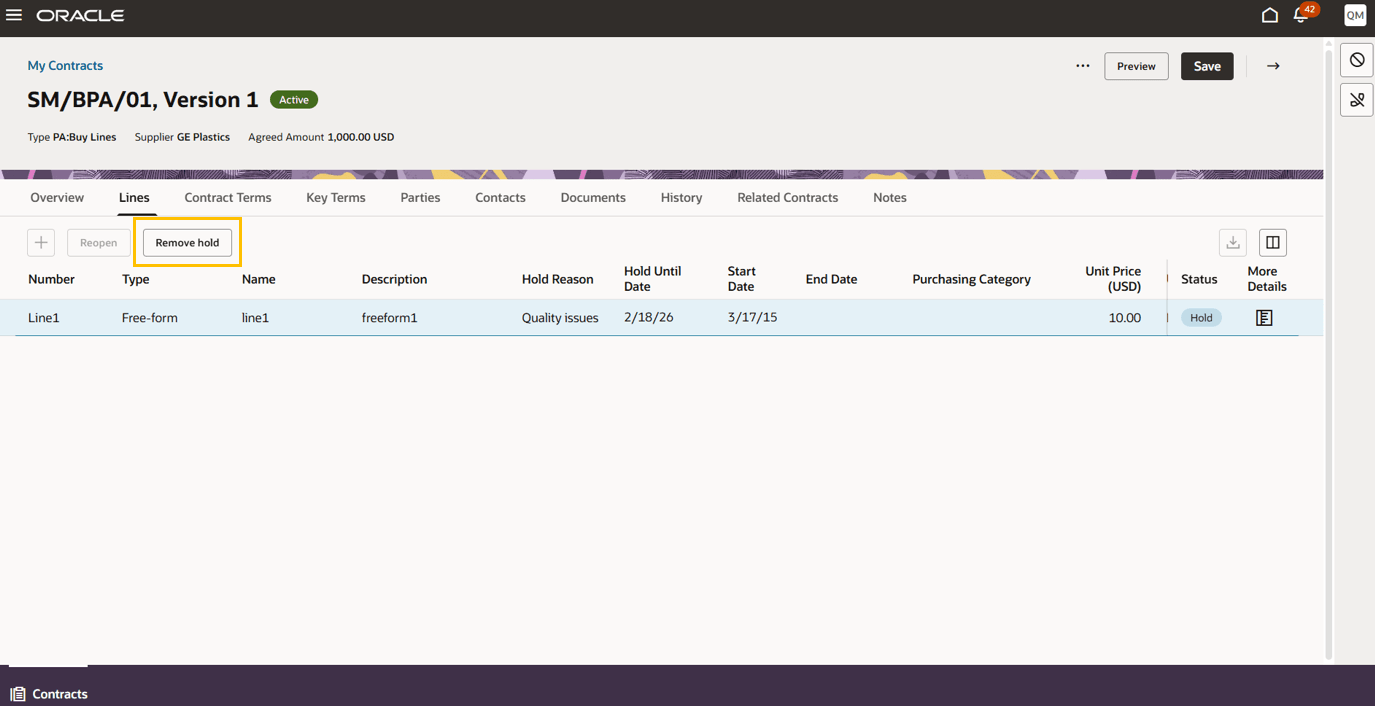
Line Level Remove Hold
Reference – Refer to Create Customer Contracts for more details on Hold - https://docs.oracle.com/en/cloud/saas/sales/fascc/contract-actions-and-status-changes.html#Contract-Amendment%2C-Contract-Delete%2C-and-Contract-Hold-Flows
Notes
This release introduces a dedicated Notes tab within the Contract Details page, enabling users to create, manage, and track contract-related notes directly in the application. Notes functionality supports rich-text authoring, configurable note types, private note visibility, and controlled access based on user privileges. Notes can be created and managed irrespective of the contract status.
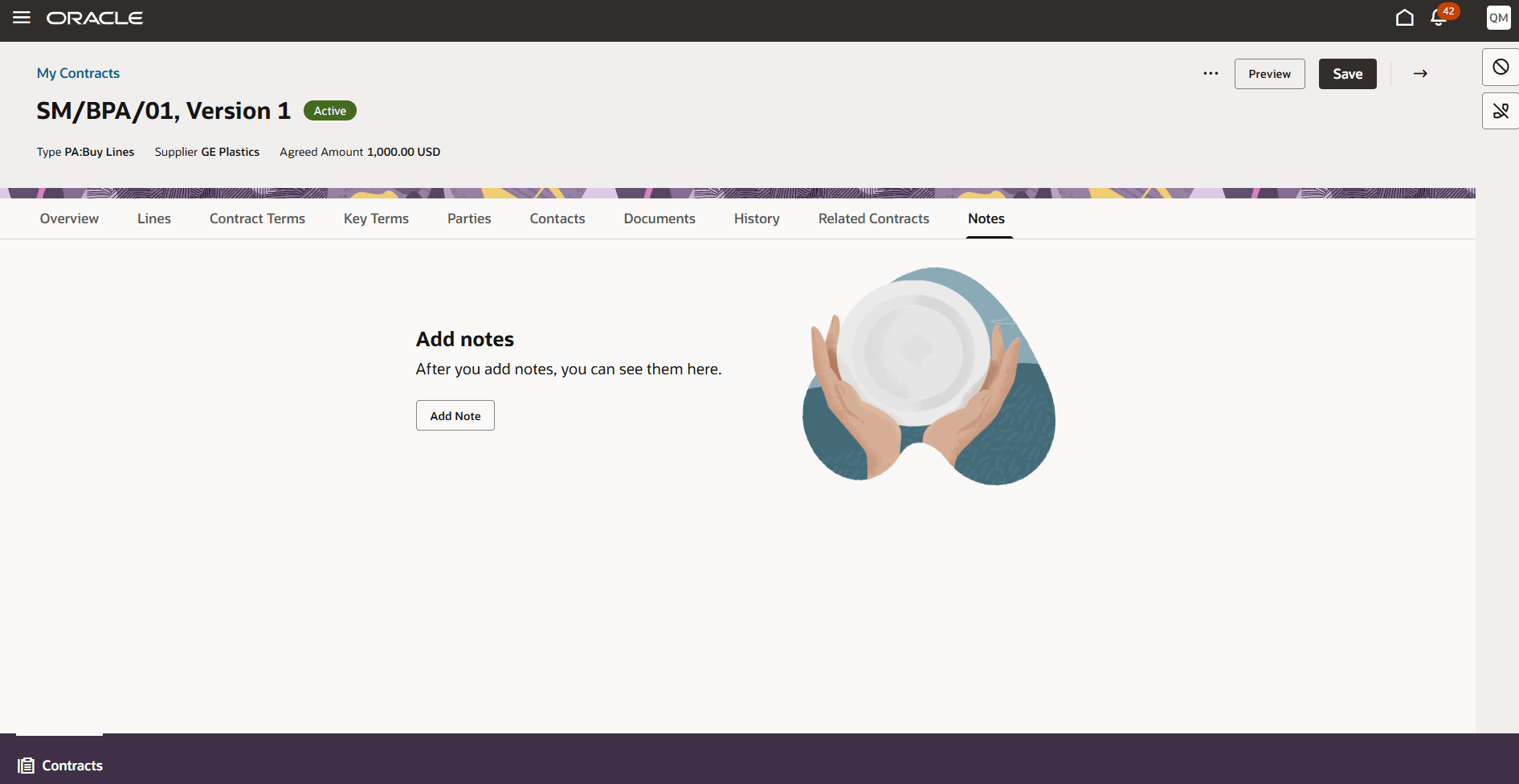
Notes Empty State
Key Capabilities
Add Notes
Users with edit access to the contract and OKC_EDIT_CONTRACT_PRIV can:
- Add notes with a mandatory title and rich-text content.
- Select a configurable note type.
- Mark notes as Private (optional).
- Create notes regardless of contract status.
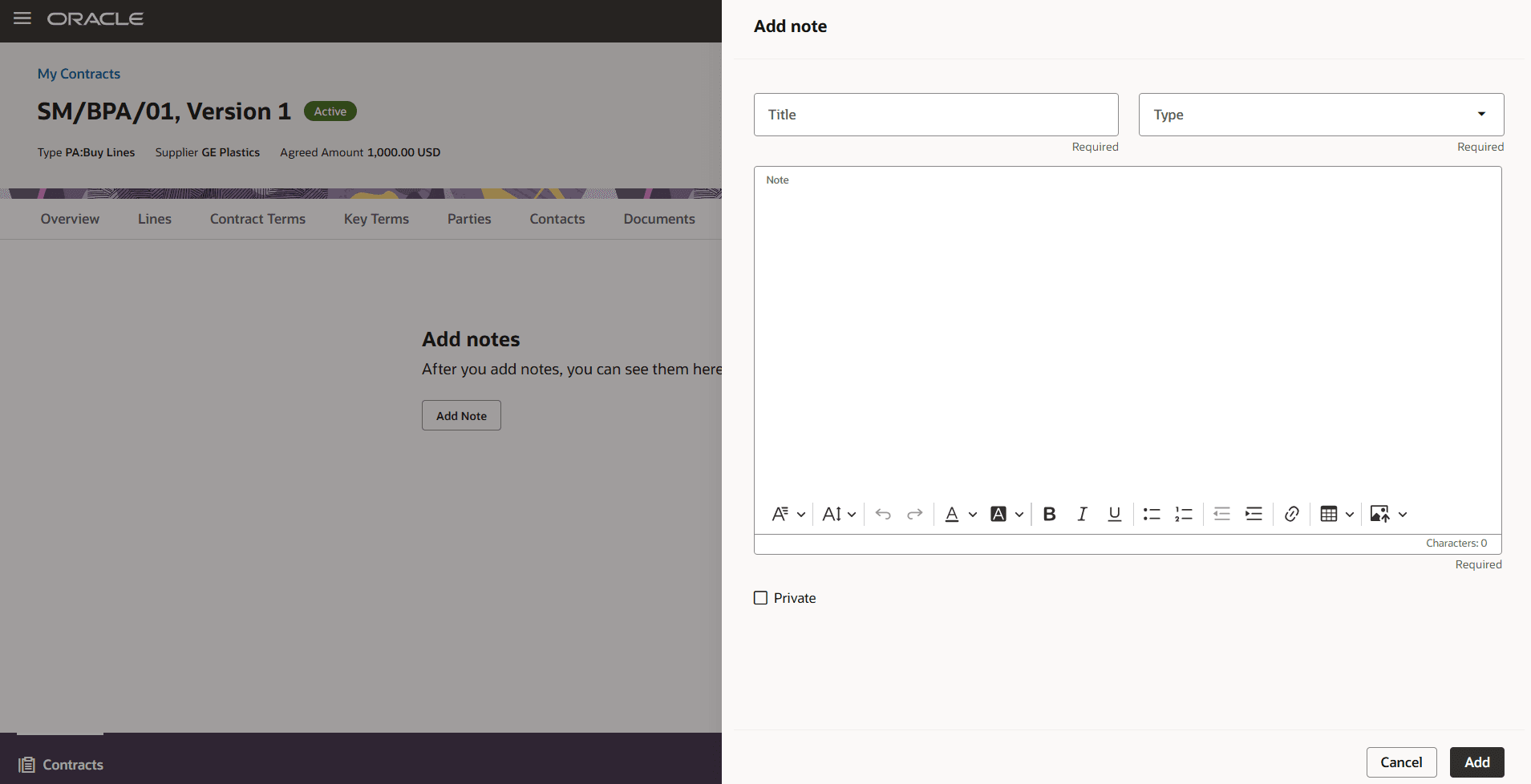
Add Notes Drawer
View and Filter Notes
- Notes are grouped by date (for example, Today and past dates).
- Users can toggle between All and Private notes.
- Private notes are visible only to authorized users.
- Users with view-only access can see public notes but cannot modify them.
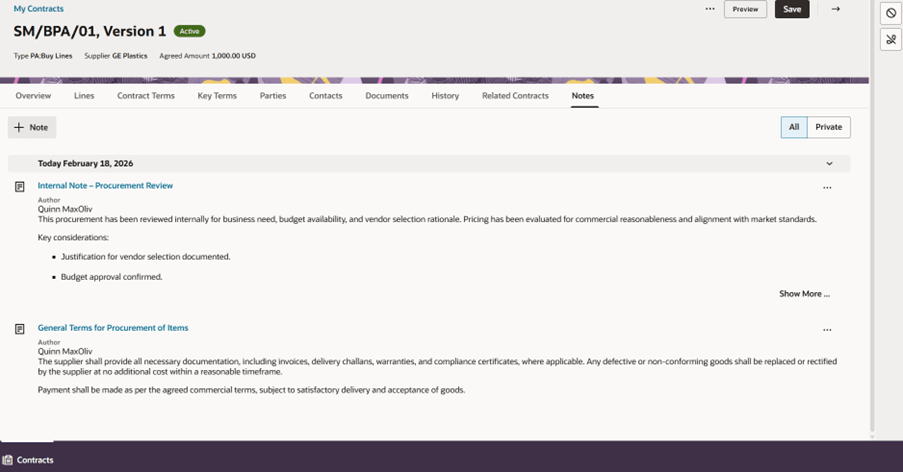
View and Filter Notes
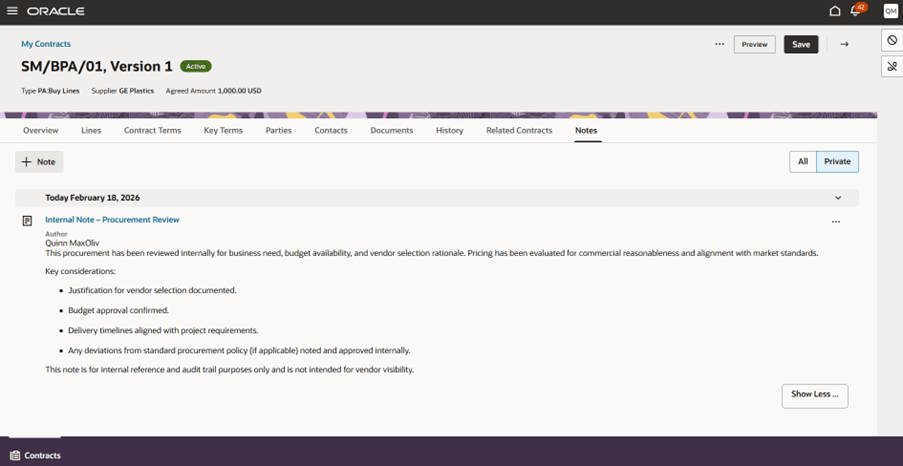
Private Note
Edit and Delete Notes
Authorized users can:
- Edit existing notes
- Delete notes with confirmation.
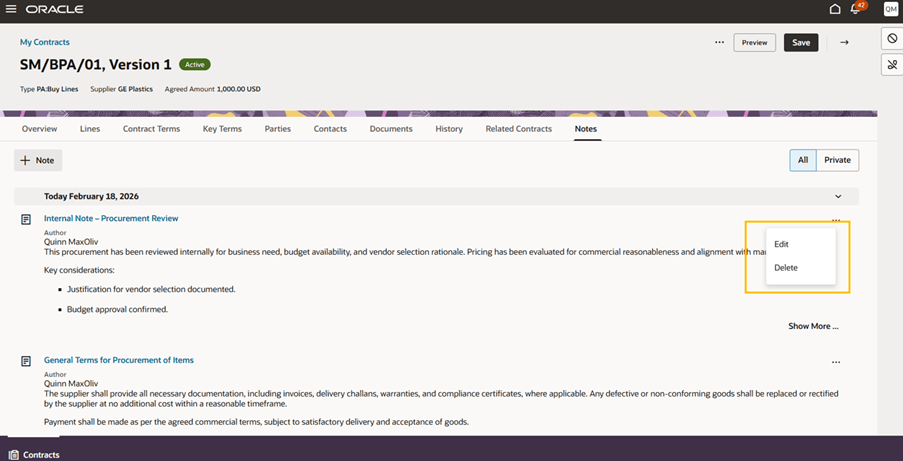
Edit and Delete Notes
Related Contracts
This release introduces a Related Contracts tab within the Contract Details page, enabling users to define and manage structured relationships between contracts.
The tab is available only for contract types where the Related Contracts feature is enabled.
Key Capabilities
Add Related Contracts
Users with edit access to the contract and OKC_EDIT_CONTRACT_PRIV privilege can:
- Relate the current contract to another contract using a searchable Document Reference field.
- Select a Relationship Type (for example: Governed By, Governs, Master Of, Child Of, Related To, Renewed By, Renews, etc.).
- Create relationships regardless of the contract lifecycle status.
- The system automatically creates the reciprocal relationship on the related contract based on the selected relationship type.
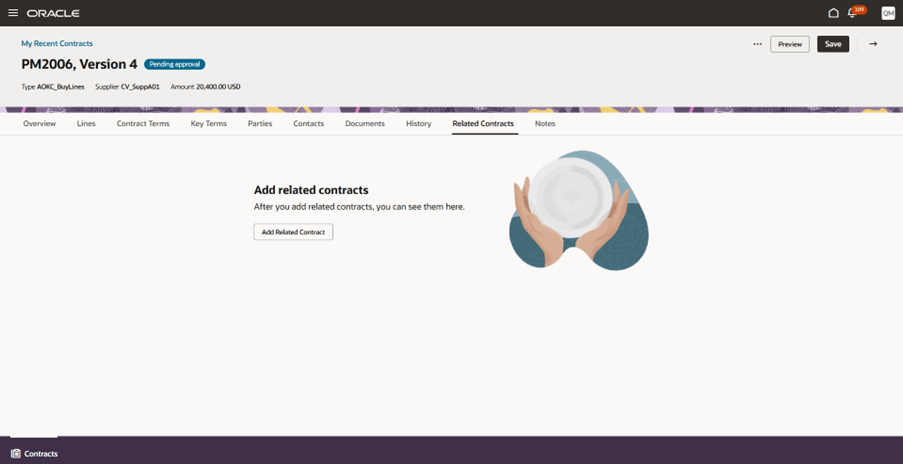
Empty State Related Contracts
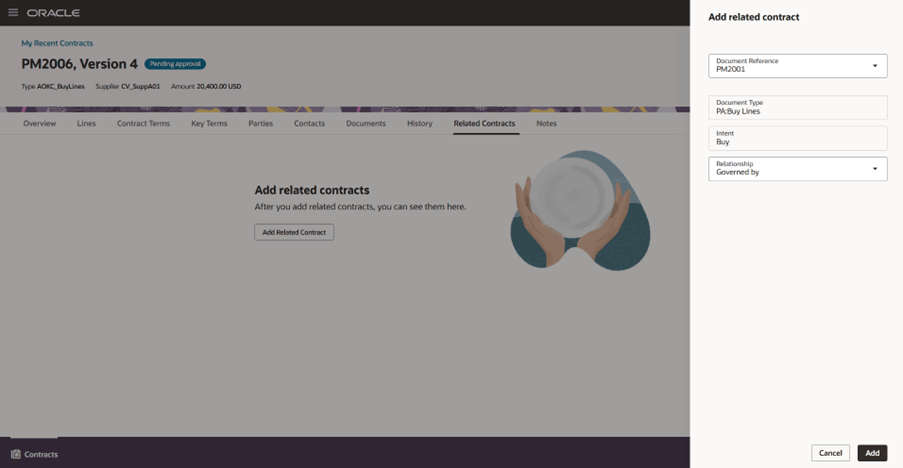
Add Related Contracts Drawer
Hierarchical View
Once relationships exist, the tab displays:
- A default table view with hierarchical expansion.
- The hierarchy displays related contracts up to two levels of relationships from the current contract.
- Expand/collapse controls for nested contracts.
- Clickable contract numbers for navigation.
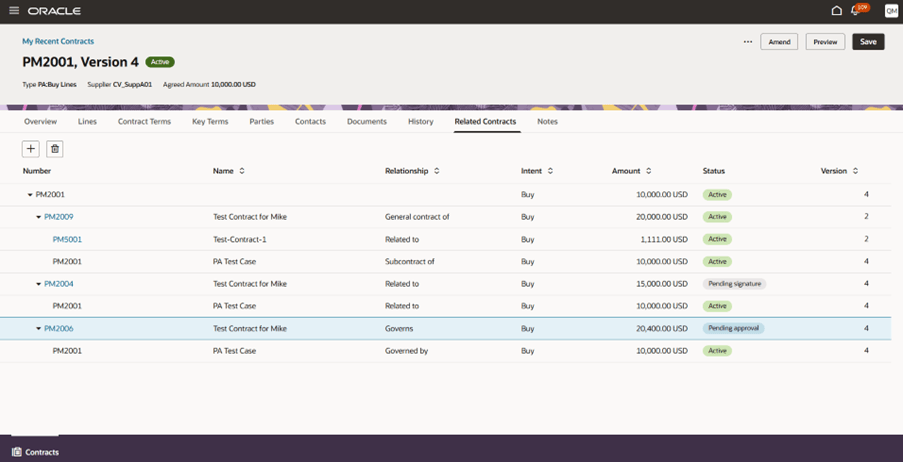
Related Contracts
Manage Relationships
Users with edit access and OKC_EDIT_CONTRACT_PRIV privilege can:
- Add additional related contracts using the + action.
- Delete a selected relationship
- Relationship updates are reflected on both linked contracts.
- Reduced Legal and Compliance Risk: Contracts can be paused and resumed at the right time, preventing premature processing or execution.
- Improved Visibility into Contract Dependencies: Clear representation of contract relationships helps users understand governance and downstream impact.
- Stronger Collaboration and Audit Readiness: Notes preserve legal decisions and context directly on the contract for future reference.
- Faster, More Confident Contract Reviews: Seamless access to structured terms and attached documents streamlines editing and reduces review time.
Steps to enable and configure
Structured Terms (Template-Based Authoring)
- To enable the supported actions, ensure users must also have edit access to the contract and the following privileges and setups are in place:
- Remove Contract Terms
Requires-
OKC_AUTHOR_CONTRACT_TERMS_AND_CONDITIONS_NON_STANDARD_PRIV
-
OKC_DELETE_CONTRACT_PRIV
-
- Edit in Microsoft Word
Requires-
OKC_EDIT_CONTRACT_PRIV
-
- Unlock Terms
Requires:-
OKC_AUTHOR_CONTRACT_TERMS_AND_CONDITIONS_NON_STANDARD_PRIV
-
- Edit Variable Values
Requires:-
OKC_AUTHOR_CONTRACT_TERMS_AND_CONDITIONS_TEMPLATE_PRIV
-
- Remove Contract Terms
- Configure Terms Templates in Terms Library
Ensure Structured Terms Templates are:
-
- Created in the Terms Library.
- In Approved status.
- Within valid effective dates.
- Mapped to the appropriate:
- Business Unit
- Intent
- Contract Type
Templates should include:
-
- Required clauses
- Properly defined variables (text, numeric, date, etc.)
Attached Document
- Assign Required Privileges and users must also have edit access to the contract.
- Remove Contract Terms
Requires:-
OKC_AUTHOR_CONTRACT_TERMS_AND_CONDITIONS_NON_STANDARD_PRIV
-
OKC_DELETE_CONTRACT_PRIV
-
- Edit in Microsoft Word
Requires- OKC_EDIT_CONTRACT_PRIV
- Unlock Terms
Requires:-
OKC_AUTHOR_CONTRACT_TERMS_AND_CONDITIONS_NON_STANDARD_PRIV
-
- Edit Variable Values
Requires:-
OKC_AUTHOR_CONTRACT_TERMS_AND_CONDITIONS_TEMPLATE_PRIV
-
- Upload Contract (Attached Document flow only - Word and non-Word formats)
Requires:-
OKC_AUTHOR_CONTRACT_TERMS_AND_CONDITIONS_NON_STANDARD_PRIV
-
- Remove Contract Terms
- Optional – Reference Terms Template Setup (External Authoring Only)
If using Reference Terms Template for external authoring:
-
- Ensure Structured Terms Templates exist in the Terms Library.
- Templates must be Approved and properly mapped (Business Unit, Intent, Contract Type).
Apply Hold and Remove Hold
To enable Apply Hold and Remove Hold functionality:
- Assign Required Privilege
- Ensure users are granted the functional privilege: OKC_HOLD_CONTRACT_PRIV (Hold Contract)
- This privilege controls both:
- Apply Hold
- Remove Hold at header and line levels.
- Configure Hold Reasons
- Make sure that the required Hold Reasons are configured in the relevant Lookup i.e. Manage Contract Hold Reasons from Setup and Maintenance.
- The Reason field in the Apply Hold drawer is mandatory and is driven by configured lookup values (for example: Quality Issues).
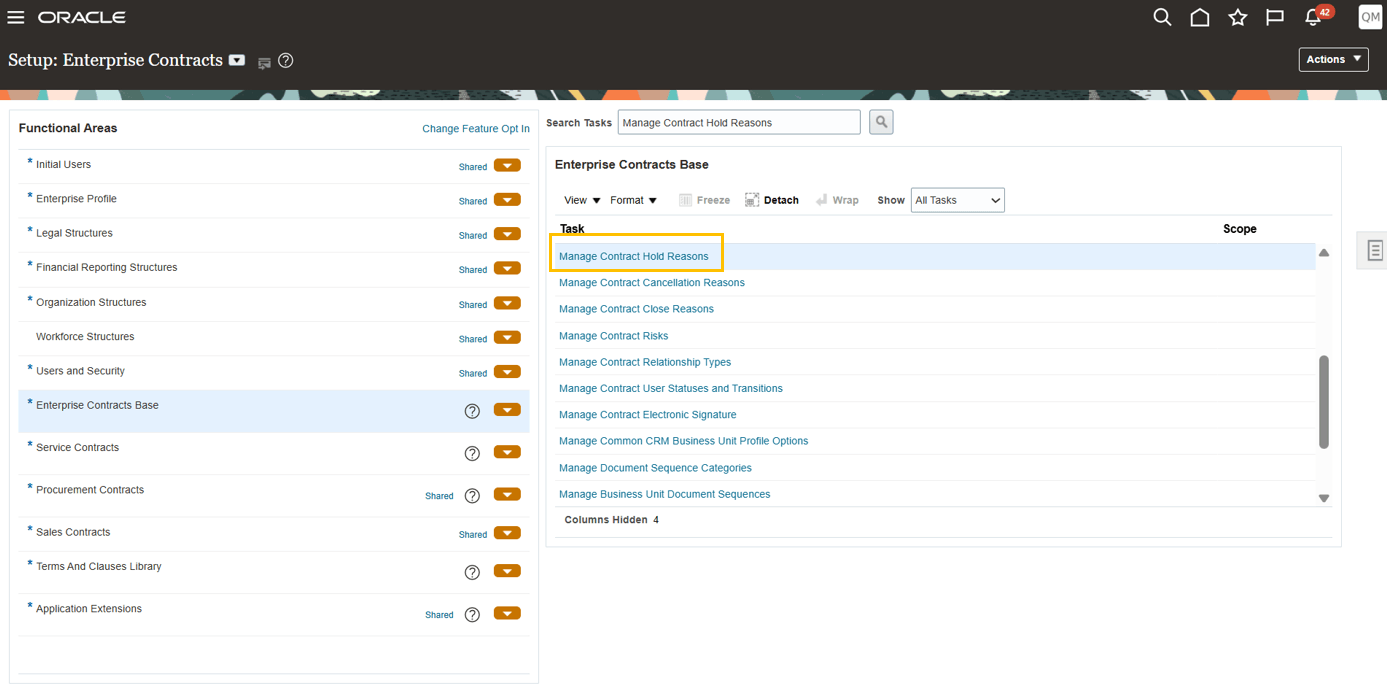
Manage Contract Hold Reasons from Setup and Maintenance
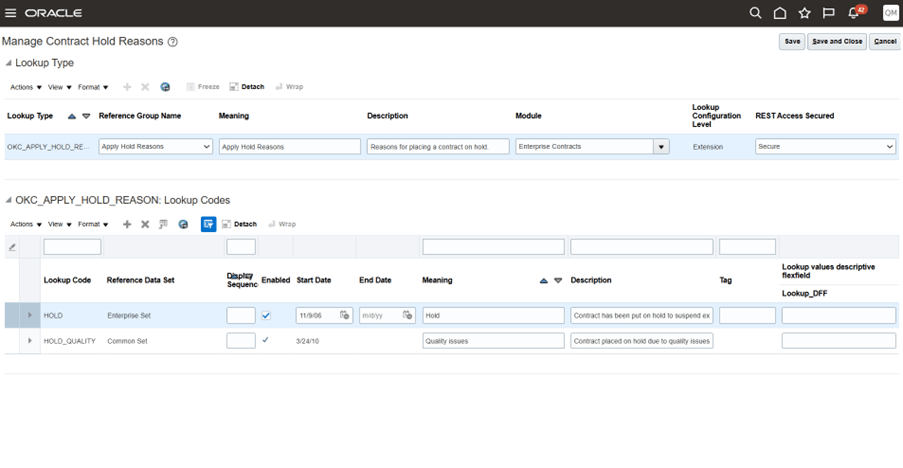
Manage Contract Hold Reasons
Notes:
-
Users should have edit access to the contract
-
Grant the OKC_EDIT_CONTRACT_PRIV privilege to users to enable them to create, edit, or delete notes.
-
Configure Note Types: Navigate to: Setup and Maintenance and then Manage Contract Note Type Mappings
-
Ensure required note types (for example, General, Legal, Expense Report Approval) are defined.
-
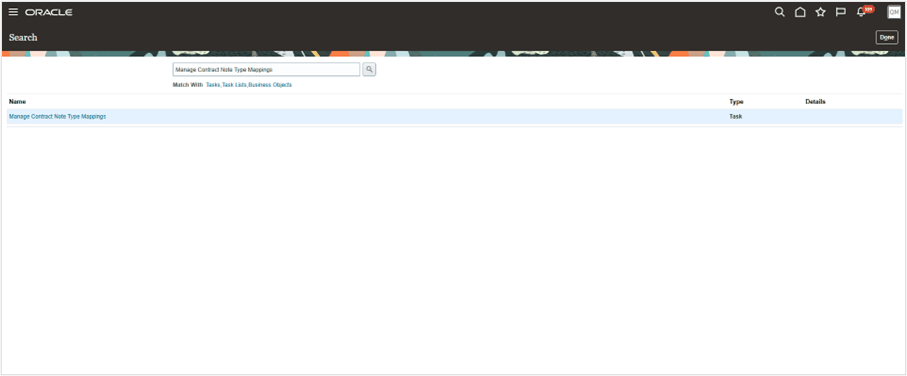
Manage Contract Note Type Mappings
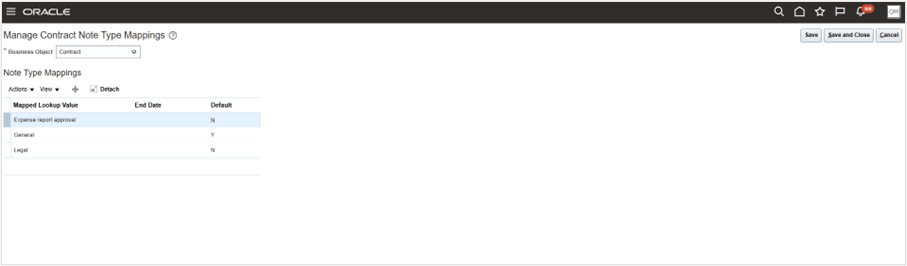
Note Types
Related Contracts
To enable Related Contracts functionality:
- Enable Related Contracts for the Contract Type: Ensure the Related Contracts feature is enabled for the applicable contract type.
- Only users with edit access to the contract can add related or delete relationships.
- Users should be assigned with OKC_EDIT_CONTRACT_PRIV privilege
- Configure Relationship Types
- Relationship values are driven by the lookup: OKC_RELATIONSHIP_TYPE
- Navigate to Setup and Maintenance, open Manage Standard Lookups, and search for the lookup type OKC_RELATIONSHIP_TYPE.
- Ensure required relationship types are defined.
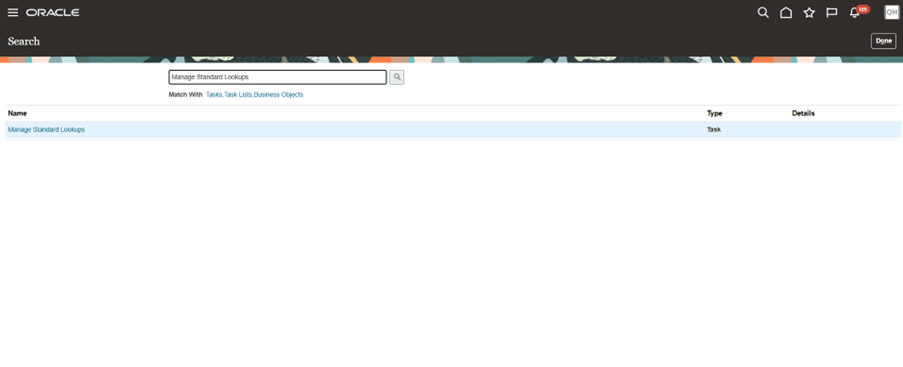
Manage Standard Lookups
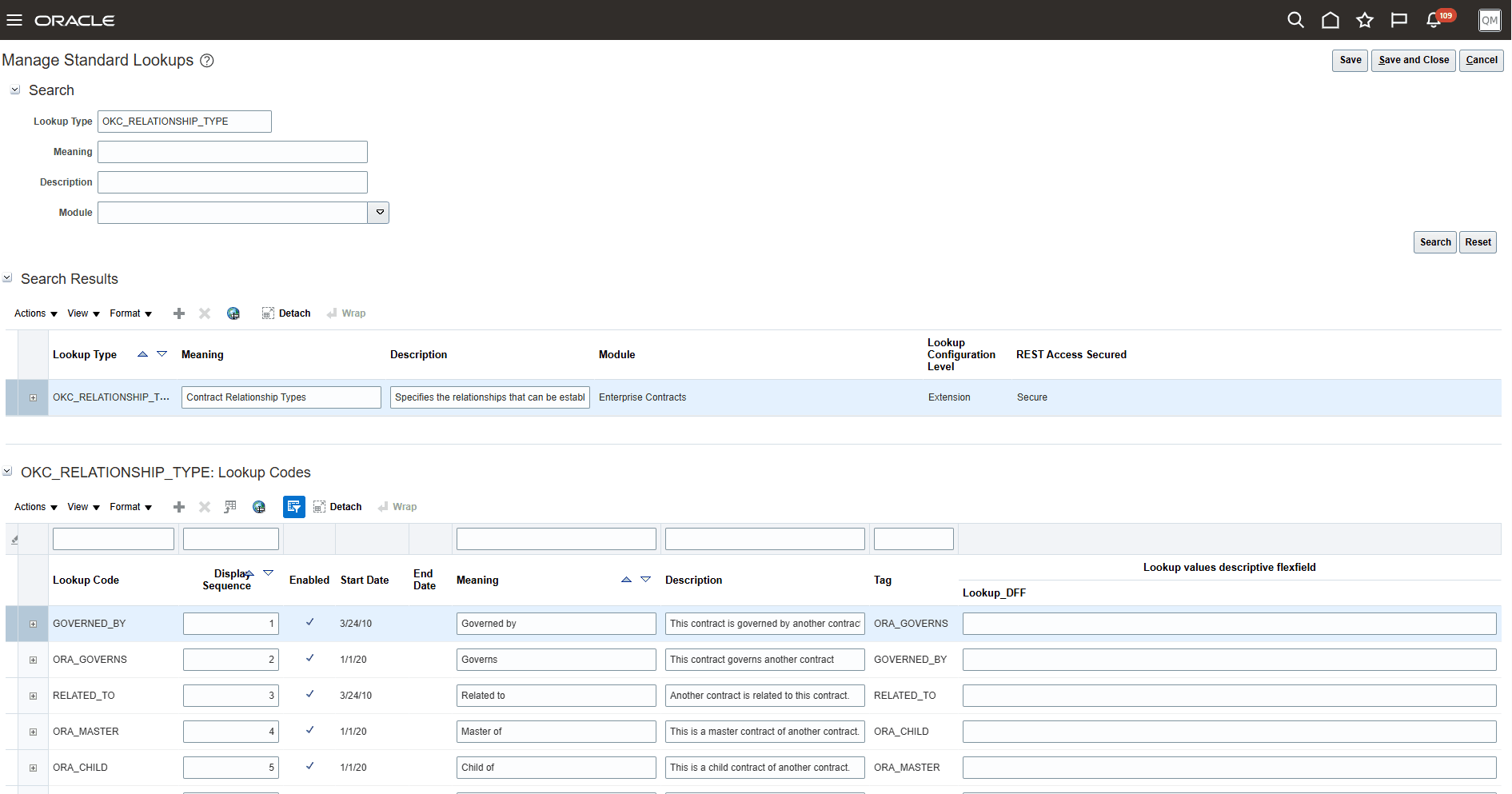
Relationship Types
Key resources
https://docs.oracle.com/en/cloud/saas/sales/fascc/overview-of-contracts.html#u30261357