Contracts AI Counsel
NOTE: This feature is not generally available for all customers at this time. Please submit a service request with Oracle Support if you are interested in this feature.
Contract Advisor is an AI-powered chat assistant that provides insights into contract terms across the contract lifecycle by answering user questions about:
- Procurement contracts (this feature is not available for Sell Intent contracts)
- Documents related to the contracts, including primary contract documents (PCD) and contract documents
- Standard clauses from the terms library
It guides users during contract drafting by aligning third-party clauses with the organization’s standard language directly within the Word add-in. Recommends relevant, previously negotiated clauses from the contract repository to ensure consistency, reduce risk, and speed up contract authoring and negotiation.
Contract Advisor is available from:
- Contracts Redwood pages (Contracts list page and Edit Contract page)
- The new Contracts Word add-in (when access and setup are enabled). Refer the 'Word add-in Enhancments' 26B release What's New document under Enterprise Contracts for more details about this feature.
Prerequisite: Content Intelligence ingestion (required)
- The contracts and clauses are to be ingested into Content Intelligence before you can ask queries.
- The agent searches across contracts and contract-related documents (PCD and contract documents) that are ingested into Content Intelligence to answer user queries.
- The agent is available from multiple launch points: contracts list page contract-level action, edit-contract page, and the Word add-in (when access and setup are enabled).
- Supports .docx, .pdf, image-based PDF ingested into Content Intelligence.
NOTE: The following setups are to be performed before using the chat assistant.
- Enable the opt-in feature
- Enable ingestion at the Business Unit level
- Configure ingestion by Contract Type
- Ingest contracts and clauses into Content Intelligence (scheduled processes)
- Purge ingested data (safe removal) - only to delete ingested contracts and clausesfrom Content Intelligence, not a mandatory step
Enable and publish the Contract Advisor agent (AI Agent Studio)
- Configure the agent in AI Agent Studio
Security Console prerequisites (to manage roles in Agent Studio)
- Enable Security Console external application integration
- Enable Permission Groups for roles
Expose Contract Advisor in the Contracts UI (Smart Action required)
- Configure a custom Smart Action (required)
- Enable the opt-in feature - enable the 'AI Agent Contract Advisor' opt-in.
- Enable ingestion at the Business Unit level
Specify the business units for which contracts and clauses are to be ingested
- Go to 'Specify Supplier Contract Management Business Function Properties' UI (Setup and Maintenance->Enterprise Contracts-)
- Enable the check box 'Enable ingestion of contracts and clauses'
- Enter a date in the 'Ingest Contracts Effective From' field - Only contracts with start date on or after the date mentioned in this field will be ingested into Content Intelligence
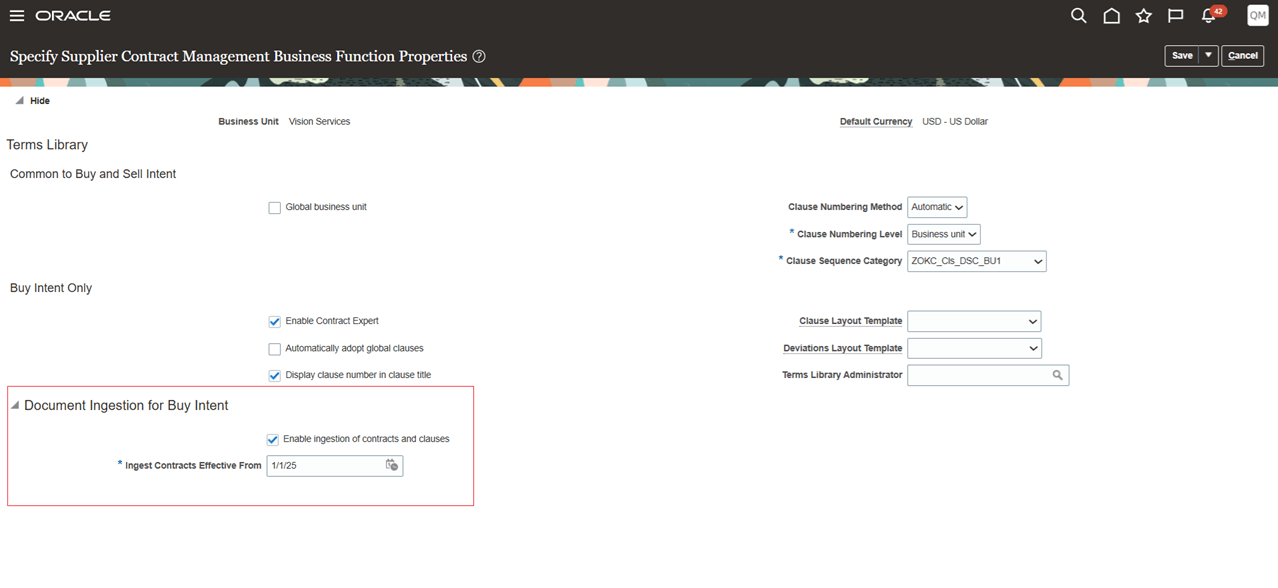
Supplier Contract Manage Business Function Properties
- Configure ingestion by Contract Type
Manage Contract Types
Specify the contract types for which the contracts are to be ingested.
A new tab called Document Ingestion is added under the AI Insights tab. This tab will be available only if the opt-in for this feature is enabled and user has the privilege 'Manage AI Setups'. Check the 'Enable ingestion of contracts' check box to ingest the contracts of a contract type into Content Intelligence. You can choose to ingest the primary contract document (PCD) and/or the Contract documents in the Documents tab of contracts by enabling the relevant check boxes. If PCD is not available in the Draft version of the contract, PCD will be generated internally for the contract terms for ingestion. If both the check boxes are unchecked, only the following contract metadata will be ingested.
Contract Number, Intent, Business Unit, Legal Entity, Version, Status, Contract Type, Amount, Currency, Primary Party Name, Start Date, End Date, Signed Date, Closed Date
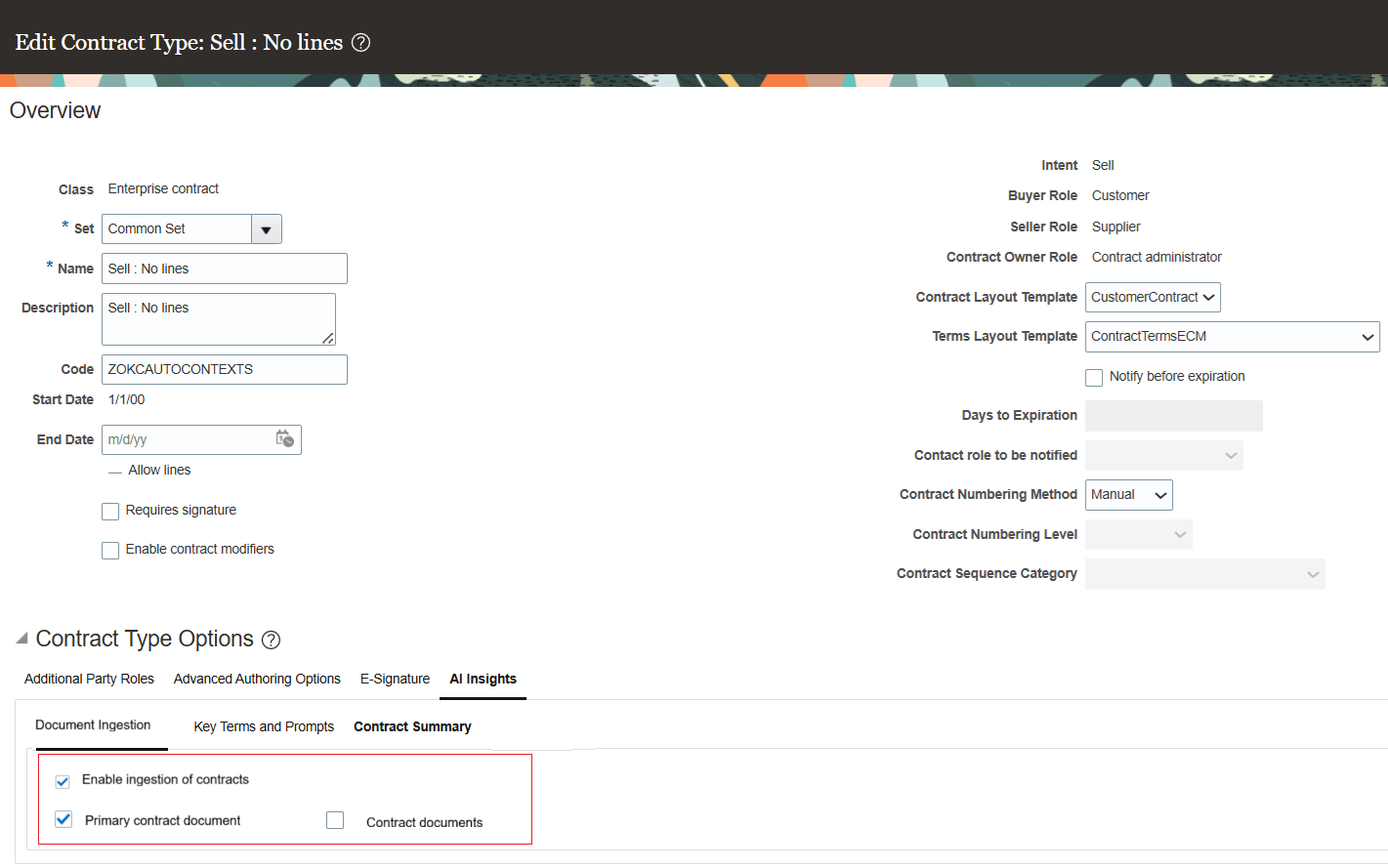
Manage Contract Types
- Ingest contracts and clauses into Content Intelligence (scheduled processes)
Contract and Document Ingestion into Content Intelligence
Scheduled processes ingest contracts and clauses from the application into Content Intelligence to make them available to agent. The processes can be run in review mode to report candidates without ingesting. Note that the first time ingestion will take a few hours, it is advised to ingest by each contract type or a few contract types first.
- Ingest Contracts into Content Intelligence
- This process ingests contracts and/or contract documents and creates Content Intelligence articles
- Ingestion only includes contracts that meet configured criteria (business unit, contract-type ingestion enabled, extract-from date, latest versions and status rules).
- Schedule the process to run at regular intervals. When documents are added, updated, deleted, or contracts are changed in the application, running the ingestion job will reflect those changes in Content Intelligence.
- Only the latest version of a contract will be ingested. If the latest version is not Active, and if there is a previous Active version, then both the versions are ingested (refer the below table)
- After the initial ingestion, schedule the process to run daily or once in a few hours, so that the latest contract information will be available in Content Intelligence and answers for user's queries will be based on the latest data
-
Contract Ingestion Criteria
Contract Versions and Statuses Ingestion Status - V1-Draft
V1 is ingested - V1-Active
- V2-Under Amendment
Both V1 and V2 are ingested - V1 -Draft
- V2 - Draft
- V3- Draft
V3 is ingested - V1 - Active
- V2- Pending Approval or Pending Signature
V1 and V2 are ingested - V1- Active
- V2 - Under Amendment
- V3- Under Amendment
V1 and V3 are ingested - V1 - If only V1 exists and if it's any of these statuses: Draft, Canceled, Pending Approval, Pending Signature, Sent for Signature, Active, Under Amendment, Expired, Hold or Closed
V1 is ingested
-
- Ingest Clauses into Content Intelligence
- Scheduled job ingests standard clauses in the terms library and creates Content Intelligence articles; supports Review (preview) and Ingest modes.
- Ingestion only includes clauses from business units for which 'Enable ingestion of contracts and clauses' check box is checked.
- Only approved clause versions are ingested
- Adopted clauses and localized clauses are not excluded for ingestion
- Purge ingested data
Use the contract and clause purge scheduled processes to systematically and safely remove ingested data from Content Intelligence.
- Purge Contracts from Content Intelligence
Removes ingested contracts based on parameters. Purged contracts can be re-ingested later by running the Ingest Contracts into Content Intelligence scheduled process.
Parameters
- Mode - Review or Ingest
- Business Unit - Choose a business unit or all business units
- Contract Type Choose a contract type or all contract types
- Contracts Ingested After - Contracts ingested after this date
- Purge Clauses from Content Intelligence
Removes ingested clauses by business unit.
Parameters
- Mode - Review or Ingest
- Business Unit - Choose a business unit or all business units. Purged clauses can be re-ingested later by running the Ingest Clauses into Content Intelligence scheduled process.
How users access Contract Advisor?
Once enabled by your administrator, you can launch Contract Advisor from:
- Contracts list page (Actions menu via a configured custom Smart Action)
- Contract details/edit page (Actions menu via a configured custom Smart Action)
- Contracts Word add-in (if enabled) - Refer the Word add-in What's New document
After the agent is published and the custom Smart Action is setup: (OOTB menu won’t be available, use smart action, refer the section)
- Go to the Contracts list page.
- Select a contract where the feature is enabled for the relevant business unit and contract type.
- From the Actions menu, select Contract Advisor.
- A chat panel opens on the right, where users can type questions or select suggested prompts.
Users can ask questions about:
- The current contract
- Other ingested contracts (subject to security/access controls)
- Ingested standard clauses
- Ingested contract documents
The chat window opens on the right side of the screen, allowing users to type or select suggested prompts to begin the conversation.
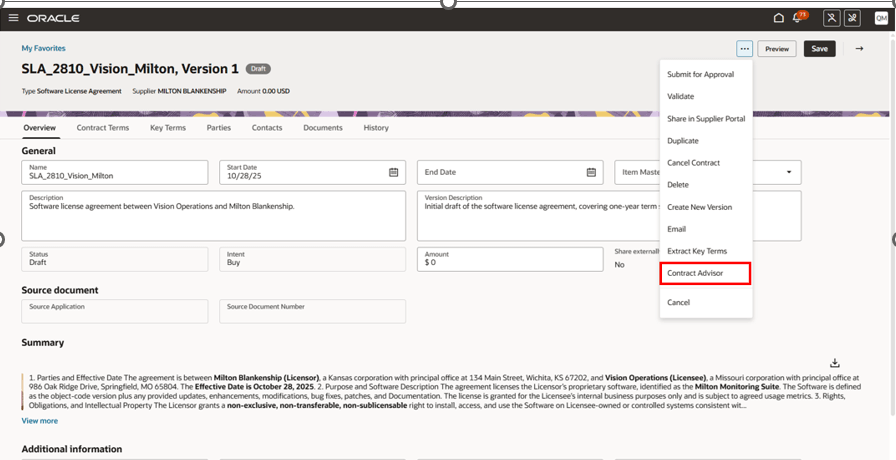
Contract Advisor from Edit page
You can also access the Contract Advisor directly from the Contracts list page using the actions menu for quick access.
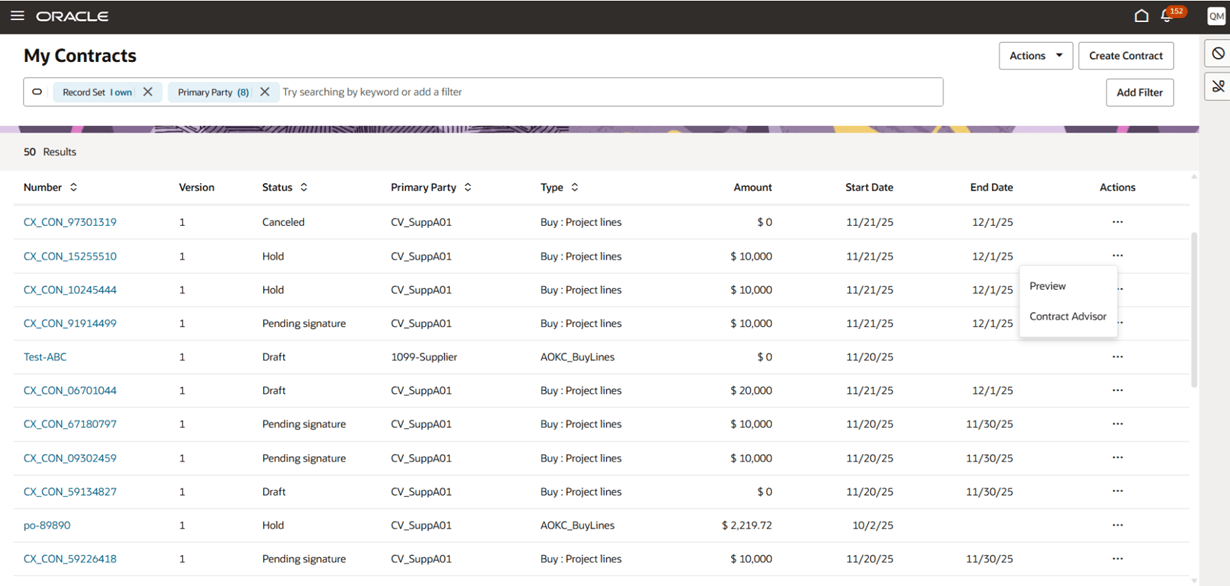
Contract List Page
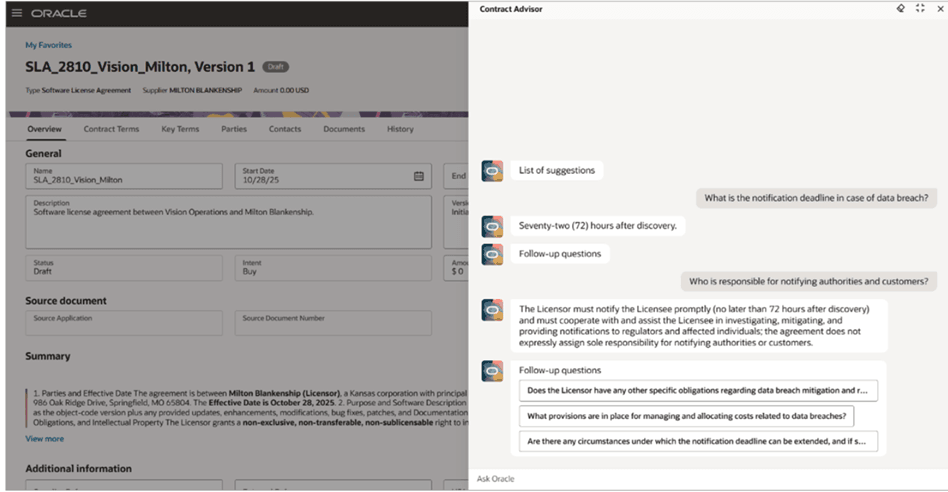
Contract Advisor Chat
You can type questions about the ingested contracts, standard clauses and contract documents including the current contract.
Answers depend on what has been ingested into Content Intelligence and on the access you have to contracts/documents.
The Contract Advisor accelerates contract understanding and significantly reduces review time. It increases efficiency for legal, procurement, and compliance teams by providing instant insights into key terms and obligations, improving decision-making and contract management productivity.
Steps to enable and configure
Use the Opt In UI to enable this feature. For instructions, refer to the Optional Uptake of New Features section of this document.
Offering: Enterprise Contracts
Enable opt-in
- From the Setup and Maintenance work area, select the Enterprise Contracts offering.
- Click Change Feature Opt-In in the Functional Areas pane.
- In the Edit Features: Enterprise Contracts page, click the pencil icon next to Enterprise Contracts to edit the features.
- Scroll down and locate the feature AI Agent Contract Advisor.
- Select the Enable checkbox to activate the opt-in feature.
- Click Done to save your changes.
Configure the agent in AI Agent Studio
- Navigate to AI Agent Studio from the Tools menu. Ensure that all required administrator roles and privileges are assigned to access AI Agent Studio. For details, refer to the Access Requirements section.
- In the search bar, locate the preconfigured agent Contract Advisor.
- Click Copy Template (recommended) or Use Template.
- Enter an Agent Team Suffix (for example, Contract Advisor_OKC) and click Continue.
- Open the copied Contract Advisor Agent Team in draft mode.
- Click the Agent Team Settings icon to review and configure:
- Modify the Agent Name if required.
- Security Tab - add the user roles that need access to the Contract Advisor chat from the contract UI. The roles (standard or custom) added in this tab determine which users can access the Contract Advisor. Users assigned to these roles, who also have the Fai GenAI Agent Runtime duty role, the Manage All Intelligent Agents role, and the Access Intelligent Agent Chat privilege, along with either view or edit access to the contract, will be able to open and use the Contract Advisor directly from the contract UI. For additional details, refer to the For End Users to Use Contract Advisor in UI section below.
- To add roles under the Security tab in AI Agent Studio, the following setups must be completed.
Enable Security Console external application integration
From Manage Administrator Profile Values task from Setup and Maintenance,
- Set the profile option ORA_ASE_SAS_INTEGRATION_ENABLED, Enable Security Console External Application Integration to Yes at site-level
- Set the Enable VBCS Progressive Web Application User Interface (ORA_HCM_VBCS_PWA_ENABLED) to Y at site-level.
Enable Permission Groups for Roles
After the profile option is set to Yes, you must enable permission groups for each role that needs access to the Contract Advisor agent.
- Navigate to the Security Console.
- Search for each relevant role (for example, Customer Contract Manager, Supplier Contract Administrator, or Enterprise Contract Manager).
- Open the role and click Enable Permission Groups.
- Save your changes.
- Click Update to save your changes.
- Click Publish to make the Contract Advisor agent available for use within contracts. Only published agents can be accessed from the contract UI.
Configure custom Smart Action
Administrators must configure a custom Smart Action to enable the Contract Advisor menu and allow it to be invoked within the contract. Follow the steps below to configure the custom Smart Action:
1. Create and Enter a Sandbox
From the Navigator, go to Configuration and then Sandboxes.
- In the Sandboxes page, click Create Sandbox.
- In the Create Sandbox dialog:
- Enter a Name, for example, Contract Advisor.
- Set Publishable to Yes if you plan to deploy changes after testing.
- Select the Application Composer tool from the list.
- Click Create and Enter to enter the newly created sandbox.
- You can also return to the Sandboxes list later and click Enter Sandbox next to your sandbox name to open it.
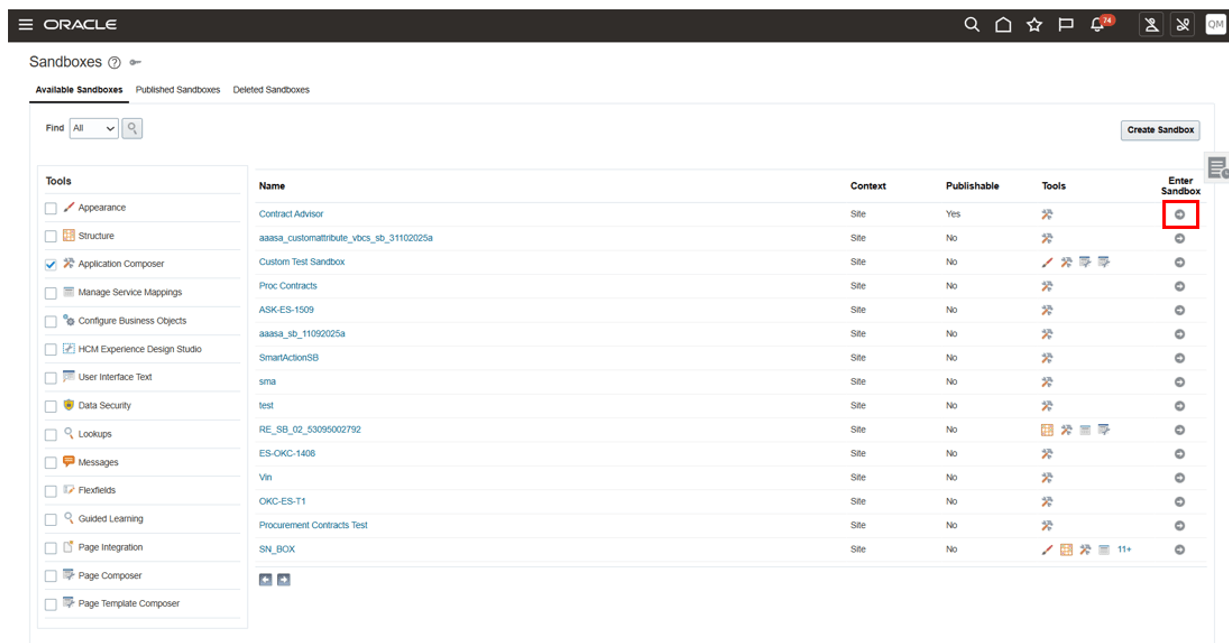
Enter Sandbox
2. Once inside the sandbox, navigate to Application Composer from the left navigation menu.On the Application Composer home page, click Smart Actions. This opens the Smart Actions configuration workspace.
3. Click Create to define a new Smart Action.
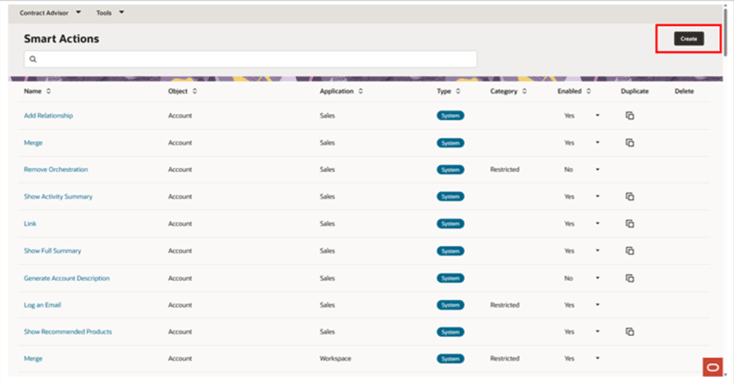
Click Create
4. In the Kind of Action step, select UI - based Action.
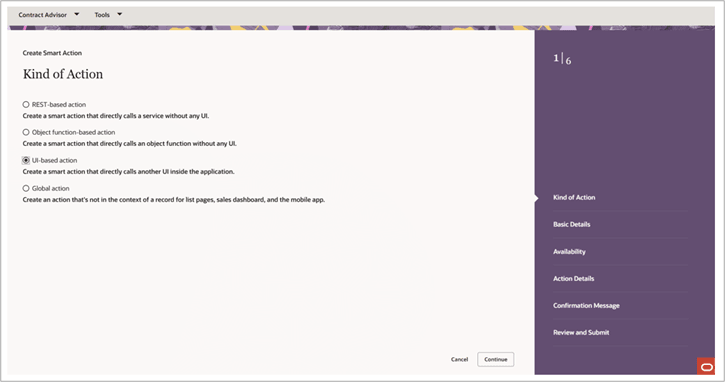
UI Based Action
5. In the Basic Details step:
Enter a Name such as Contract Advisor. This name will appear under the Actions menu on the contract details and list pages for the configured contract type. Select the Object as Contracts.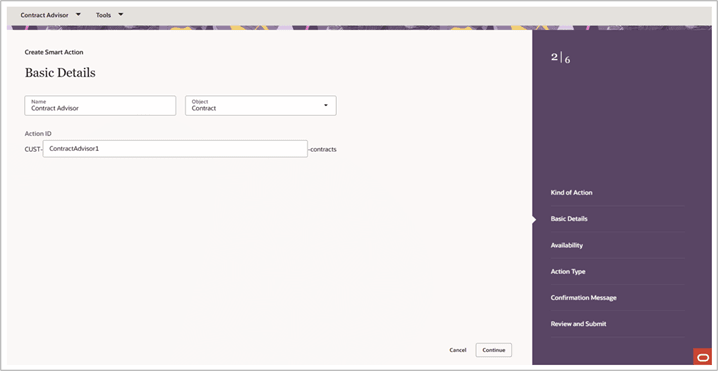
Basic Details
6. In the Availability step, select Application as Contracts. To make the action available in the Contracts List Page, set UI Availability to List Page.
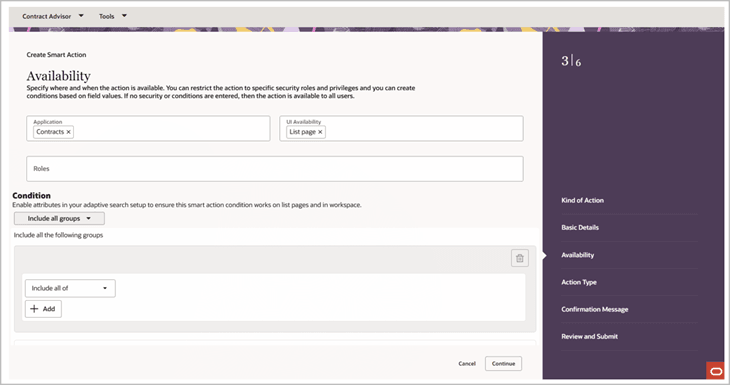
Availability Step
7. In the Action Type step, set Type to Agent Team. Select the Agent Team Code corresponding to the Contract Advisor agent created and published in AI Agent Studio.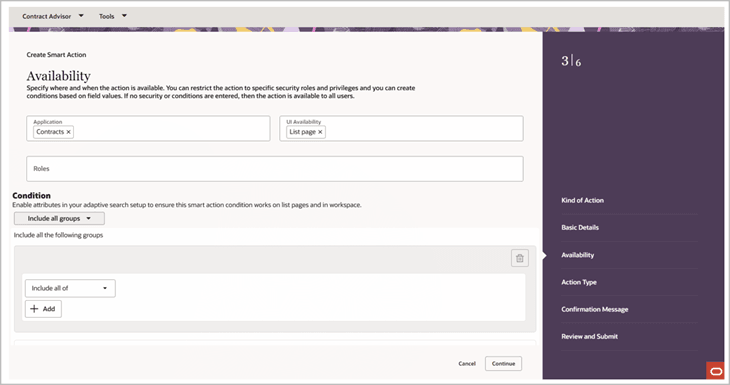
Action Type
8. In the Review and Submit step, review all configurations and click Submit to create the Smart Action.
9. Validate the setup in the Contracts UI by triggering the Contract Advisor Smart Action from either the Contracts list page or the contract details page.
10. Once confirmed, publish the sandbox to make the Smart Action available to all eligible users.
11. This configuration enables seamless access to the Contract Advisor agent directly from the Contracts UI, allowing users to initiate AI-driven Q&A sessions.
Access requirements
For Administrators
- The new AI Insights tab is available in the Manage Contract Type UI to capture setup information related to AI-powered features. This tab is displayed only if the AI Agent Contract Advisor opt-in is enabled, and the logged-in user has the following privilege:
- Privilege Name: Manage AI Setups
- Code:OKC_MANAGE_AI_SETUPS_PRIV
- Description: Allows the definition of setups related to all AI-related features.
- The Document Ingestion subtab will be displayed only if the AI Agent Contract Advisor opt-in feature is enabled.
- To access the Oracle AI Agent Studio for Fusion Applications and manage CX AI agents, users must be assigned a configured job role that includes the following duty roles.
- Duty Role Name: Fai GenAI Agent CX Administrator
Code: ORA_DR_FAI_GENERATIVE_AI_AGENT_CX_ADMINISTRATOR_DUTY
Description: This existing duty role, created by AI Agent Studio, is required to manage and test CX AI agents in the Agent Studio.
- Duty Role Name: Fai GenAI Agent CX Administrator
Note: This is an orphan privilege and must be explicitly assigned where required.
- Duty Role Name: Manage CX AI Agents
Code: ORA_ZCA_MANAGE_CX_AI_AGENTS
Description: Allows users to view and manage CX AI agents in AI Agent Studio. Administrators must have this duty role and
- Application Implementation Consultant job role to access the Contract Advisor agent in AI Agent Studio.
- To ingest contracts and clauses into Content Intelligence, Manage AI Setups privilege and the following duty role is needed
- Duty Role Name: Manage Contract Intelligence for Contracts
Code: ORA_CSO_FAI_CONTRACTS_DUTY
Description: Allows content to be created as the logged in user which will show up in AI Agents related to Contracts.
- For ingesting contracts, Access Groups should be up taken. Refer the Contracts Using Access Groups for more details
- User will be able to ingest or purge only those contracts the user has access to.
For Runtime users
- Duty Role Name: Fai GenAI Agent Runtime Duty
Code: ORA_DR_FAI_GENERATIVE_AI_AGENT_RUNTIME_DUTY
Description: This existing duty role, created by AI Agent Studio, is required for users to trigger and interact with the Contract Advisor chat feature in the Contract UI.
This duty role is added to the following job roles out-of-the-box:
-
- Customer Contract Manager
- Customer Contract Administrator
- Supplier Contract Manager
- Supplier Contract Administrator
- Enterprise Contract Manager
- Role Name: Manage All Intelligent Agents
Code: ORA_FAI_MANAGE_ALL_AI_AGENTS
Description: Enables users to execute and interact with intelligent agents configured in the application. - Privilege Name: Access Intelligent Agent Chat
Code: HRC_ACCESS_AI_AGENT_CHAT_PRIV
Description: Allows users to open and interact with the AI-powered chat interface within the Contract UI. - Edit or view access to the contract