Redwood: Import Data into Pivot Tables Without Macros
With this update, Oracle Fusion Cloud Supply Chain Planning supports excel-based imports in .xlsx format. You can now download the template in .xlsm format, save it in .xlsx format, enter data, and then import it. The .xlsx format excel sheet retains the prior sheet structure, headers, validations, and formatting. The system provides error handling and back-end validations during import.
Oracle supply chain planning now supports Excel-based imports using standards, non-macro enabled (.xslx). This enhancement removes the previous requirement to use only macro-enabled (.xlsm) files for imports, thereby improving security, compliance, and usability while preserving the existing table data import experience.
You can continue to use Excel files for bulk data entry and uploads, now without the need to enable or maintain VBA macros.
This helps deliver a more secure and seamless Excel import experience by:
- Eliminating security and compliance risks associated with VBA macros.
- Reducing efforts and time needed for macro enablement and Excel security settings.
- Aligning with your IT policies that restrict macro-enabled files.
- Maintaining full functional parity with the previous macro-based templates.
Enhanced Data Import Using Existing Excel Templates and Data Import Flows
You can continue to use the familiar Microsoft Excel (.xlsm) import templates to load planning data into a pivot table. There is no change in the sheet structure and data format requirements for the data import and you should be able to use previous templates.
To import data:
- Export the data from the pivot table by clicking on the Export icon. The file is exported in an .xlsm Excel file with same sheet structure, headers, and validations as before.
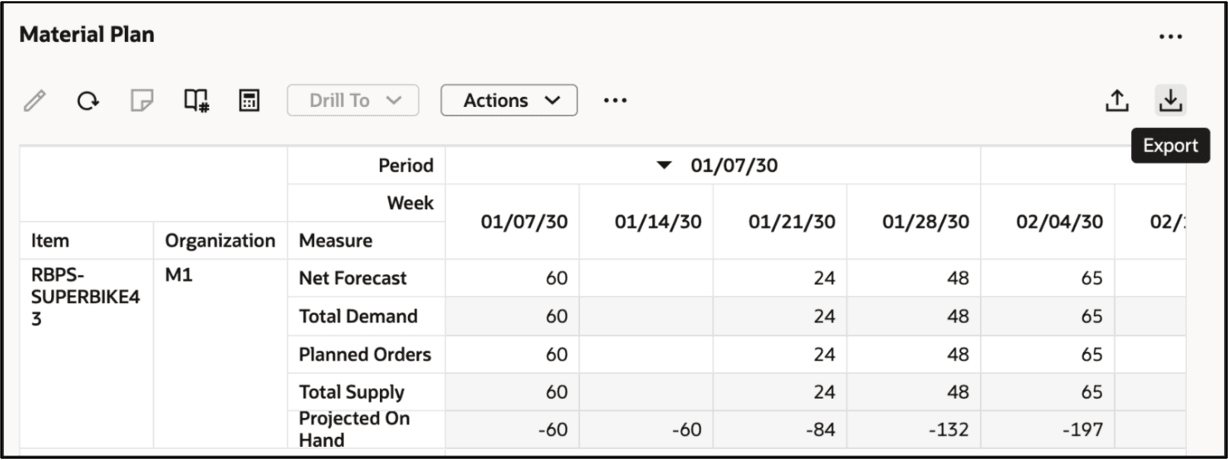
Exporting Data
- A security warning asks you to enable or disable macros. You may choose depending on your organization’s security mandate. Both the modes are supported when importing the data.
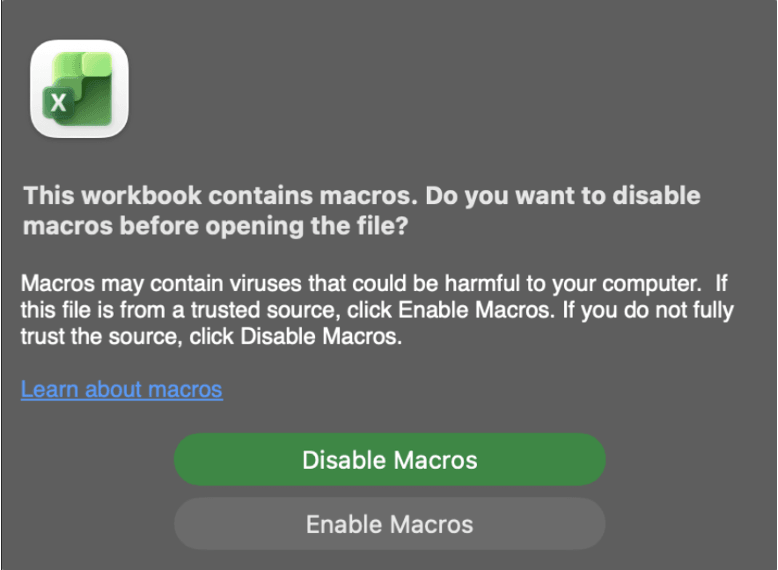
Disable macros security warning
- Make edits to the exported data file. You can choose to save the file as a .xlsx format or continue using the template with the macros enabled, the .xlsm format.
- Click the Import icon available on the pivot table to import the edited data file.
The system performs backend validations and imports valid data. Validation checks include the following:
- Completeness & structure: All required fields are populated, and the file strictly follows the Oracle SCP import template such as columns, format, no formulas, or merged cells.
- Data integrity: Values use the correct data types, formats, ranges, and comply with planning business rules such as valid dates, non-negative quantities.
- Reference validity: All items, organizations, measures, UOMs, and flags are valid master data and match allowed values exactly
- Logical consistency: Records are unique by key combinations and satisfy cross-field dependencies. For example, valid measures exist for a combination of product, time, and organization measures.
Steps to enable and configure
You don't need to do anything to enable this feature.
Access requirements
Users who are assigned a configured job role that contains these privileges can access this feature:
- Export Planning Data ( MSC_EXPORT_PLANNING_DATA_PRIV)
- Edit Data in Planning Tables (MSC_EDIT_DATA_IN_PLANNING_TABLES_PRIV)
- Edit Plans ( MSC_EDIT_PLANS_PRIV)
These privileges were available prior to this update.