AI Agentic App: Inventory Planning Command Center
You can now use the AI agentic application named Inventory Planning Command Center to quickly analyze replenishment plan stockouts and receive actionable recommendations to resolve them. This agentic application will improve decision-making by presenting estimated stockout reductions after you expedite orders, create orders, transfer inventory, and adjust inventory-policy values. The agentic application also supports the simulation of recommended actions and their implementation to enhance service levels and maximize revenue.
To use the AI agentic application, follow these steps.
- In the Navigator, under Tools, select AI Agent Studio.
The AI Agent Studio will open.
- Select the Apps tab at the bottom of the AI Agent Studio.
- Search for the Inventory Planning Command Center, and select the Run icon.
The Inventory Planning Command Center will open on a new tab of your browser.
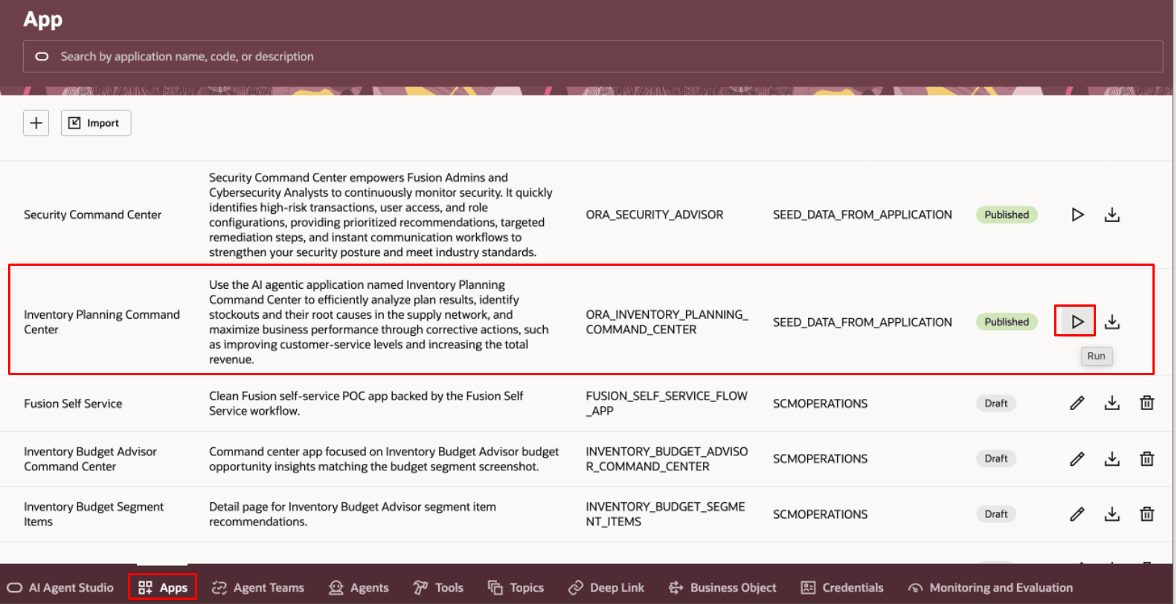
Run Icon for Inventory Planning Command Center
Note: You can also open the Inventory Planning Command Center from the Supply Chain Planning work area. Select the Show More link for the quick actions, and in the Configuration section, select Inventory Planning Command Center.
- In the Plan list, select the replenishment plan that you would like to analyze.
The available plans are only those that have been successfully run and for which you’ve selected the Calculate replenishments checkbox on the General tab in the Plan definition step of the guided process for creating or editing your replenishment plan.
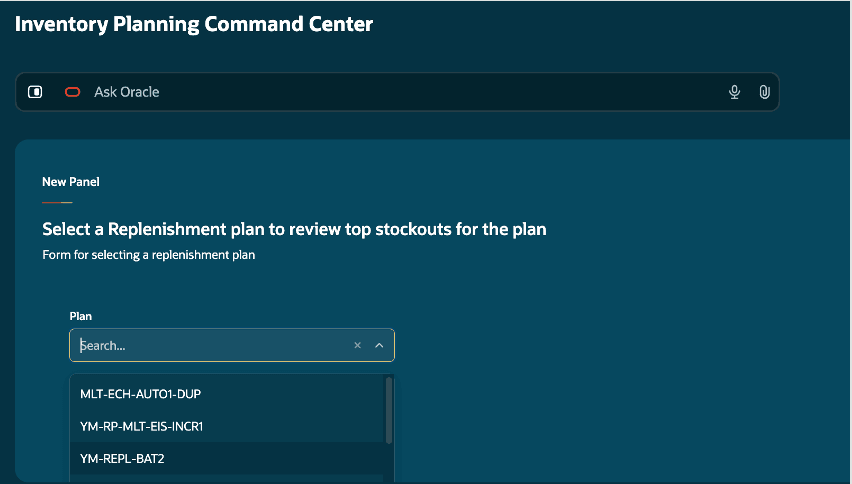
Plan List
By default, the Inventory Planning Command Center displays the top three item-location combinations in the plan with stockouts by the risk to the revenue.
If you want to work on specific segments or item-location combinations, you can enter prompts similar to the following in the search bar:
- Show me stockouts for item <item name> and location <location name>.
- List the top three stockouts for location <location name>.
- List the top three stockouts for segment <segment name>.
- Select the Review button in the Action column for an item-location combination for which you want to review and resolve the stockout.
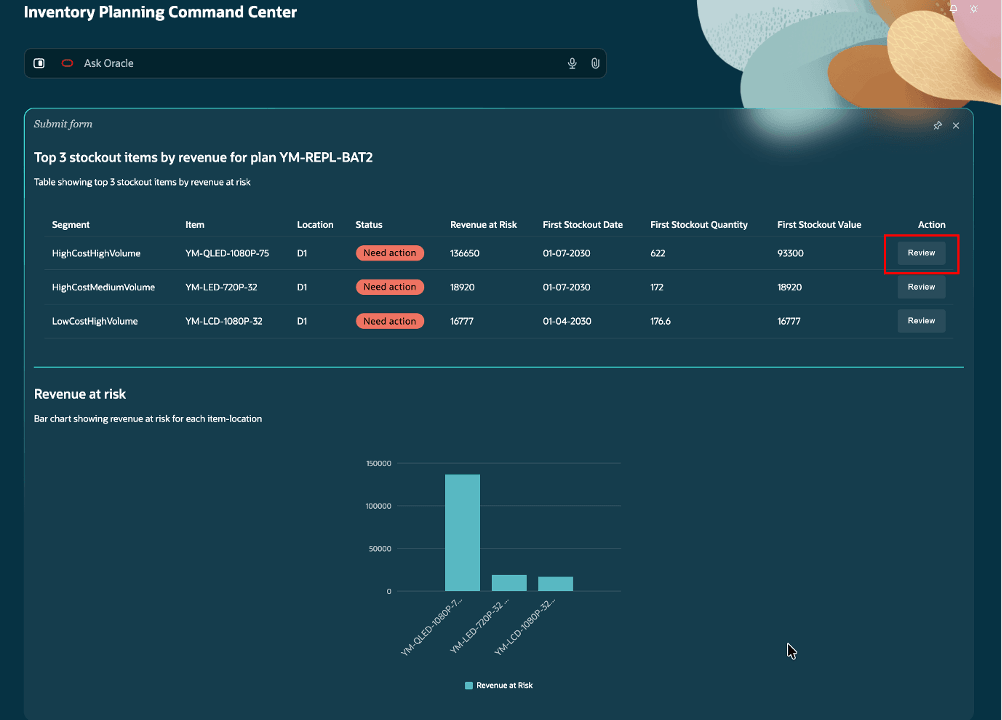
Review Button for Item-Location Combination with Stockout
The page for resolving stockouts will open.
The Inventory Planning Command Center analyzes the root causes of the stockouts and suggests remedial actions starting from the most imminent stockouts to the stockouts farthest out in the planning horizon. The recommendations are displayed and implemented in this order:
- Expedite Existing Orders: The Inventory Planning Command Center suggests rescheduling of the existing orders to resolve stockouts within the replenishment lead time. With this step, lead-time constraints may get violated.
- Create New Orders: If the stockouts within the replenishment lead time aren’t completely resolved even after existing orders are rescheduled, the Inventory Planning Command Center suggests creating orders to resolve the stockouts within the replenishment lead time.
- Change Inventory Replenishment Policies: If there are still stockouts within the planning horizon but outside the replenishment lead time, then the Inventory Planning Command Center will suggest increasing the policy-parameter values.
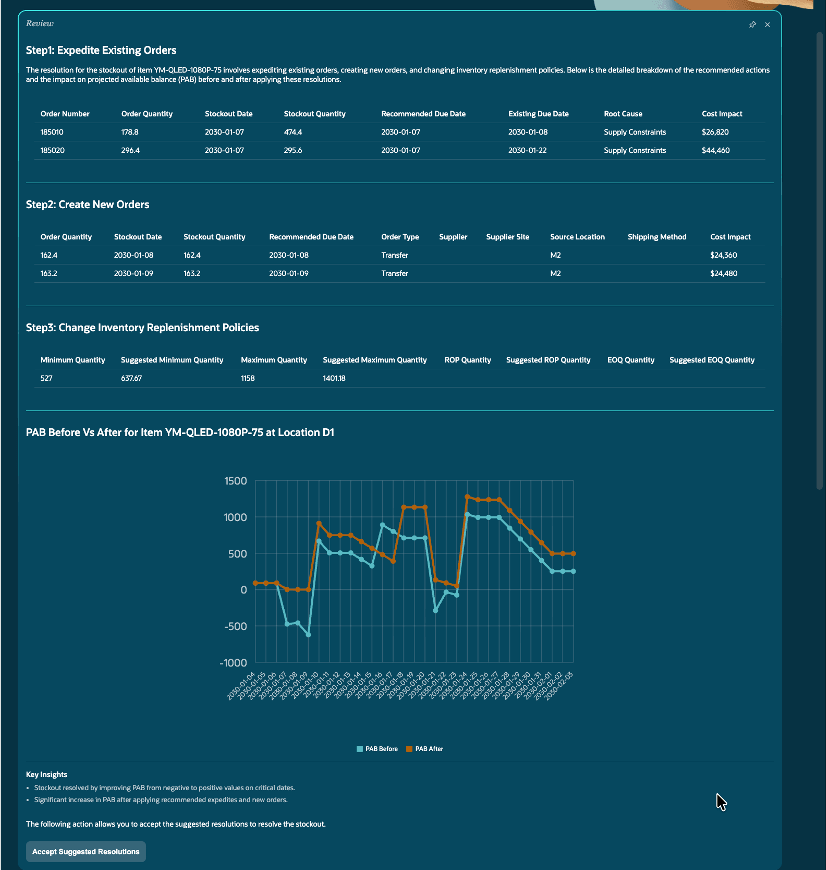
Recommendations by Inventory Planning Command Center
- To accept all the recommendations, select the Accept Suggested Resolutions button. A confirmation message will be displayed.

Confirmation Message for Accepted Resolutions
If you want to implement only a subset of the recommendations, you can enter prompts similar to the following in the search bar:
- Select/show/preview/implement the first two recommendations for expediting orders.
- Select all recommendations/suggestions/resolutions/options for expediting and creating orders.
- Select the option for changing inventory policies.
- Select all options but the create orders option.
- Select all options but the change inventory policies option.
After you enter your prompt, the page will be refreshed and show the impact of the implemented recommendations on the stockouts. Use the graph for the projected available balance (PAB) to view the impact of implementing these recommendations. If you are satisfied with the impact, select Accept Suggested Resolutions. The changes are saved, and a confirmation message will be displayed.
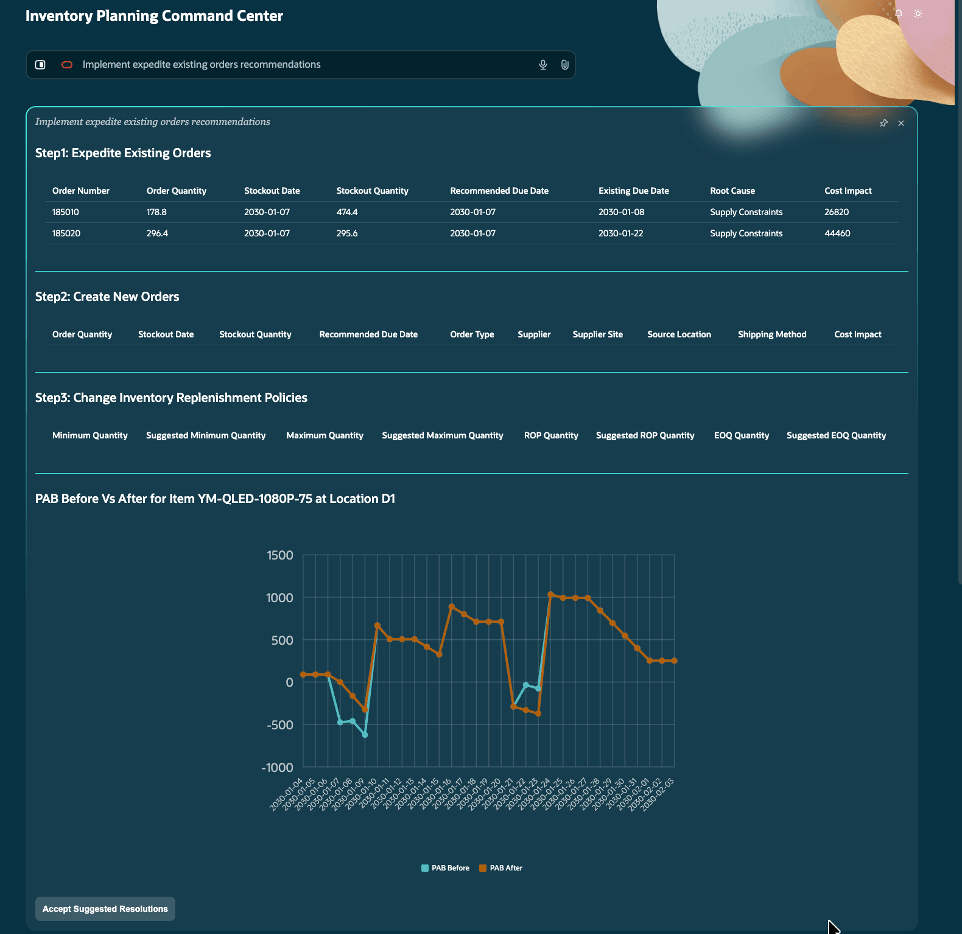
Prompt for Implementing Selected Resolutions
- In the Priority Action column, select Run Plan Now to run the replenishment plan in the simulation mode.
You can also run the replenishment plan in the simulation mode after implementing the suggested resolutions for a few more item-location combinations.
- After the simulation run, open the Supplies and Demands table within the replenishment plan, and release the planned orders for the recommendations to resolve the stockouts for the item-location combination.
- Follow the previous steps to resolve the stockouts for the next item-location combination.
Steps to enable and configure
You don't need to do anything to enable this feature.
Tips and considerations
- Revenue at risk for an item-location combination is calculated with the use of the selling price or standard cost if the selling price isn’t available. Ensure that you specify these values for your item-location combinations using the Items table.
- The recommendations made by the Inventory Planning Command Center don’t respect lead-time constraints and supply constraints at upstream locations. Please review the recommendations carefully before accepting and implementing them.
- The Inventory Planning Command Center uses AI and a large language model (LLM). Therefore, the recommendations can be wrong and should be accepted with caution.
Key resources
- Access Requirements for AI Agent Studio
- How can I give users access to AI agents?
- Create AI Agents Using Preconfigured Templates
- How do I use AI Agent Studio?
Access requirements
To access the Oracle AI Agent Studio for Fusion Applications and manage SCM AI agents, users must be assigned a configured job role that contains these duty roles:
- SCM Intelligent Agent Management Duty (ORA_RCS_SCM_AI_AGENT_MANAGEMENT_DUTY)
- SCM Intelligent Agent Management Duty (ORA_RCS_SCM_AI_AGENT_MANAGEMENT_DUTY_HCM)
- Fai Genai Agent SCM Administrator Duty (ORA_DR_FAI_GENERATIVE_AI_AGENT_SCM_ADMINISTRATOR_DUTY)
To interact with AI agents in product pages, users must be assigned a configured job role that contains this duty role:
- Fai Genai Agent Runtime Duty (ORA_DR_FAI_GENERATIVE_AI_AGENT_RUNTIME_DUTY)
Users who are assigned a configured job role that contains the following duty role can access this feature:
- Inventory Planning Command Center Workflow (ORA_MSC_INVENTORY_PLANNING_COMMAND_CENTER_WORKFLOW_DUTY)
This duty role is inherited by the Replenishment Planner job role.
In the Security Console, filter by Roles and Permission Groups to find these duty roles.
To allow users to interact with agents, you must also enable permission groups in the Security Console on those users' configured job roles that contain the Fai Genai Agent Runtime Duty role. You can enable permission groups when you manage the basic information of your configured job roles.
Users' configured job roles must also contain privileges that allow access to the pages where AI agents are enabled.
See Access Requirements for AI Agent Studio (for administrators) and How can I give users access to AI agents (for end-users) for more information.