Redwood: Perform Additional Actions on Asset Details
Streamline asset creation and asset updates with the enhanced Asset Information Management page. You can create an asset by copying an existing asset or splitting an existing nonserialized asset. You can also convert a customer asset to an enterprise asset or, conversely, an enterprise asset to a customer asset. Advanced search capabilities are also available for customer assets.
Create an asset by copying an existing asset
The following screenshot of the Asset Information Management search page shows the Copy button that can be used to copy an existing asset to create a new enterprise or customer asset.
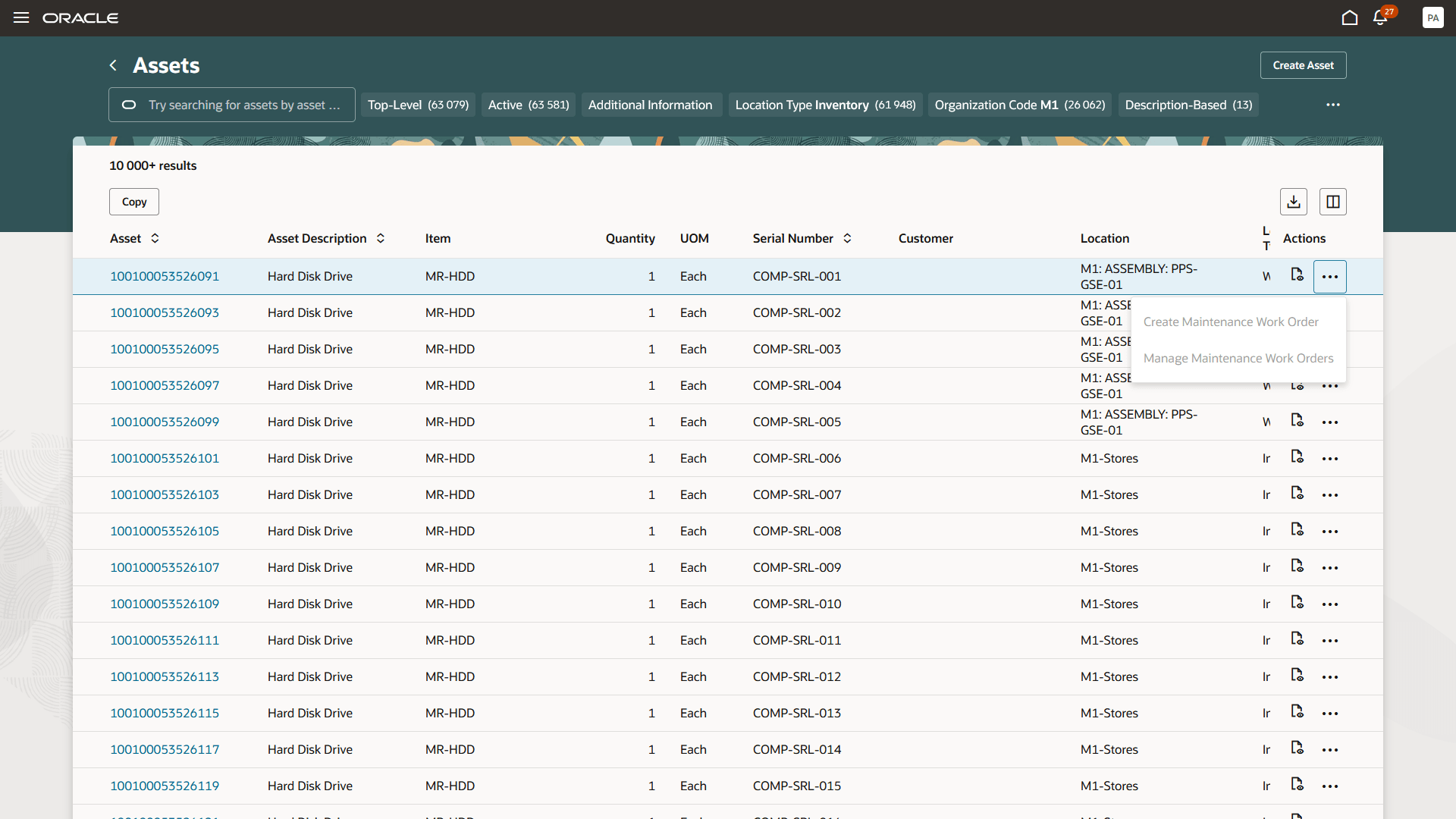
Copy existing asset
The following screenshot shows the Duplicate asset drawer, where you can copy any meters, parts lists, asset groups, attachments, and images from the existing asset to the new asset.
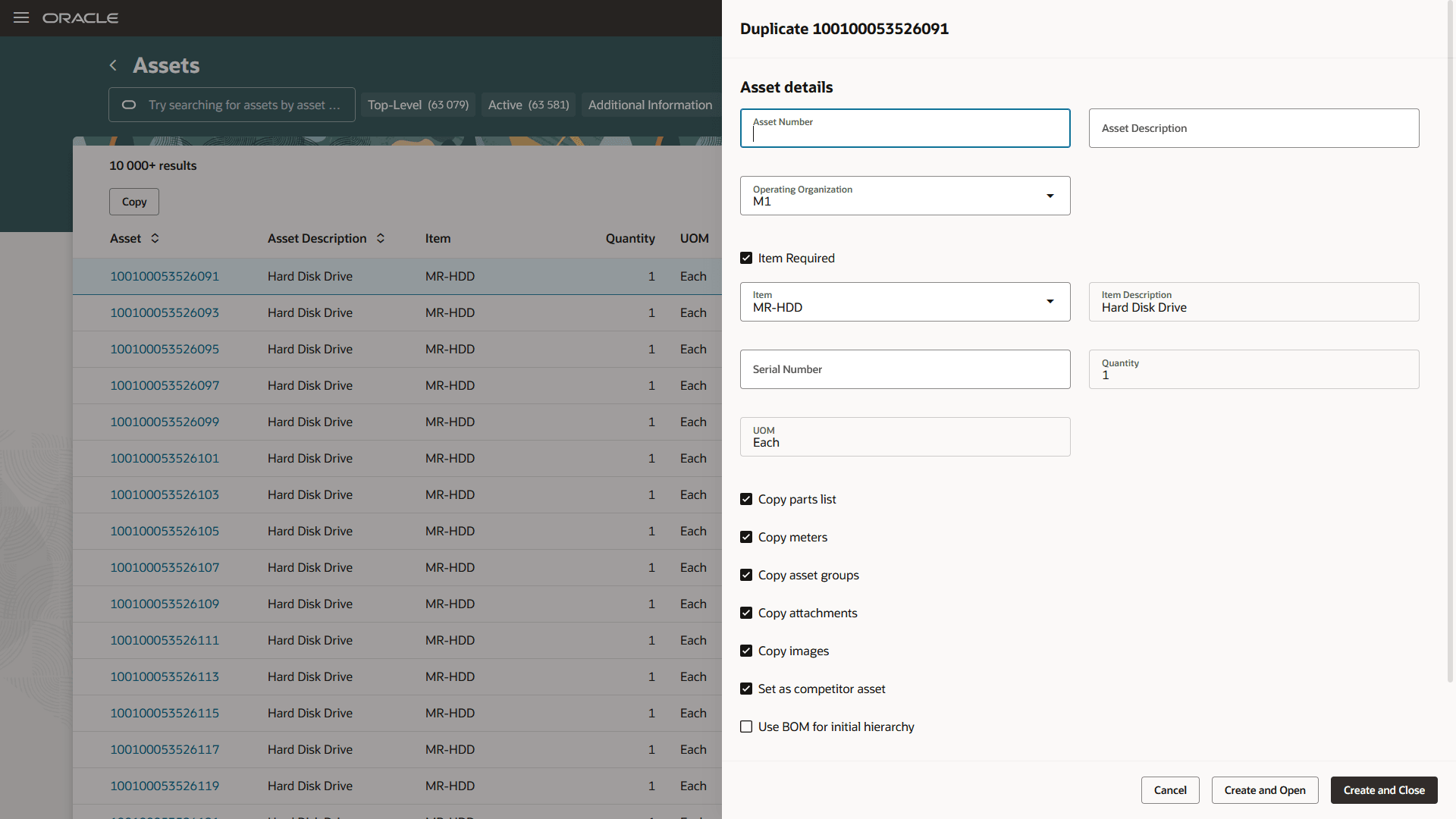
Asset copy details
Split nonserialized assets
You can now split nonserialized assets into one or more nonserialized assets.
The following screenshot shows how to split a nonserialized asset using the Asset Information asset details page. Use the Split Asset action from the Actions menu on the asset header to open the Split asset drawer.
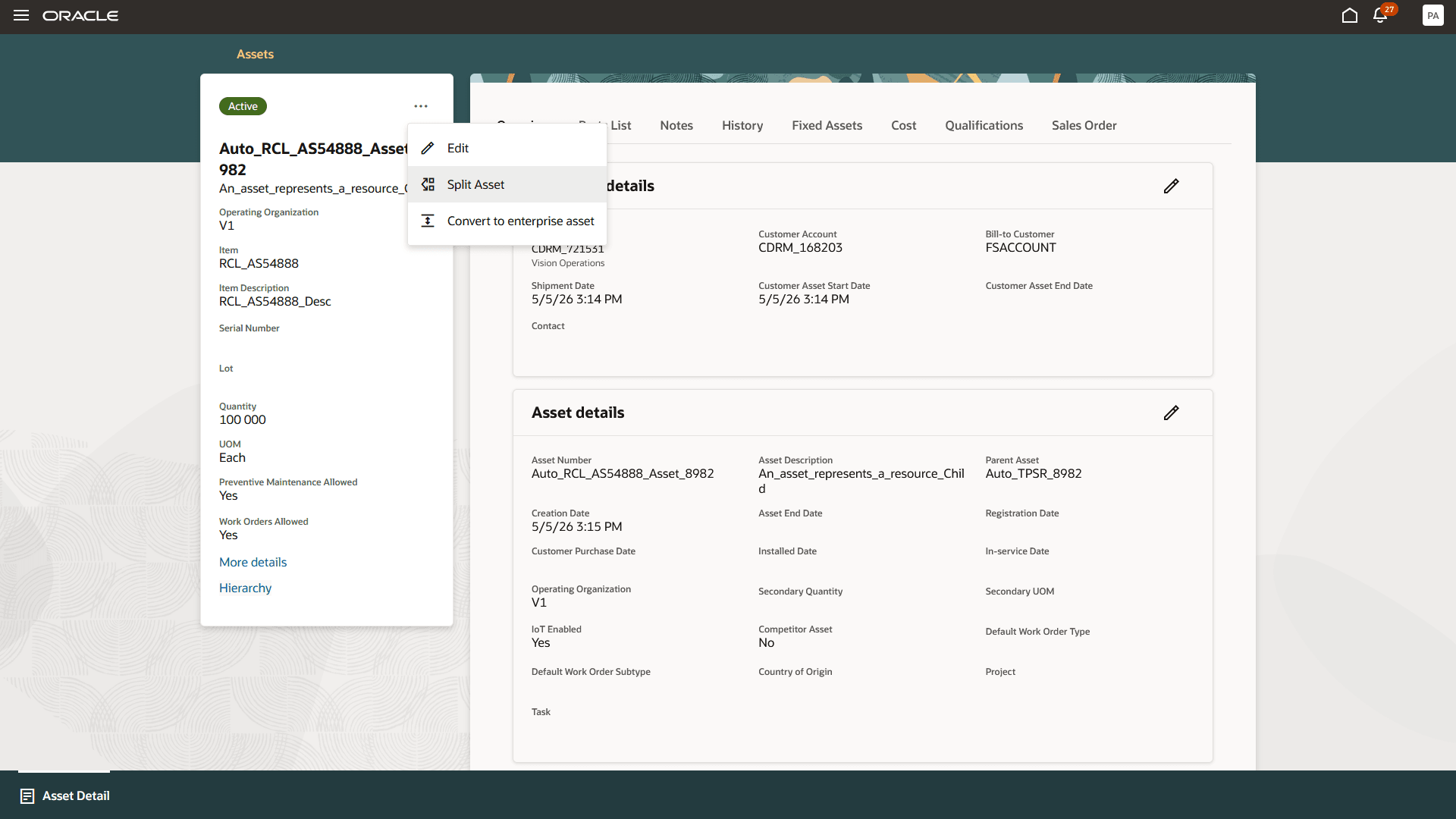
Split nonserialized assets
The following screenshots show the Split asset drawer, where you can use the Add icon to add a split asset. Then, select whether to split a partial quantity or split all. When splitting a partial quantity of the nonserialized asset, enter values for the Split Asset Quantity, Asset Prefix, and Starting Number fields for the new assets. When splitting all of the nonserialized asset, enter values for the Asset Prefix and fields for the new assets.
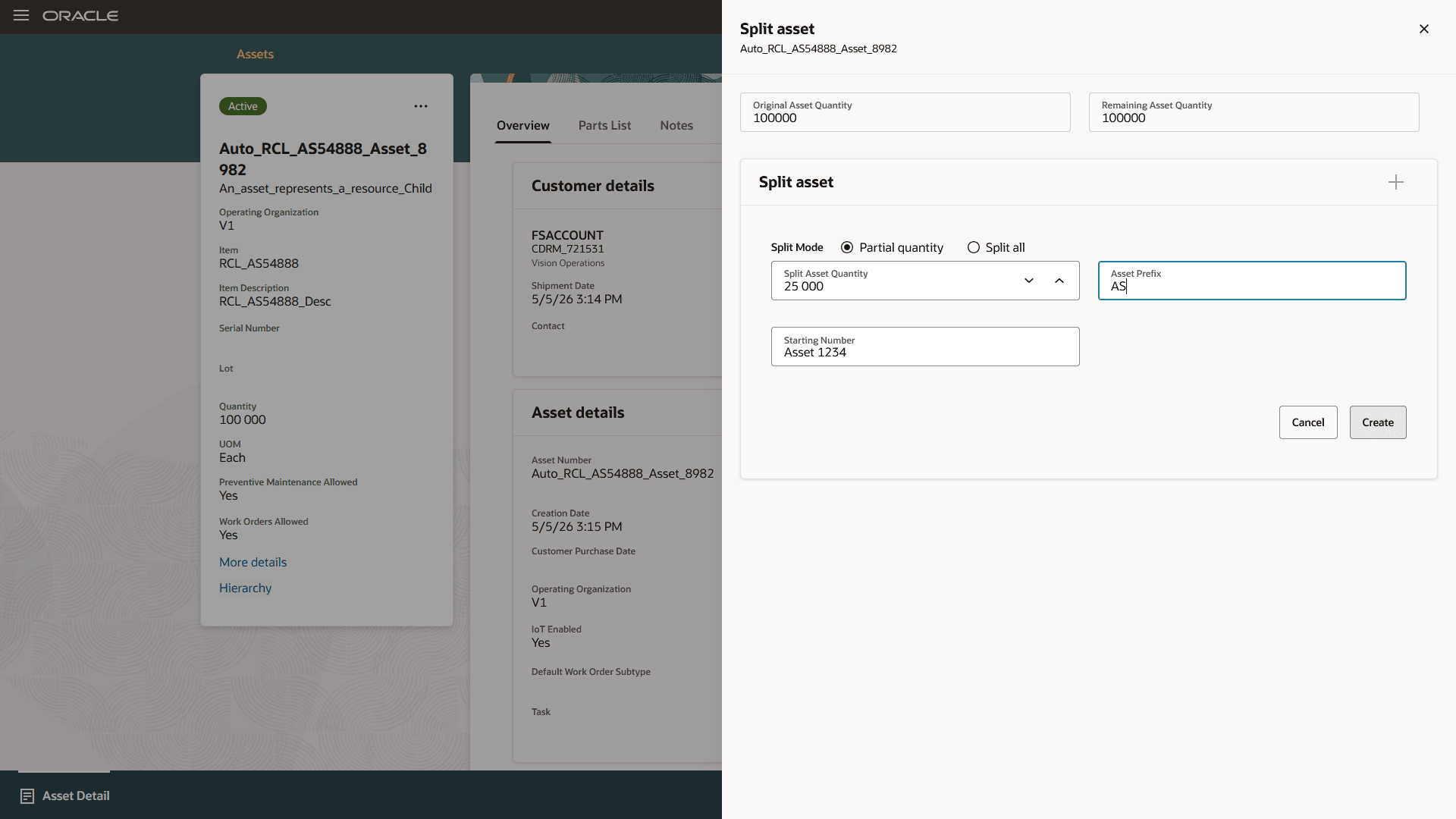
Split nonserialized assets - Partial quantity
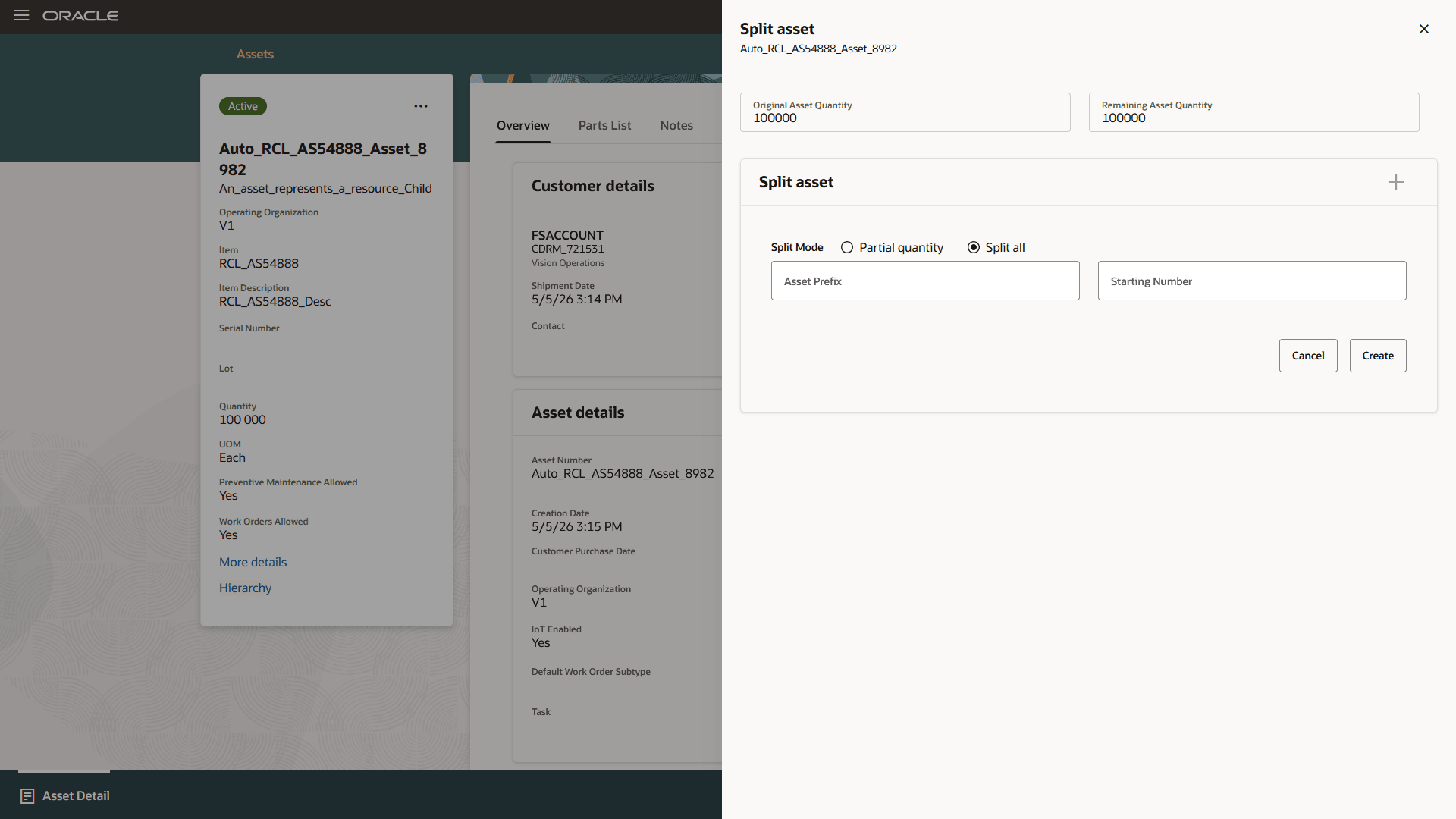
Split nonserialized assets - Split all
Convert assets
You can also convert a customer asset to an enterprise asset or, conversely, an enterprise asset to a customer asset.
You can convert an asset on the Asset Information asset details page. Use the Convert to Enterprise Asset or the Convert to Customer Asset action from the Actions menu on the asset header.
The following screenshots show how you can convert a customer asset to an enterprise asset.
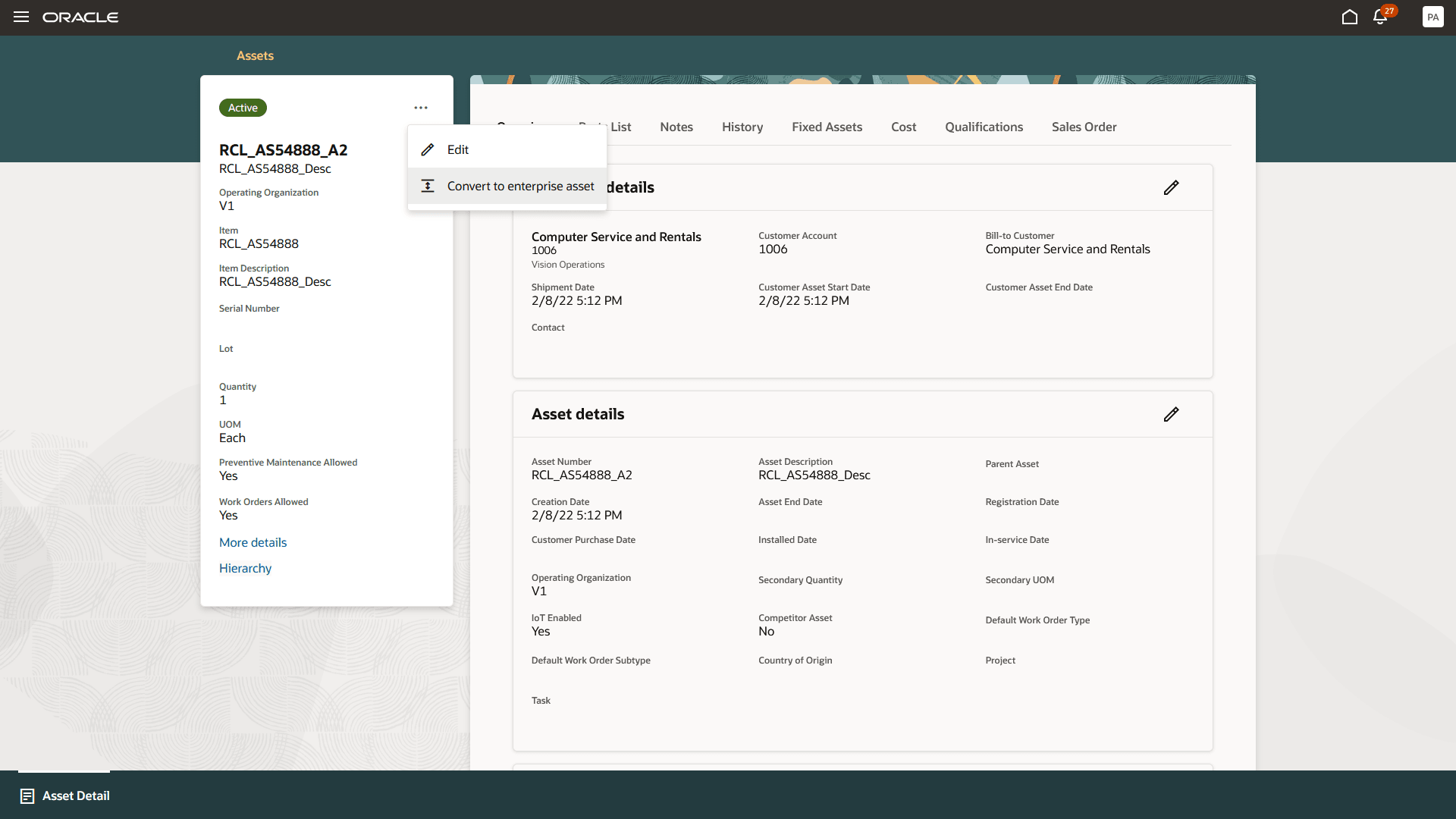
Convert customer asset to enterprise asset
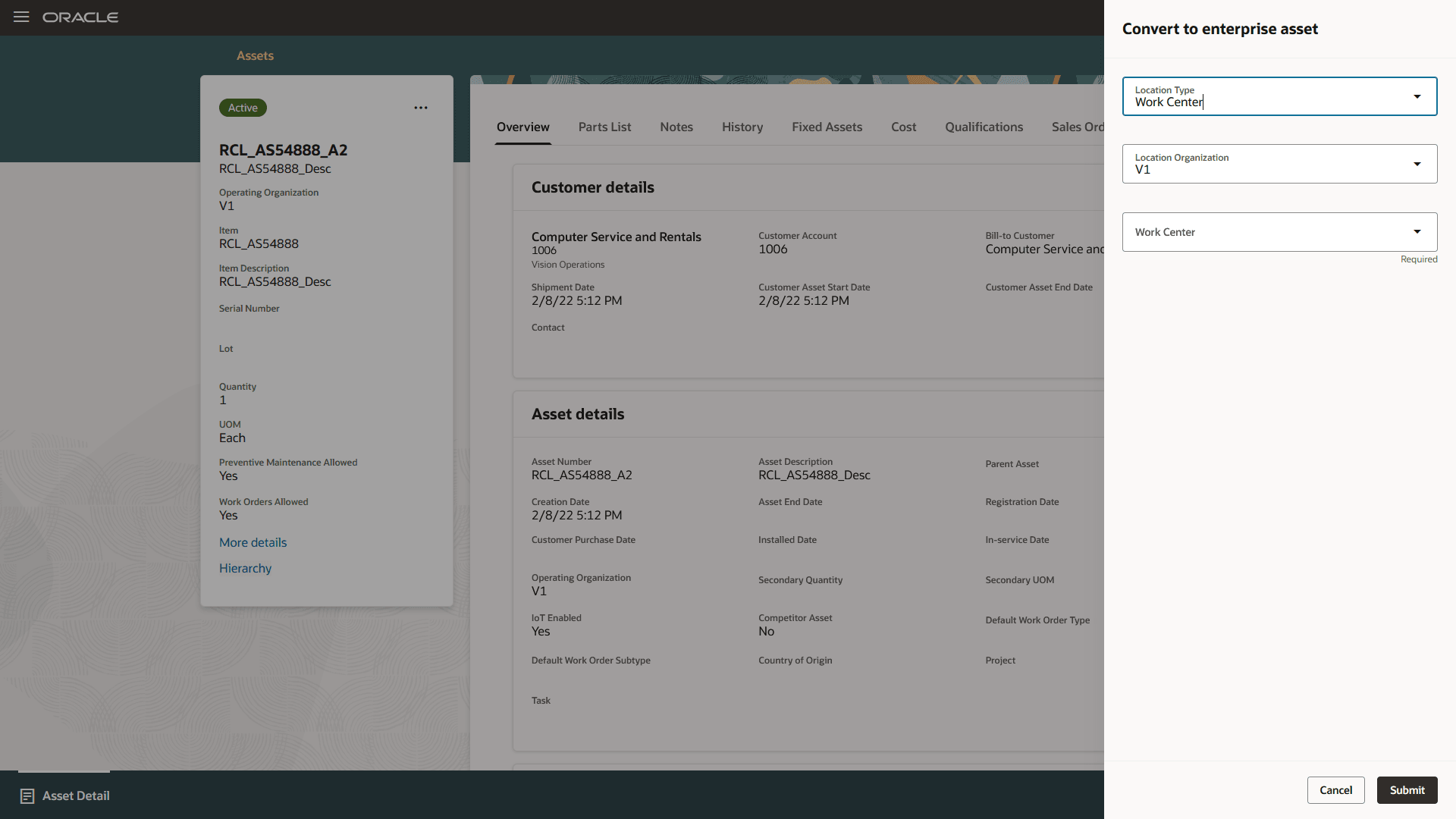
Convert customer asset to enterprise asset - details
The following screenshots show how you can convert an enterprise asset to a customer asset.
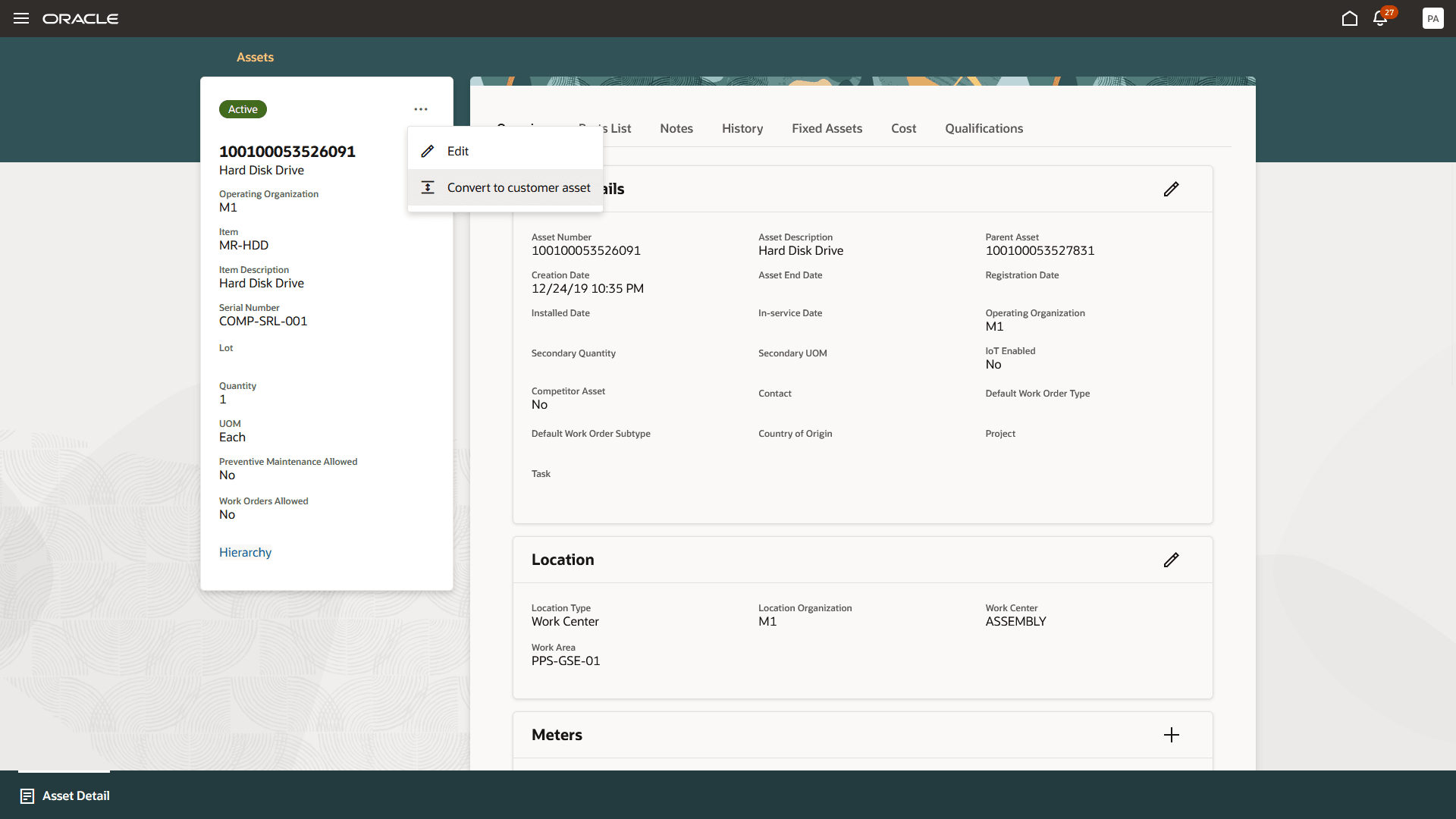
Convert enterprise asset to customer asset
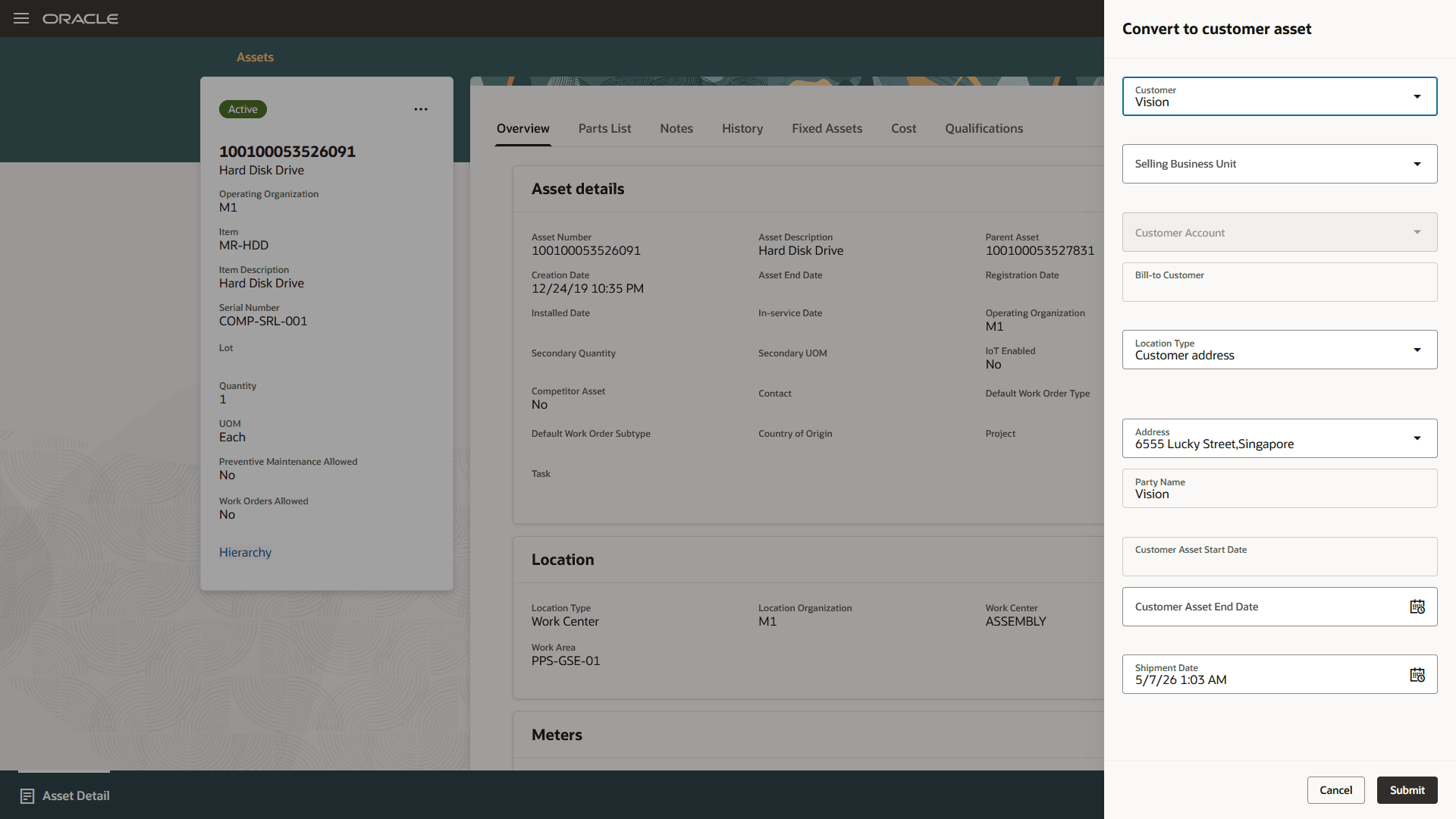
Convert enterprise asset to customer asset - details
Advanced search for customer assets
Use advanced search capabilities for the Customer Account and Address fields when creating a new customer asset, copying an existing customer asset to create a new customer asset, and updating customer details on an existing customer asset.
You can enter a partial value in either field and open More search options to launch a dedicated search page, select a search result, and add it back to the asset, as shown in the following screenshots. The selected customer account updates the Customer Account field and defaults the Bill-to Customer field, while the selected customer address updates the location details for the asset.
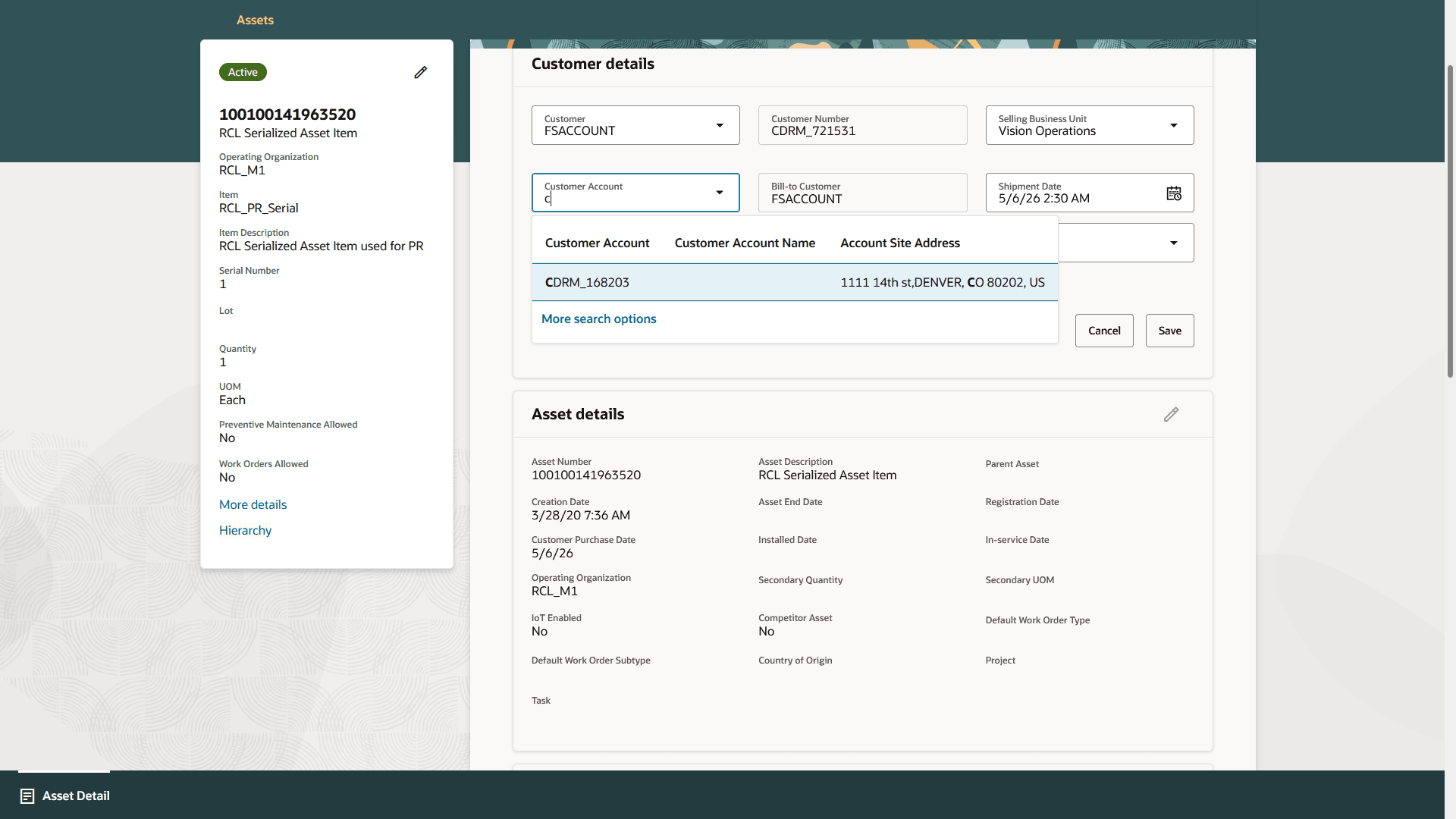
Advanced search customer account - More search options
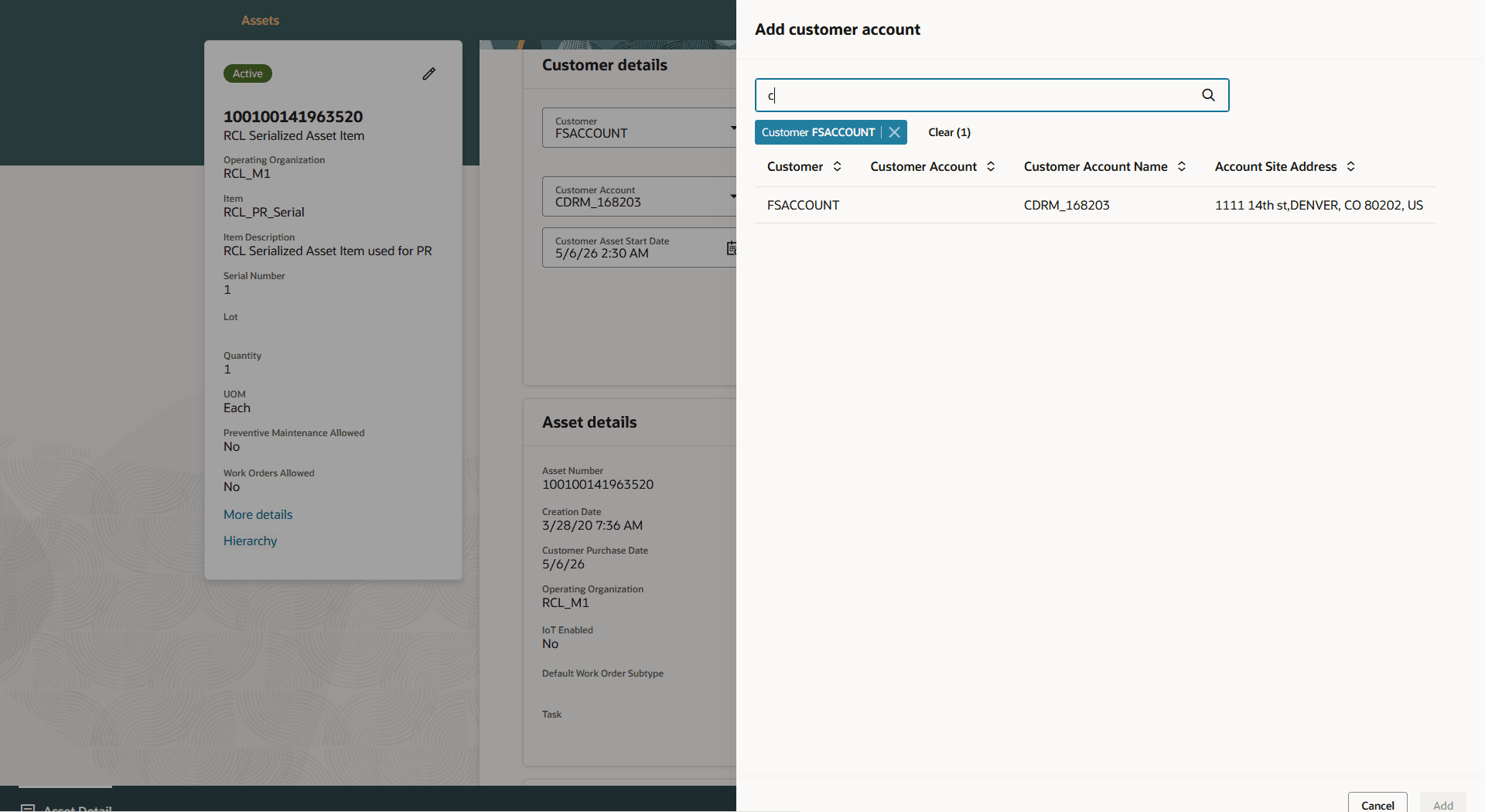
Advanced search - customer
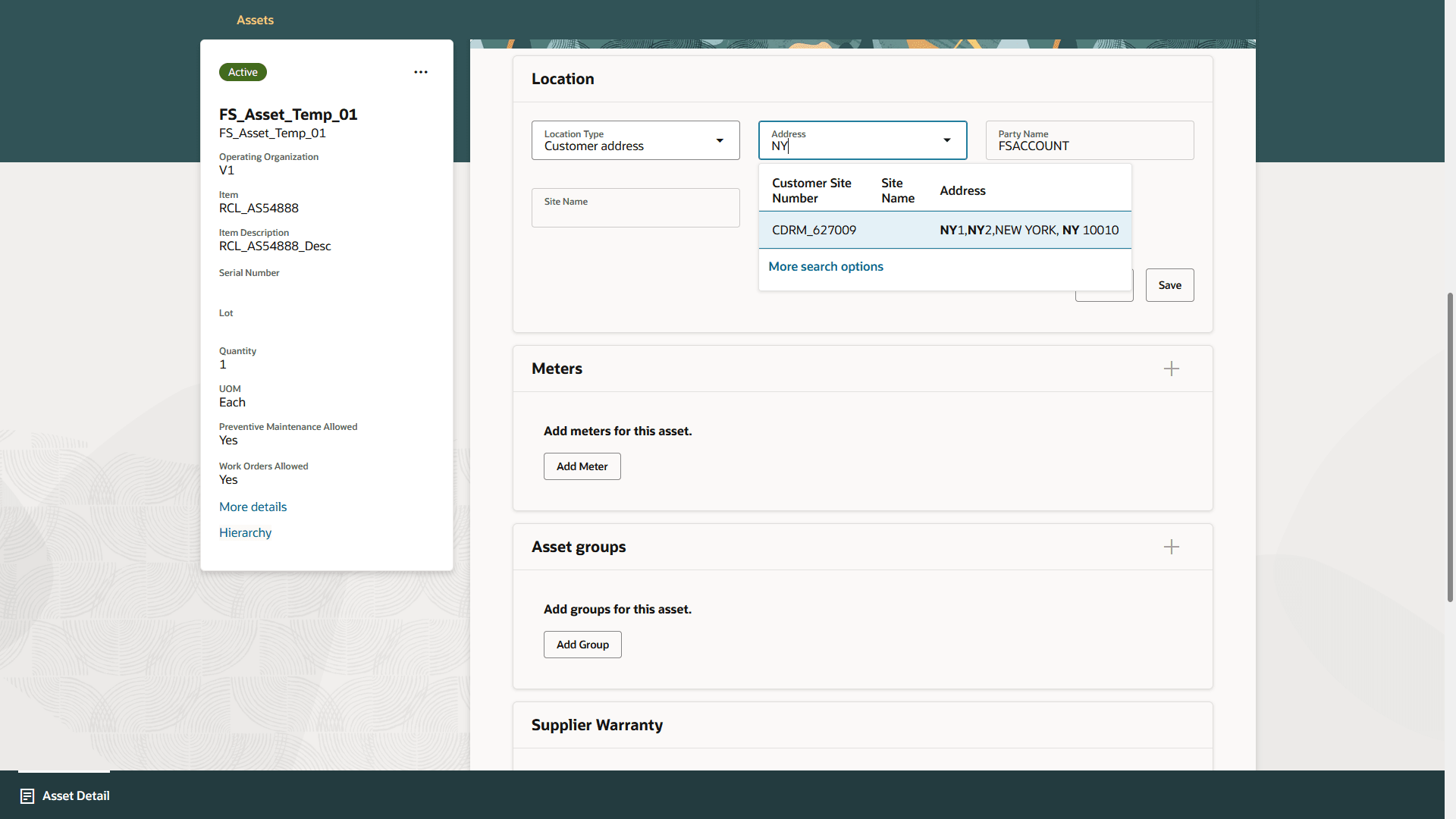
Advanced search customer address - More search options
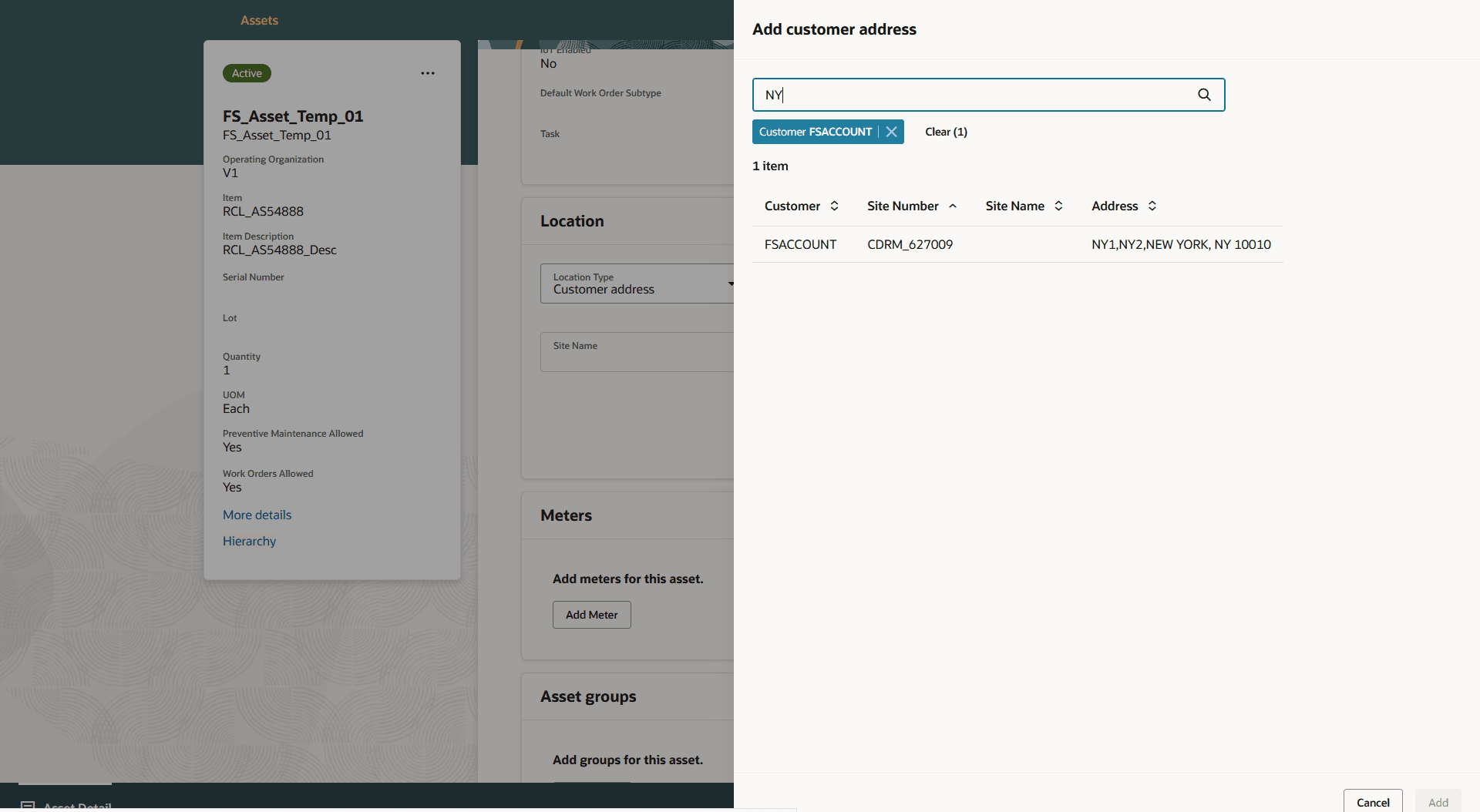
Advanced search - customer address
The enhanced Redwood page streamlines asset management by reducing manual effort, improving operational efficiency, and increasing data accuracy.
Steps to enable and configure
To enable this feature:
- Opt In - Use Smart Search to Search For and View Assets in the New Assets UI - enabled
Note: This Opt In will be obsolete in a future release.
-
Dev Profile - Enable Asset Details Redwood UI (ORA_MNT_ASSET_DETAILS_REDWOOD_ENABLED) - set to Yes
Notes:
-
Enabling this Dev profile disables the Manage Assets and Edit Asset pages and directs users to the new Asset Information Management Redwood page for viewing and editing asset details
-
To use Asset Information Management Smart Search:
-
Enable the Oracle Search Extension Framework to create indexes, ingest predefined indexes, and manage search capabilities.
-
Routinely run the scheduled process to run Bulk ingest to OSCS process to ingest asset updates from Manufacturing, Receiving, Inventory, Order Management, and FBDI.
-
Refer to Implementing Manufacturing and Supply Chain Materials Management for further details.
-
If the Asset Information Management Redwood UI doesn't launch after setting the above Dev profile, do this:
- Go to Tasks and select Search.
- Enter Manage Profile Categories in the Search field, click Search, and then select the Manage Profile Categories link.
- In the Search Results region of the Manage Profile Categories page, click the Add icon.
- Search for the ORA_FND_AUTH_REST_ACCESS category code.
- In the ORA_FND_AUTH_REST_ACCESS profile options, select Add.
- Enter Profile Name: Enable Asset Details Redwood UI and then, save and close the page.
Tips and considerations
When creating a new asset by copying an existing asset:
- Fixed assets, notes, DFFs, serial number, lot number, default maintenance work order type, default maintenance work order subtype, contact, and asset end date aren't copied from the source asset to the new asset.
- Copy options for meters, parts lists, asset groups, attachments, and images are shown only when the source asset contains those details.
- When an inventory asset is copied, location details aren't copied from the source asset to the new asset.
- When the source asset has meters, the Copy meters option is selected by default.
When converting an asset:
- When converting a customer asset to an enterprise asset, location type is required and only external address, internal address, unknown and work center values are available.
- When converting an enterprise asset to a customer asset, customer, selling business unit, customer account, location, and shipment date are required.
- When converting an enterprise asset to a customer asset, location type shows customer address and is view-only on the conversion page.
- When converting an enterprise asset to a customer asset, shipment date defaults to the current date.
The following functionality isn't available in this release:
- Apps Composer support for the Asset Information Management UI
- Currently, Apps Composer is only enabled for the Visual Builder tool.
Access requirements
Users who are assigned a configured job role that contains this privilege can access this feature:
ORA_MNT_ASSET_DETAILS_REDWOOD_ENABLED