Redwood: Asset Picker to Add Assets to be Covered
Use this feature to quickly add assets to a parent transaction in one step. Now users can search and filter from a list of available assets and refine the list, select or deselect multiple assets, and then review and apply selected assets.This experience replaces the lengthy and time consuming process of adding assets one at a time with a list of values.
Get these benefits
- Extensive support for common interaction states, including canceling without changes, handling no-result and large-result scenarios, preventing or handling duplicates, and validating selected assets when users confirm their choices.
- Finish asset association workflows faster, with fewer repetitive actions and fewer missed, duplicate, or incorrect selections.
- Improved usability for high-volume asset additions.
- Greater scalable selection pattern.
- Reduced rework effort, support effort, and downstream subscription, billing, renewal, and entitlement issues caused by fragmented or incorrect asset associations.
How it works
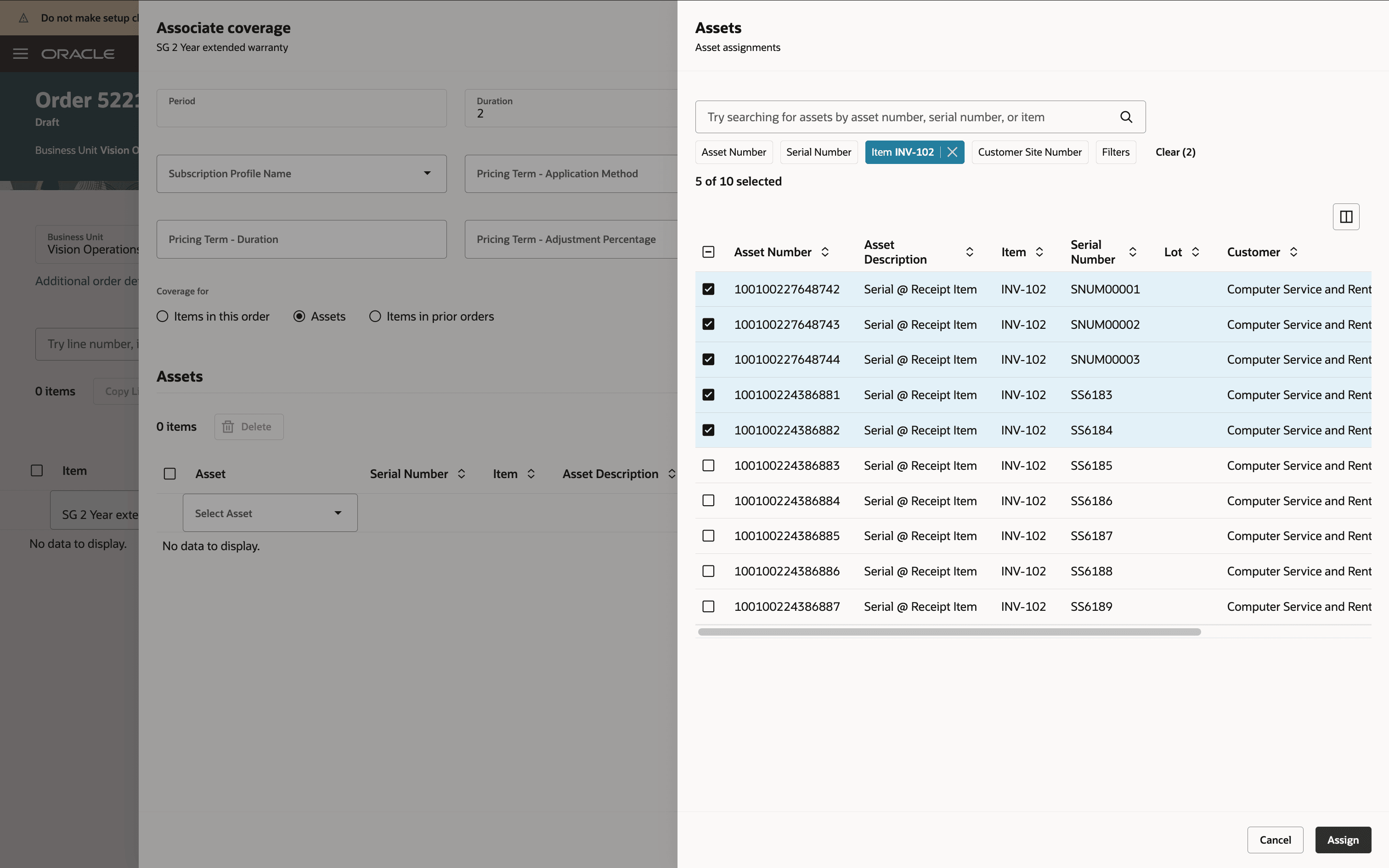
Here's the asset picker drawer and an example showing selected available assets. Once you've selected your assets, simply click Assign and the selected assets are included in the coverage.
Steps to enable and configure
Use the Opt In UI to enable this feature. For instructions, refer to the Optional Uptake of New Features section of this document.
Offering: Sales
You must also opt in to these features:
- Order Management > Order Management > Redwood: Create and Manage Sales Orders
- Sales > Subscriptions > Integrate Order Management with Subscription Management
- Integrate Order Management with Subscription Management to Process Subscriptions
- Integrate Order Management with Subscription Management to Process Coverages
Key resources
- How You Use Smart Search to Search For and View Assets in the New Assets UI
- Set Up Coverages and Subscriptions for Sales Orders
Access requirements
Users who are assigned a configured job role that contains these privileges can access this feature in the Order Management work area:
- Initiate Order (FOM_CREATE_ORDER_PRIV)
- Revise Order (FOM_REVISE_ORDER_PRIV)
- Monitor Sales Order (DOO_MONITOR_SALES_ORDER_PRIV)
- Update Order Pricing Details (FOM_UPDATE_PRICING_DETAILS_PRIV)
- View Customer Assets (CSI_VIEW_CUSTOMER_ASSETS_PRIV)